Myriad v6.9 introduced direct Promo Only import integration within the Media Import Wizard.
To import Tracks from your Promo Only Online (POOL) subscription using Myriad v6.9 or higher see - Browse & Import Songs From Your Promo Only (POOL) Subscription
For Myriad 5 customers or for customers needing to import from the POOL back categlogue, the documentation below is still valid.
TABLE OF CONTENTS
- Importing New Release Tracks
- Importing Back Catalogue Packages
- Importing Tracks from I Like Music (ILM) via POOL
Promo Only is a leading music subscription service that provides a curated feed of new release music from many popular genres, as well as extensive back catalogue options, including a link to the complete I Like Music library. A vast offering of purchases to compliment your music library.
Broadcast Radio are not affiliated with Promo Only so you will need a separate subscription to access Promo Only services, or you can buy individual products.
Promo Only operate across Europe, USA and Canada. For more details visit:
https://promoonly.uk/ for UK & Europe (excluding Germany)
https://promoonly.com/ for USA
https://www.promoonly.ca/ for Canada
This article is for guidance only, the Promo Only portal may change from time to time.
Please note that Promo Only refer to individual versions of songs as Tracks, which is the terminology we have used in this guide. These Tracks will be imported as Songs into Myriad Playout or Myriad Cloud.
Importing New Release Tracks
Myriad v6.9 introduced direct Promo Only import integration within the Media Import Wizard.
To import Tracks from your Promo Only Online (POOL) subscription using Myriad v6.9 or higher see - Browse & Import Songs From Your Promo Only (POOL) Subscription (Myriad 6)
Importing Back Catalogue Packages
In addition to a new release service, Promo Only offers a wide range of back catalogue collections to allow you to build a new Media Library from scratch or fill gaps in your existing library.
The catch is that these are only available as music video compilations, so to import them into Myriad Playout, we must introduce a conversion step to convert them from music videos to standard audio files.
The packages are arranged into collections such as:
- Best of the 80’s
- Best of the 90’s
- Best of Classic Rock
- Best of Love Songs
To browse the available collections visit - https://promoonly.uk/products/hot-video-classics
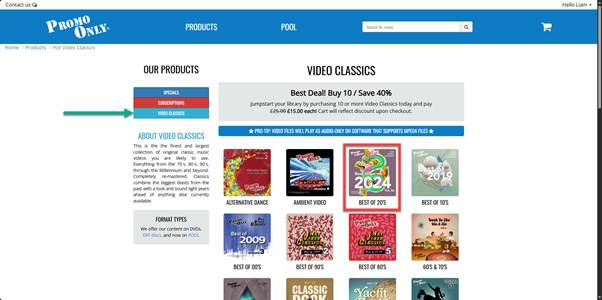
Click on a collection to see the available compilations.
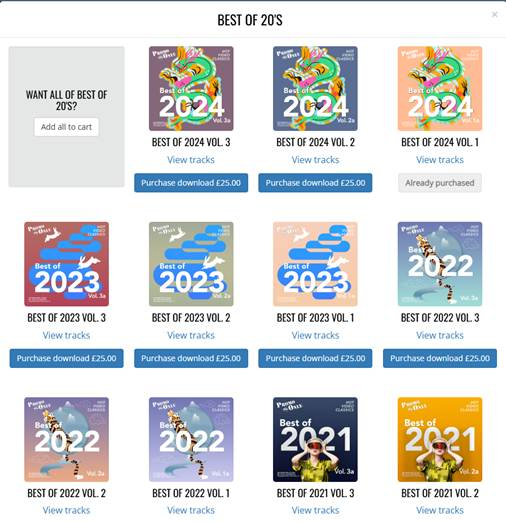
You can view the track list for each compilation. Select the ones you want and click on Purchase Download. Promo Only offer large discounts when you purchase multiple packages, and in their weekly Specials sales.
Once you have completed your purchase, your selected packages will be available to download from the Promo Only portal (called POOL).
To access, download, convert and import the Tracks, follow these steps:
- Visit https://promoonly.uk/ and use your Username & Password to login.
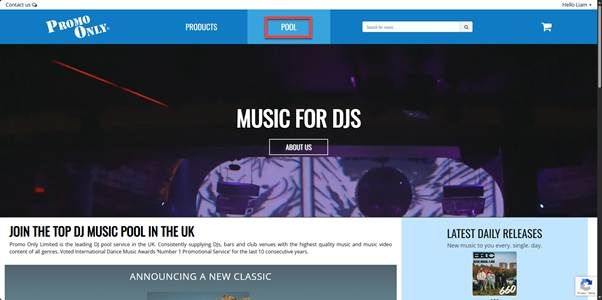
- Click on the POOL menu option. This will open the POOL which you can use to browse, preview and download content.
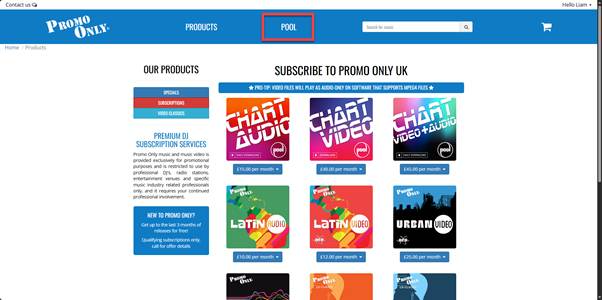
- Click on the Specialities tab.
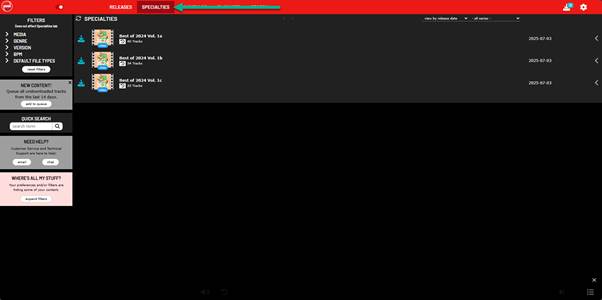
- Click on a compilation to view the contents.
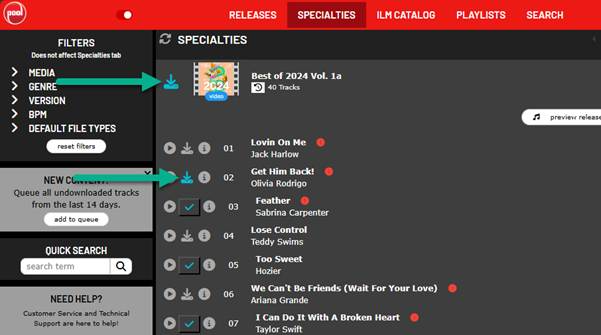
- Click on the Download icon to the left of the Compilation Art to download all of the videos included, or click on the Download icon by the Track name button to download individual Tracks.
- The video files will be downloaded to your default downloads folder.
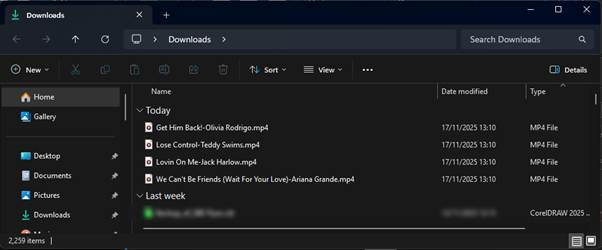
- These are MP4 video files which cannot be imported by Myriad Playout, so we will need to convert them using a free tool called VLC.
- Open the Microsoft Store on your PC and search for VLC.
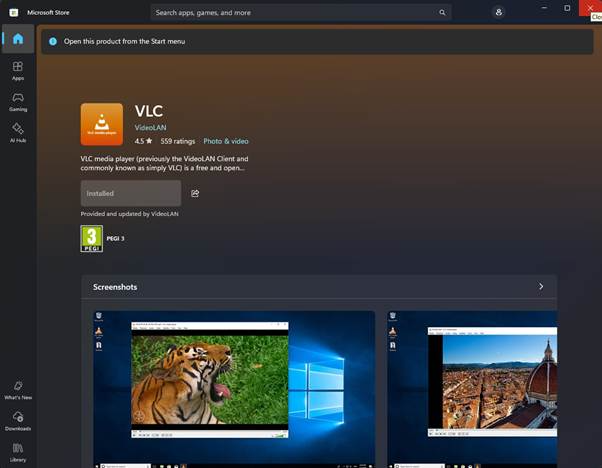 You can also download directly from the VLC website - https://www.videolan.org/?1
 - Follow the on-screen instructions to install VLC.
- Once VLC is installed, launch the application.
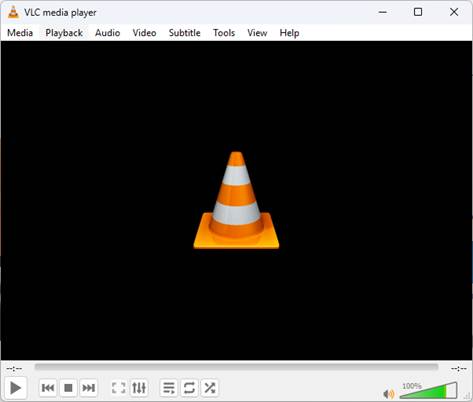
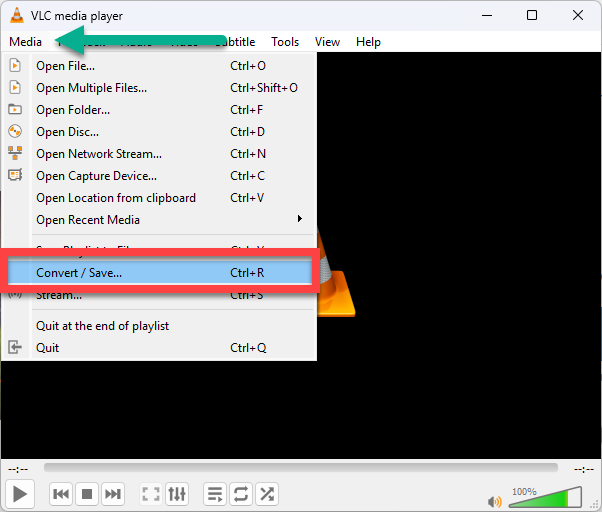
- Click on the Media Menu and select the Convert / Save option.
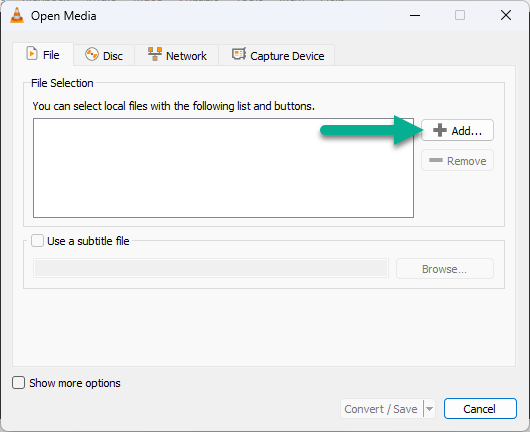
- Click on the Add button and select the video files you want to convert.
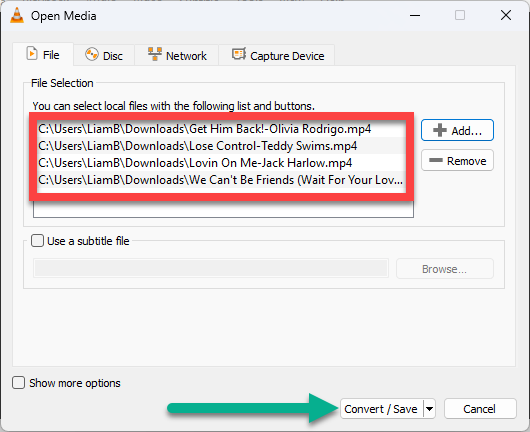
- Once you have selected all the files you want to convert, click on the Convert / Save button.
- In the Settings section, use the Profile drop down list to select Audio – CD. This will set the output format to uncompressed WAV files.
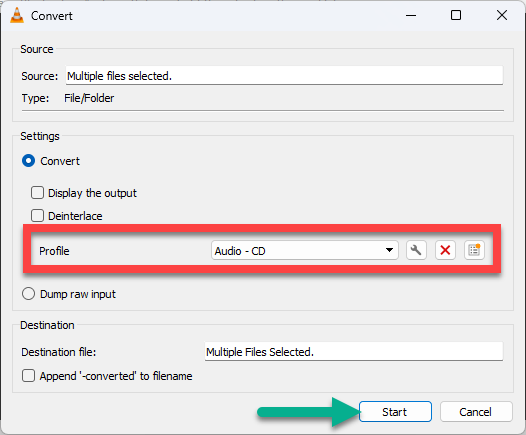
- Click the Start button. VLC will convert the video files into audio files.
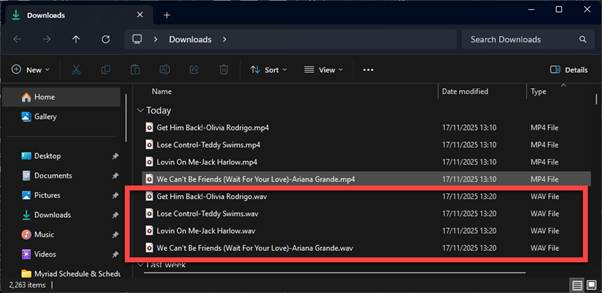
- You can now drag the converted audio files onto the Media Wall to import them.
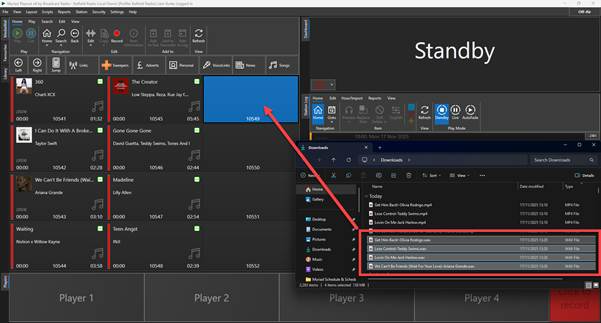
- Song Title and Artist will be extracted from the filename.
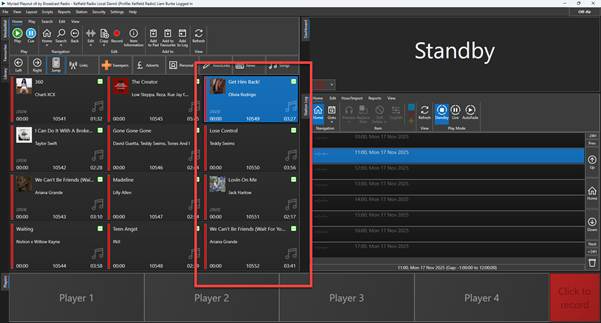
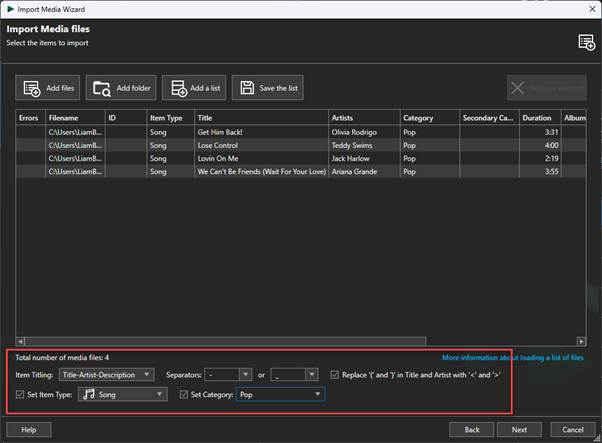
- Alternatively, you can use the Import Wizard (from right click menu) if you want a bit more control over the import process.
Importing Tracks from I Like Music (ILM) via POOL
If the Tracks you are looking for are not included in any of the Promo Only back catalogue collections, you can also purchase individual Tracks from the ILM library via the same POOL portal where you receive and manage Promo Only new releases.
Top tip: Existing ILM customers can merge their ILM account and remaining credits by using the same email address when they set up their Promo Only account. And in POOL they can buy ILM tracks as WAV or MP3.
- Log into your Promo Only account and click on the POOL tab, (or click on the red POOL icon on your desktop if you are using the desktop app).
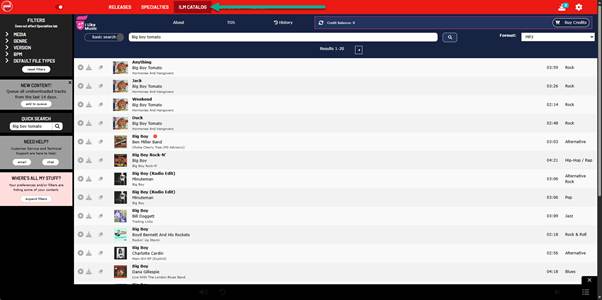
- Click on the ILM Catalogue tab.
- Search for the track you want.
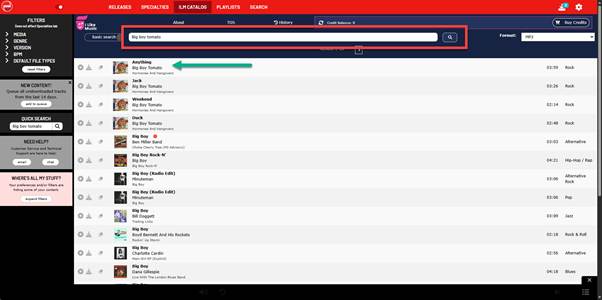
- Click on the Download button to download the Track.
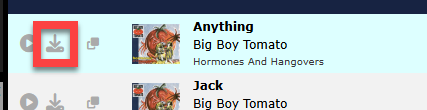 The Song will be downloaded to your default Downloads location.
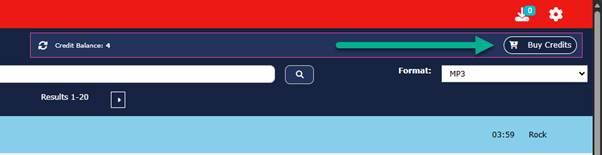
- Your credit balance will be reduced accordingly. You can purchase additional credits by clicking on the Buy Credits button.
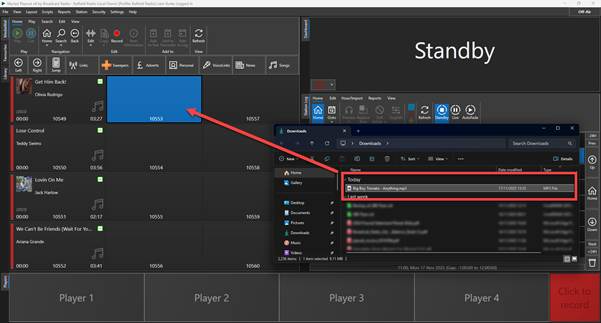
- Drag the file directly on to the Media Wall or use the Import Wizard to import it.
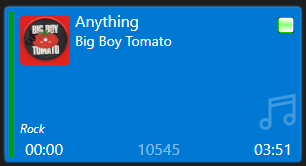
- The Track is now ready to play.
For more information on the Promo Only music subscription services visit - https://promoonly.uk/contact
Be sure to let them know where you heard about them!
Was this article helpful?
That’s Great!
Thank you for your feedback
Sorry! We couldn't be helpful
Thank you for your feedback
Feedback sent
We appreciate your effort and will try to fix the article