Introduction
We occasionally handle tickets where Myriad, in automation mode, is behaving oddly. For example:
- AutoFade making "odd" timing decisions as the end of the hour approaches - for example, dropping the final song in an hour, and adding in another song that is Auto Trimmed very early
- A Media Player stalls and an item gets ejected mid-way through playout
These issues generally have a common cause - the system time is incorrect and not being synchronised properly.
How PCs keep time
This can differ on physical PCs and virtual machines.
Computers tend to have a physical chip on the motherboard which is, effectively, a real time clock. This clock is powered by the "CMOS" battery on the motherboard - a small watch-style battery. These batteries are consumables (i.e. not rechargeable) - and tend to last 5 - 7 years before they begin to run flat.
From the factory, these chips are calibrated to keep the operating system's clock in good sync. Where working correctly - a PC may lose (or gain) less than a second every month. This is known as clock "drift".
To account for clock drift, Windows (and other operating systems) have a Network Time Synchronisation tool. In Windows 10 and above, this tool is built into Windows, and - by default, runs every few hours.
When the time is synchronised, the system clock suddenly jumps backwards or forwards by (ideally) a few milliseconds. This is a small enough change to not impact running.
Virtual Machines indeed do not have a physical clock to rely on for synchronisation. Instead, they rely on an internal software clock to keep time. This works by counting how many CPU cycles have happened (which, in the modern system, is a couple of billion cycles a second).
On a busy hypervising Host PC, where CPU is averaging above 30% - the software clock inside the VM can begin to lose time, because it is executing less CPU cycles than it anticipates.
To combat this, depending on what virtualisation solution is used (in this example, we'll focus on HyperV) - the host system periodically pushes its system clock into the Virtual Machine.
This tends to happen every few minutes, but has some key limitations - if the time is more than 5 seconds out of sync, synchronisation will fail. When troubleshooting customer setups, we have also found the Hyper-V time-sync service can be brittle and sometimes fail. This means on a very busy host, time is much more likely to become skewed.
Therefore, on virtual machines (especially Domain Controllers), it is recommended to install a third party time synchronisation tool such as NetTime, to ensure time is accurately synchronised.
Why PCs can struggle to keep time synchronised
As covered above, on a physical machine, the clock is kept ticking by the watch-style CMOS battery on the motherboard - these tend to be 3 - 3.3 volts.
When the battery begins to run out, it will start to decrease in voltage. Over time, this makes the system clock tick slower, and fall behind. Windows will compensate for this by re-synchronising the clock every few hours.
Where the battery runs extremely flat, the system may start to run behind 10 - 30 seconds every hour. This can cause significant issues in real-time systems, such as radio playout/automation.
In an Active Directory setup where PCs are domain joined, Windows will synchronise time from a Domain Controller. Therefore, if one of your Domain Controllers is struggling to keep time synchronised, this may fan out to domain joined computers, which may struggle to keep time even if their CMOS batteries are in good working order.
It is good practice to configure a time synchronisation utility on a Domain Controller - either re-configuring the Windows defaults to allow a more aggressive time sync, or by using a third party tool such as NetTime.
A key limitation of Windows' built in time sync is that, if the difference in time is more than 5 seconds, Windows will refuse to synchronise the clock. It is possible to disable this behaviour to allow greater time adjustments, but it is always better to address the root cause.
The problem in realtime audio systems
Myriad has to make use of system time for a number of key features:
- In AutoFade, to keep track of how much time is left in the hour (or to the next Absolute Time) - so time stretch and trimming can be updated to ensure we hit the time marker
- When playing out audio, to keep track of how many seconds of audio have being buffered ahead, and to internally synchronize the wordclock of the sound card to the playback position in the media file.
Where the clock suddenly jumps forward by a significant amount of time, Myriad Playout's internal Playout Engine suddenly has very different information to work with.
If this happens near the end of the hour and - for example - we now have 11 seconds less than was expected, and AutoFade is configured to trim no more than 10 seconds from a Song (the default setting), Myriad may drop the final song and replace it with a shorter song.
Other core Windows services can struggle if time is significantly out of sync. Where time differs significantly between Windows clients and servers (for example, the server hosting your audio) - network shares may fail to connect, or become unstable. Windows Update may also fail to run correctly. You may also find SSL security errors when trying to open to a website.
Using a third party Time Synchronisation tool
The best solution is, as you may imagine, to replace the flat CMOS battery.
The most common type of battery is a CR2032 - these can be purchased cheaply from most supermarkets or from online retailers.
Where it's not possible to replace the CMOS battery - for example, in a busy studio, or where the PC hardware is difficult to access, you can install a third party synchronisation tool.
We would STRONGLY recommend replacing the CMOS battery as soon as practical.
We generally recommend NetTime as a solution for time synchronisation.
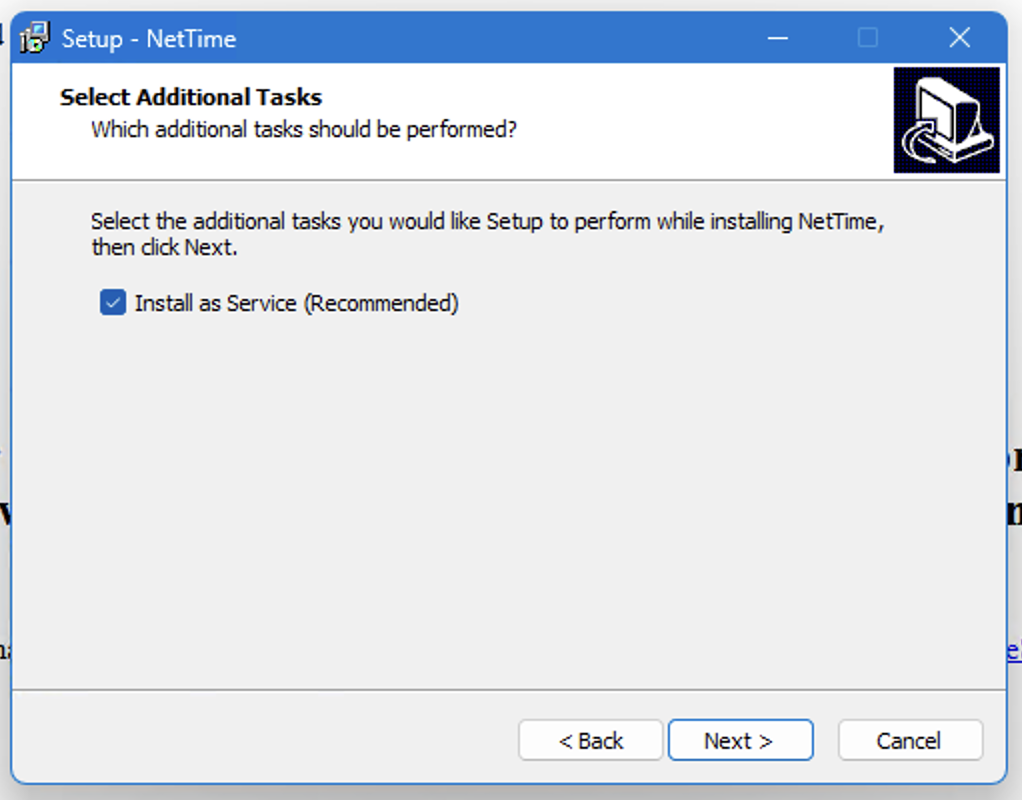
When installing, you should configure NetTime to run as a service:
Once installed, open NetTime from the system tray.
If you press Update Now, you will see the offset change. If the "offset" is below 50 milliseconds, this is generally acceptable.
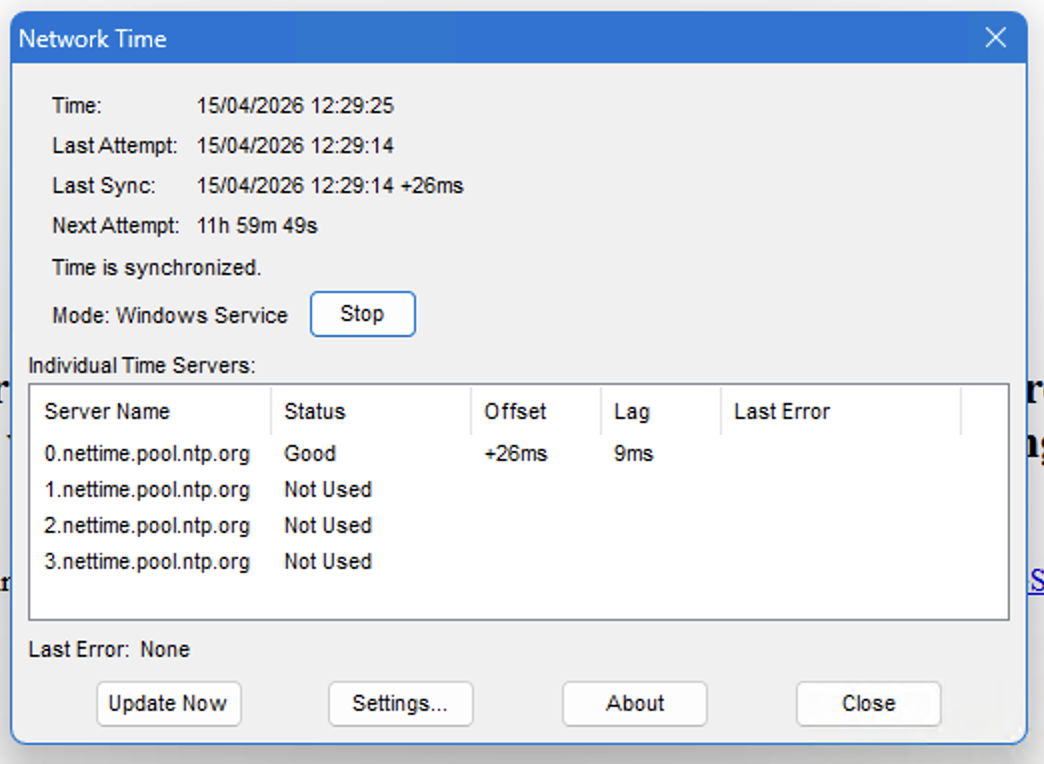
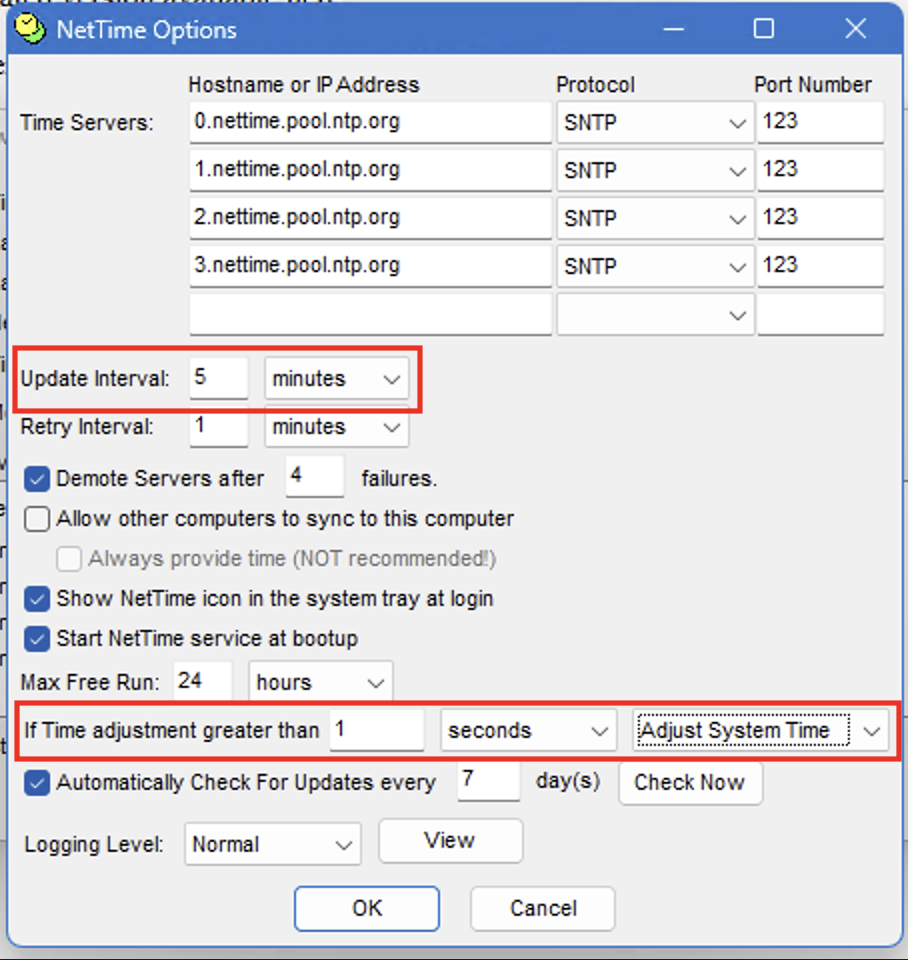
The default settings will need to be changed to ensure a more aggressive time synchronisation. Choose Settings, and set the following
Update Time: 5 minutes
If time adjustment is greater than 5 seconds, adjust system time
Was this article helpful?
That’s Great!
Thank you for your feedback
Sorry! We couldn't be helpful
Thank you for your feedback
Feedback sent
We appreciate your effort and will try to fix the article