You can use the Player mode to switch your Web Player between the four standard Web Player modes.
1. Login to your Broadcast.Radio portal.
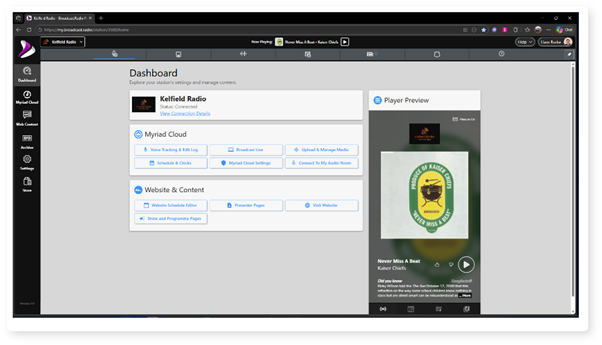
2. Click on the Settings menu option.
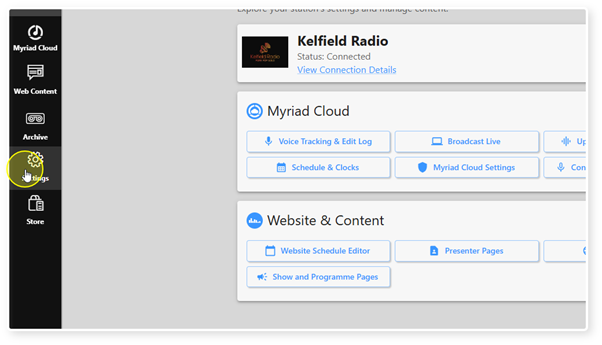
3. Select Web Player.
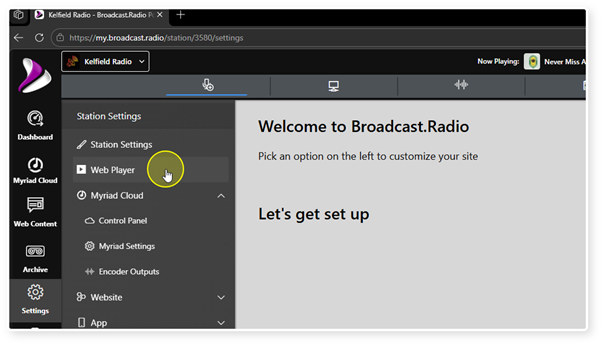
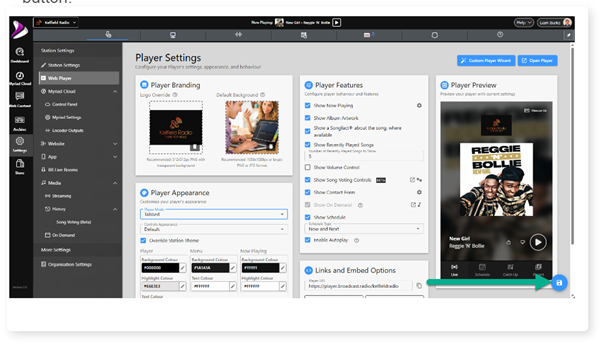
4. Scroll down to the Player Mode option in the Player Appearance section.
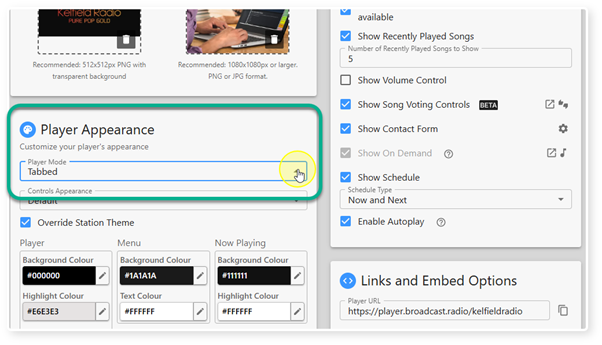
5. Use the drop down list to select one of the four Player Mode options.
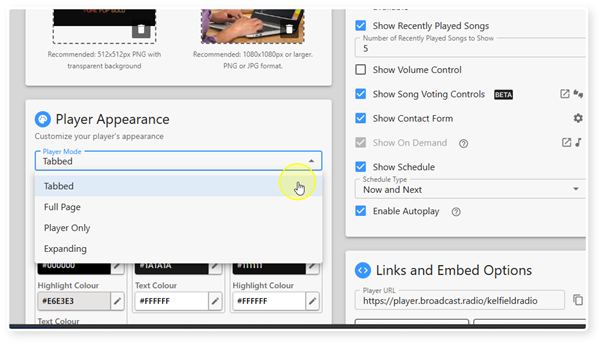
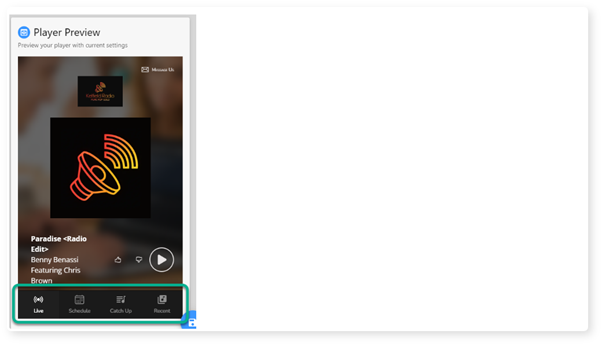
6. Tabbed Mode - In Tabbed mode, the Web Player has different tabs along the bottom of the Player which are used to navigate around the Web Player. The tabs displayed and the pages they link to are fully customisable.
If you have more tabs than can be displayed, the right most tab is replaced with access to an extended menu option.
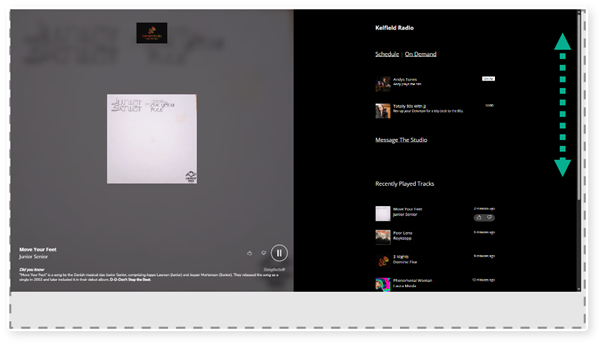
7. Page Mode - In Page mode, all enabled Web Player features (Schedule, Catchup, Recent Plays etc) are displayed on a single page so that the listener can scroll down the page to access the additional infomration.
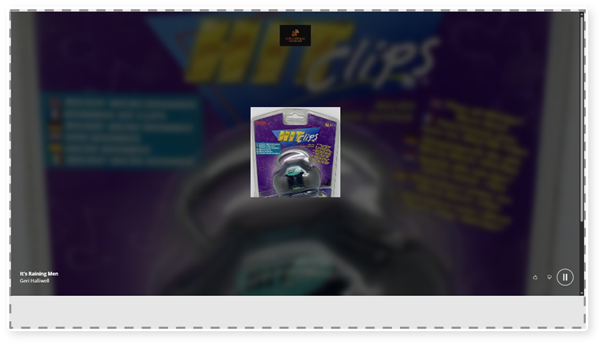
8. Player Only Mode - In Player Only mode, only the player is displayed. None of the additional information (Schedule, Recent Plays etc) will be accessible from the Web Player.
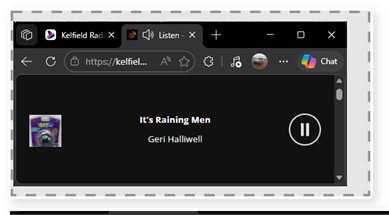
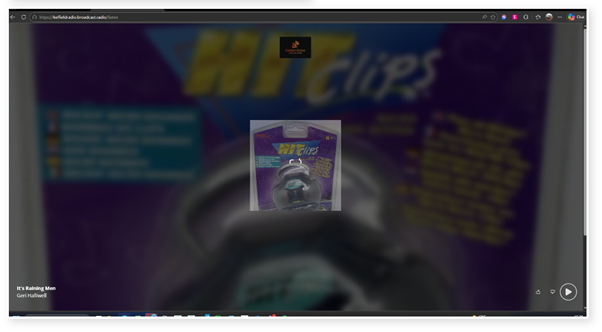
9. Expanding Mode - In Expanding Mode, the Web Player will change size and layout 'responsively' to fit inside the web contain it is put into.
The examples below show a compact and full page Expanding Web Player.
10. Once you have selected the Player Mode you want to use, click on the Save button.
Was this article helpful?
That’s Great!
Thank you for your feedback
Sorry! We couldn't be helpful
Thank you for your feedback
Feedback sent
We appreciate your effort and will try to fix the article