You can use the Customer Player Wizard to quickly design a Custom Web Player that can be embedded on a 3rd party website. Please note that you will need to use the settings in the main Web Player page to make changes to your main Web Player displayed on your Landing page or optional BR Website CMS.
The settings and options in this walkthrough are covered in more detail in the Web Player > Player Settings > Overview documentation.
1. Login to your Broadcast.Radio portal.
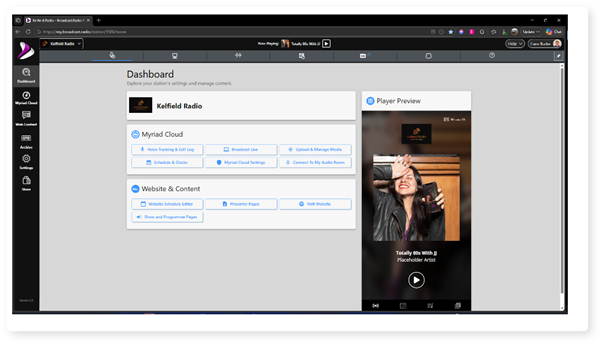
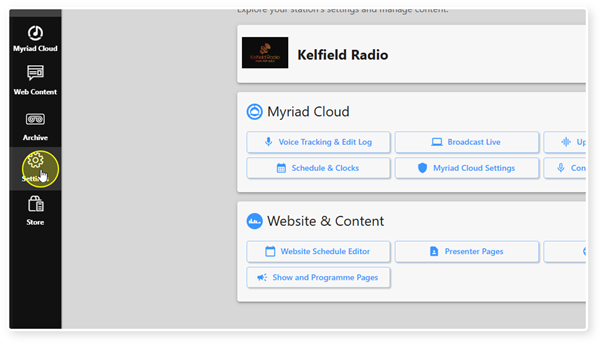
2. Click on the Settings menu.
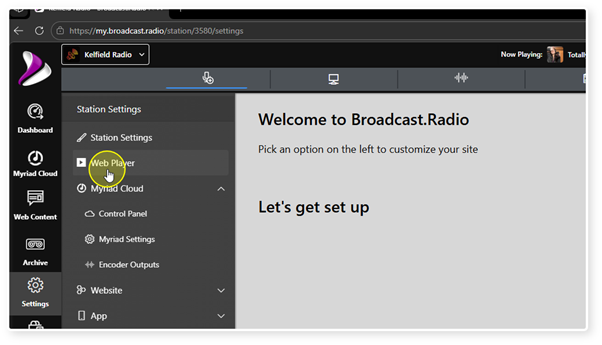
3. Select Web Player.
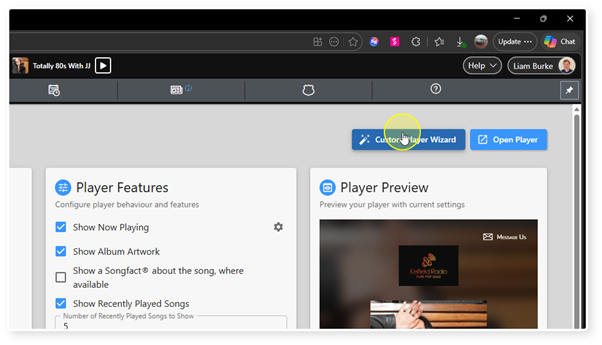
4. Click on the Custom Player Wizard button.
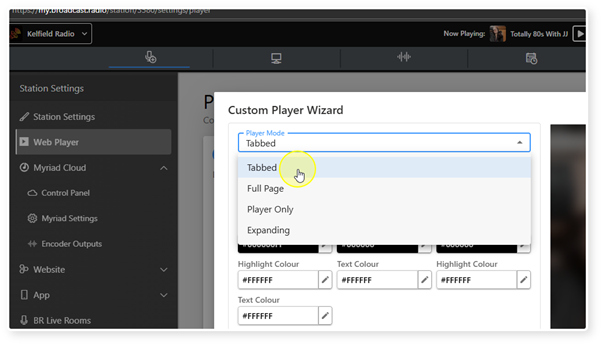
5. Select the Player Mode you want to use.
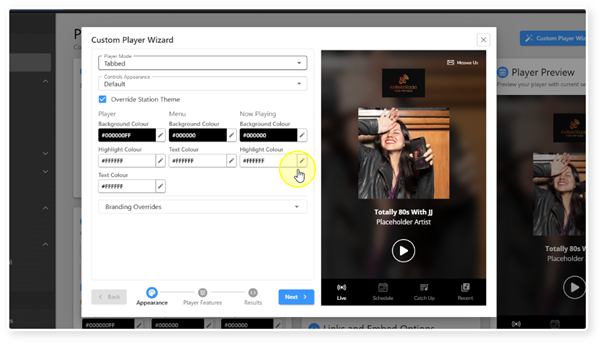
6. The options are:
Tabbed - Navigation options are displayed at the bottom of the Player.
Full Page - All enabled features are included in a single, scrollable page.
Player Only - Only the basic Web Player is displayed (no extended features).
Expanding - The Web Player adjusts design and size to fill space.
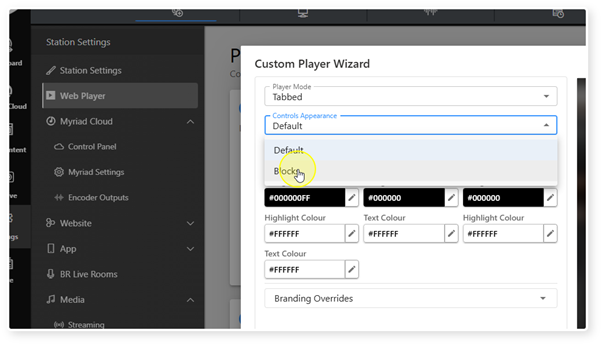
7. Select the Controls Appearance option. Default will display the controls directly on the web player background. Block adds a semi-transparent panel behind the controls to make them easier to see.
8. Override Station Theme allows you to set customer colours for many aspects of your Web Player.
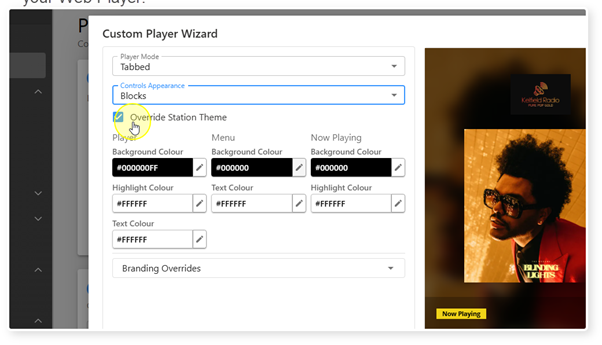
9. Click on the Edit button to select a new colour for the selected option.
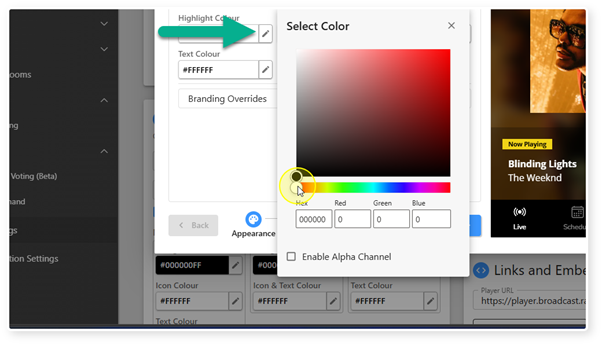
10. Changes are displayed in real time in the Preview Player.
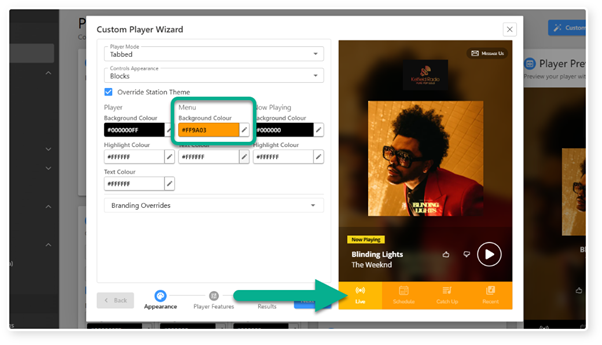
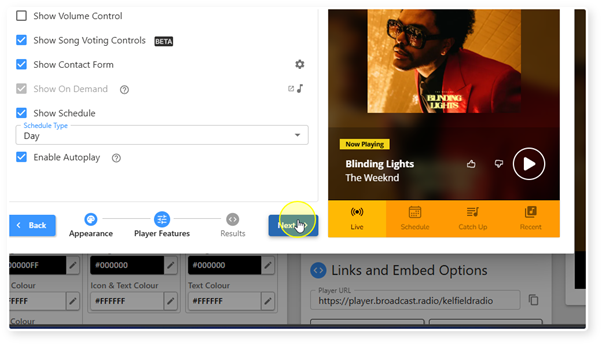
11. When you are happy with the appearance, click on the Next button to move onto the Player Features page.
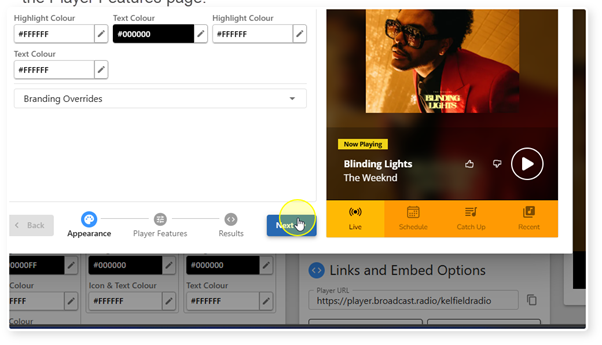
12. Select the Player Features you want to include in your custom Web Player. See Web Player > Player Settings > Overview for a complete list of options.
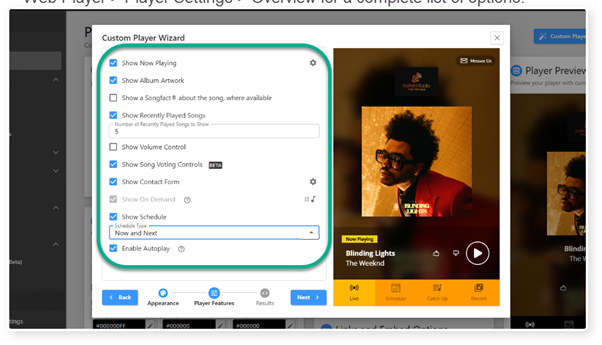
13. Once your features are set, click the Next button to move onto the Results page.
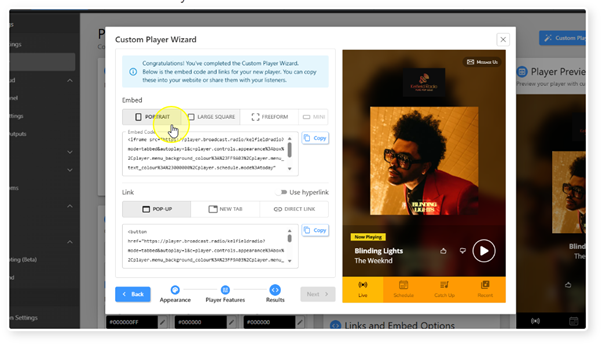
14. Select the shape of the custom Web Player.
The options are:
Portrait - Tall Web Player.
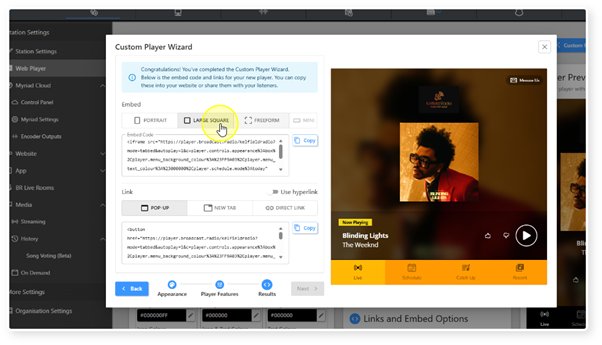
15. Large Square - The Web Player will be displayed as a large square.
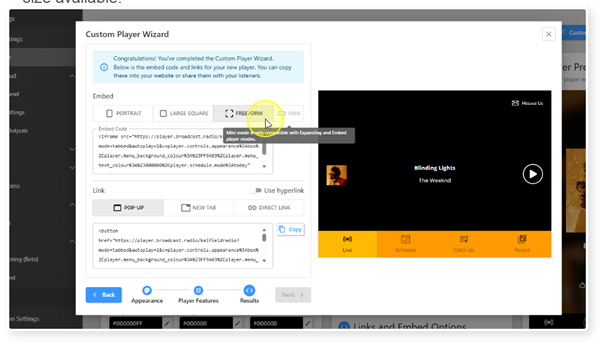
16. Freeform - The Web Player will dynamically resize and alter content based on size available.
17. Mini - Compact Web Player ideal for header sections.
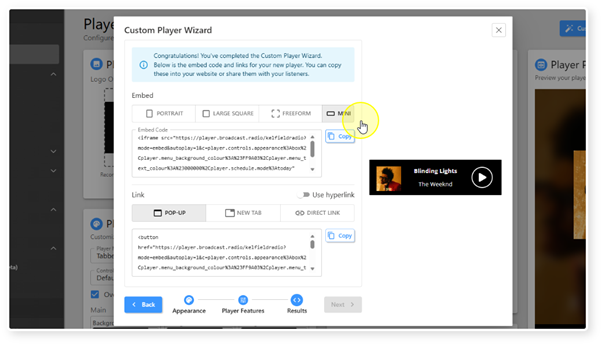
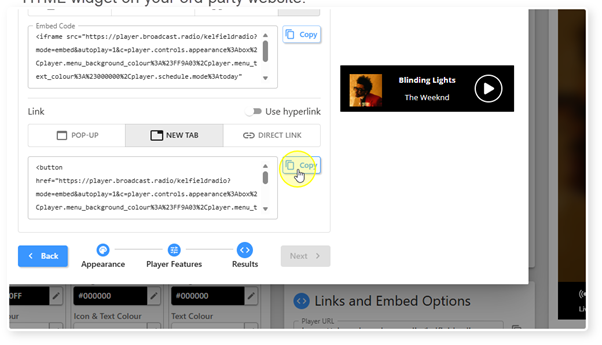
18. When you are happy, click on the Copy button to copy the Embed code.
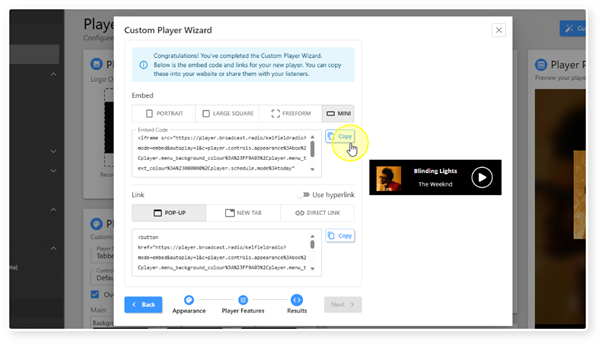
19. You can also generate code to embed a button on your website that will launch the Web Player as either a pop-up window or a new browser tab.
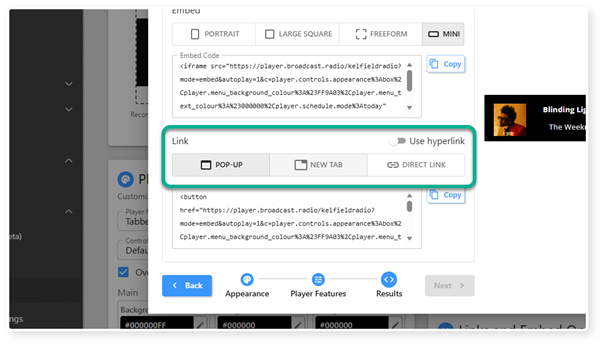
20. Alternatively, you can generate hyperlink code to allow you launch your Web Player from any clickable HTML element using the Use Hyperlink option.
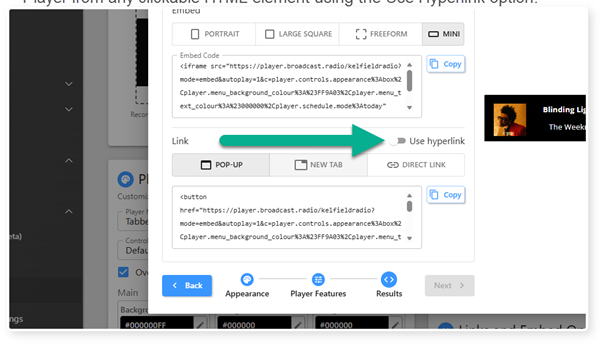
21. The Copy button allows you to copy the generated HTML code for using in an HTML widget on your 3rd party website.
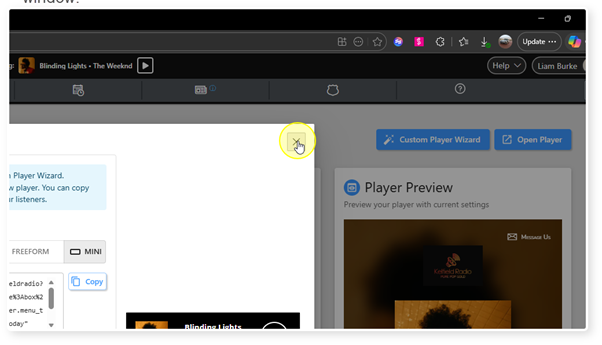
22. When you have finished with the wizard, click on the X button to close the window.
Was this article helpful?
That’s Great!
Thank you for your feedback
Sorry! We couldn't be helpful
Thank you for your feedback
Feedback sent
We appreciate your effort and will try to fix the article