You can use the Listener Request features included in Myriad 7, even if you use a 3rd party platform for your website, web player or mobile apps.
Prerequisites
- Myriad 7.1 or higher.
- Myriad Anywhere Pro.
- Broadcast.Radio Account (with Web Player enabled).
Building Your Embeddable Listen Request Panel
The Listener Request panel is built using a custom version of the Web Playing within Broadcast.Radio. This will generate embed code which can be added to any 3rd party platform that allows HTML to be embedded.
- Login to your Broadcast.Radio portal.
- From the Dashboard click on the Manage Web Player button.
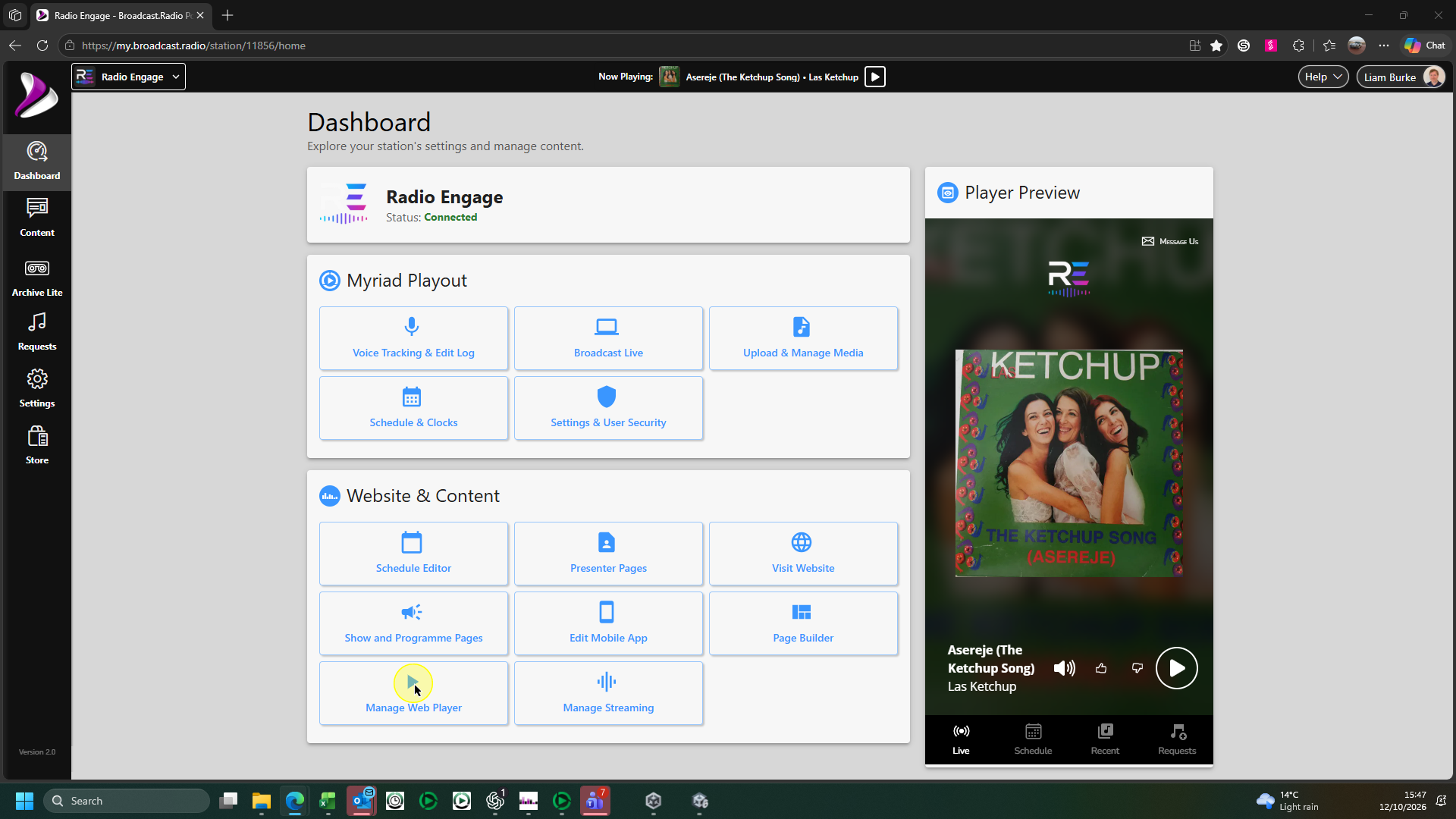
- Click on the Custom Player Wizard button in the top right of the window.
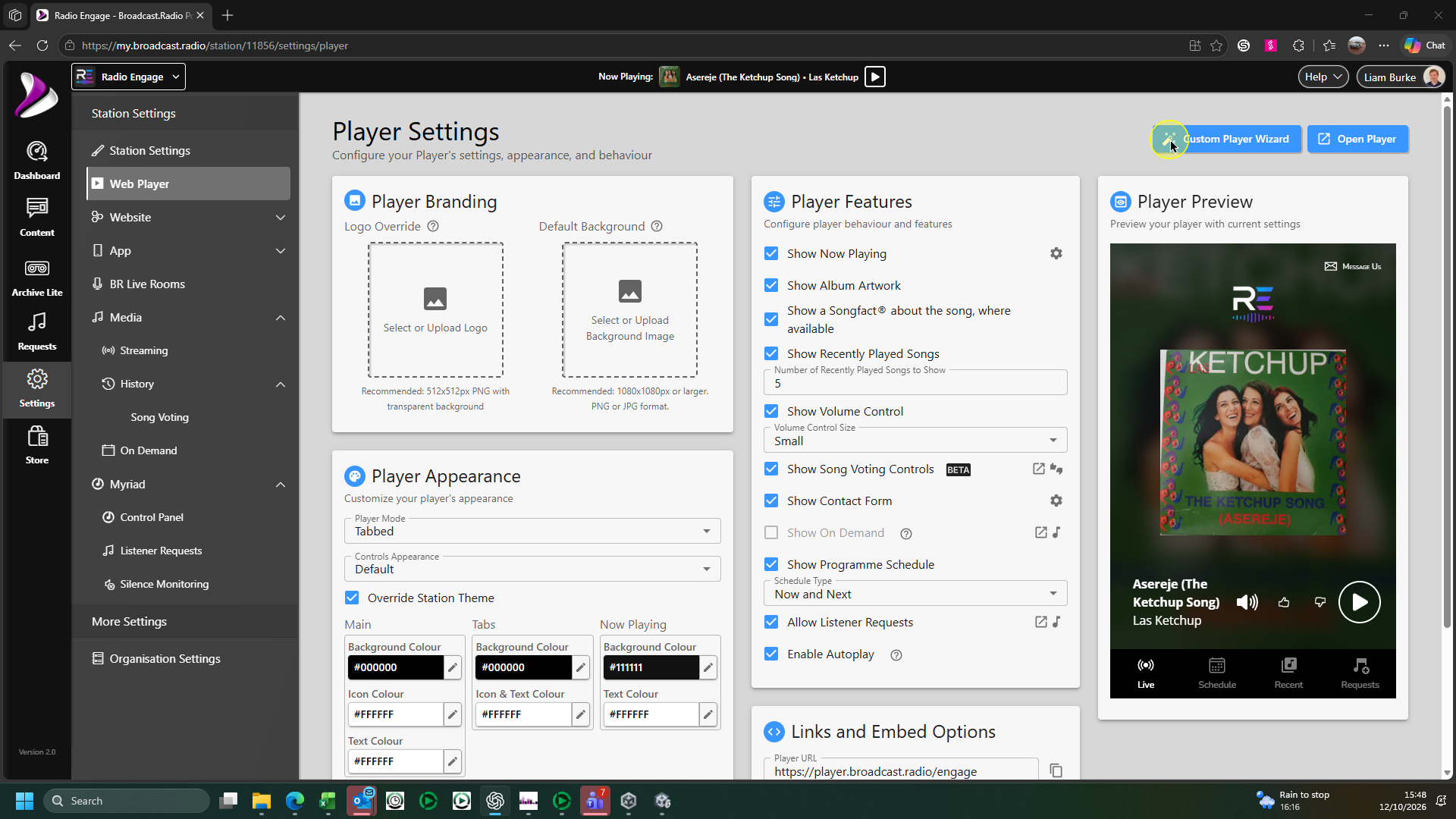
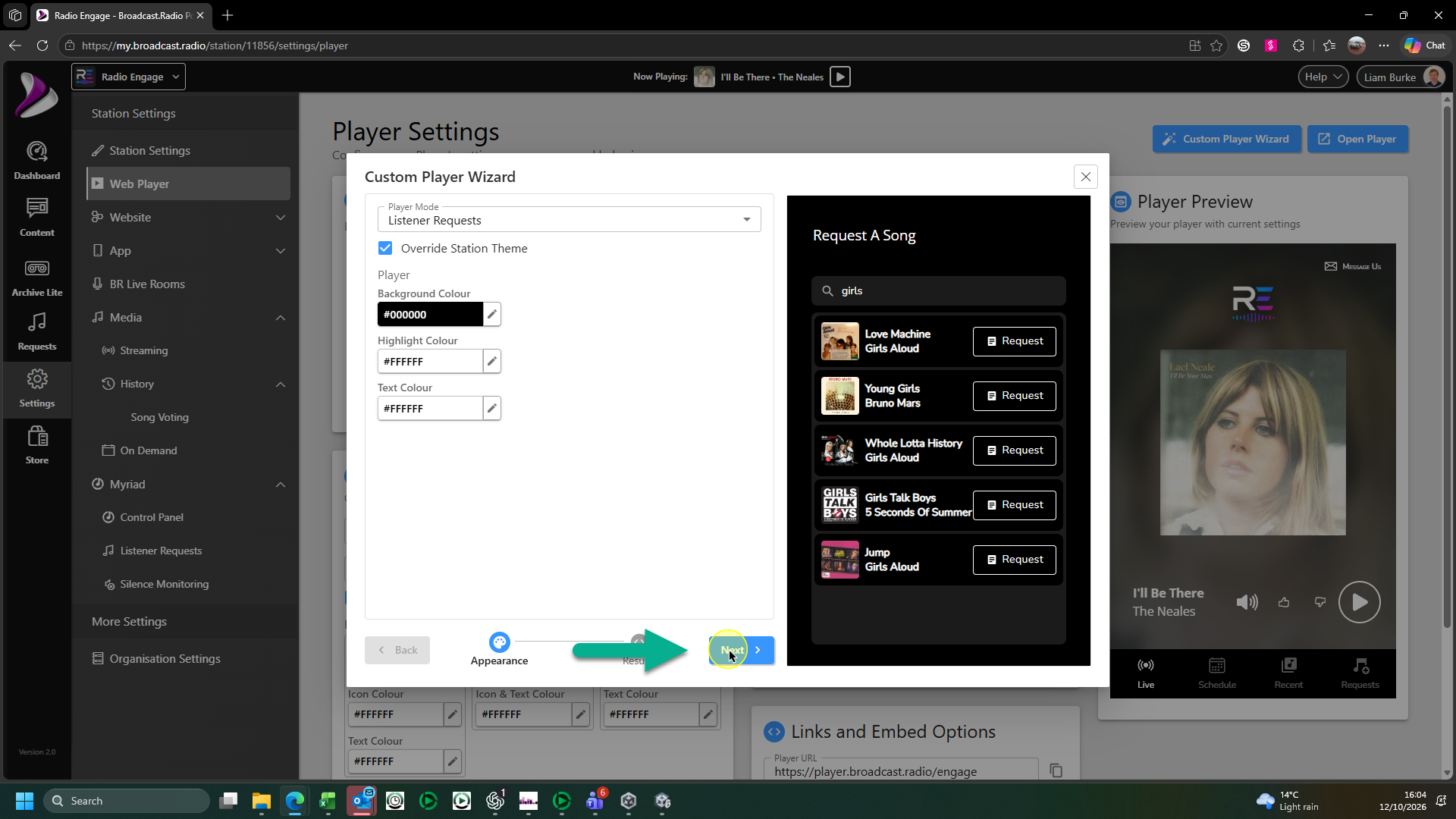
- Drop down the Player Mode option and select Listener Requests.
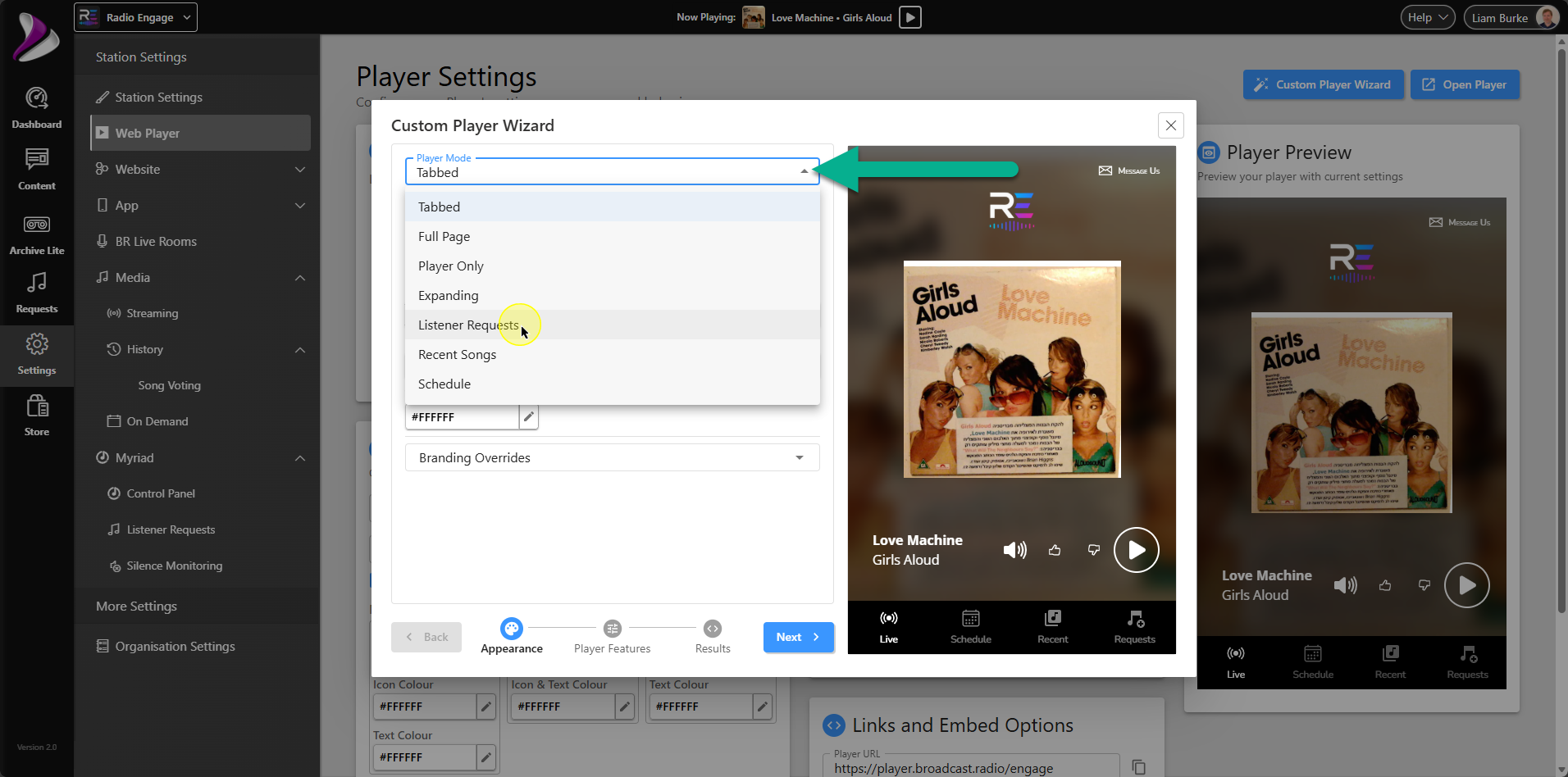
- You can choose to use the Station Theme colours or override the Station Theme colours and set the colours directly for the embedded Listener Request panel.
If you do not use Broadcast.Radio to host your website, web player or mobile apps, you may not have a Station Theme set, in which case we recommend ticking the Override Station Theme option.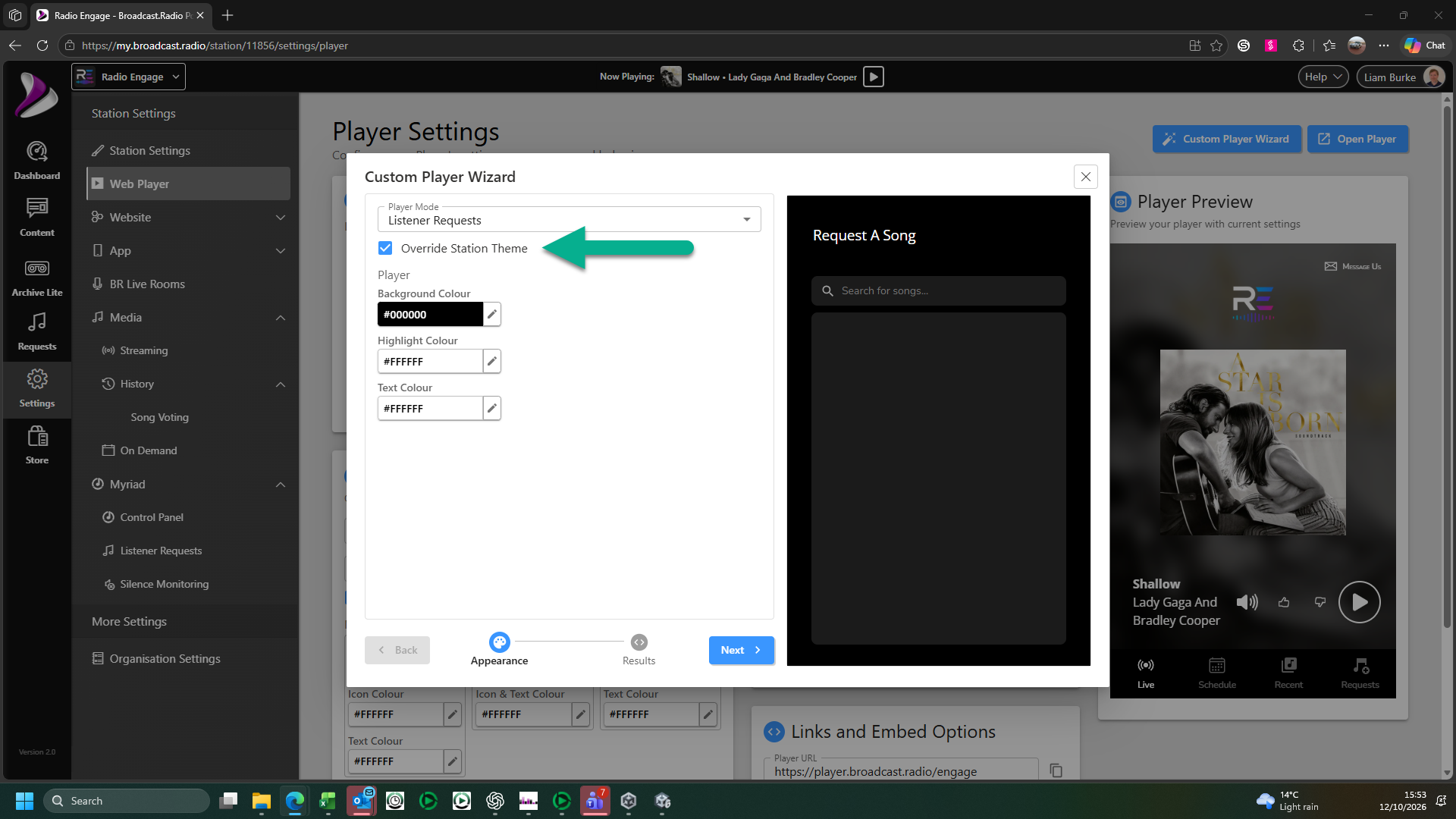
- Set the colours for the following options:
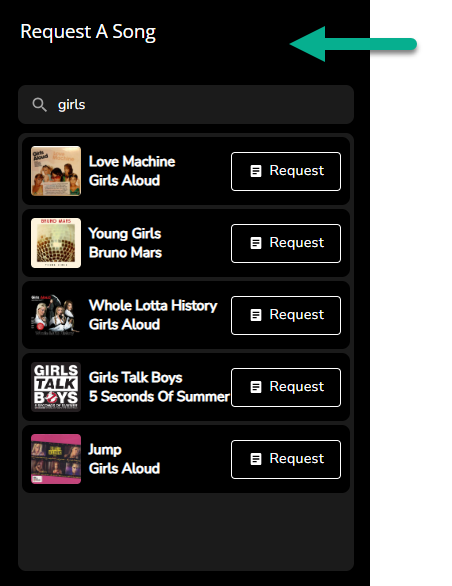
- Background Colour - Sets the background colour for the embedded panel.
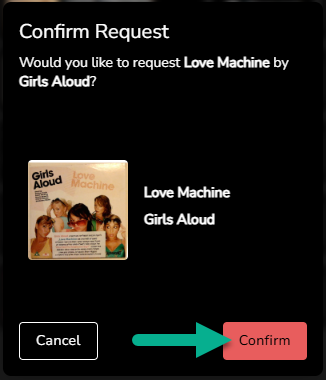
- Highlight Colour - Sets the colour for the confirm button when a listener requests a Song.
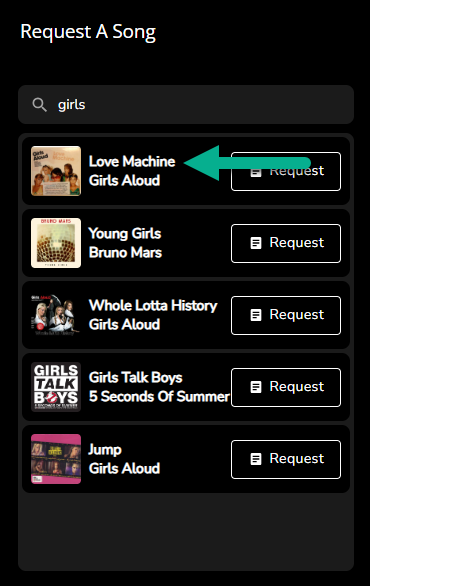
- Text Colour - Sets text colour throughout the embedded panel.
Note: You can type a search term into the Sequest A Song section to see how the panel will be dispayed with your selected colours.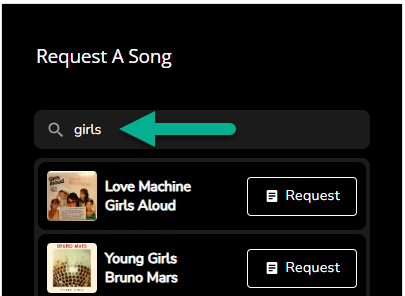
- Background Colour - Sets the background colour for the embedded panel.
- When you are happy with the look of the Listener Request panel, click on the Next button.
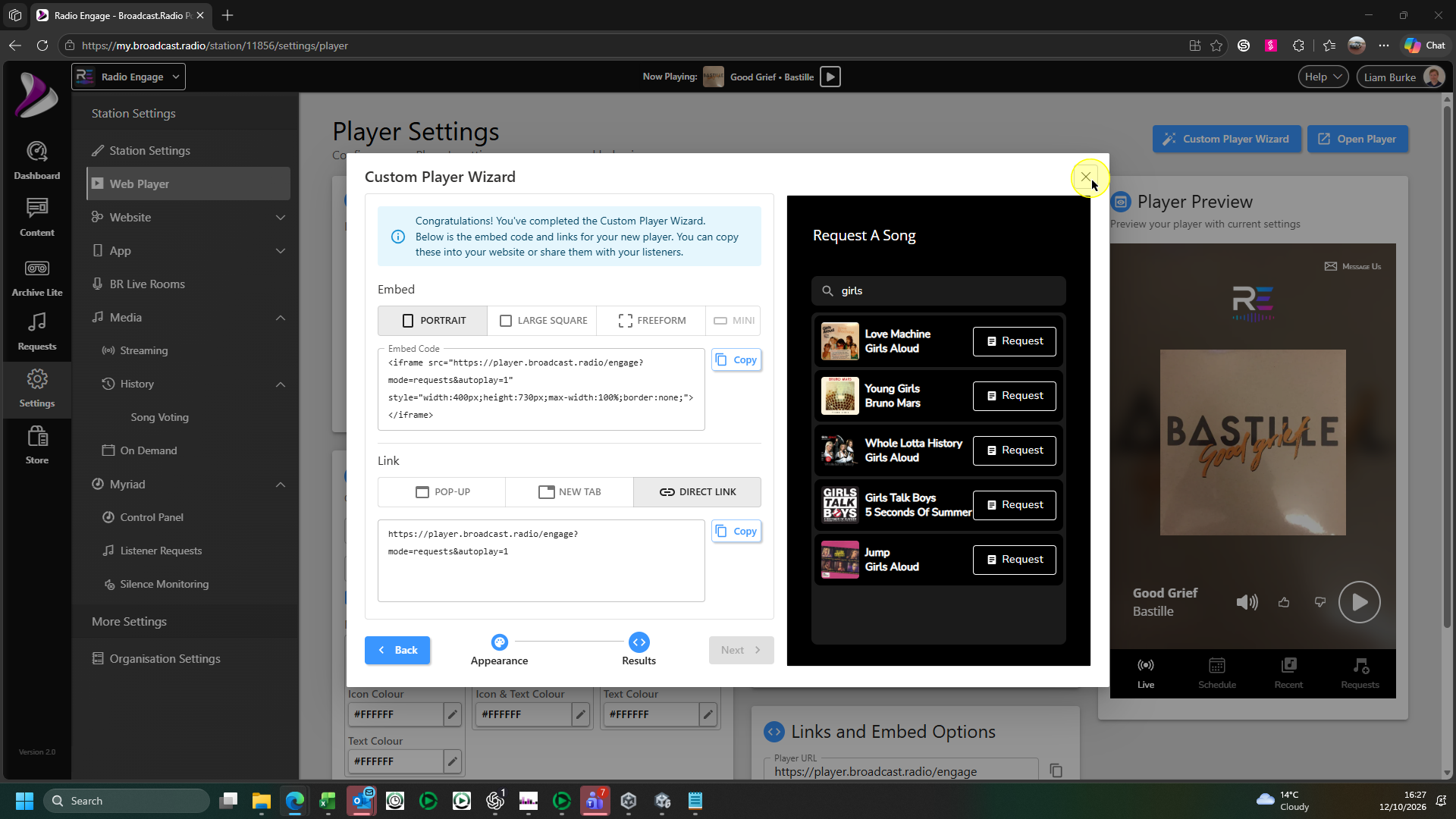
- The Embed section generates a small snippet of HTML code which can be dropped into an HTML widget on your 3rd party website, web player or mobile app.
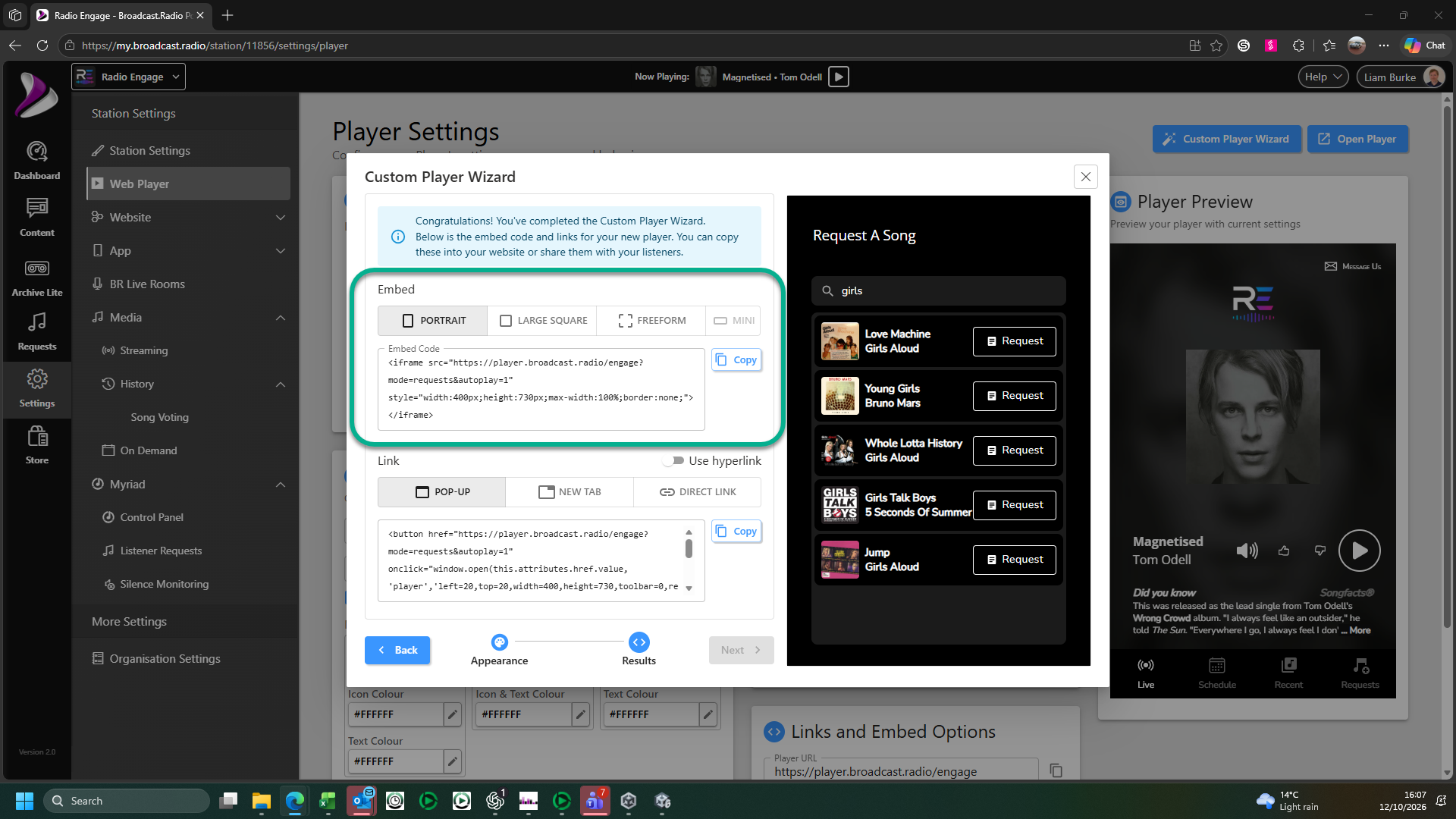
You can select three default aspects for the panel.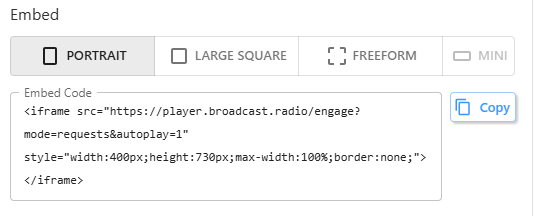
- Portrait - Standard tall Web Player.
- Large Square - Creates a larger, square Web Player.
- Freeform - Creates a Web Player that will expand to fill the HTML container it is placed in.
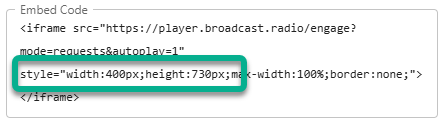
- You can manually adjust the width & height in the HTML code if you need to.
- When you are happy, click on the Copy button to copy the embed code.
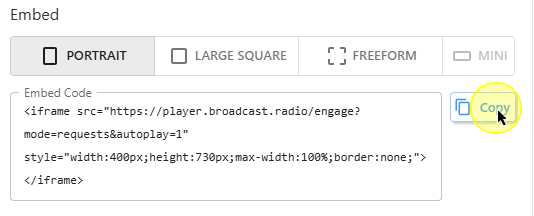
You can now paste the code into your 3rd party platform. - You can also generate a unique URL which can be used to open the Listener Request panel in a pop-up window or a new browser tab. This is useful if you want to launch the Listener Request panel from a button or hyperlink.
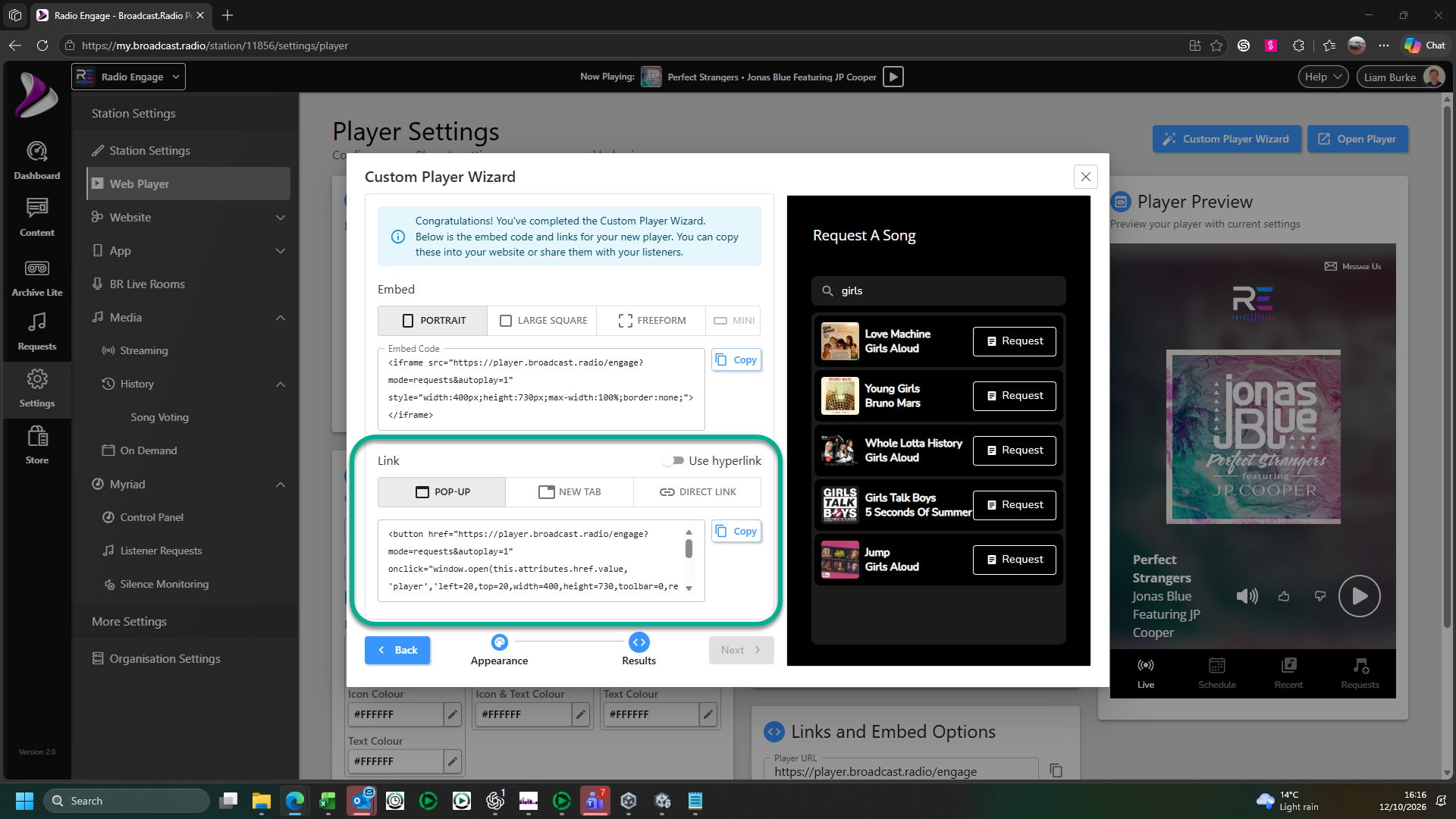
- The options for Links are:
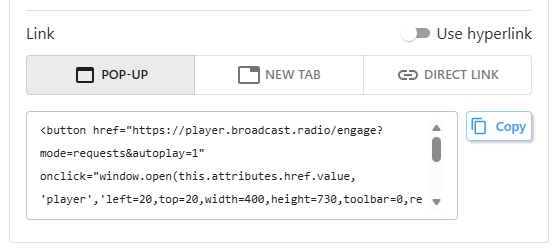
- Use Hyperlink - Use this to toggle between the embed code creating a clickable 'play' button or the text 'Listen' to open the Listener Request panel.
Regardless of which option you choose, the Listener Request panel will be displayed based on the following: - Pop-up - Panel will open in a new popup window.
- New Tab - Panel will open in a new browser tab.
- Direct Link - Provides a URL you can use in your own HTML code.
- Use Hyperlink - Use this to toggle between the embed code creating a clickable 'play' button or the text 'Listen' to open the Listener Request panel.
- When you have configured the options you want, click on the Copy button.
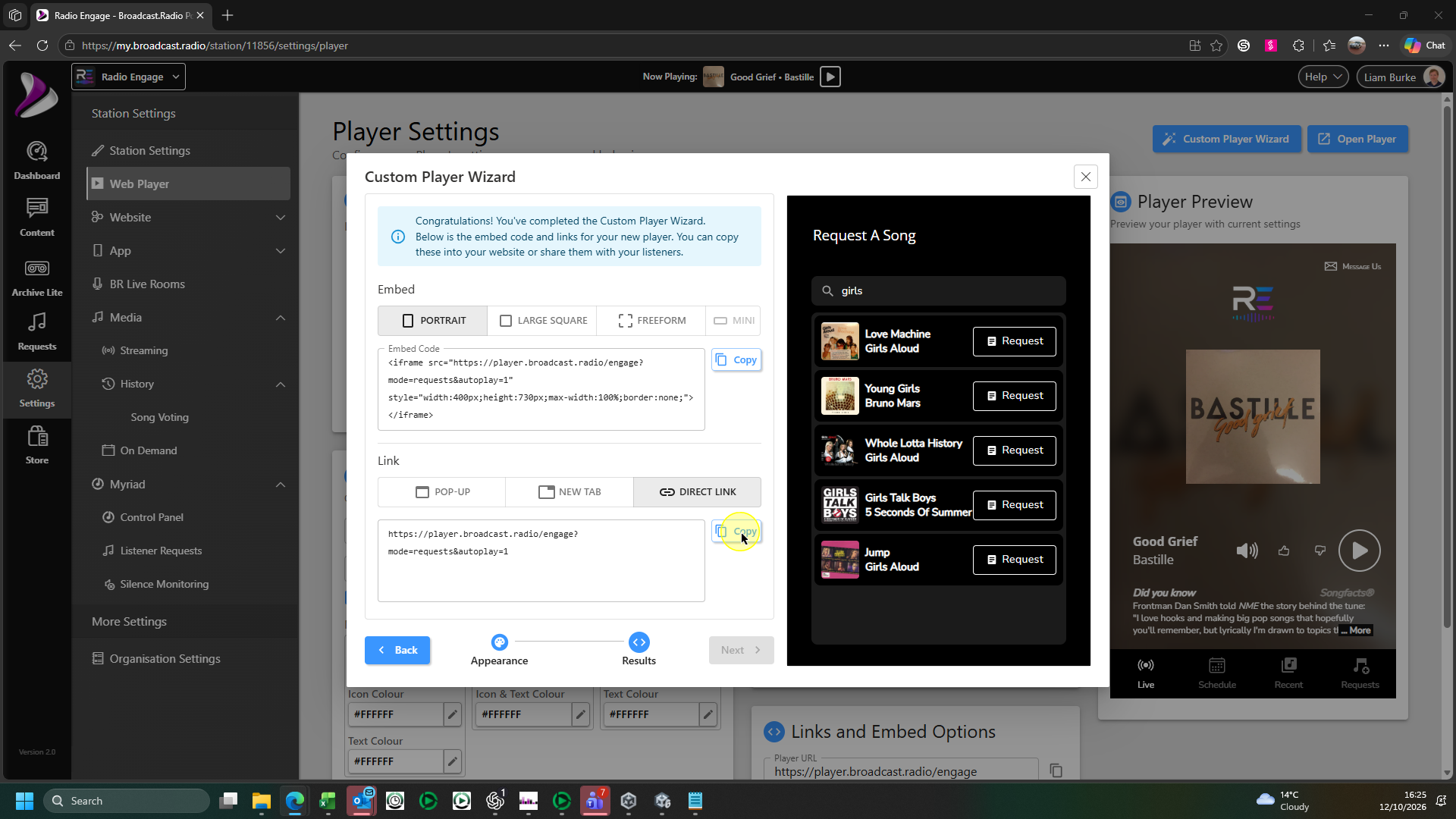 The selected Link option code is copied to the clipboard ready to be pasted into your 3rd party HTML widget or HTML code.
 - Click on the Close button to close the Custom Player Wizard window.
Was this article helpful?
That’s Great!
Thank you for your feedback
Sorry! We couldn't be helpful
Thank you for your feedback
Feedback sent
We appreciate your effort and will try to fix the article