TABLE OF CONTENTS
What is exclusive play?
Exclusive Play is a new feature introduced in Myriad 7, which allows a played Media Item to check the Media Players for other Media Items with select Categories or Attributes, and fade out any other Media Items that meet the criteria.
The sequence is:
- Media Item is played (from Media Wall, Favourites or Log).
- Checks all Media Players for Media Items that have specified Categories or Attributes.
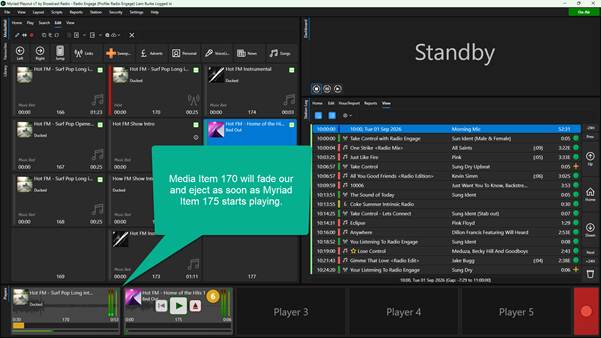
- Any Media Items that meet the criteria are immediately faded out and ejected from the Media Players.
What are ‘beds’?
The use of ‘beds’ to provide background audio to talk-over is common in radio, but the problem becomes how to manage audio beds when the duration of the ‘voice over’ is variable.
The image below shows the sections that make up a traditional music bed.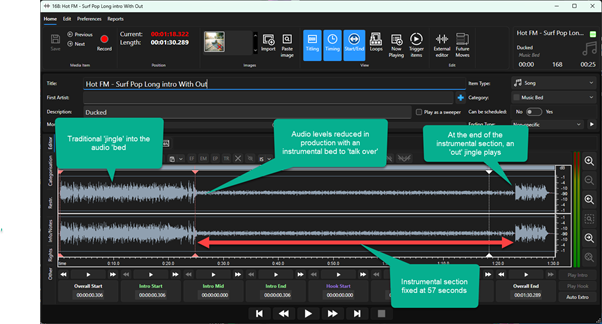
These consist of:
- Intro Section – Typically a short jingle or sound element.
- Ducked Instrumental – Repeating instrumental, ducked to a lower audio level to allow for the DJ/Presenter to talk ‘over’ the bed.
- Out Section – Typically a complimentary jingle of sound element designed to ‘close’ the voiced section.
The problem is that the ‘bed’ section is a fixed duration (57 second in this example) so your voiced section needs to also be 57 seconds long.
The simplest and most common solution is to split the overall production element into two Media Items, the first containing the Intro Section and music bed and the second just containing the Out Section.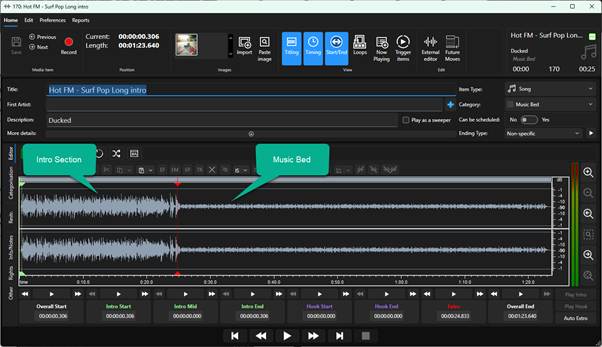
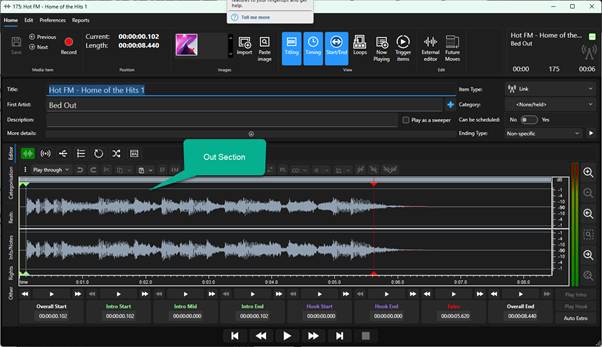
This allows the presenter to:
- Play the Intro Section + Bed in a Media Player.
- Talk over the ‘ducked’ bed section.
- At then end of their voice section:
- Play the End Section Media Item.
- Fade out any remaining ‘bed’.
The difficulty is trigging the Out Section and fading out the bed simultaneously.
How Exclusive Play helps
Whilst not impossible, the sequence above can be challenging in a busy radio studio, but the new Exclusive Play feature can automate this process by assigning a Category or Attribute to the Intro / Bed Media Item that the will cause their to be faded out automatically when the Our Section Media Item is played.
As a presenter, this means all you need to do is trigger the Out Media at the end of your voiced section and Myriad will fade out the ‘bed’ for you.
Setting up Exclusive Play
The first thing you need to do is decide which Category or Attribute you wish to use.
You can use a Category or a Tag as criteria, but we would recommend using a Tag as Media Items can only have a Primary or Secondary Category but have as many Tags assigned as you like.
If you have Myriad Schedule Pro, you can also use Types, Genders or Eras if preferred.
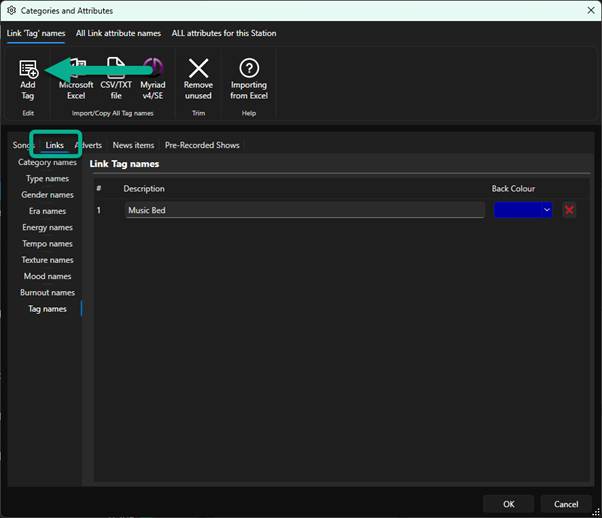
In this example, we will add a Link Tag of ‘Music Bed’ and then use that as the criteria for the Exclusive Play feature.
- In Myriad Playout (or Myriad Schedule), click on Settings Menu > Categories and Attributes.
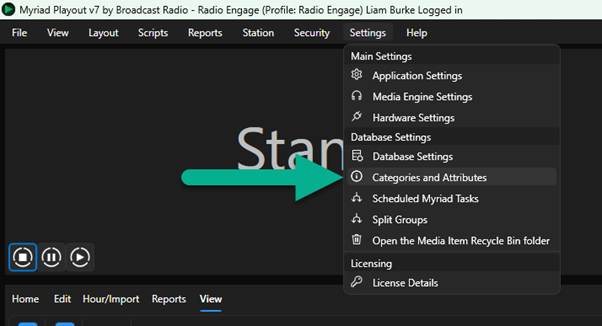
- Select the Links Tab and then click on Add Tag.
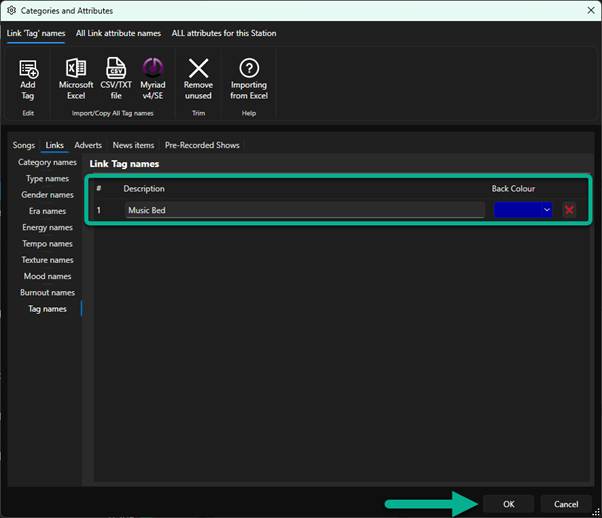
- Type in a suitable description such as ‘Music Bed’. When you are happy with your Tag Description, click on OK.
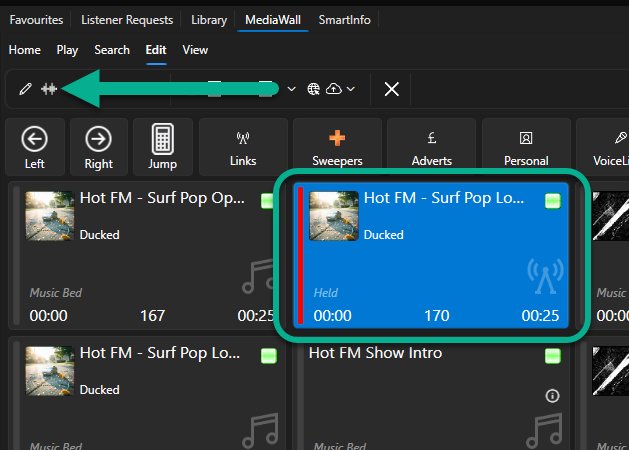
- On the Media Wall or Library, select the Intro Section / Bed Media Item and click on the Edit button on the ribbon (you can also use the right-click option if preferred.
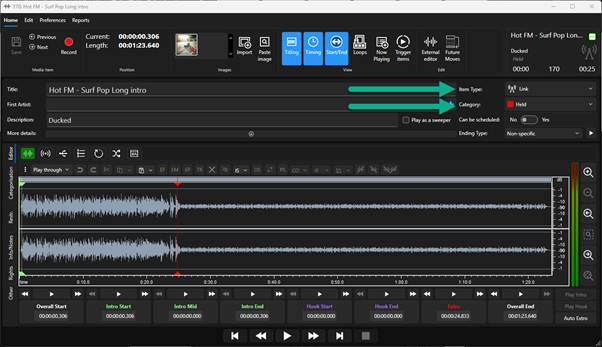
- Note how the Media Item is set as a Link but is in the HeldCategory as we do not want music beds being scheduled as ordinary jingles!
- Click on the Categorisation tab.
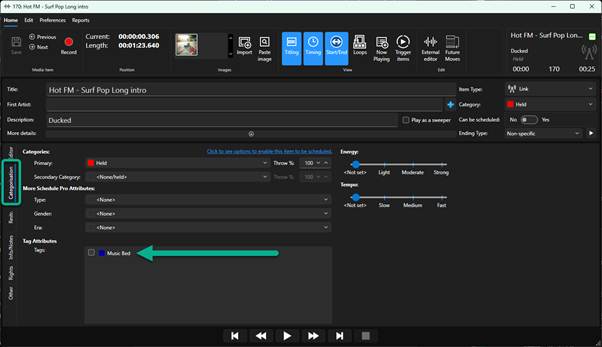
- In the Tags section, tick the Music Bed tag we created a few moments ago, then click on the Save button.
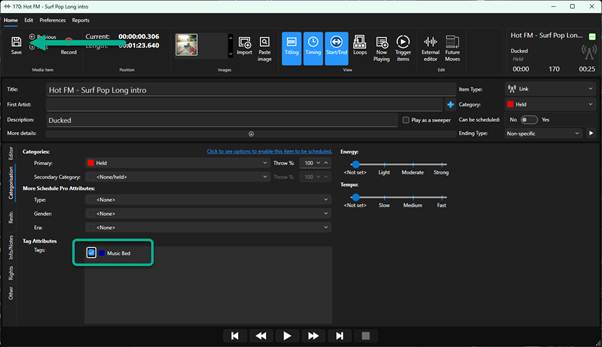
- You can now close the Edit window.
- Next we need to add the Music Bed Tag as the Exclusive Play criteria for the Out Section Media Item.
- On the Media Wall or Library, select the Out Section Media Item and click on the Edit button on the ribbon (you can also use the right-click option if preferred.
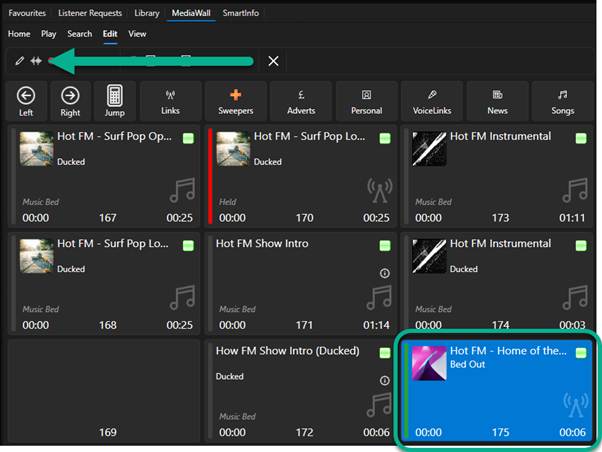
- Switch to the Other Tab.
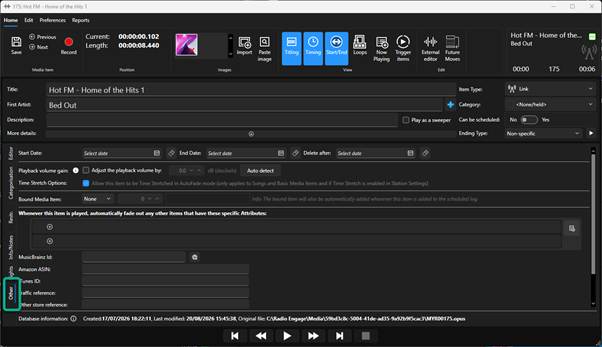
- This section contains the Categories or Attributes that will be used for Exclusive Play. If you operate multiple Stations, you can set the trigger Category/Attribute per Station.
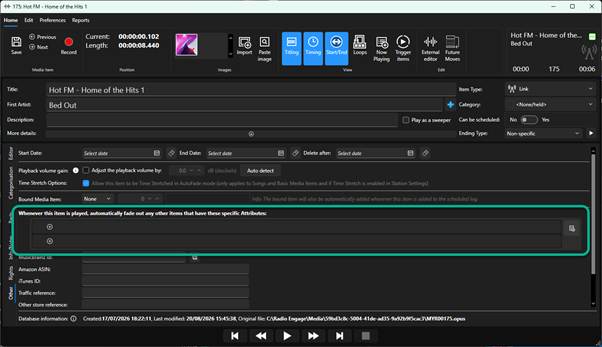
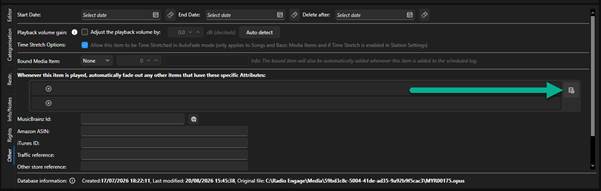
- To select a Category or Attribute, click on the Select Attribute button.
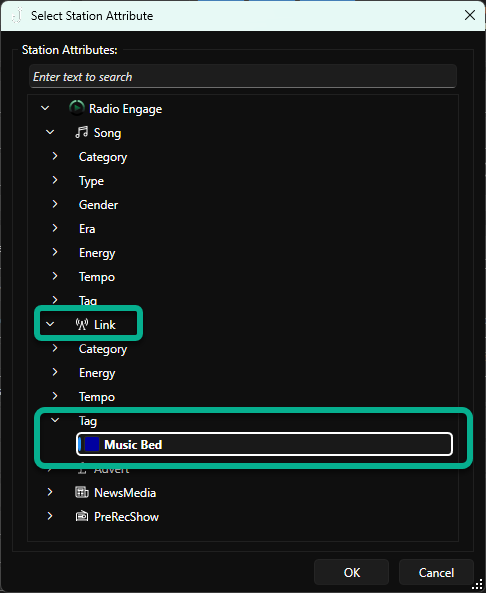
- Select the Category or Attribute from the list. In this example we will select the Link Tag > Music Bed, then click OK.
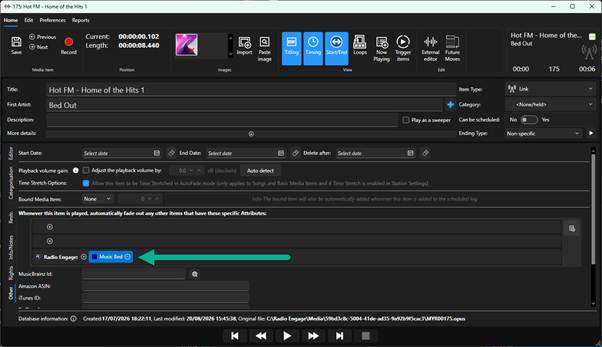
- You can see that the Music Bed Tag has been added within the Radio Engage Station.
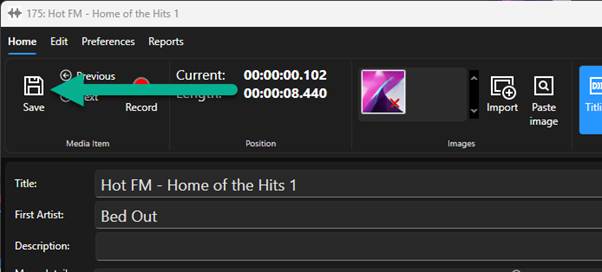
- Click on Save and close the Edit Window.
- Now, whenever this Media Item is played (from Media Wall, Favourites or Log), it will immediately check all other Media Players and fade out any Media Item with the Music Bed Link Tag.
Was this article helpful?
That’s Great!
Thank you for your feedback
Sorry! We couldn't be helpful
Thank you for your feedback
Feedback sent
We appreciate your effort and will try to fix the article