Introduction
One of the powerful new features that Myriad v7 brings to a station is the ability to surface recent song voting information directly to your presenters in the studio based on the votes cast by your listeners via your station's website, players, and mobile apps.
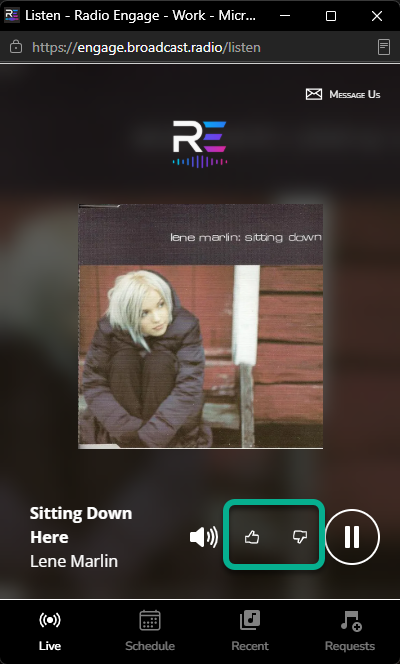
Adding Your Broadcast.Radio API Key
Most stations will already have their Broadcast.Radio API key added to Myriad Playout, but if not then follow these steps:
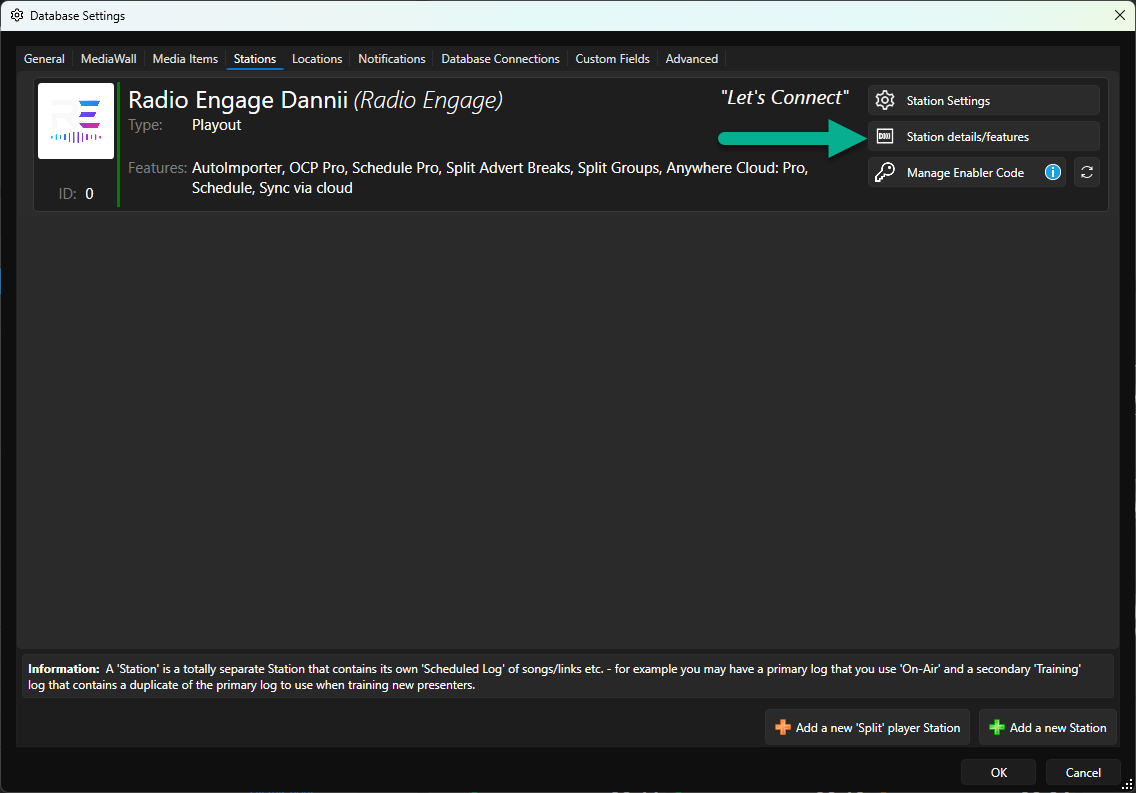
- In Myriad Playout, click on Settings Menu > Database Settings > Stations Tab.
- Click on the Station Details / features button for the Station you want to add your Broadcast.Radio API key to.
- Paste your API key into the Broadcast.Radio API Key field. For details on where to find your B.R API key see - Accessing API Key For Myriad Playout & 3rd Party Integration
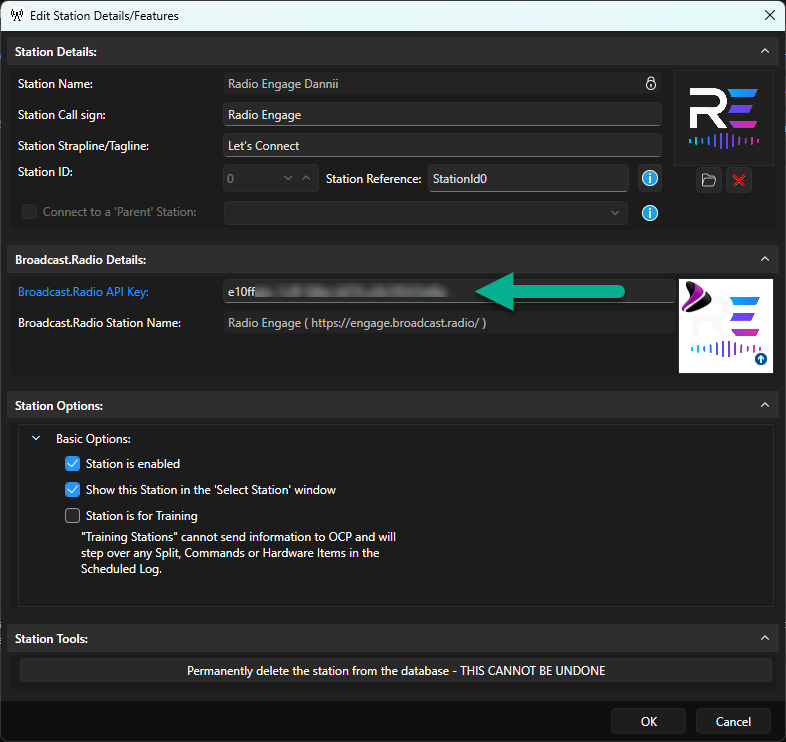
- Click on OK.
Enable Display Recent Song Voting Summary In Myriad Playout
With your B.R API key in place, the next step is to enable the option to display voting information in Myriad Playout.
- Click on Settings Menu > Station Settings > Items Tab.
- Tick the Display Recent Song Voting Sumary from Broadcast.Radio on the Media Grid & Library Views option.
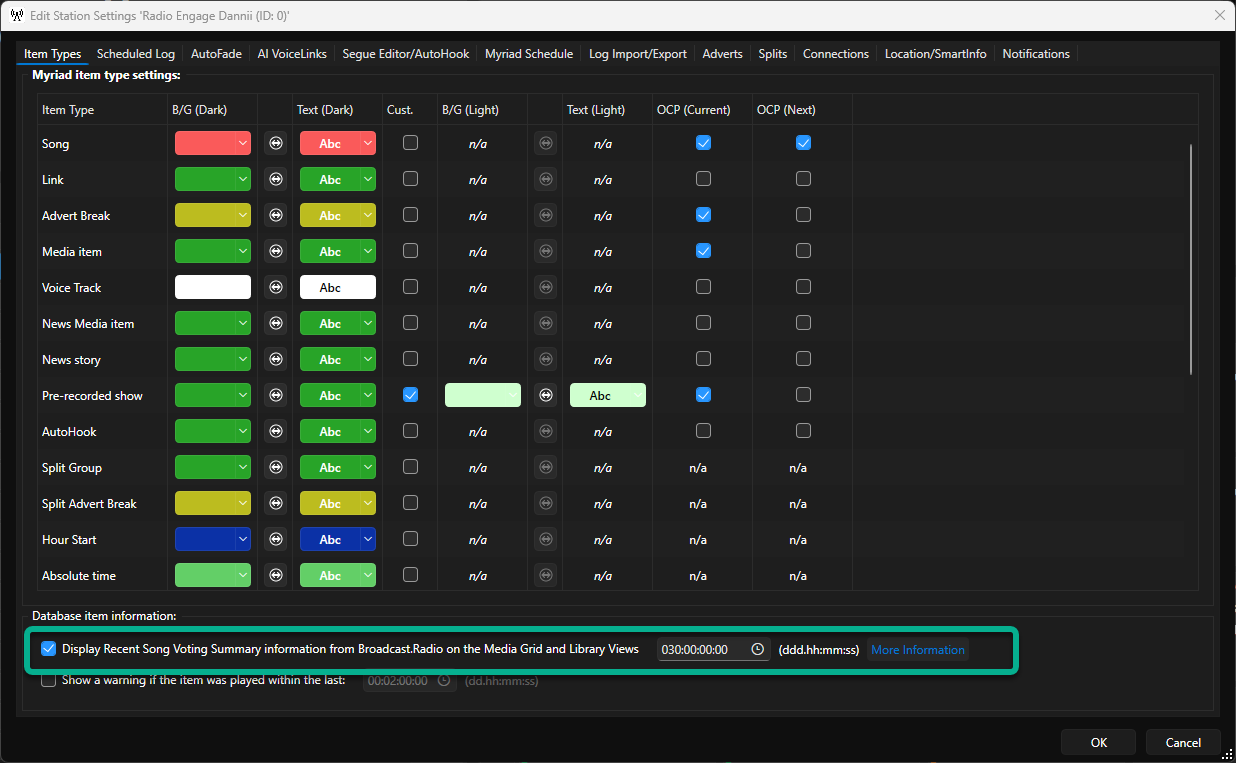
- You can also set the duration during which votes will be displayed for. In the example below, Votes will only be displayed from the last 30 days.

- Click on OK.
Setting Up A Scheduled Myriad Task To Collect Voting Information
You will also need to setup a Scheduled Myriad Task to periodically contact your Broadcast.Radio service and download the latest voting date.
- In Myriad Playout, click on Settings Menu > Scheduled Myriad Tasks.
- Click on the New Task button in the Edit Scheduled Myriad Tasks window.
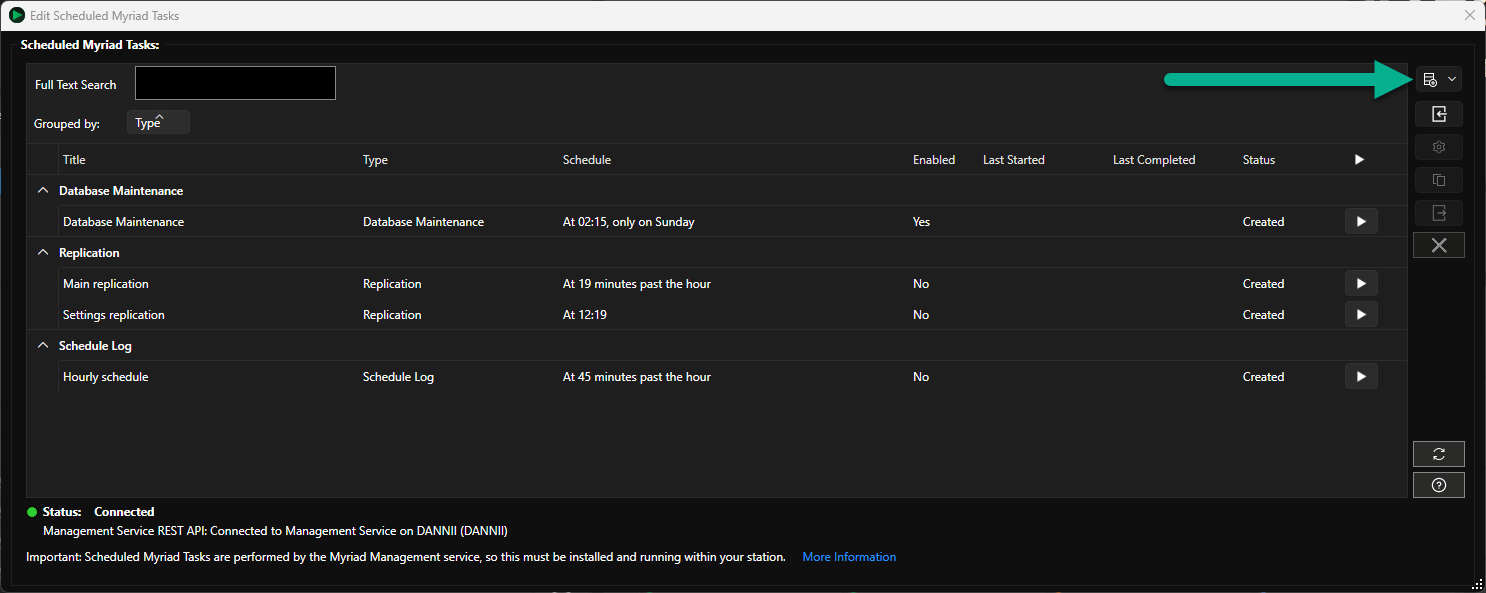
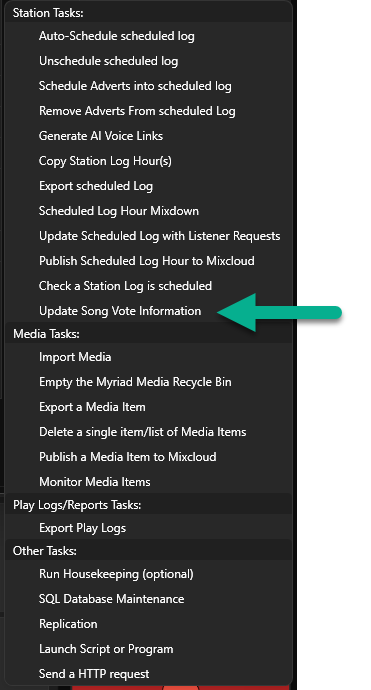
- Select Update Song Vote Information from the drop down list of options.
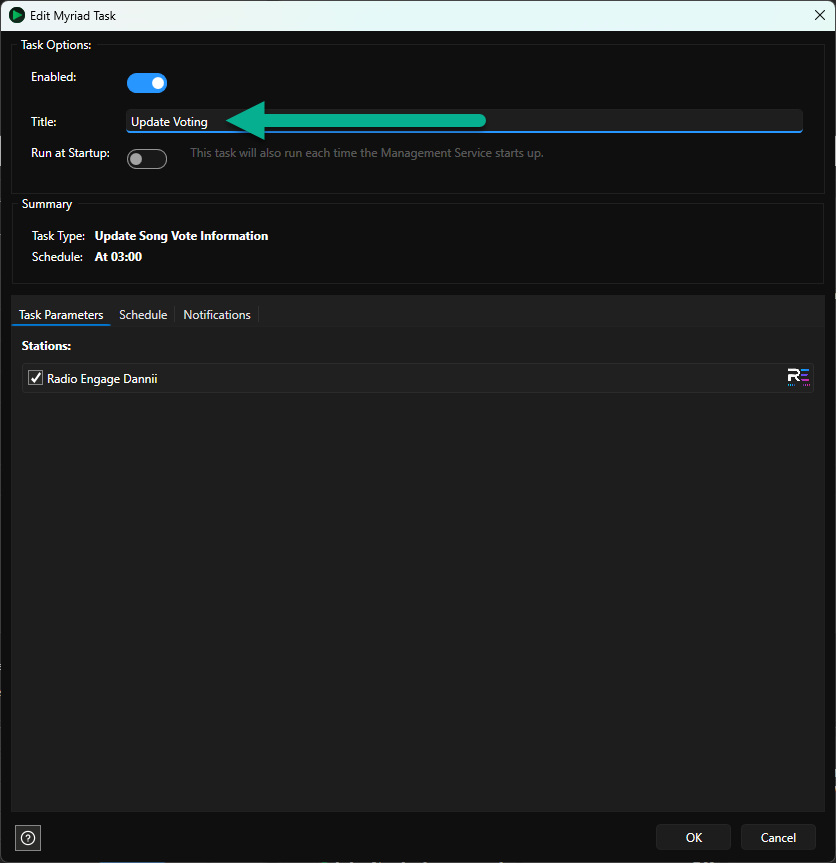
- Give the task a suitable Title.
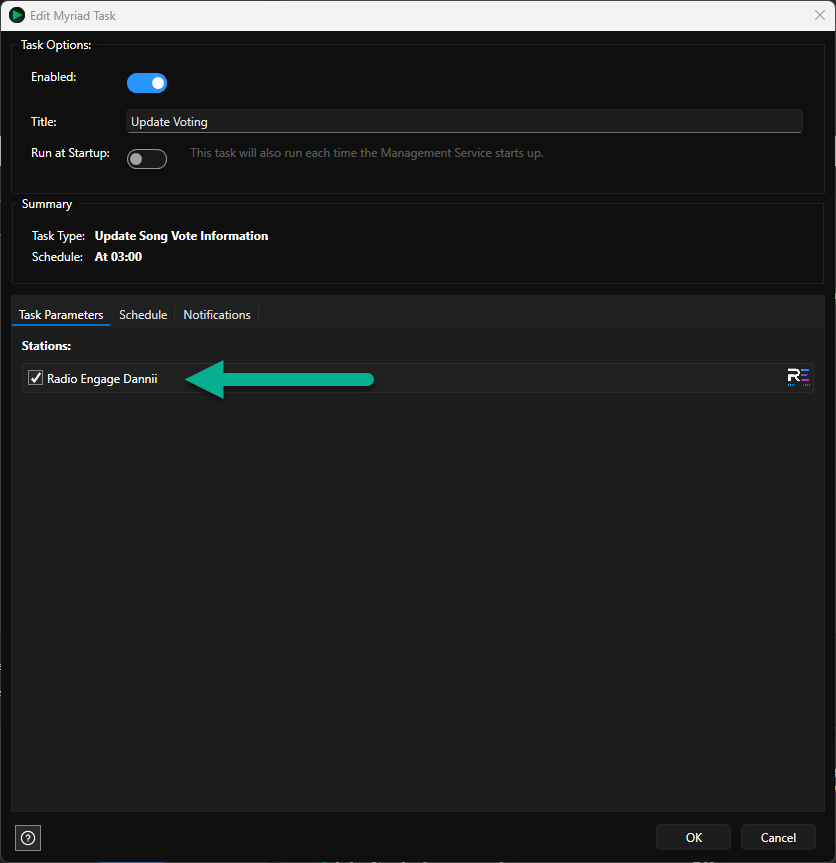
- On the Task Parameters tab, tick the Station you want to update.
- Switch to the Schedule tab and select the regular inteval you want to use to run the update voting information. In the example below, the tak will run everyday at 3am.
Note - Do not set this to run more than once every 12 hours as the Broadcast Radio platform only collates this information periodically.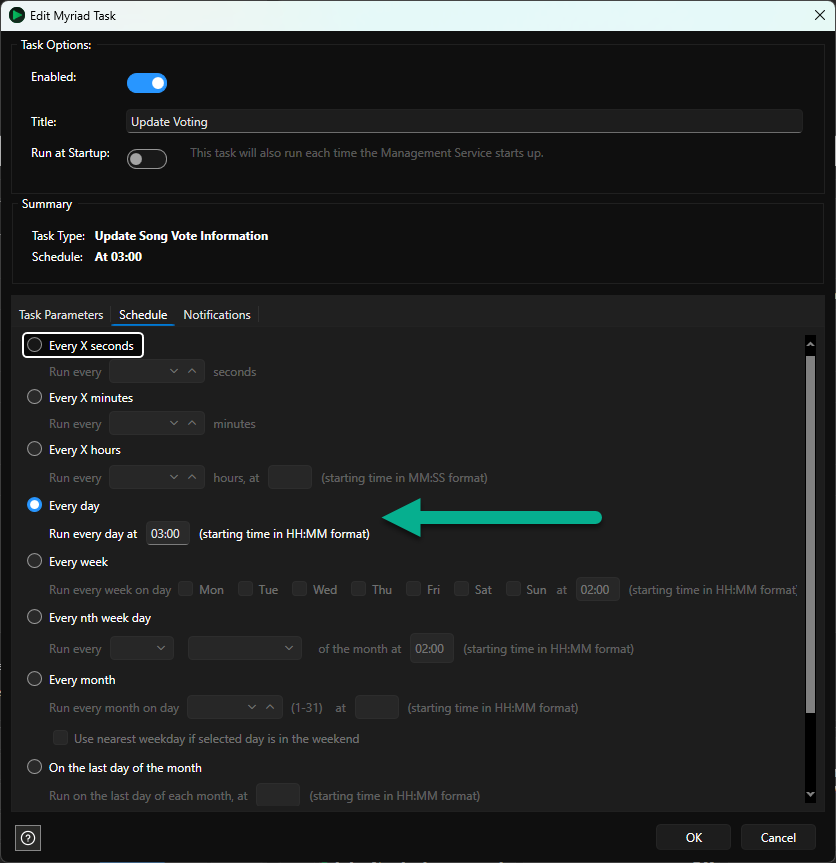
- Click on OK.
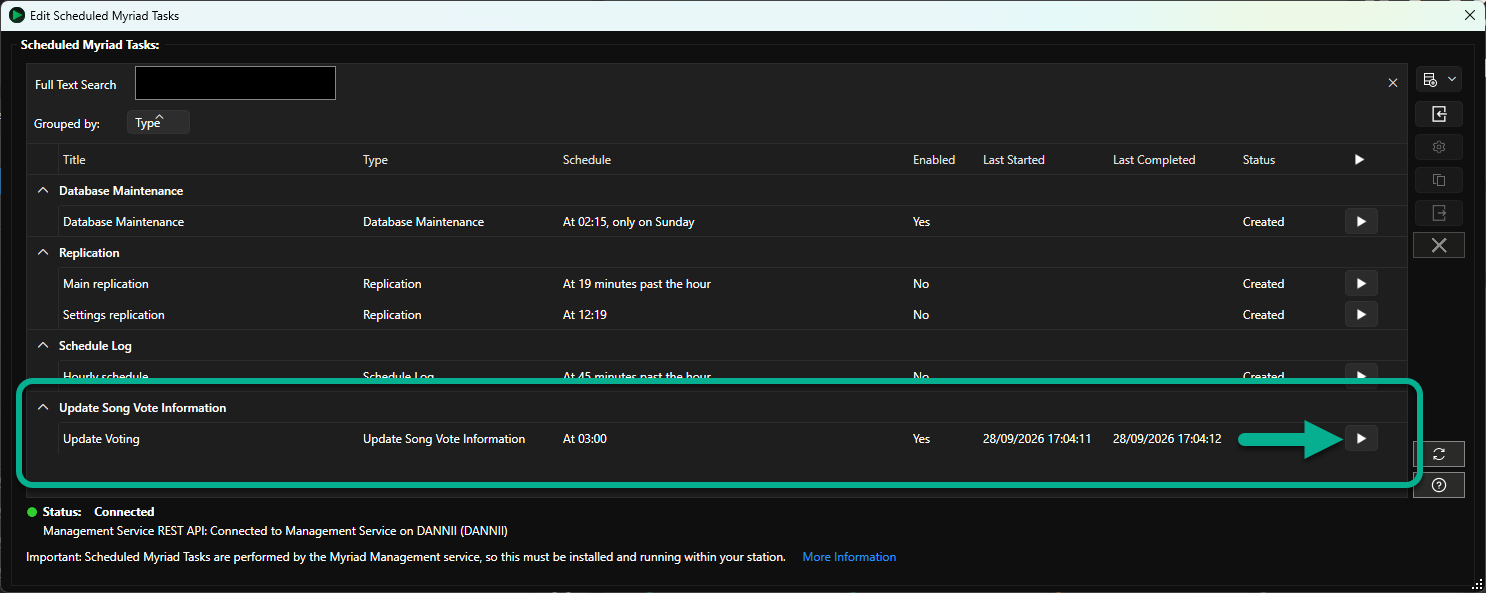
- The Scheduled Myriad Task will now appear in the list. You can manually trigger the task by clicking on the Play Task button.
The Library View & Media Walls will now show Song Voting information.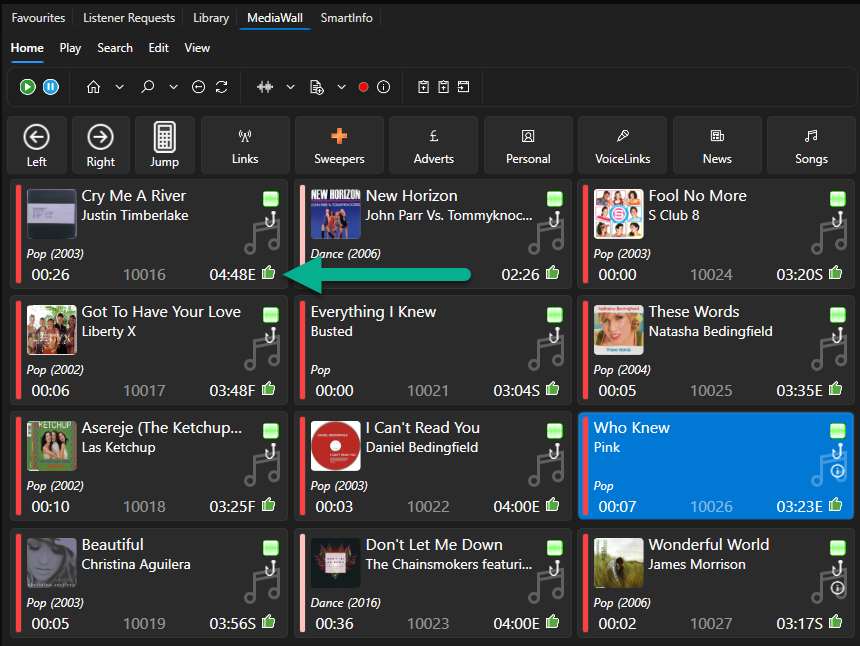
If you have upgraded from a previous version of Myriad Playout, you may not immediately see the Voting column in the Library view. On the Home ribbon, click on the Select Columns button and ensure the Voting column is enabled.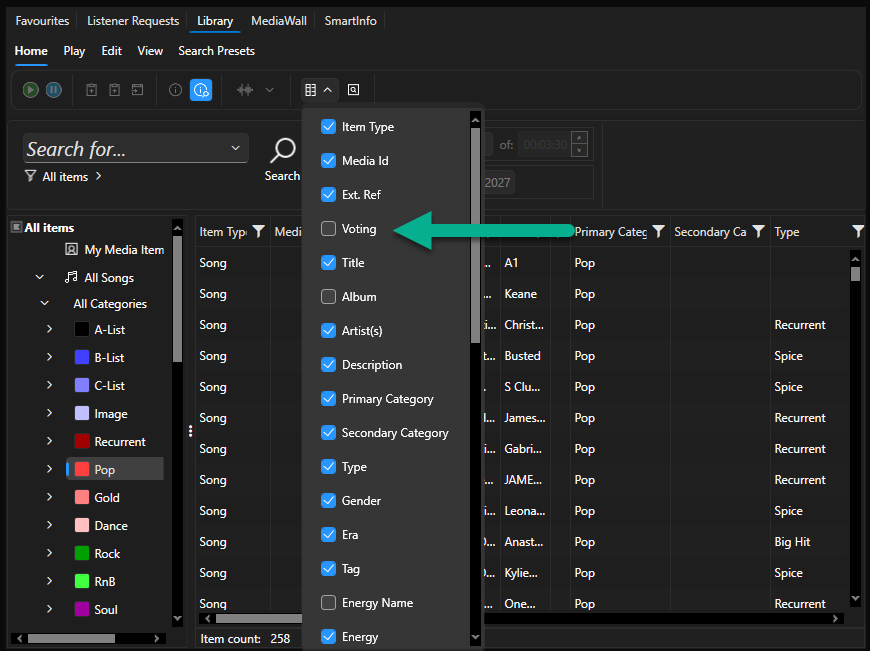
Once enabled, the Voting column will displayed in the Library View.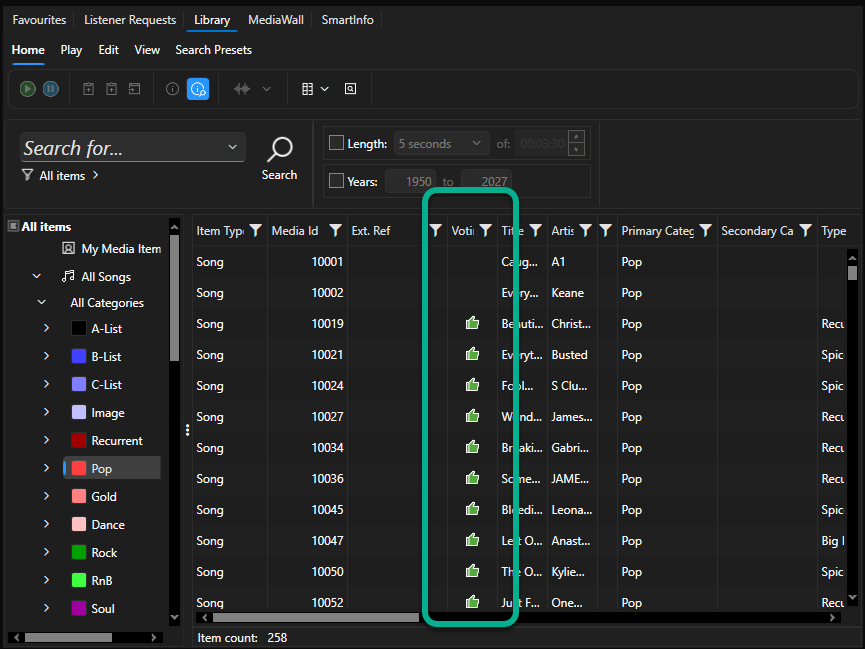
Related Articles
Was this article helpful?
That’s Great!
Thank you for your feedback
Sorry! We couldn't be helpful
Thank you for your feedback
Feedback sent
We appreciate your effort and will try to fix the article