The Web Player allows you to switch on Voting Controls which gives the listeners to the opportunity to say whether they like or dislike the currently playing Song by clicking on the Thumb Up or Thumb Down icon. You can access this information to review station performance and Myriad Schedule Pro customers can directly access this information to assist with Schedule Analysis.
1. Login to your Broadcast.Radio portal.
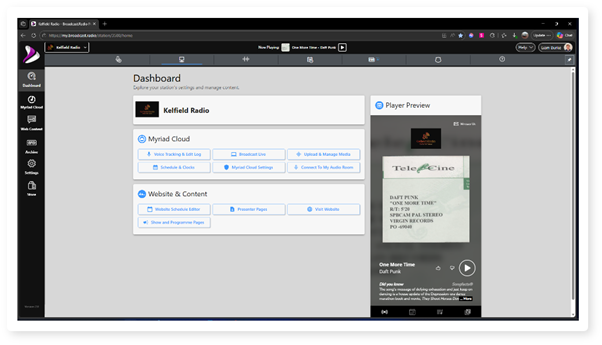
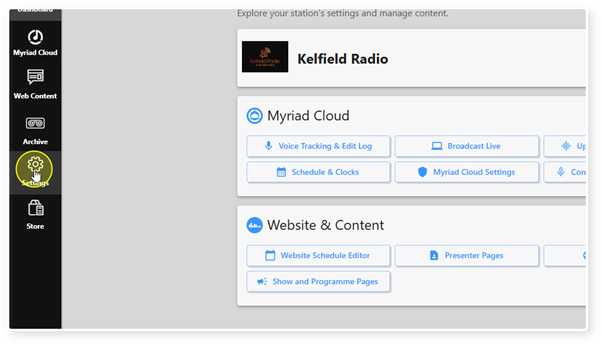
2. Select the Settings menu option.
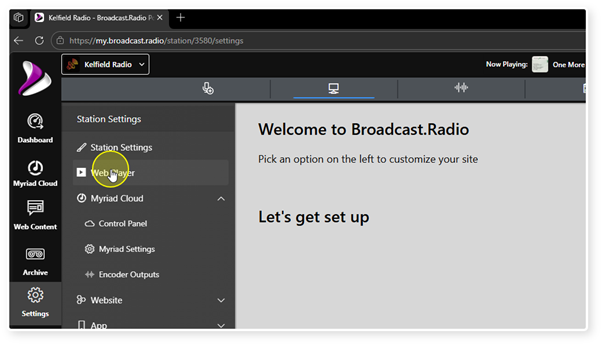
3. Click on Web Player.
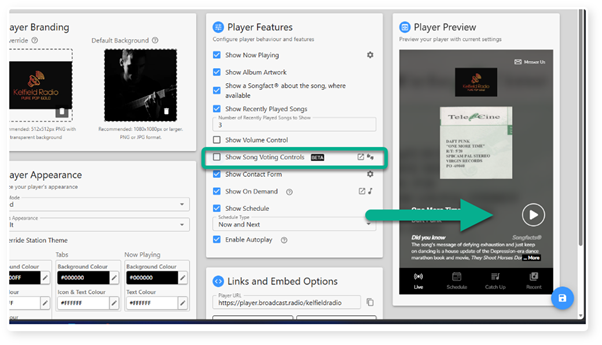
4. When the Show Song Voting Controls option is ticked, the Thumb Up / Thumb Down icons will be displayed on your Web Player.
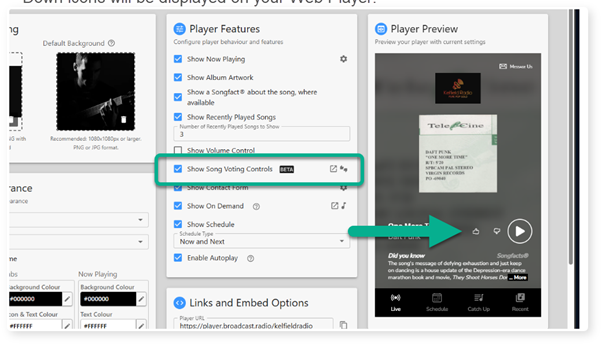
5. Un-ticking the option will hide the icons on your Web Player.
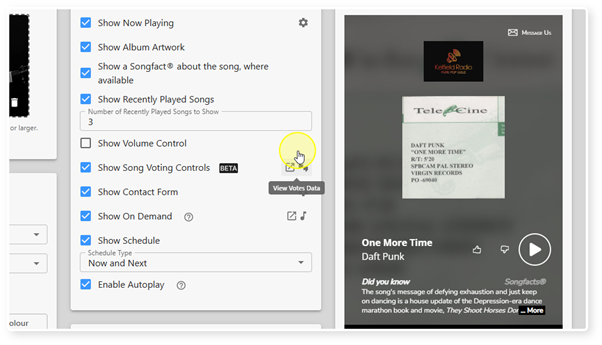
6. To access the Voting History page, click on the link button to the right if the option.
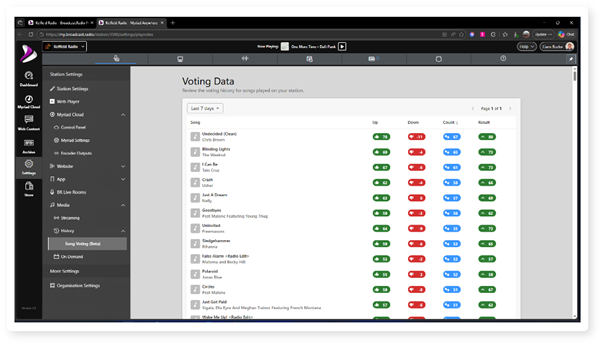
7. This will switch the view to the Song Voting Results page where you can see historic voting and overall score for Songs played on your Station.
You can also access this information directly from Settings > Media > Song Voting.
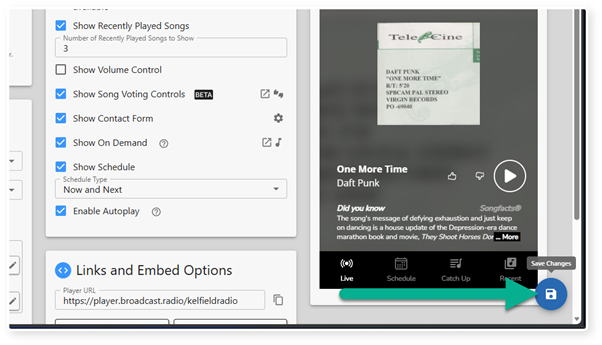
8. Click on Save on the Web Player page to save your settings.
Was this article helpful?
That’s Great!
Thank you for your feedback
Sorry! We couldn't be helpful
Thank you for your feedback
Feedback sent
We appreciate your effort and will try to fix the article