You can define whether the Web Player controls section is embedded directly on the Web Player (Default) or within a semi-transparent block (Blocks).
1. Login to your Broadcast.Radio portal.
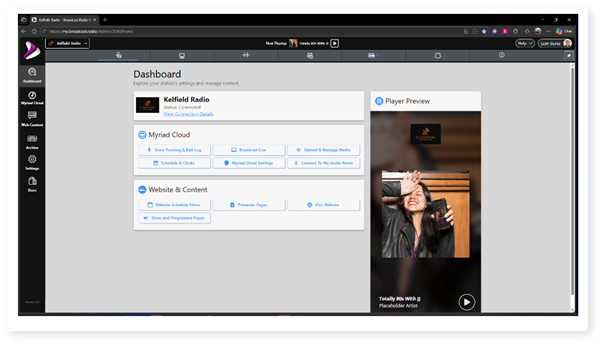
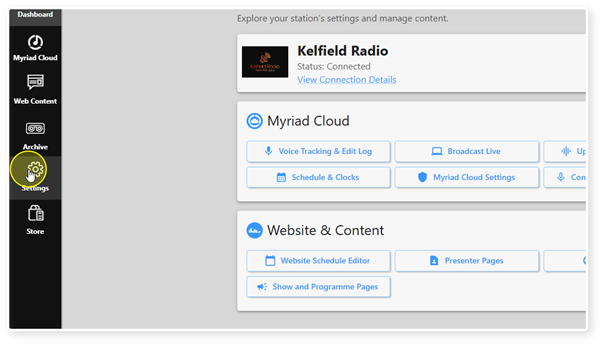
2. Click on the Settings option.
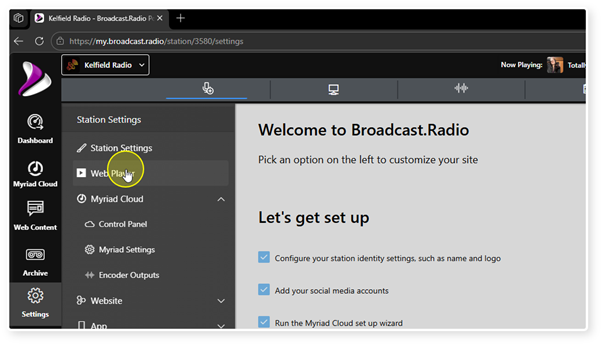
3. Select Web Player.
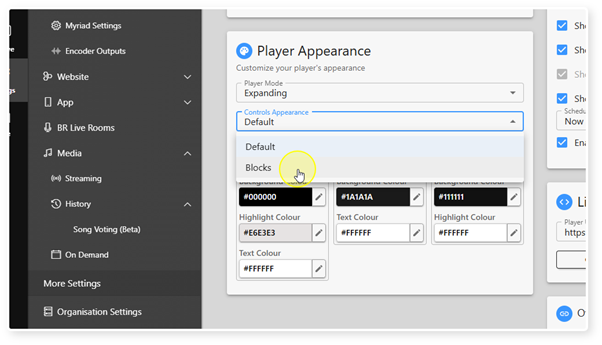
4. Scroll down to the Player Appearance section.
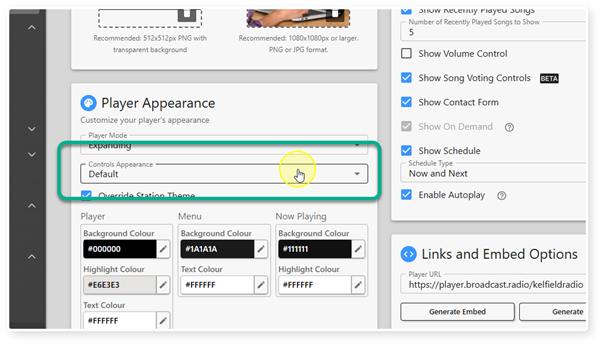
5. Us the Controls Appearance drop down to select either Default or Blocks.
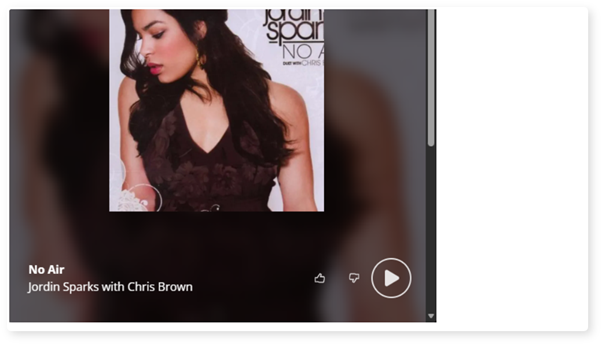
6. Default Setting - The Default option places the Controls directly on the Web Player.
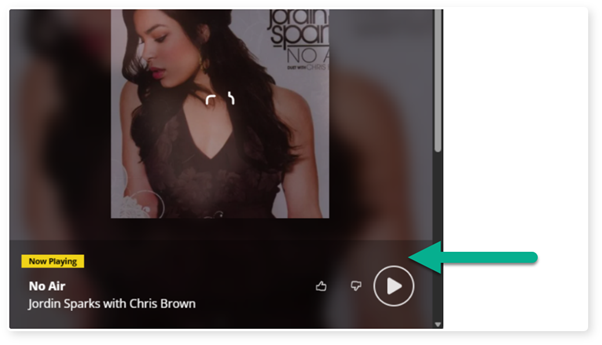
7. Blocks Setting - The Blocks option adds a semi-transparent background to the Controls area to help them remain visible no matter what the background colour or image is.
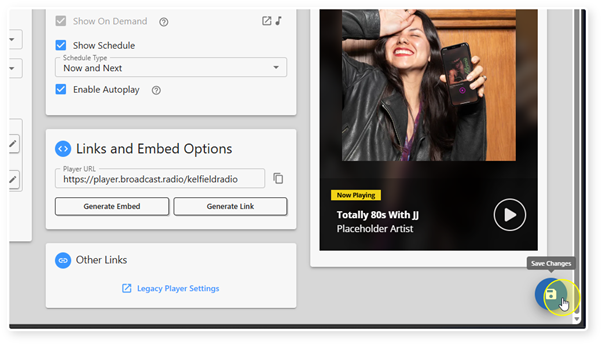
8. Click the Save button to save your changes.
Was this article helpful?
That’s Great!
Thank you for your feedback
Sorry! We couldn't be helpful
Thank you for your feedback
Feedback sent
We appreciate your effort and will try to fix the article