You can set whether your Web Player should display 'Now Playing' information from supported Playout Systems. You can also set alternative options and text to display if no Now Playing information is available.
1. Login to your Broadcast.Radio portal.
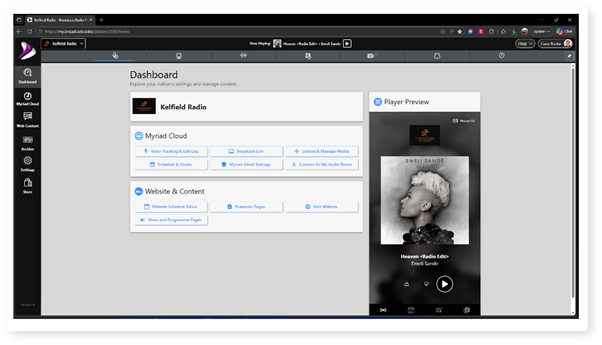
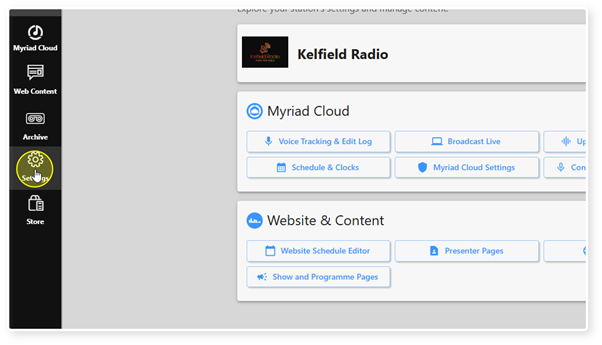
2. Click Settings.
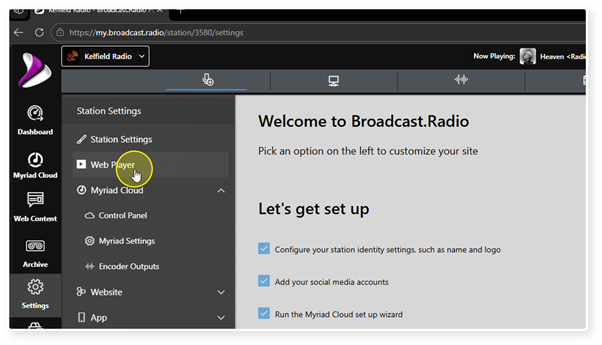
3. Select Web Player.
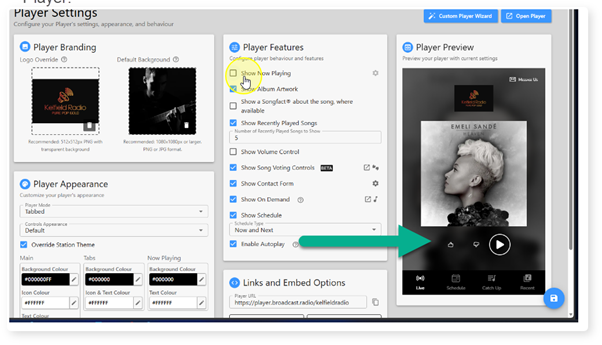
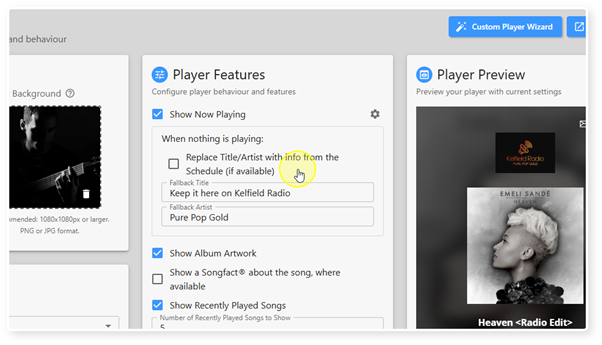
4. Use the Show Now Playing tick option to toggle Now Playing information display on your Web Player.
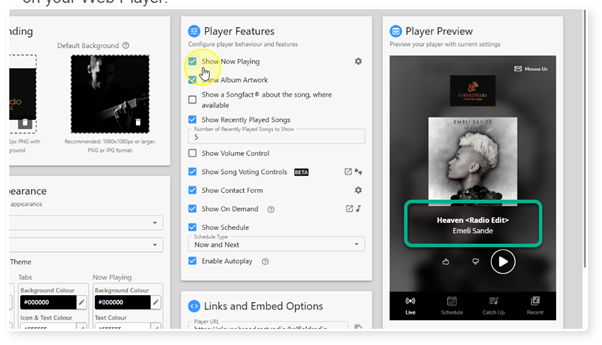
5. When un-ticked, the Now Playing information will be removed from the Web Player.
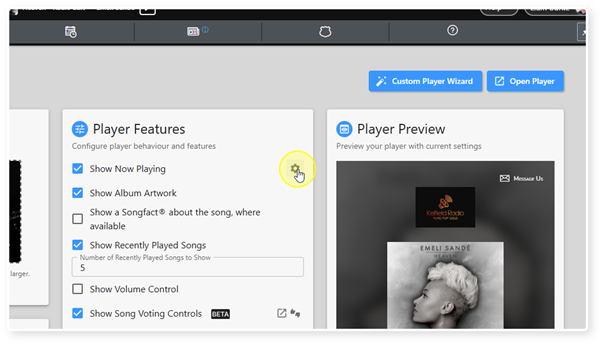
6. Click on the cog icon to edit the Now Playing settings.
7. If the "Replace Title/Artist with info from the Schedule" option is ticked, if no Now Playing information is available (when a jingle is playing for example), the Web Player will display the Show Title or Presenter Name for the current Programme according to the Programme Schedule (see Web Content > Programme Schedule).
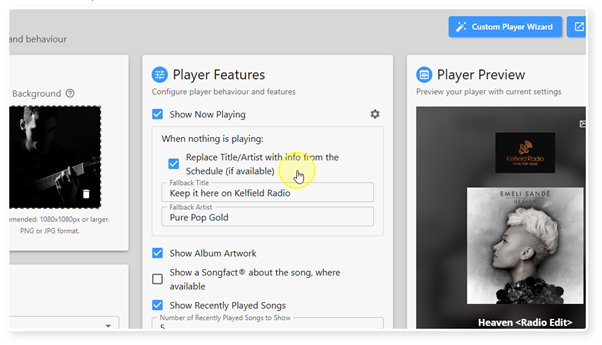
8. You can also set 'fallback' text for the Title and Artist fields on the Web Player. These will be displayed if no Now Playing information is available and there is no Show Title / Presenter Name assigned to this hour.
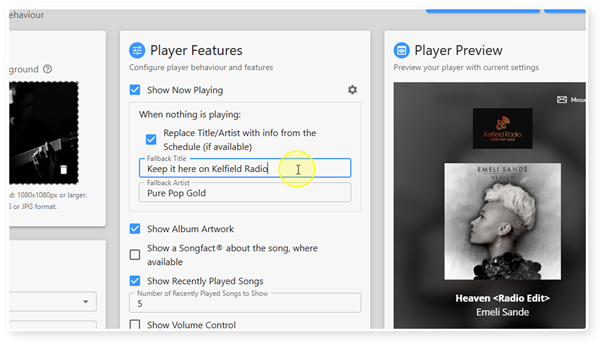
9. If you untick the "Replace Title/Artist with info from the Schedule" option then the 'fallback' Title and Artist will be displayed whenever no Now Playing information is available (ignoring the Programme Schedule).
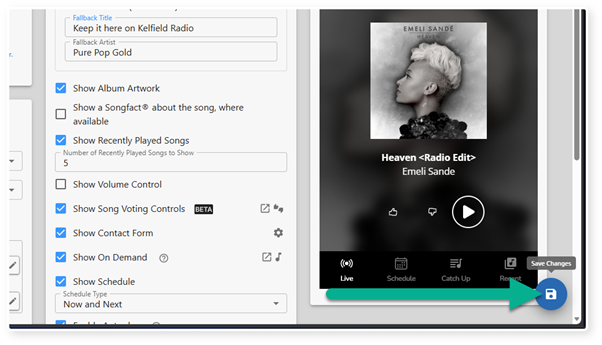
10. Click on Save to save your changes.
Was this article helpful?
That’s Great!
Thank you for your feedback
Sorry! We couldn't be helpful
Thank you for your feedback
Feedback sent
We appreciate your effort and will try to fix the article