The Web Player has the option to display a volume control to allow the listener to adjust playback volume from within the Web player.
1. Login to your Broadcast.Radio portal.
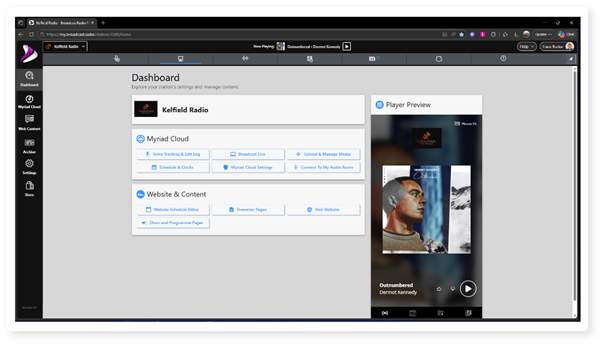
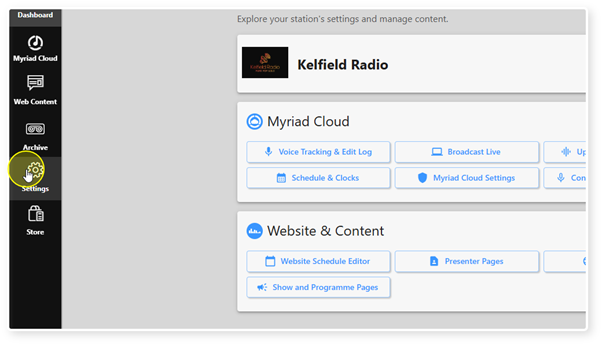
2. Click on the Settings option.
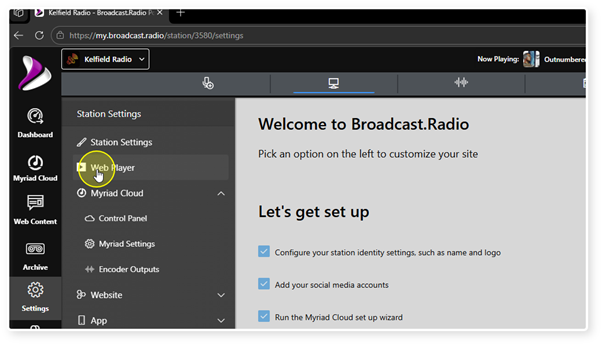
3. Select Web Player.
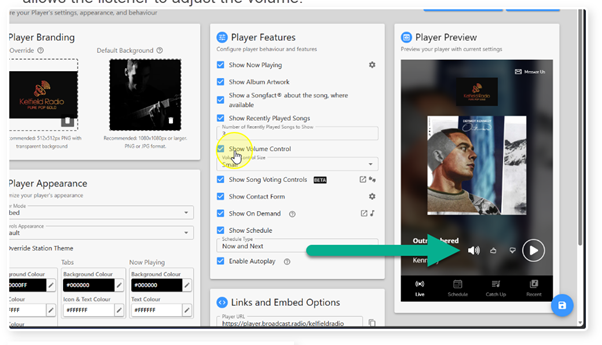
4. When the Volume Control option is un-ticked, the volume control icon is not displayed on the Web Player.
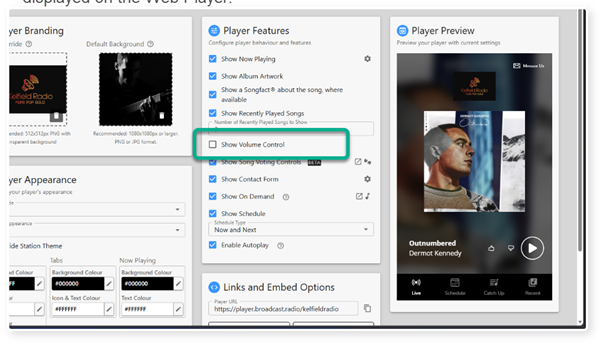
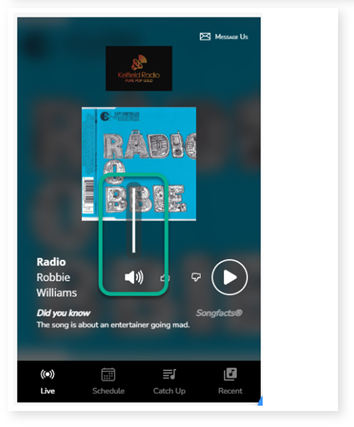
5. Ticking the option will enable the Volume Control icon on the Web Player. This allows the listener to adjust the volume.
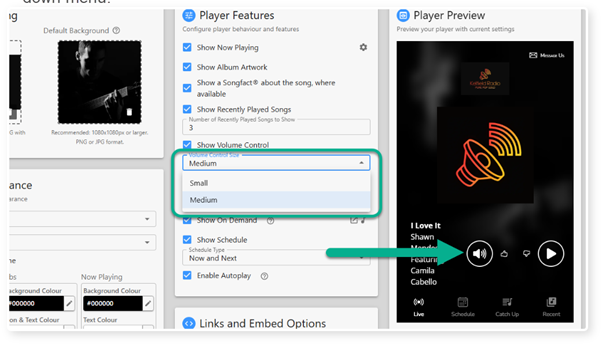
6. You can also choose between a small and medium sized icon using the drop down menu.
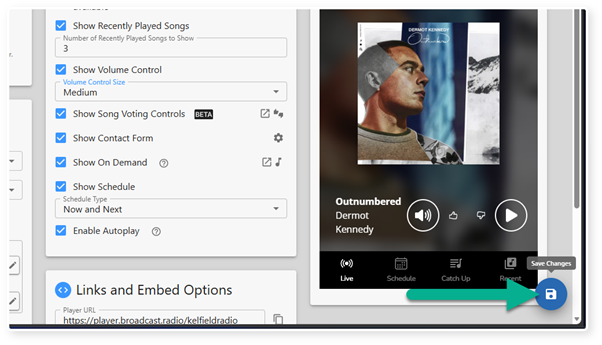
7. Click on the Save button to save your changes.
Was this article helpful?
That’s Great!
Thank you for your feedback
Sorry! We couldn't be helpful
Thank you for your feedback
Feedback sent
We appreciate your effort and will try to fix the article