The Web Player can include a Message Us option which will send an email to the default email address set in Station Settings.
1. Login to your Broadcast.Radio portal.
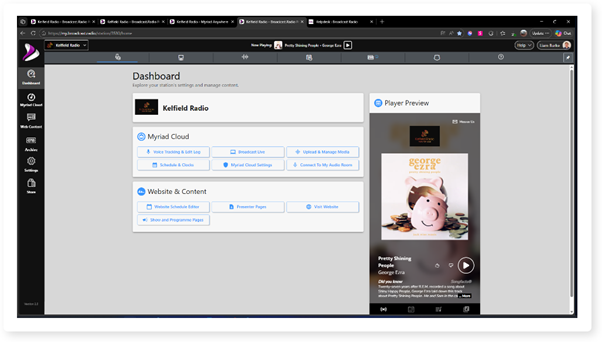
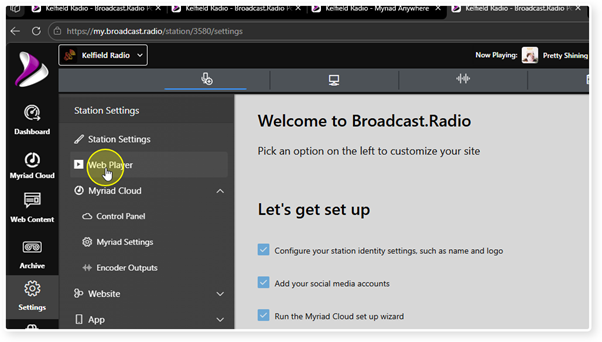
2. Select Settings.

3. Click on the Web Player option.
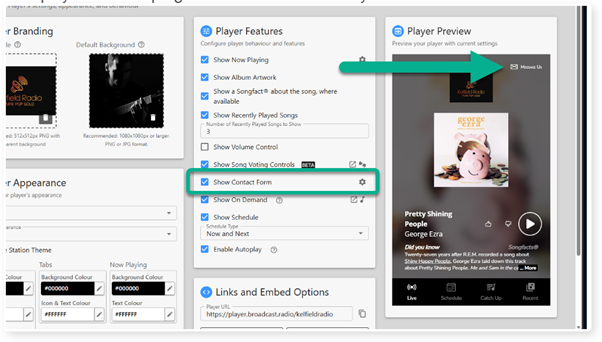
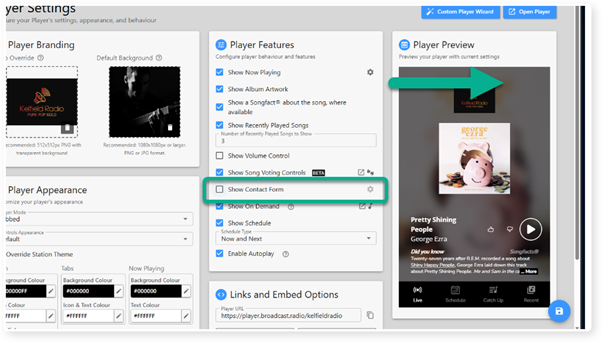
4. When the Show Contact Form option is ticked, a Message Us button is displayed in the top right corner of the Web Player.
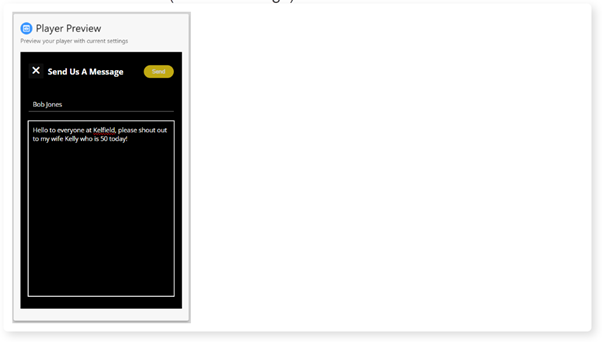
5. When a listener clicks on this button, they can type a message to be sent to the station default email (Station Settings).
6. Un-ticking this option will remove the Message Us button from the Web Player.
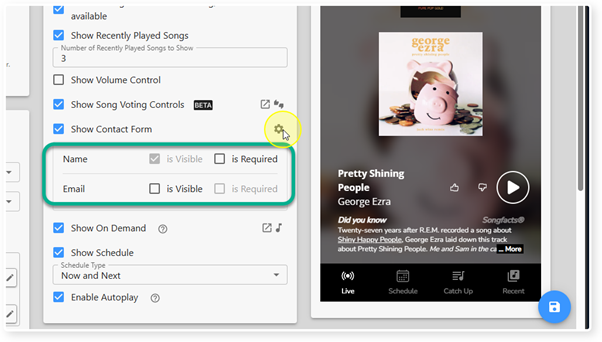
7. Clicking the cog to the right of the option expands some additional settings that allow you to choose whether the Name field is required and also whether to include an email field in the contact form, and whether that will also be required.
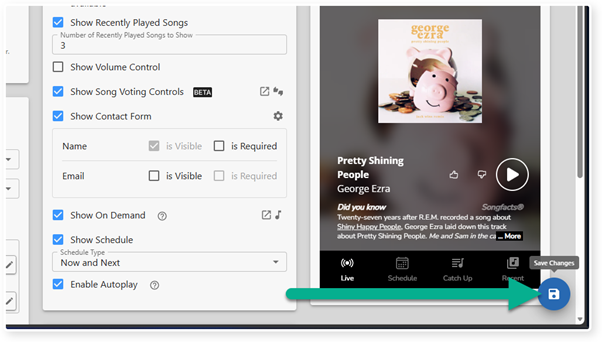
8. When you are happy with your settings, click on the Save button.
Was this article helpful?
That’s Great!
Thank you for your feedback
Sorry! We couldn't be helpful
Thank you for your feedback
Feedback sent
We appreciate your effort and will try to fix the article