The Web Player and optional Mobile App can contain additional on demand content from service providers such as Podbean, MixCloud and any other service with a suitable RSS feed.
The Catchup tab in the Web Player and Mobile App will display a list of all content available from a linked On Demand service.
1. Login to your Broadcst.Radio portal.
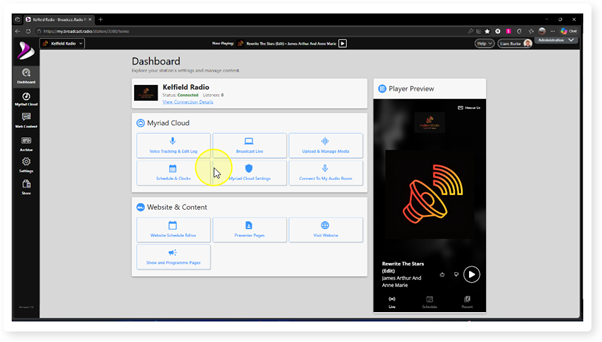
2. Selected the Settings menu option.
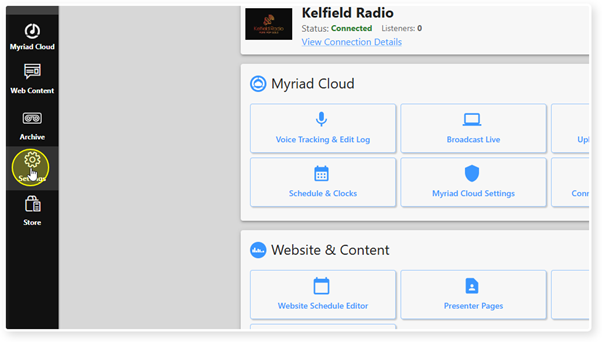
3. Expand the Media Section.
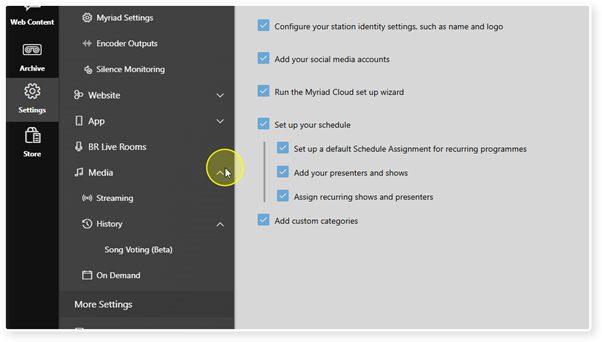
4. Click on the On Demand option.
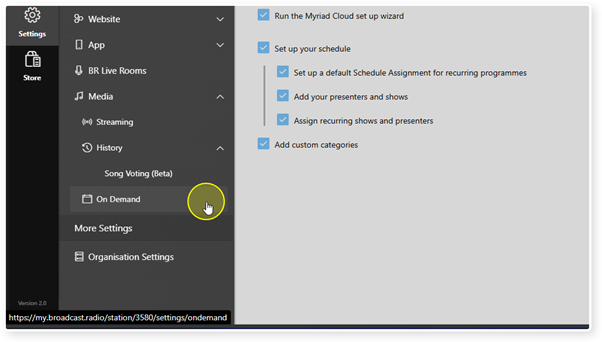
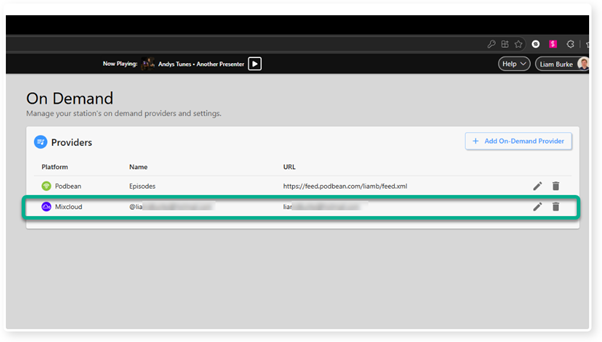
5. You will see any currently configured On Demand services listed.
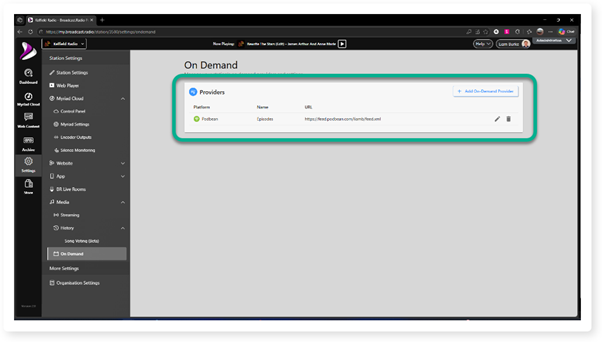
6. To edit the settings for an existing service, click on the Edit button.
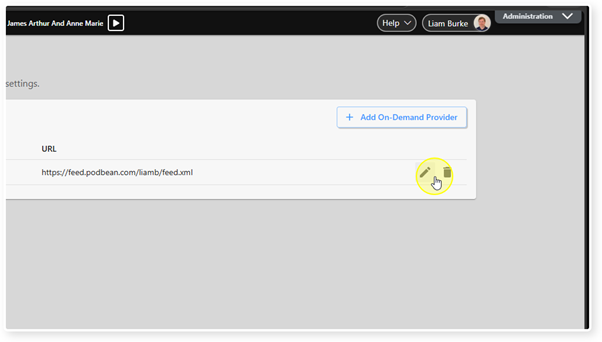
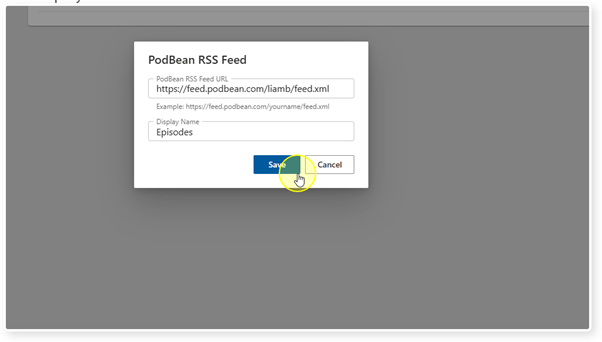
7. The details may vary per service but generally it will consist of an RSS URL and a display name.
8. To add a new On Demand provider, click on the Add On Demand Provider button.
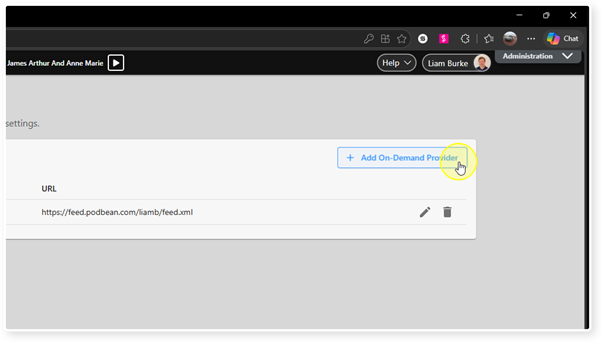
9. Choose the type of provider you want to add.
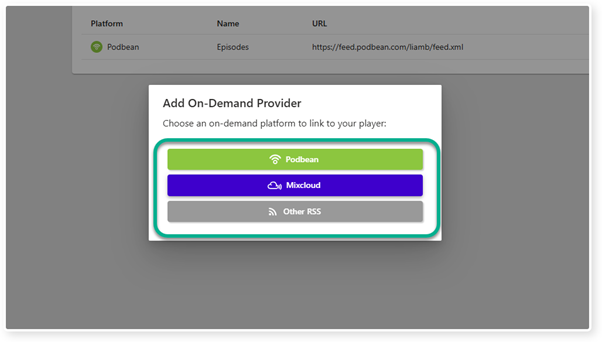
10. Add in the requested details and then click Save.
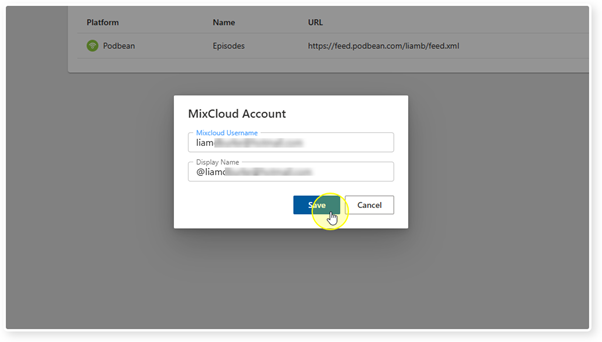
11. The On Demand service will be added to the list.
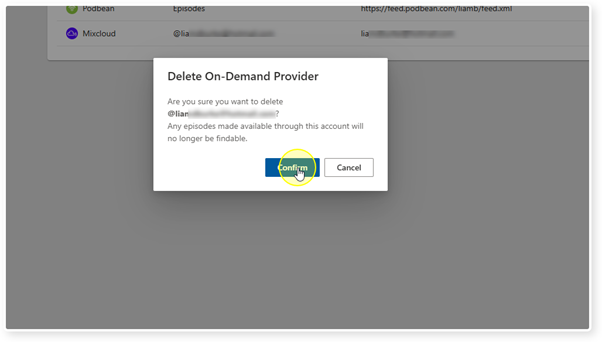
12. If you need to remove a service, click on the Delete button to the right of the service in the list.
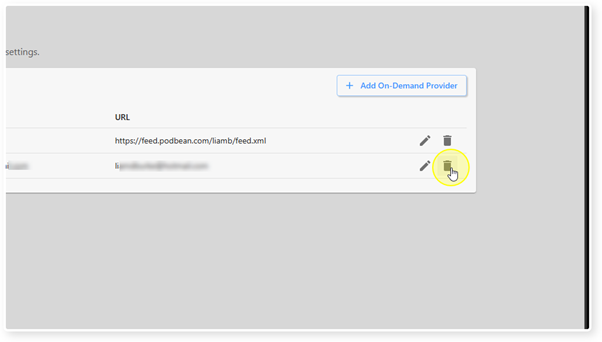
13. You will be asked to confirm before the link to the service is removed.
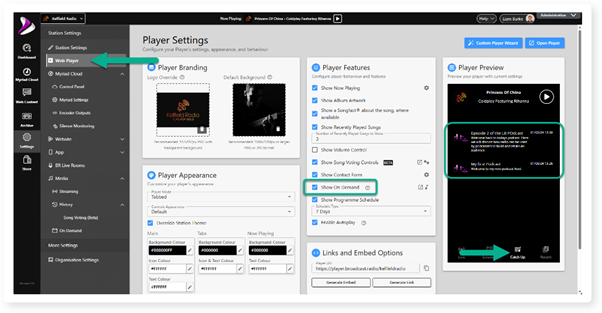
14. To test the On Demand service, switch to the Web Player option in the main menu and ensure the Show On Demand option is ticked in the Player Feature section.
Click on the Catch Up tab on the Player Preview and you should see content listed from your external On Demand service provider.
Also see - Web Player - Player Features - Show On Demand
Was this article helpful?
That’s Great!
Thank you for your feedback
Sorry! We couldn't be helpful
Thank you for your feedback
Feedback sent
We appreciate your effort and will try to fix the article