The Web Player can also display content from 3rd party platforms such as MixCloud and Podbean as well as RSS feeds. This content can be accessed by the Catch Up tab in Tabbed mode or the Catch Up section in Full Page mode.
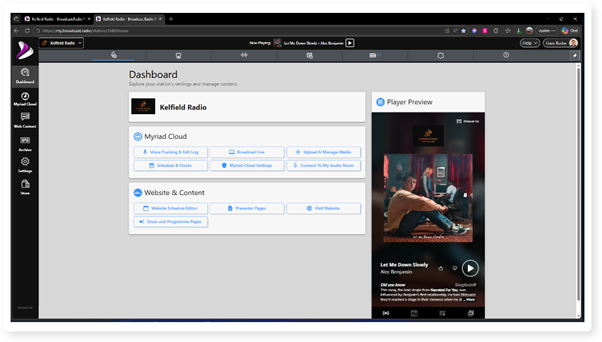
1. Login to your Broadcast.Radio portal.
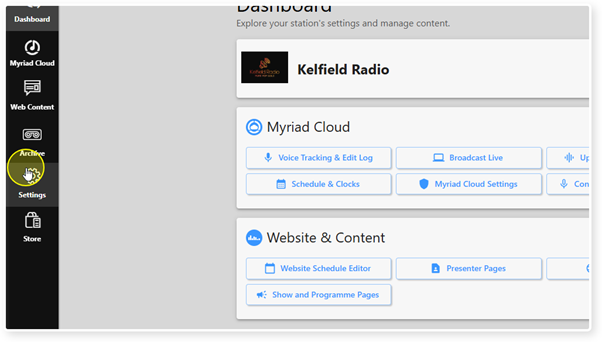
2. Click on Settings.
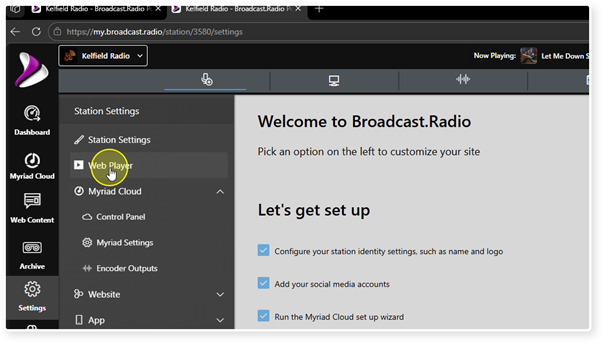
3. Select Web Player.
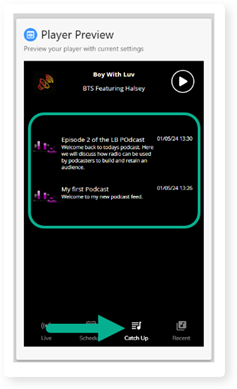
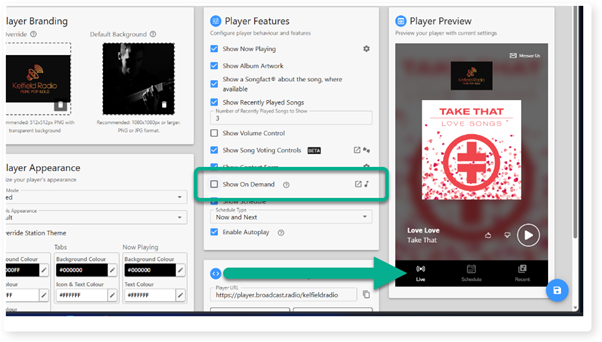
4. When the Show On Demand option is ticked the Tabbed mode Web player will show the Catch Up option to access your uploaded content.
In Full Page more, the On Demand section will be included in the Web Player.
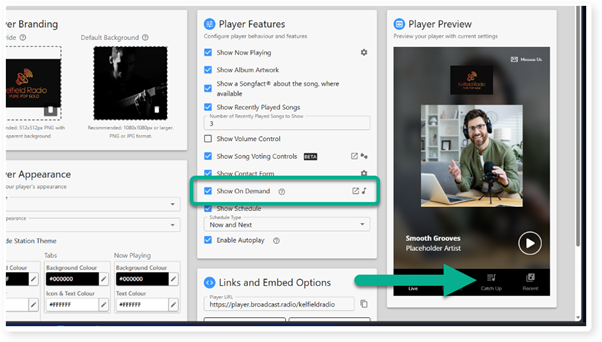
5. When a listener clicks on the Catch-Up option, content from your connected on-demand service will be listed within the Web Player.
6. Unticking the Show On Demand option will remove the Catch Up tab from the Web Player.
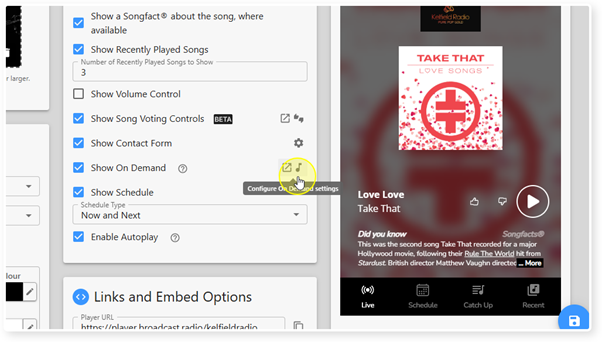
7. To setup an On-Demand service provider or edit an exist service, click on the link button to the right of the option.
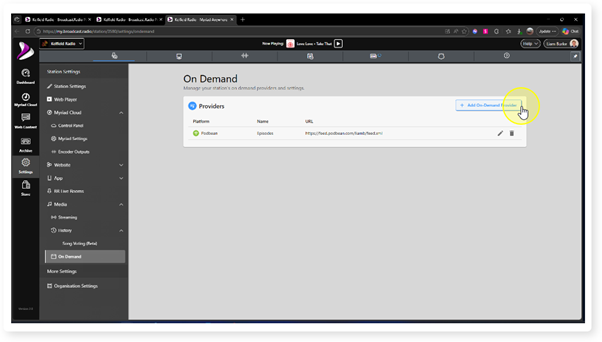
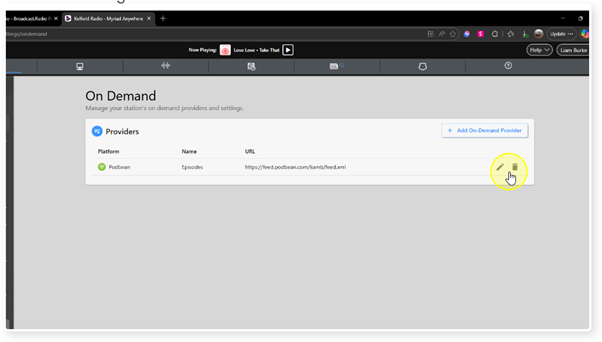
8. The On Demand page shows a list of existing service providers and allows you to add additional services using the Add On-Demand Provider button.
9. Select the Service Provider you want to add.
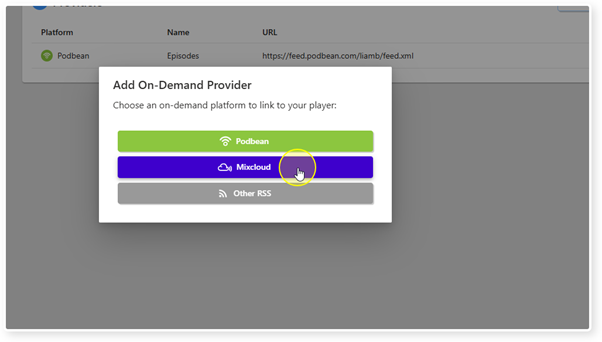
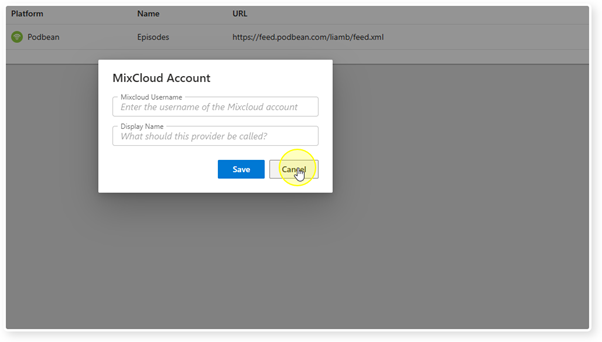
10. Add in the URL and the Name you want to use for the service provider, then click Save.
11. You can also edit existing Providers or remove Providers using the Edit or Delete icons to the right of the Provider.
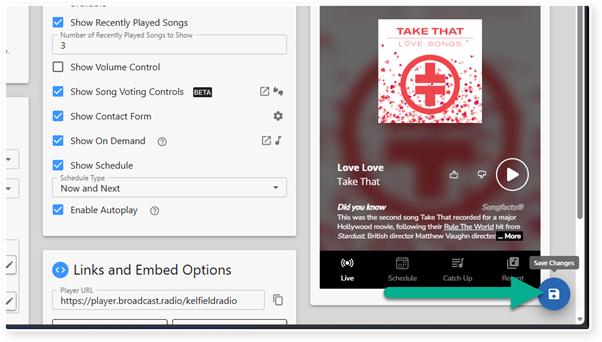
12. Don't forget to Save your Web Player settings to keep your changes.
Was this article helpful?
That’s Great!
Thank you for your feedback
Sorry! We couldn't be helpful
Thank you for your feedback
Feedback sent
We appreciate your effort and will try to fix the article