TABLE OF CONTENTS
To help listeners enjoy your station, you can add optional Mobile Apps and Alexa Skills to enable people to listen on their mobile devices or smart speakers in their home.
Mobile Apps and Alexa Skills can be added to any package although they are included with Myriad Cloud Ultimate.
This episode will guide you through setting up the Mobile Apps and Alexa skills.
Please note that in both cases, the resulting Apps and Skills need to be built, submitted and approved by Apple, Google and Amazon which can take up to two weeks.
Setting Up Mobile Apps
Our Mobile Apps package includes dedicated apps on the following platforms:
- iOS Devices (iPhone and iPad)
- Android Devices (Phones & tablets)
- Apple Carplay
Whilst these are all individual apps, the same information is used by them all, so you only need to run through the setup wizard once, to configure all three applications.
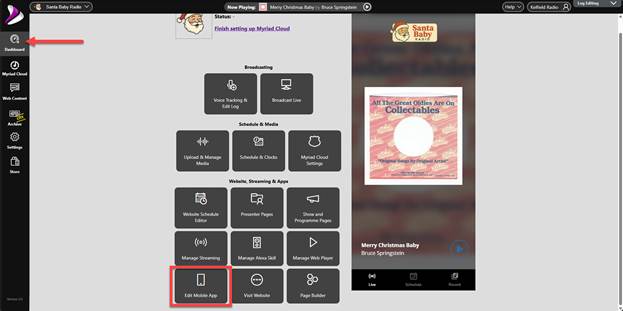
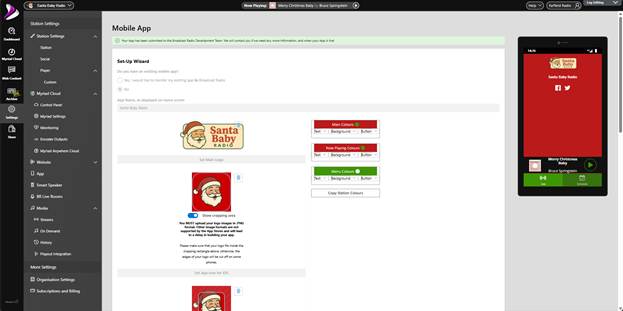
Starting on the Dashboard, click on the Edit Mobile App button.
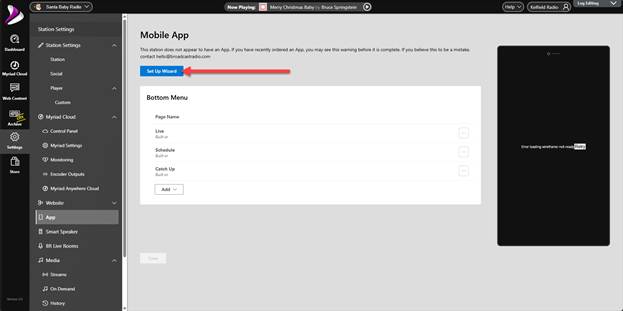
As we have not yet configured our Mobile Apps, the first thing to do is click on the Set Up Wizard button.
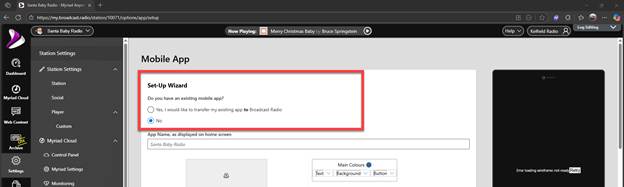
The first step is to set whether you have an existing mobile app. If you do not currently have a mobile app, select No and move on to the next section.
If you have an existing app and you want to transfer the app users to your new Broadcast Radio Apps, click Yes and fill in the existing app details.
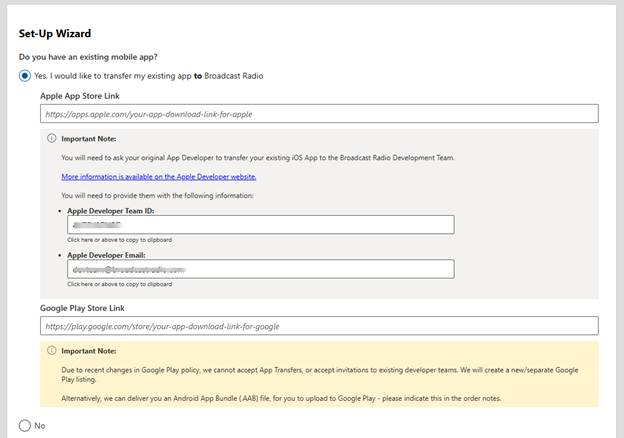
By doing this, your existing app users will simply receive the new Broadcast Radio App as an update, once it is published.
You will need to provide us with your Apple App Download Link, Apple Dev ID & Apple Dev Email.
Please note that we are no longer able to accept transfers from the Google Play store due to a recent update to Google policy.
In this example, we will assume we do not have an existing app.
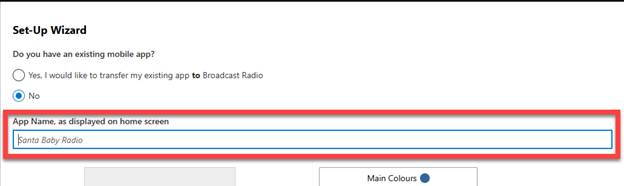
Set a suitable App Name which is the name displayed on the device home screen. Your station name will be added by default.
Next, select the images you want to use for Main Logo, iOS App Icon and Android App Icon.
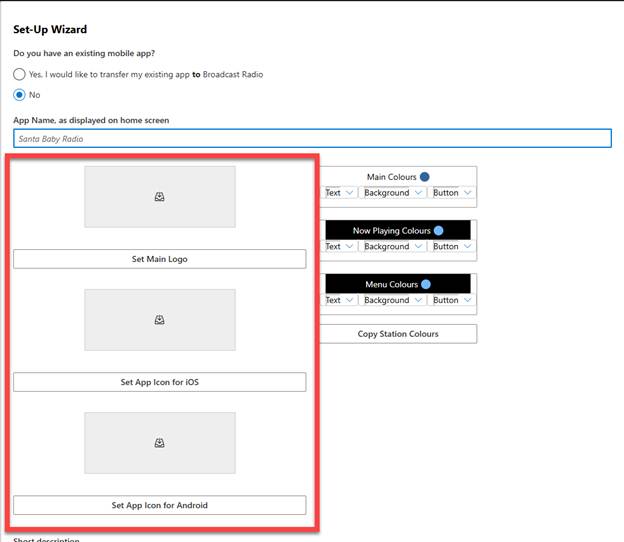
Click on the Set Logo / Icon buttons to select the image to use. You can select from previously uploaded media or upload new media.
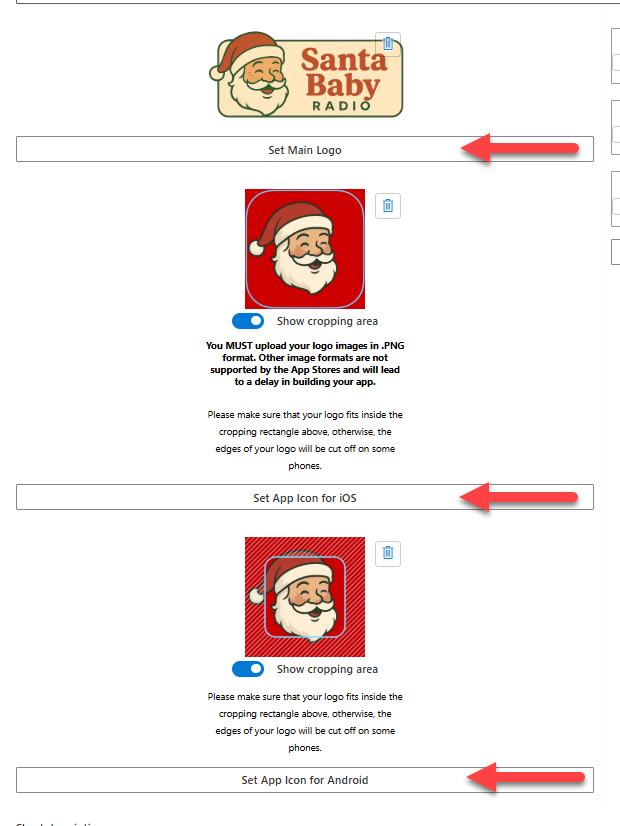
In the case of the two icon images, the cropping applied by devices is indicated by the blue overlay.
iOS app icons are all the same size and shape as indicated in the preview.
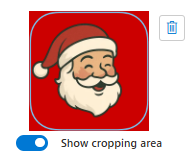
Android devices are more complex as some use circular icons, and others use squares.
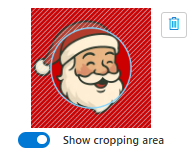
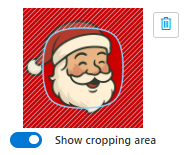
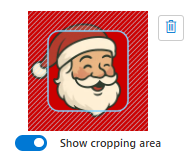
Because of this, we recommend providing an image that will work on all the all the icon shapes.
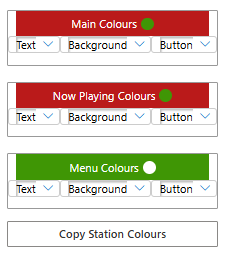
You can also set the colour scheme used by your mobile apps.
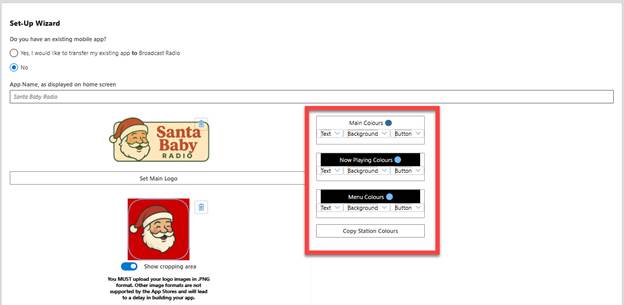
The colour selection is split into three areas.
Main Colours – This allows you to set the Text, Background & Button colours for the main area of the app.
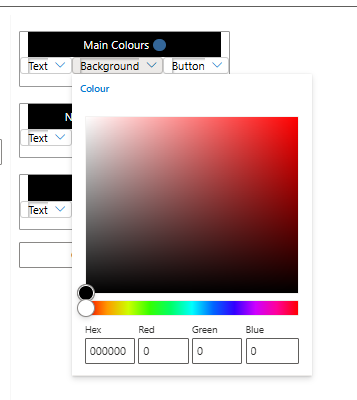
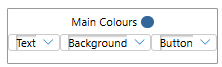 Click on the drop down option and select the colour you want to use.
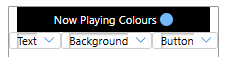
Now Playout Colours – You can also select colours for the Now Playing area (the bit that displays the Title and Artist).
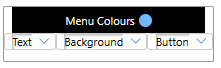
Menu Colours – The apps also include a menu that runs along the bottom of the app. This option allows you to select the colour for Text, Background and Buttons in this area.
Copy Station Colours – You can pre-populate these colour options with the default colours for your station.
You can change these colours at anytime, even when the app is published, so don’t worry if you have not settled on a final colour scheme.
Scroll down to the next section to add the description for your station app.
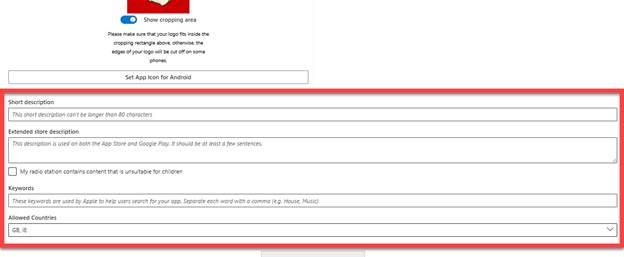
This is the information which will displayed in the Apple App Store and Google Play Store.
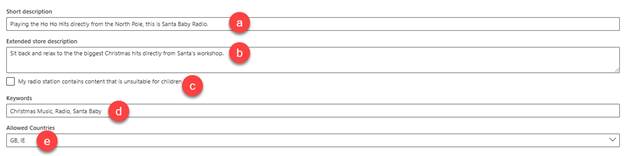
- Short Description – Add a short description of your station.
- Extended Description – Add a little more detail so people can learn about your station and app.
- Unsuitable For Children – If your station is not suitable for children, tick this option and your app will be excluded from accounts owned by minors.
- Keywords – Add some keywords to help people find your app.
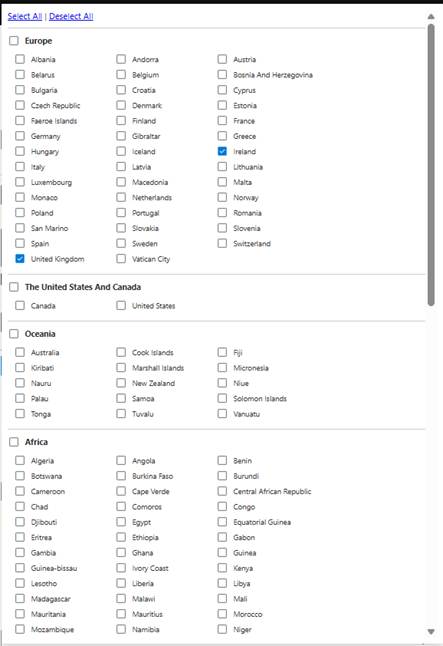
- Allowed Countries – Select the countries you want to make your app available to. Use the drop down and tick the countries you want to include.
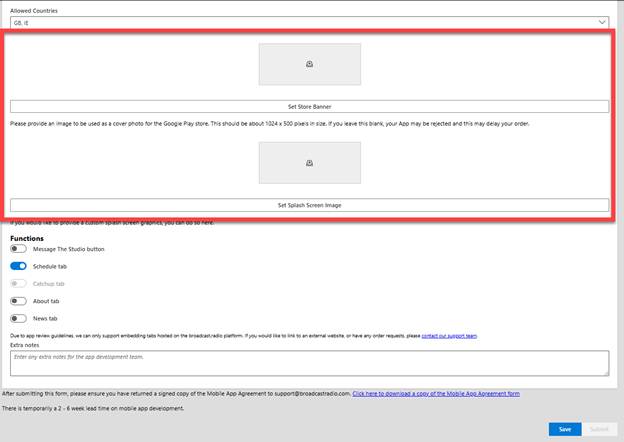
Next, add in a Store Banner image which should be 1024 x 500 pixels in size. If you do not set a Store Banner image, your app is likely to be rejected.
You can also set an image to be displayed on the ‘splash screen’ which is visible while the app loads.
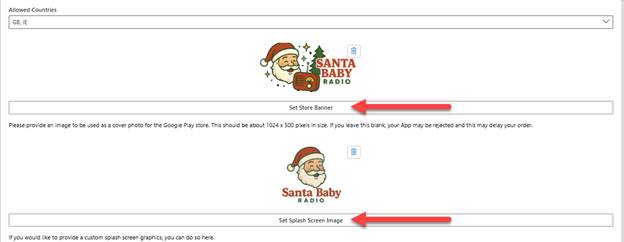
Use the Set Store Banner and Set Splash Screen buttons to select an existing image or upload a new images.
The Functions section allows you to toggle Mobile App functions on and off. These can be changed at anytime without needing to resubmit the app, so don’t worry if you want to add or remove functions in the future.
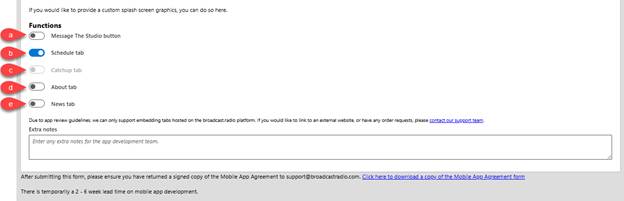
The option are:
- Message The Studio Button – Toggles an icon in the app which allows listeners to send a message from the app, to your default email address.
- Schedule Tab – Include the Schedule tab in the menu to allow app users to access you published station schedule.
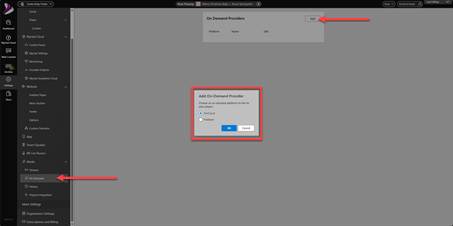
- Catchup Tab – Include Catchup tab in the menu to allows users to access your catchup content on Mixcloud or Podbean. Please note this option is only enabled when a valid Mixcloud to Podbean account information has been added to the Media > On Demand section.
- About Tab – Displays the About page as an option on the menu.
- News Tab (requires website add-on) – Shows the summary contents of your News webpage.
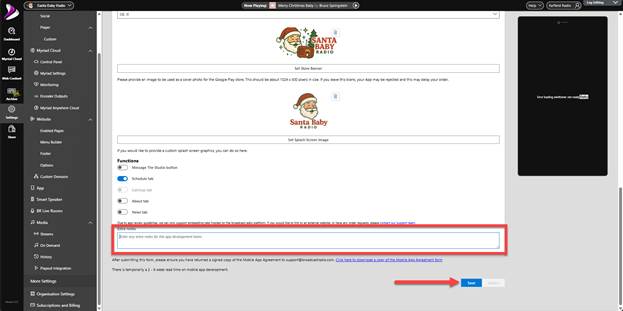
Finally, add any Extra Notes you want to pass onto the app developers and the click on Save.
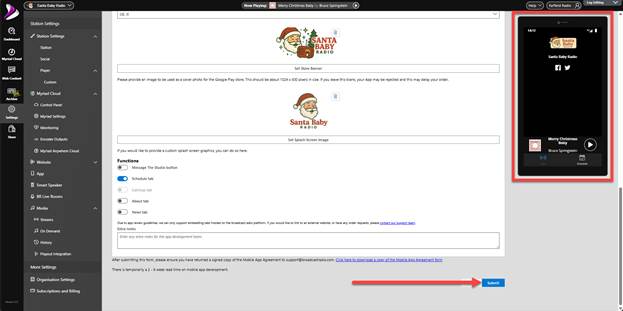
If you are happy with the preview, click on Submit.
You will get a confirmation of the submission. Make sure you read the information carefully as there is another crucial step that needs to be completed before your mobile apps can be submitted to Apple and Google.
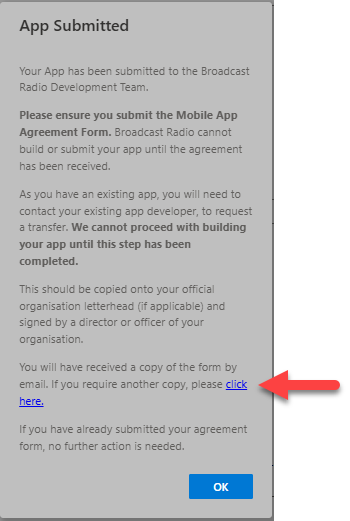
As explained in the message box above, you a need to complete the Mobile App Agreement before we can submit your app to the iOS and Android stores. You can access the agreement from you emails, or by clicking on the link in the message above.

The Mobile App Agreement is sent to both Apple and Google to allow Broadcast Radio Ltd to submit an app on your behalf. Without this agreement, any submission will be immediately rejected on copyright grounds to prevent companies from registering apps for brands or content they do not own.
The Mobile App Agreement authorises us to act on our behalf and also confirms to Apple and Google, that you have the necessary music licensing in place to operate your service.
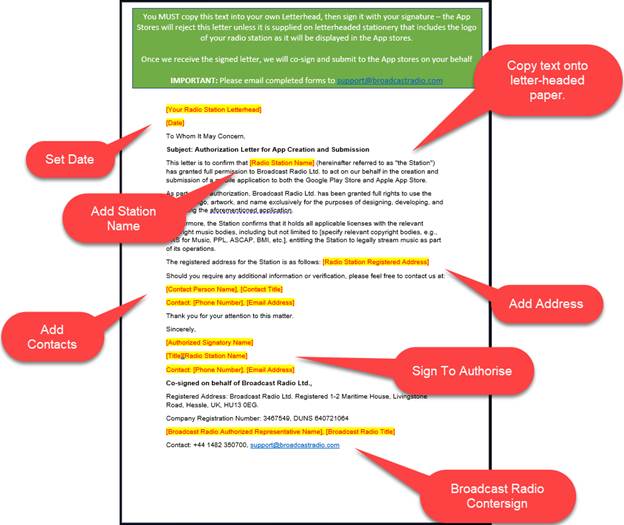
You need to open the Mobile App Agreement (it is in Word format) and copy the main body text onto your company letterheaded document. You then need to add your details to all the sections highlighted in yellow, except for the bottom section which will be counter-signed by a Broadcast Radio representative.
The agreement text is also included below.
You MUST copy this text into your own Letterhead, then sign it with your signature – the App Stores will reject this letter unless it is supplied on letterheaded stationery that includes the logo of your radio station as it will be displayed in the App stores.
Once we receive the signed letter, we will co-sign and submit to the App stores on your behalf
IMPORTANT: Please email completed forms to support@broadcastradio.com
[Your Radio Station Letterhead]
[Date]
To Whom It May Concern,
Subject: Authorization Letter for App Creation and Submission
This letter is to confirm that [Radio Station Name] (hereinafter referred to as "the Station") has granted full permission to Broadcast Radio Ltd. to act on our behalf in the creation and submission of a mobile application to both the Google Play Store and Apple App Store.
As part of this authorization, Broadcast Radio Ltd. has been granted full rights to use the Station’s logo, artwork, and name exclusively for the purposes of designing, developing, and publishing the aforementioned application.
Furthermore, the Station confirms that it holds all applicable licenses with the relevant copyright music bodies, including but not limited to [specify relevant copyright bodies, e.g., PRS for Music, PPL, ASCAP, BMI, etc.], entitling the Station to legally stream music as part of its operations.
The registered address for the Station is as follows: [Radio Station Registered Address]
Should you require any additional information or verification, please feel free to contact us at:
[Contact Person Name], [Contact Title]
Contact: [Phone Number], [Email Address]
Thank you for your attention to this matter.
Sincerely,
[Authorized Signatory Name]
[Title][Radio Station Name]
Contact: [Phone Number], [Email Address]
Co-signed on behalf of Broadcast Radio Ltd.,
Registered Address: Broadcast Radio Ltd. Registered 1-2 Maritime House, Livingstone Road, Hessle, UK, HU13 0EG.
Company Registration Number: 3467549, DUNS 640721064
[Broadcast Radio Authorized Representative Name], [Broadcast Radio Title]
Contact: +44 1482 350700, support@broadcastradio.com
Once you have completed and signed the Mobile App Agreement on your company letter-headed paper, email it to support@broadcastradio.com.
You app information will be reviewed by our development team and dedicated mobile apps will be generated and submitted to Apple and Google respectively.
Setting Up The Alexa Skill
In addition to Mobile Apps, we also offer the option for an Alexa skill which allows users with Alexa enabled devices and smart speakers to access your station directly.
To enable your Alexa skill, follow these steps:
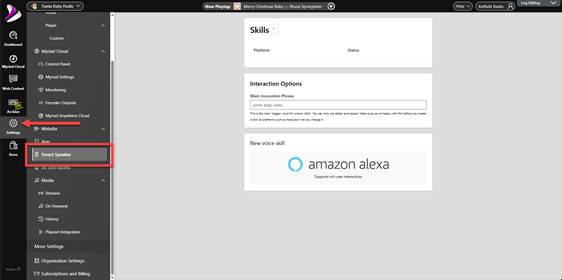
Login to your Broadcast.Radio account.
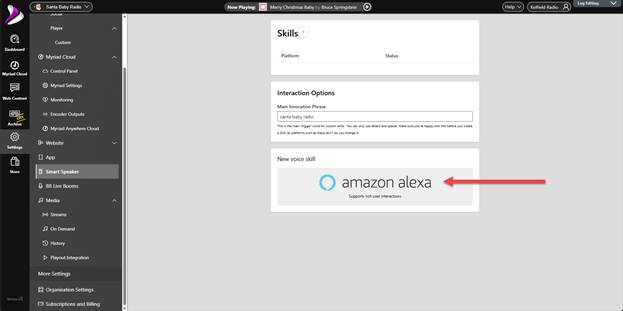
Click on Settings > Smart Speakers.
Type in the Main Invocation Phrase.
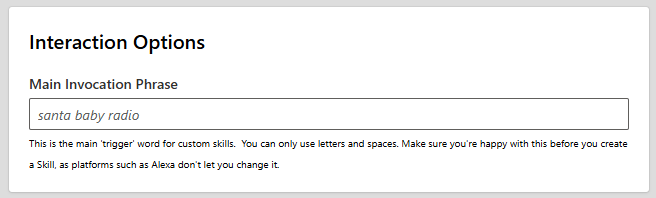
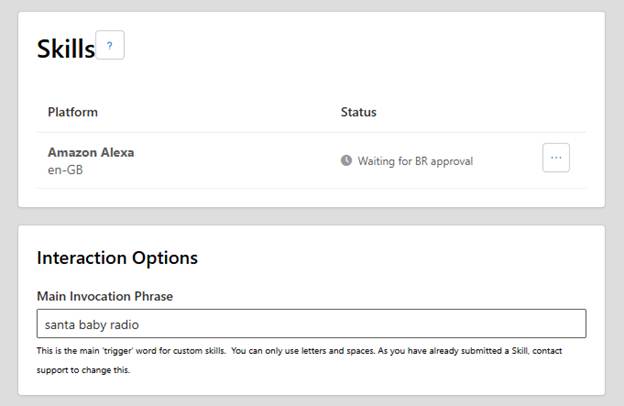
Keep in mind that this will be the phrase used to trigger your Alexa Skill, so in the example above, an Alexa enabled speaker would respond to ‘Alexa, play Santa Baby Radio’.
Important Things To Consider: There is no exclusivity on invocation words so if your station has a common name, it is very likely that your invocation will be superseded by other skills, so try and be a bit more creative is possible. Also avoid anything to generic as Amazon are inclined to refuse skills that clash with core functionality. For example, if your station is called Pop Music Radio, it is very unlikely a skill that uses ‘Alexa play Pop Music Radio’’ will be approved. Similarly, invocations that me be perceived as using other stations names, may be rejected, so avoid names like Capital as your skill will not be able to compete with the official Capital Radio skill.
Unfortunately, we have no control over what Amazon will and will not allow, so if the invocation phrase is rejected, you will either need to change it, or cancel the service.
Next, click on the Amazon Alexa button.
You will be asked to confirm you want to submit the Alexa Skill.
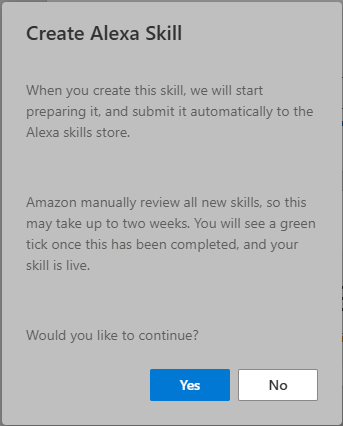
Click Yes.
By default, Alexa Skills are limited to the UK and Republic of Ireland. If you want to include other regions, click No when prompted and follow the instructions. Otherwise, if you are happy for the skill to be restricted to UK and Ireland, click Yes.
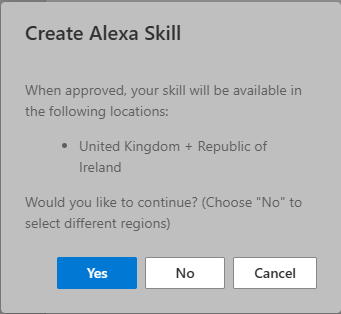
Keep in mind that the more Countries you add, the more likely it is your invocation phrase will already be taken in that region.
You Alexa Skill will be reviewed and submitted by the Broadcast Radio Development Team.
In the final episode, we will add in a few presenters and invite them to contribute voice tracked and live broadcast shows!
Was this article helpful?
That’s Great!
Thank you for your feedback
Sorry! We couldn't be helpful
Thank you for your feedback
Feedback sent
We appreciate your effort and will try to fix the article