The Web Player and optional Mobile Apps & Alexa Skills will automatically connect to the highest priority Stream you have configured (usually your main Stream). If a connection is not possible, the Web Player / App / Skill will try to connect the next highest priority Stream. It will continue to do that until no Streams are available.
You can change the Priority of the Streams by dragging them up or down in the Streams list.
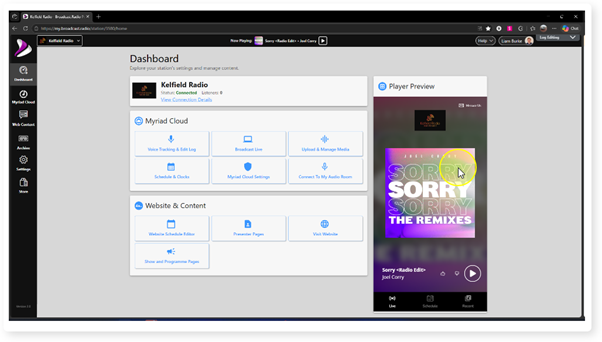
1. Login to your Broadcast.Radio portal.
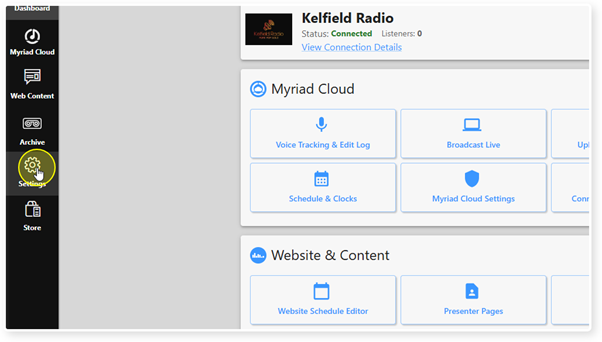
2. Click on the Settings menu.
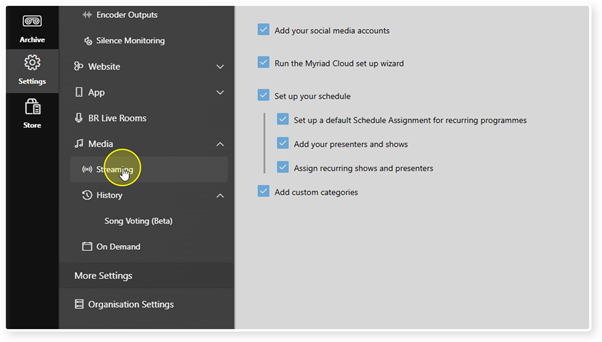
3. Select Streaming.
4. You will see a list of available Streams.
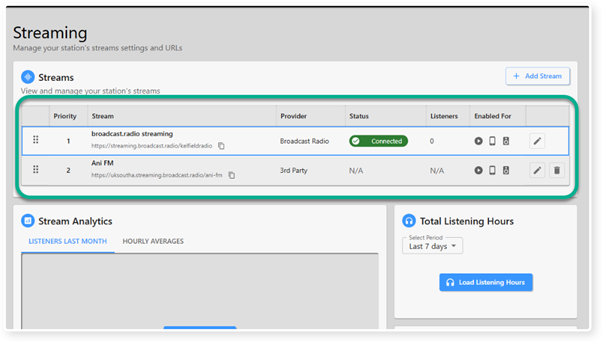
5. To change the order of the Streams, click and drag the 'grab' icon up or down.
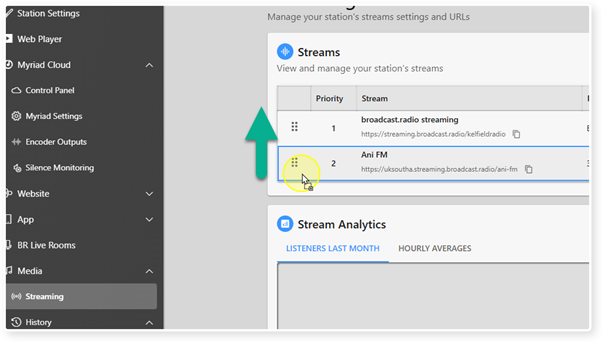
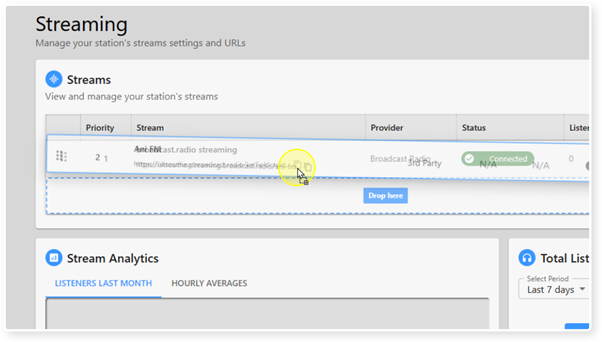
6. You will be able to see the Stream being dragged into it's new position.
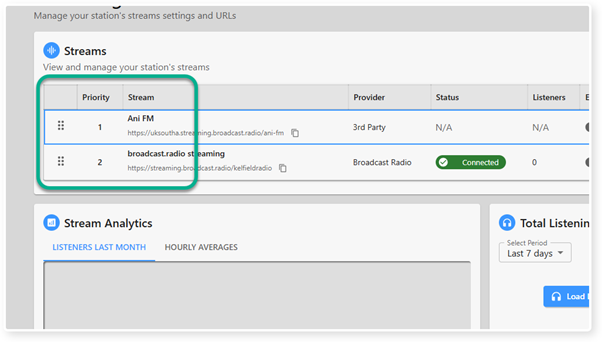
7. The Priority number changes to reflect the new order.
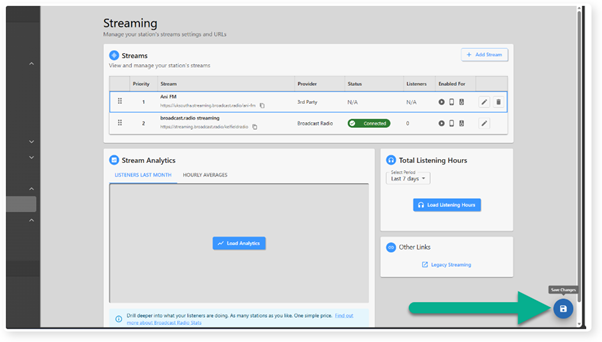
8. When you are happy, click on the Save button to save the changes.
Was this article helpful?
That’s Great!
Thank you for your feedback
Sorry! We couldn't be helpful
Thank you for your feedback
Feedback sent
We appreciate your effort and will try to fix the article