The Streaming page in the Broadcast.Radio portal allows you to view and edit your streaming settings as well as access some basic streaming statistics.
To access the Streaming page, click on Settings > Media > Streaming.
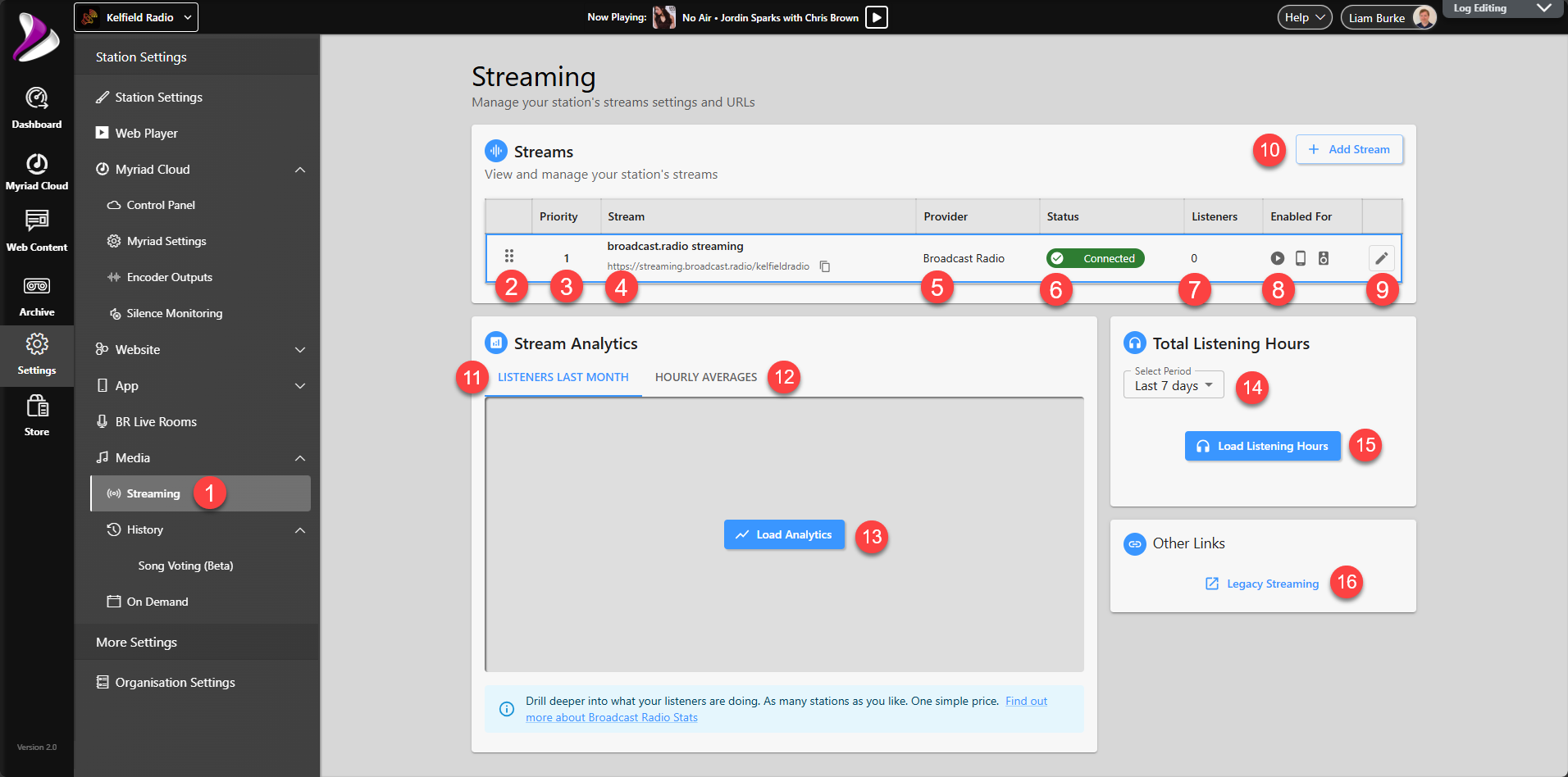
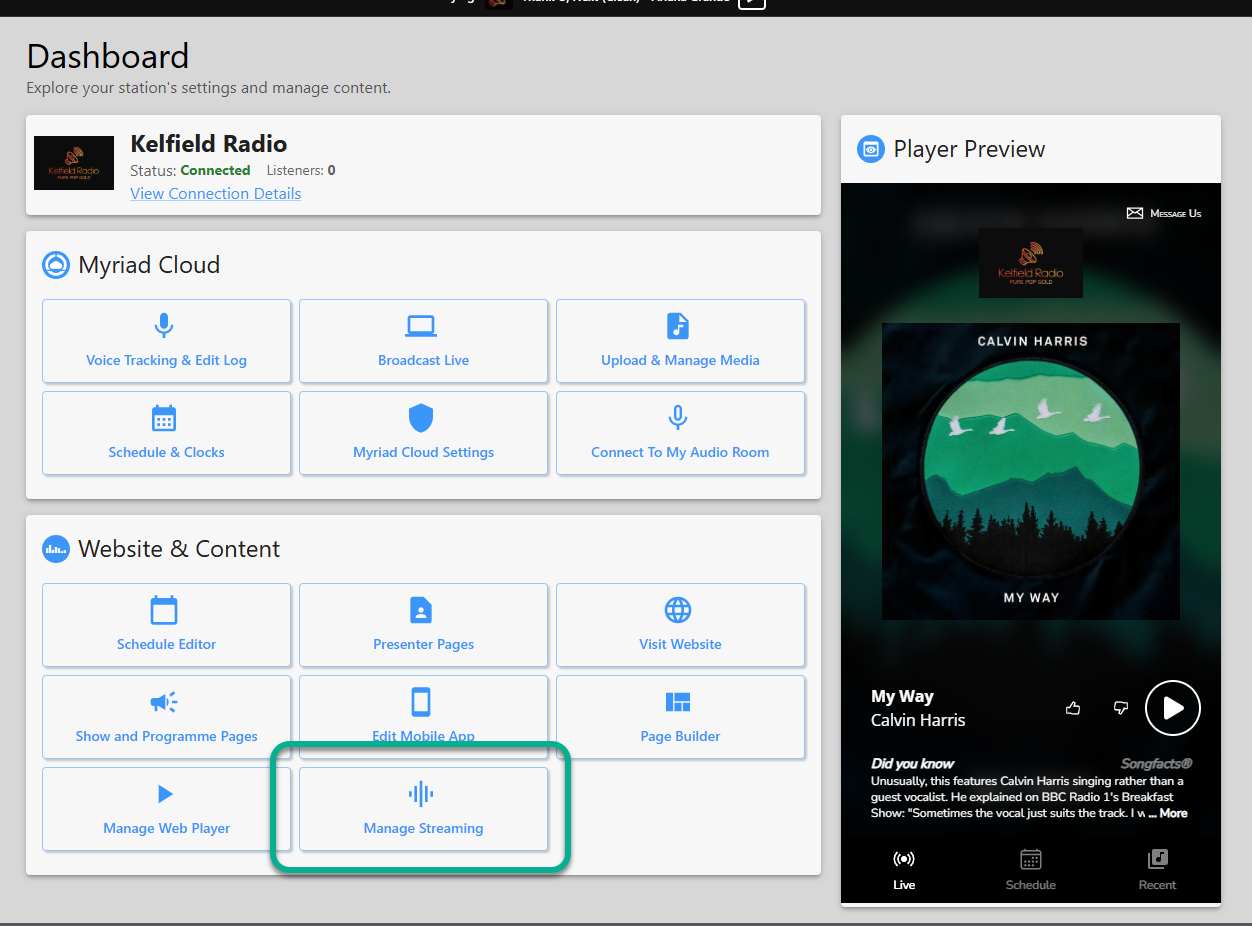
- Streaming Menu Option - Offers access to the Streaming page in the Broadcast.Radio portal. You can also access it directly from the Manage Streaming button on your Dashboard.
- Drag Icon - You can use this icon to drag Streams up and down the list when you have multiple streams enabled. The Web Player will connect to the configured Streams in the Priority order number with the Priority 1 being the first Stream to connect to. If it is not able to connect to that Stream, it will connect to Stream Priority 2 etc.
You can use the Drag Icon to reorder the Streams priorities.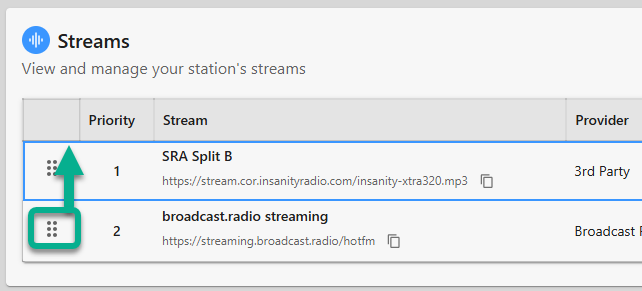
- Priority Number - This shows the priority of the Stream for the Web Player.
The Web Player will default to Priority 1 but if it cannot connect to that Stream, it will try Priority 2, then Priority 3 etc. - Stream Details - The Stream Details section shows the name of the Stream as well as the URL used to access the Stream.
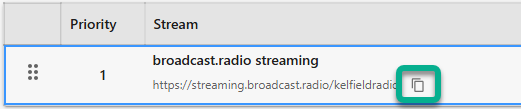
You can copy the Stream URL using the copy button. - Provider Name - Shows the name of the Streaming Provider for this Stream.
- Status - The Status shows as Connected if an Encoder is connected to the Stream or Disconnected if there is no Encoder connected.
- Listeners - The Listener number shows the current number of connected listeners at this moment in time.
- Enabled For - The icons in the Enabled For section shows which device types this Stream is enabled for.

The options are Web Player, Mobile App, Alexa Skill. - Edit & Delete Buttons - You can edit the settings for a Stream by clicking on the Edit button.
 If you have multiple Streams setup, you can delete Streams using the Delete button.
 You must have at least one Stream configured so the Delete button is not enabled until you have two or more Streams configured.
 - Add Stream - Click the Add Stream button to open the Add New Stream window. This allows you to to add the Stream Server Type, Stream Name, Stream URL and Mount Point as well as what devices are enabled.
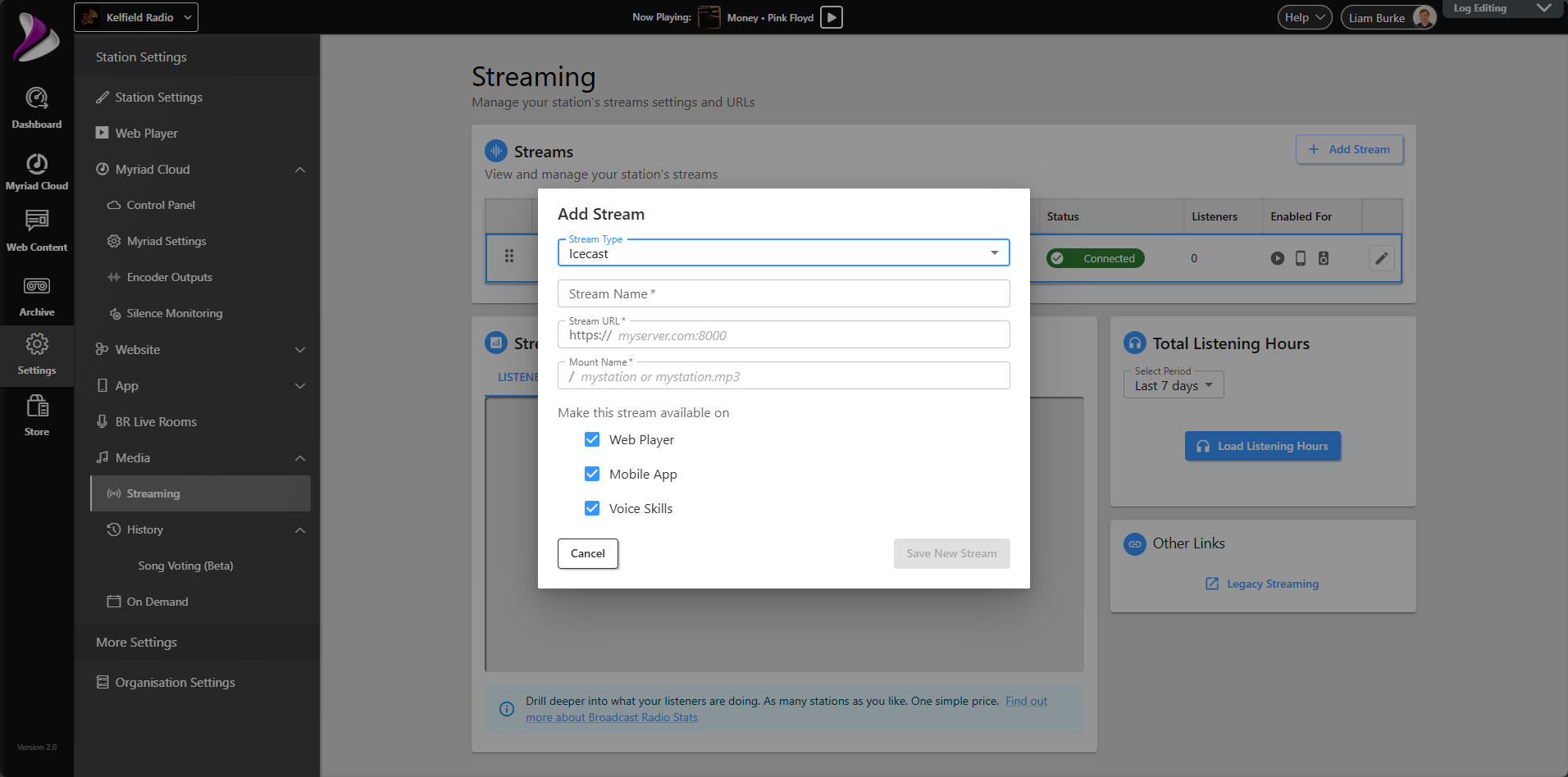
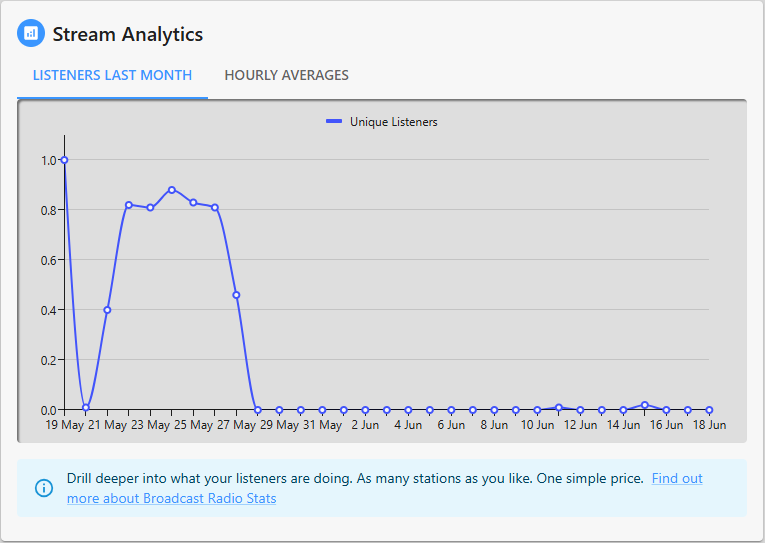
This is covered in more details in a dedicated Adding Streams article. - Listeners Last Month Tab - The Listeners Last Month in the Stream Analytics section shows a graph of unique concurrent listeners to your Station over the last month.
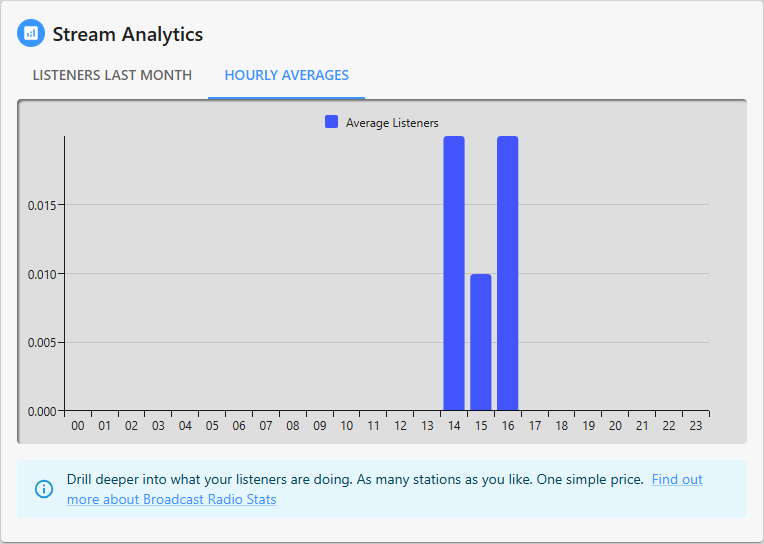
- Hourly Averages Tab - The Hourly Averages tab shows the average listener count per hour, over the last month.
- Load Analytics - The Load Analytics button is used to populate the Listeners Last Month and Hourly Average graphs with data.
- Total Listener Hours (Select Period) - Another useful metric is the total number of listener hours over a selected period. If one person listens for one hour, that would be one listener hour. If five people listen to the same hour, that would be five listener hours just from that one hour of broadcast.
The Total Listener Hours offers insight into the popularity of your station and is often used for reporting to copyright purposes.
For example, in the UK, PPL and PRS require Total Listener Hours x Average Songs Played Per Hour to calculate license compliancy.
You can select the time period for the Total Listener Hours using the drop down option.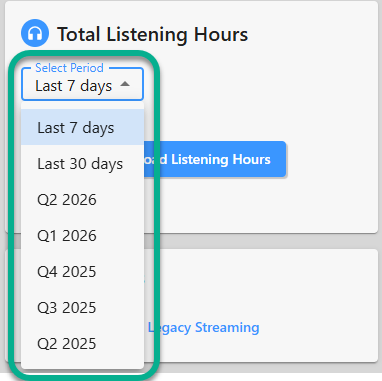
- Load Listener Hours Button - Once you have set the period you want to calculate the listener hours for, click on the Load Listener Hours button.
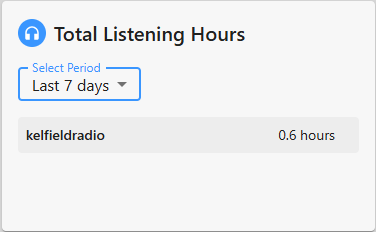
The total Listener Hours for the selected period will be displayed. - Other Links - This section offers access to other areas of the Broadcast.Radio platform including legacy settings pages that have been superceeded.
Was this article helpful?
That’s Great!
Thank you for your feedback
Sorry! We couldn't be helpful
Thank you for your feedback
Feedback sent
We appreciate your effort and will try to fix the article