Your Web Player and optional Mobile Apps / Alexa Skills can be configured to use multiple Streams as the source for audio with the highest priority Stream connected first and subsequent priority Streams used if the previous one fails to connect.
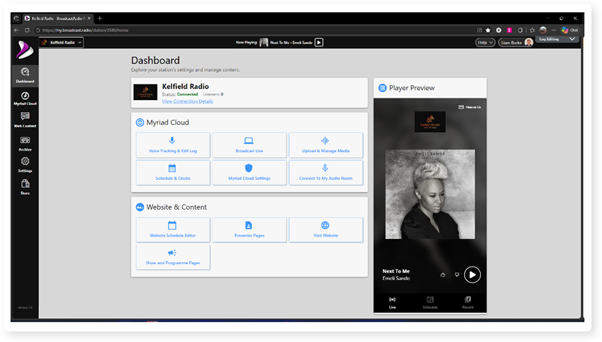
1. Login to your Broadcast.Radio portal.
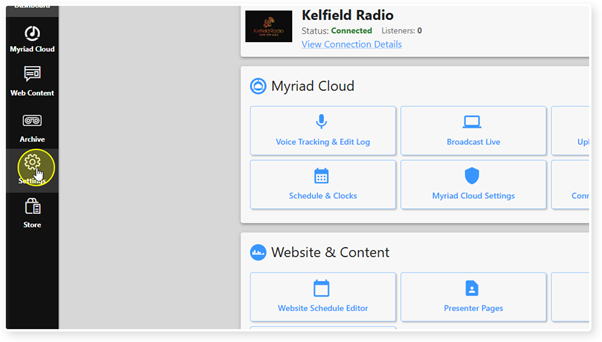
2. Click on the Settings menu.
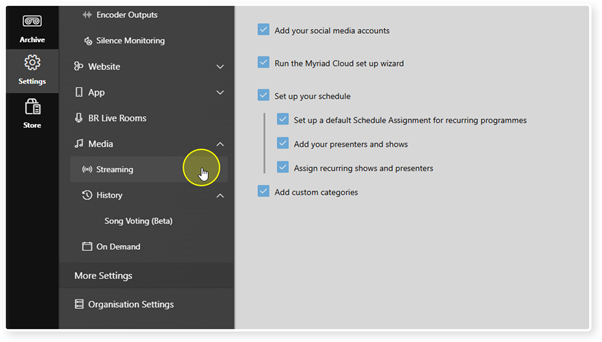
3. Select Streaming.
4. The Streams section shows the currently configured Streams.
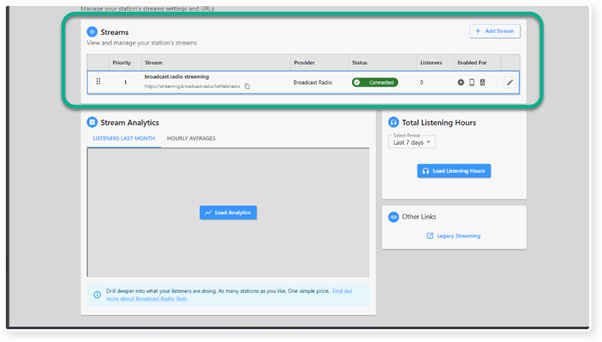
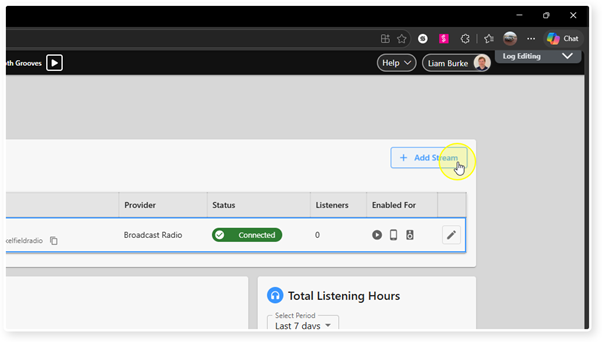
5. To add a new Stream source, click on the Add Streams button.
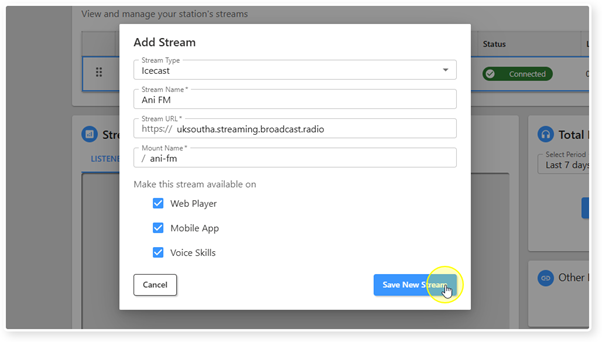
6. Add in the details for the Stream you wish to add.
You will need:
Stream Type: Icecast, Shoutcast etc.
Stream Name: To identify the Stream.
Stream URL: Streaming server address provided by your streaming provider.
Mount Name: Unique name that is appended to the streaming server address to create a unique link for your stream.
Make Stream Available On: Tick the options (Web Player, Mobile App, Alexa Voice Skill) to enable the Stream on that device type.
When you can configured all the settings, click on the Save New Stream button.
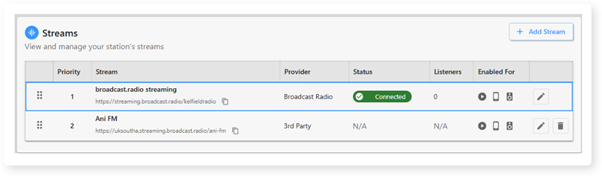
7. The New Stream is added to the bottom of the list of Streams.
Was this article helpful?
That’s Great!
Thank you for your feedback
Sorry! We couldn't be helpful
Thank you for your feedback
Feedback sent
We appreciate your effort and will try to fix the article