The Myriad Control Panel in the Broadcast.Radio portal is used to access key information and tools related to both the Myriad Cloud playout system and remote access via Myriad Anywhere.
For stations using Myriad Playout (on premise), the Myriad Control Panel options are restricted to managing remote access vai Myriad Anywhere and synchronising Playlists between Myriad Schedule Categories and websites hosted on the Broadcast.Radio Website CMS.
In this guide, we will focus on the options available for Myriad Cloud customers. There is a separate guide for Myriad Playout customers.
To access the Myriad Control Panel, login to your Broadcast.Radio portal and click on Settings > Myriad > Control Panel.
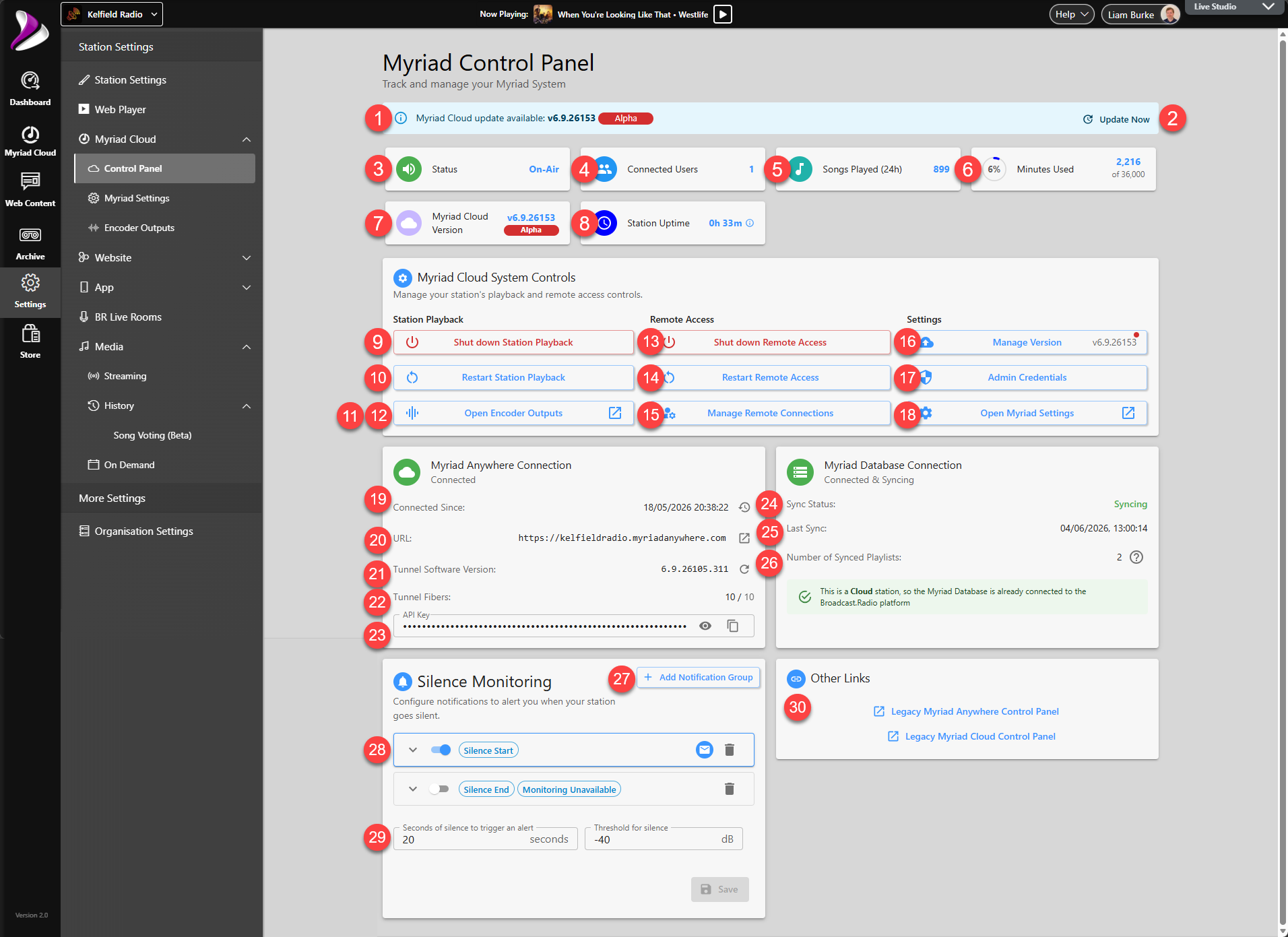
- Notification Bar - The Notification bar displays the announcements such as the availability of new releases or imminent subscription end dates.
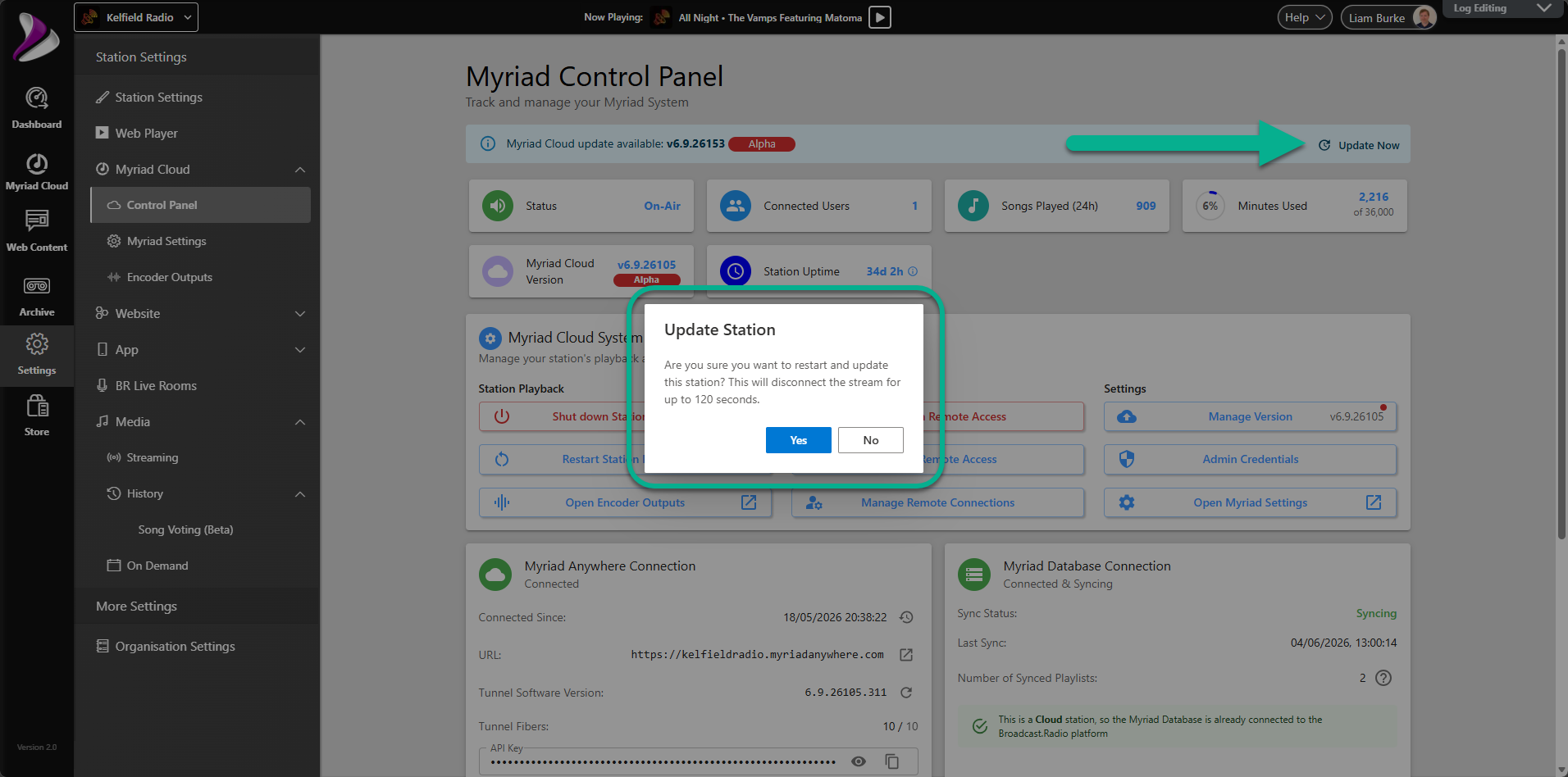
- Notification Action - If the displayed notification has an associated action, the link to the right will enable you to access that directly. In the example above the Notification bar is displaying a new Alpha version is available and the Notification Action will trigger a software update. If the action will impact your station then you will be asked to confirm before proceeding.
- Status - The Status box displays the current On Air Status of your Myriad Cloud system.
The available states are: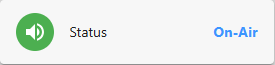
Myriad Cloud system is running and audio is playing from the Log in either Live or AutoFade mode. 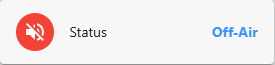
The Myriad Cloud instance is running but the Log is currently in Standby mode.
or
The Myriad Cloud instance has been manually shut down using the Shut Down Station Playback button.
The Myriad Cloud instance is in the process of shutting down after the Shut Down Station Playback button has been clicked. 
The Myriad Cloud instance is starting after the Start Station Playback button has been clicked. 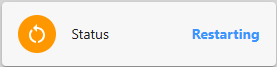
The Myriad Cloud instance is restarting as part of a software Update or because the Restart Station Playback button has been clicked. - Connected Users - The Connected Users box shows the current number of Users connected to your Myriad Cloud system via Myriad Anywhere.
- Songs Played (24h) - The Songs Played box shows the total number of Songs played via Myriad Cloud in the past 24 hours.
- Minutes Used - The Minutes Used box shows the current total minutes of audio stored on your Myriad Cloud system along with the total amount of minutes available within your subscription.
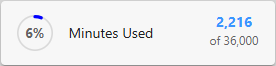
In the example above, there are 2,216 minutes of audio on the the Media Wall, out of a maximum of 36,000 minutes allowed with the Myriad Cloud subscription. Additional minutes of storage can be purchased from the Store option on the main menu. - Myriad Cloud Version - The Myriad Cloud Version box displays the current version of Myriad Cloud being used on your Station.
- Station Uptime - The Station Uptime box displays the number of days and hours your Myriad Cloud station has been running since the last restart. This counter is reset if you restart your Station or Update the software (by restarting).
- Shut Down Station Playback / Start Station Playback - The Shut Down Station Playback button is used to shut down your instance of Myriad Cloud. This will stop all audio playback and prevent Users from restarting playback via Myriad Anywhere (as your Station will not be running).

When you click this button, you will be asked to confirm your action.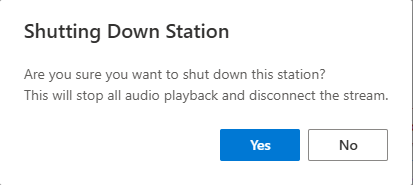
CAUTION - This will take your station off air and the only way to restore playback is via the Broadcast.Radio portal.
Click Yes to confirm you want Shut Down your Myriad Cloud instance.
The Status will briefly change to Stopping before switching to Off-Air once the Myriad Cloud instance is fully stopped.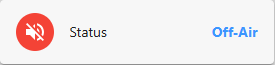
To restart playback, click on the Start Station Playback button.
The Status will display as Starting while the Myriad Cloud instance restarts. This can take up to 120 seconds.
Once your Myriad Cloud system has fully restarted and the Log has started playing the Status will change to On-Air.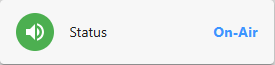
- Restart Station Playback - The Restart Station Playback button is used to restart your Myriad Cloud instance (equivalent to rebooting a traditional PC). When you click on this option, you will first need to confirm you wish to proceed.
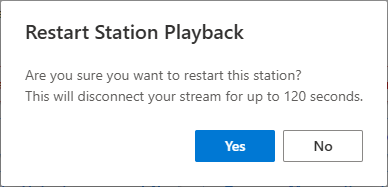
The process can take up to 120 seconds during which your station will be Off-Air so consider the best time to restart your system.
If you select Yes to proceed, the Status will change to Restarting until the restart process is complete.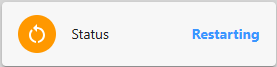
Once the Restart process is complete and playback from the Log has sucessfully resumed (in Live or AutoFade mode), the Status will change to On-Air.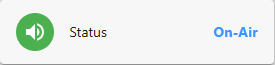
- Open Encoder Outputs / Optional Stereo Tool Settings - Encoder Outputs are used to send the streamed output from your Myriad Cloud instance to a streaming server for distribution. By default, all Myriad Cloud subscriptions include streaming on the Broadcast.Radio streaming platform and the Encoder Output is automatically pre-configured as part of the deployment process, so you do not need to configure the Encoder Outputs.
If you want to use a 3rd party streaming provider, or if you want to stream to more than one streaming provider (and your Myriad Cloud package allows it) then you can use the Open Encoder Outputs button to access the encoder output settings.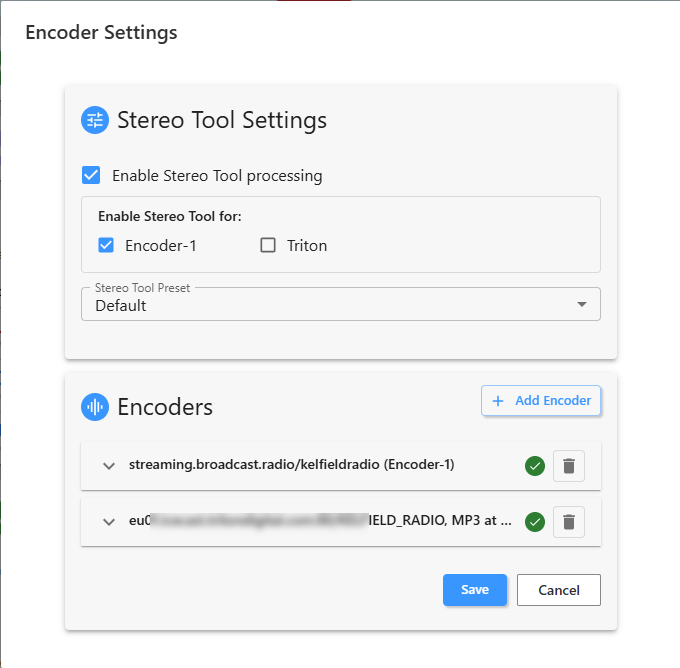
You can expand any of the configured Encoders to adjust their settings. The Broadcast Radio streaming encoder allows you to Enable / Disable as well as change the Reference, Format, Bitrate, Steam Behaviour (Primary or Backup), Optional Stereo Tool Processing, Send Metadata & Volume.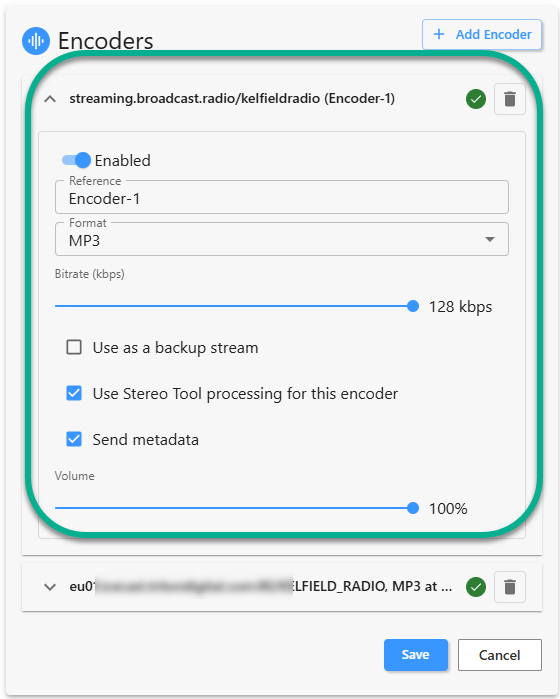
If you expand the settings for a 3rd party Encoder Output, the settings are expanded to include Server Type (Icecast / Shoutcast), Server Name, Port, Mount Point, Source Username, Source Password & Disable Autmatic Gain Control (AGC).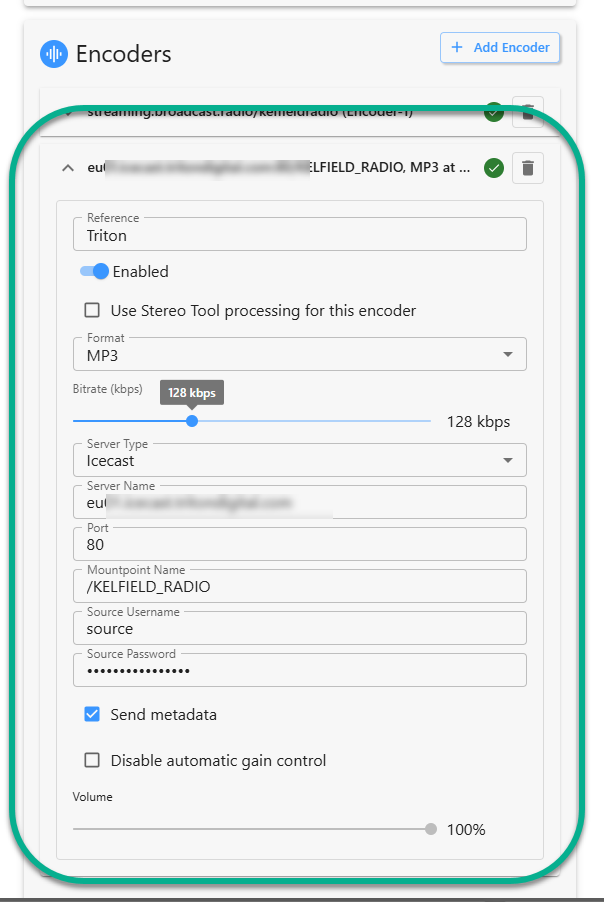
If your subscription allows it, you can add additional Encoder Outputs using the Add Encoder button. If this button is disabled, you have no additional Encoder Outputs available within your subscription. You can upgrade your subscription via the Store option on the main menu.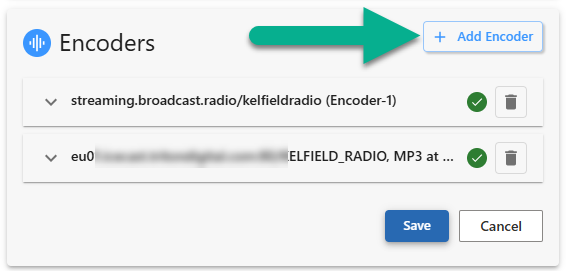
You can also remove an Encoder Output using the Delete icon to the right of each output.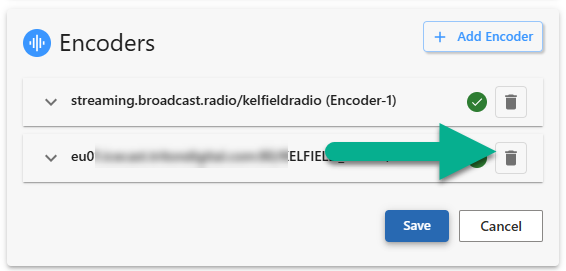
Make sure you click on Save to save any changes you have made.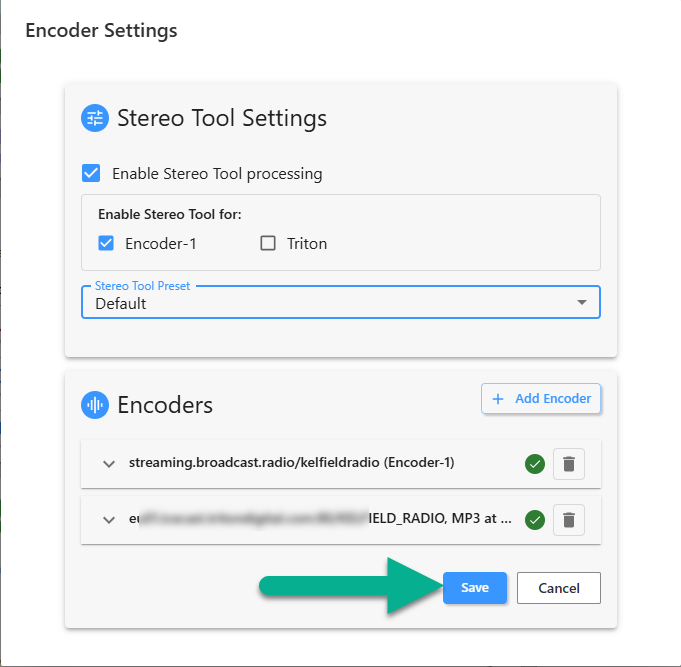
- Stereo Tool Settings - If you have the optional Stereo Tool audio processor (included with Ultimate subscriptions), you will see the Stereo Tool Settings at the top of the Encoder Settings window.
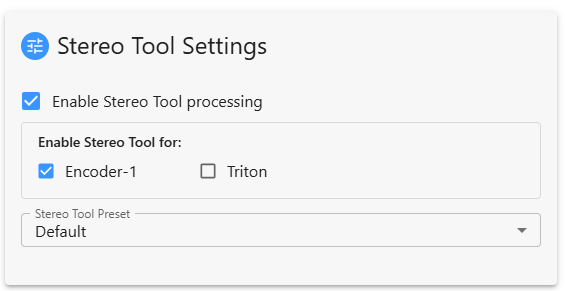
This section allows to to enable / disable Stereo Tool Processing altogether, select which Encoder Outputs should receive the processed version of the stream and which Stereo Tool Preset to use for audio processing.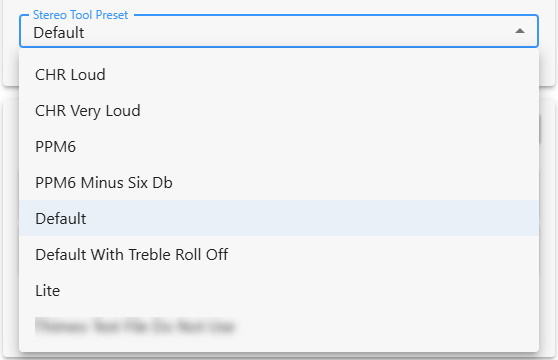
Make sure you click on Save to save any changes you have made. - Shut Down Remote Access- The Shut Down Remote Access option is used to shut down all remote access to your Myriad Cloud station via Myriad Anywhere and stop your station from playing any content (equivalent to closing Myriad Playout and Remote Edit Server on a physical Myriad Playout installation).
You will be asked to confirm the action before Remote Access is disabled.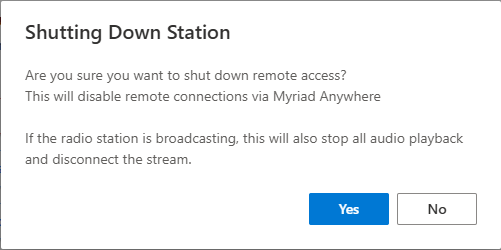
CAUTION - This will take your station off air and the only way to restore playback is via the Broadcast.Radio portal.
Once fully shut down, your station Status will change to Off-Air.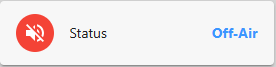
To restart your Myriad Cloud station and enable remote access, click on the Start Remote Access button.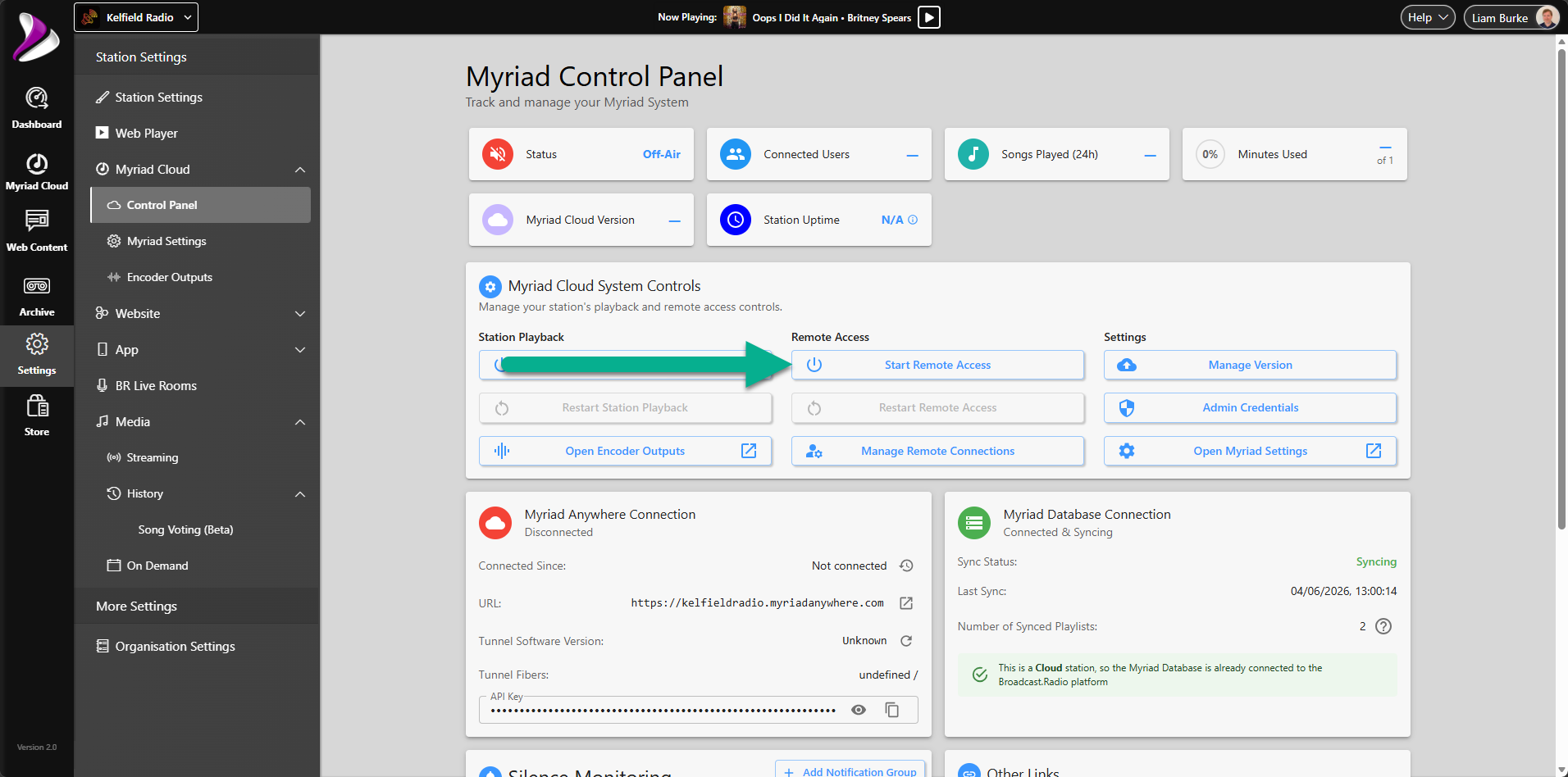
This process can take several minutes to complete. At the end of the restart process, remote access will be restored for Voice Tracking, Media Management, Schedule, News (if enabled) and Station Management.
To enable remote access to Connect to Live Studio you will need to click on the Start Station Playback button to re-enable live and automated playout on your station.
- Restart Remote Access - The Restart Remote Access button will close all current remote sessions and restart the remote access tools within Myriad Cloud. This is recommended if Users are having difficulty with remote controlling your station.

You will be asked to confirm before the restart process will begin.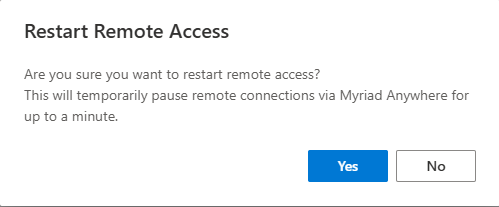
CAUTION - This operation will disconnect ALL remote sessions and prevent re-connection until the restart process is complete. This includes remote users connected to the Live Studio.
This process WILL NOT take your station off air as long as you are in AutoFade mode in the Live Studio or in Live mode but with enough Log Items with the Chain Type set to Green Circles (play next item automatically) for sufficient time to allow the remote access restart process to complete. - Manage Remote Connections - You can view and manage the current remote Users connected to Myriad Cloud or Myriad Anywhere via the Manage Remote Connections button.

When you click on this button, the Remote Connection Management window will open. This allows you to view the details for all Users currently connected to your platform, and close their connection if required.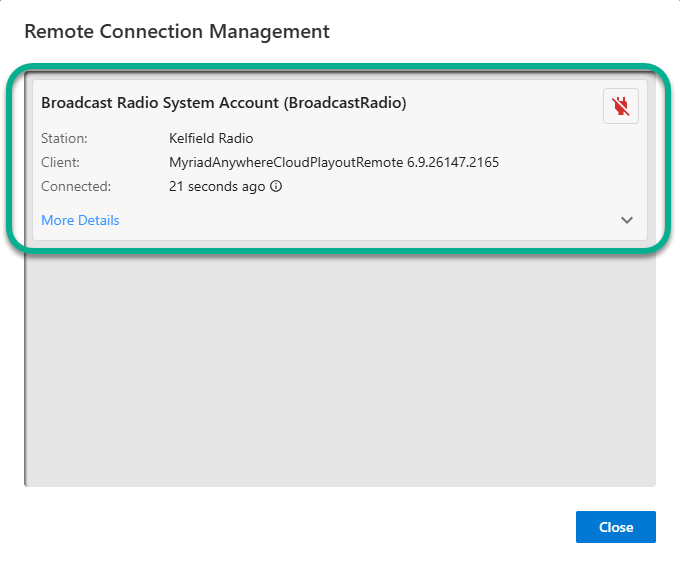 Each connected User will be listed in the Remote Connection Management window. If you need to see more details, click on the down arrow to expand the information.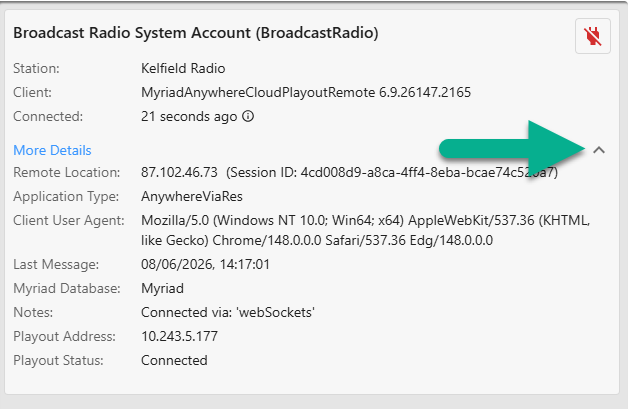
If you want to close a remote User connection, click on the Disconnect Connection button.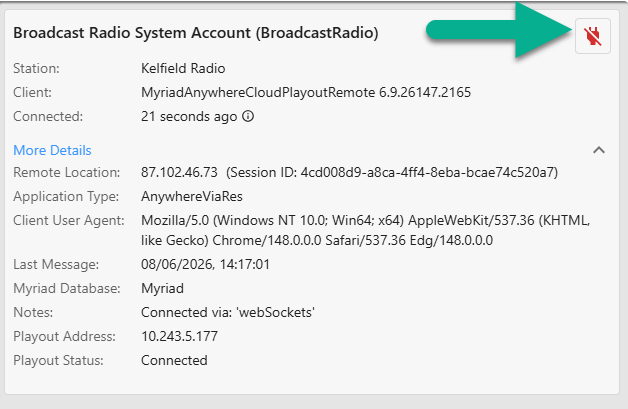
You will be asked to confirm before the User is disconnected.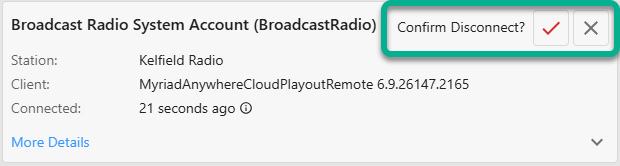
The User's remote session will be disconnected once you have confirmed the action.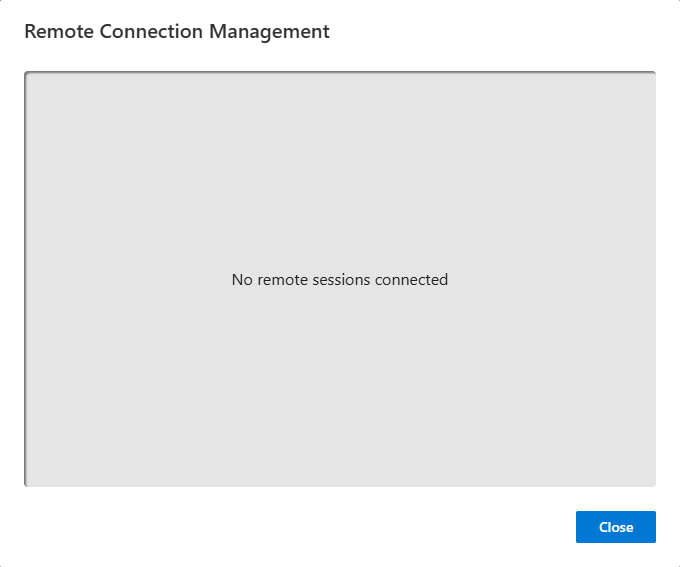
- Manage Version - The Manage Version button is used to control which Release Track will be used for your Myriad Cloud station.
Whenever you restart your Myriad Cloud instance (using Restart Station Playback), you will be automatically updated to the latest release on your selected Release Track.
When you click on this option, the Select Myriad Version window is displayed.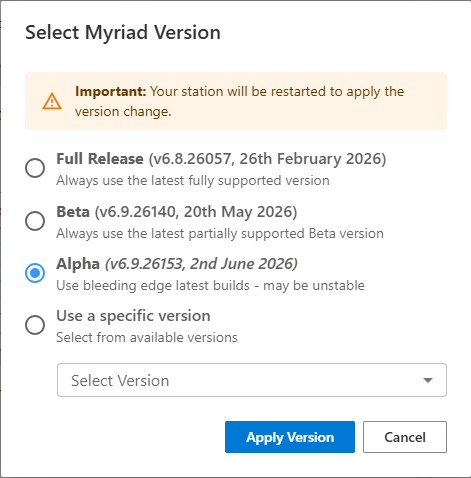
Select the Release Track you wish to be on and click Apply Version.
In the case of Use a Specific Version, use the drop down option to select a specific version number.
Release Track options are:- Full Release - Always use the latest fully supported release version.
- Beta - Use the pre-release version of software with the latest features. Beta releases are generally included with support although you may be asked to switch to a full release in some circumstances.
- Alpha - Use the very latest build of the platform. This will include the very latest features and updates. Alpha software is generally not supported outside of User testing.
- Specific Version - Select a specific version to use on your platform. Restarting your Myriad Cloud system will not update to the latest build on any of the other Release Tracks, giving you the ability to control the exact build of software you wish to use. Please note that only fixes included in subsequent builds will not be included in your Station until you update a version that includes the fixes.
- Admin Credentials - The Admin Credentials button provides access to key administration information including:
Note: You will need to re-enter your password and have sufficient User Permissions to access- OpenAPI Read Key - Used for accessing OpenAPI for reading information (for using the REST API built into RES).
- OpenAPI Write Key - Used for accessing OpenAPI for writing information (for using the REST API built into RES).
- Broadcast.Radio API Key - Added to on-premise Myriad Playout systems to allow communications between Myriad Playout and Myriad Cloud.
- Admin Username -The Username for the overall administrator.
- Admin Password - The password for the overall administrator.
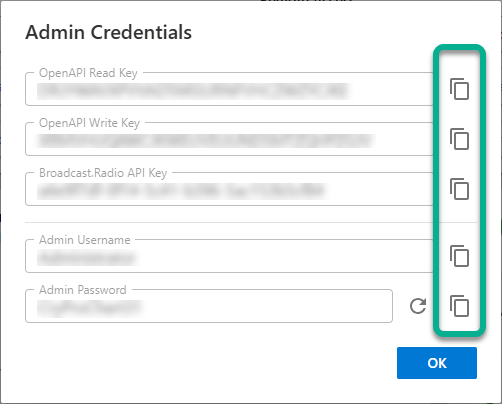
You can use the Copy buttons to the right of each field to copy the details to the Clipboard. In the case of the Admin Password, you can click on the Regenerate button to generate a new random Admin password.
- Open Myriad Settings - This button provides a shortcut to the Station Management & Security module in Myriad Cloud & Myriad Anywhere, which is used for User Management and Station Settings.

This will open the Station Management & Settings window in a new browser tab.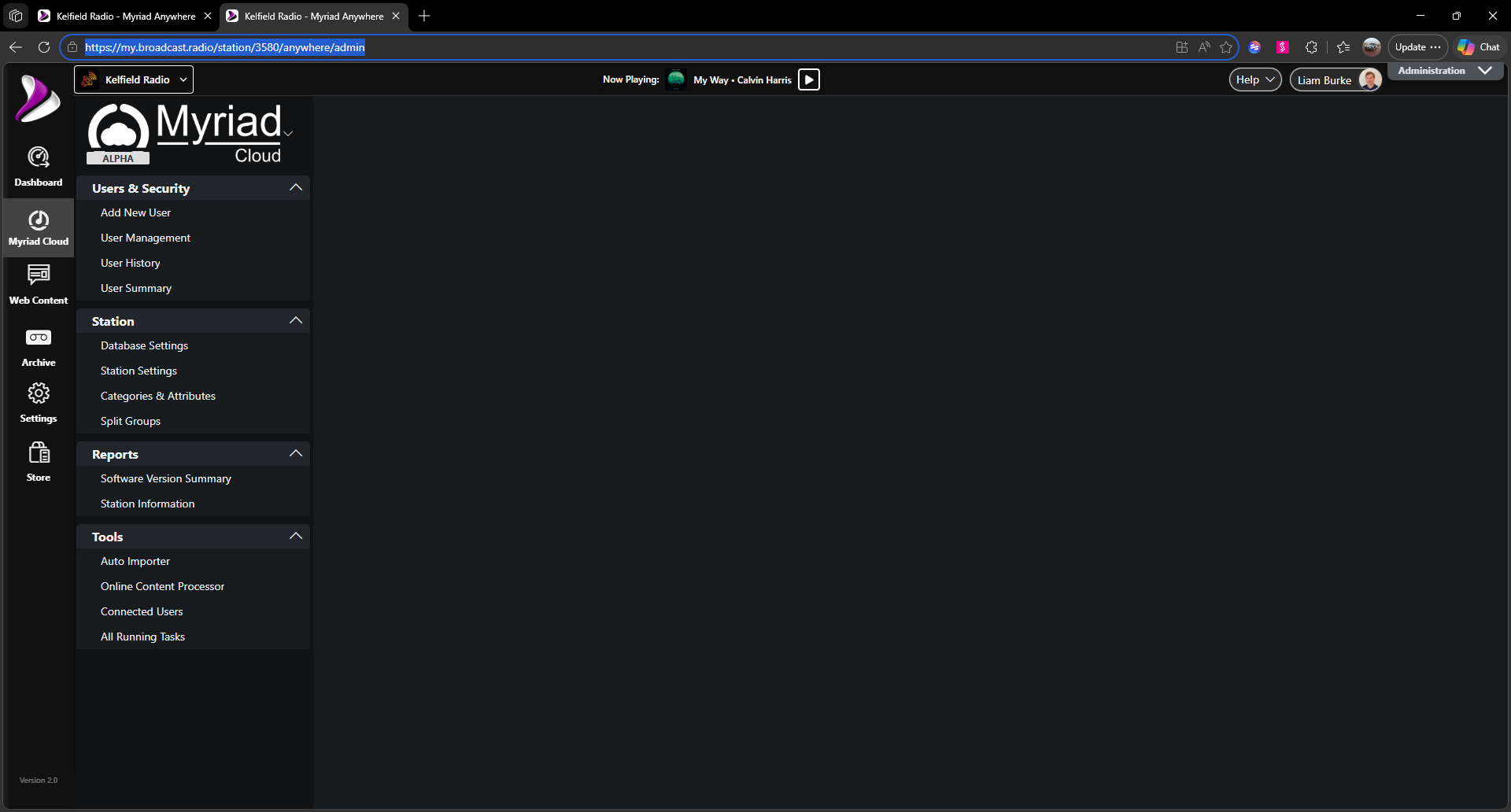
- Connected Since - The Connected Since field in the Myriad Anywhere Connection section shows the date and time the connection was established between your Myriad Cloud or on-premise Remote Edit Server and the Myriad Anywhere servers.
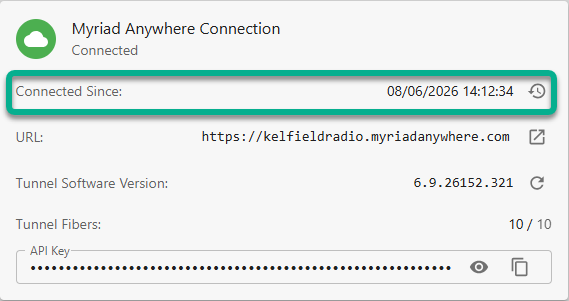
You can view a more detailed connection history by clicking on the History button to the right.
This will open a window showing more details about the recent Remote User Connections.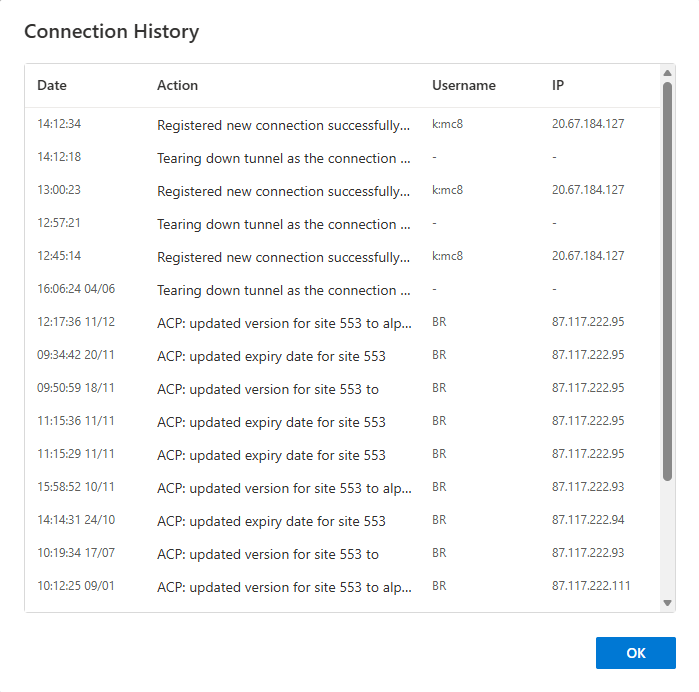
- Myriad Anywhere URL - The Myriad Anywhere URL is unique to your Station and allows Users to remote access your station via a web browser without needing a Broadcast.Radio account. They will still need a valid Myriad User Account with remote permissions in order to access Myriad Anywhere.
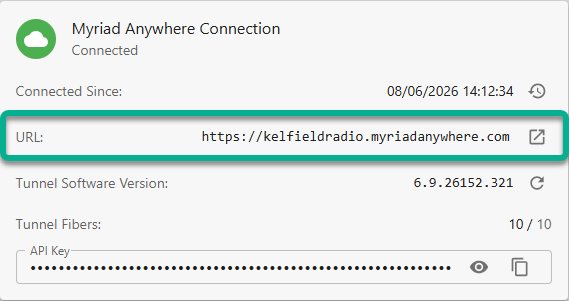
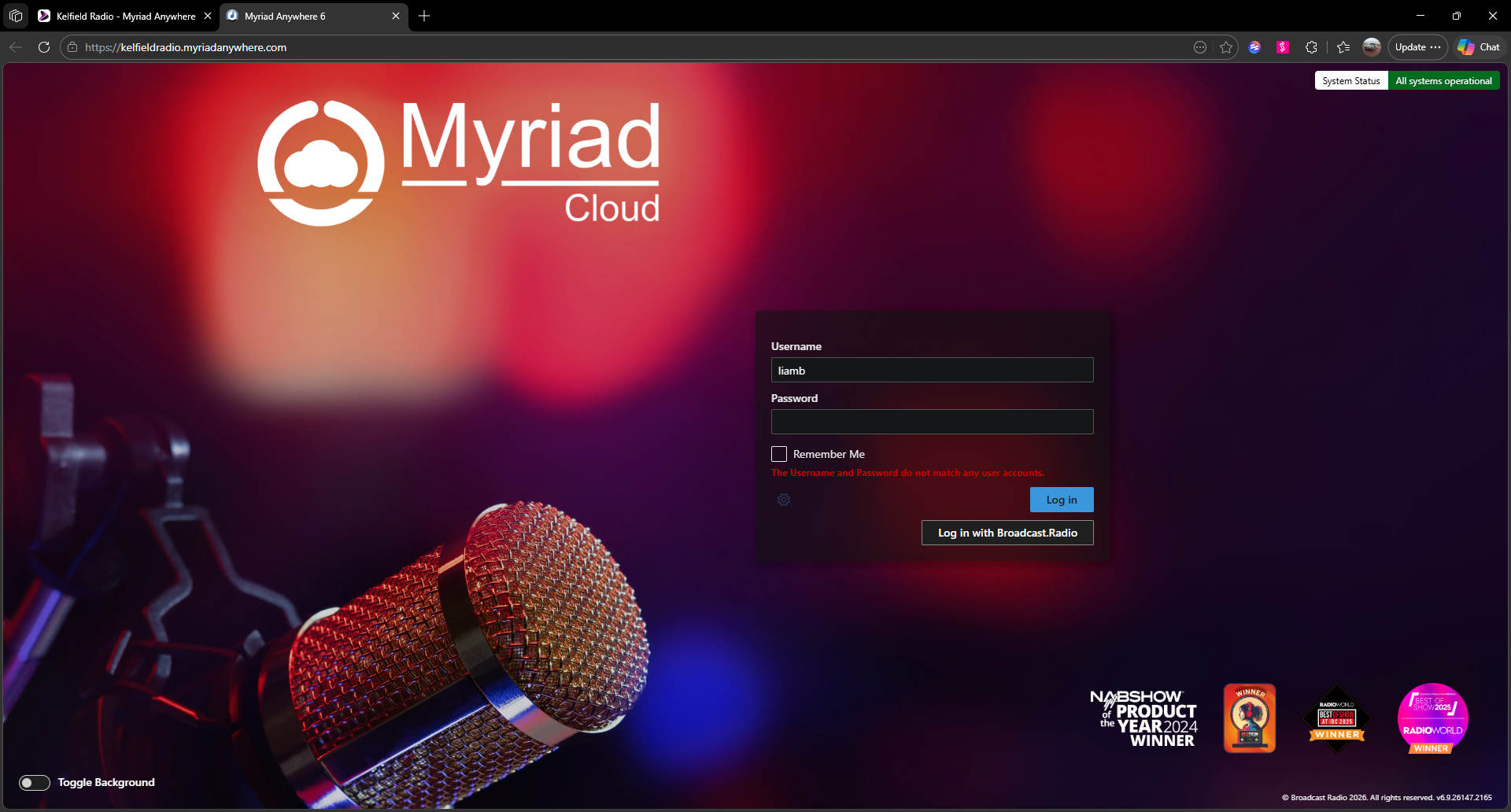
You can click the link button to the right of the URL to open the address in a new browser tab.
- Tunnel Software Version / Restart Tunnel Service - The Tunnel Software Version field shows the exact version of the Tunnel Services your Station is using to connect Remote Edit Server (RES) or Myriad Cloud systems to the Myriad Anywhere service. This information is usually only required if requested by our Technical Support team.
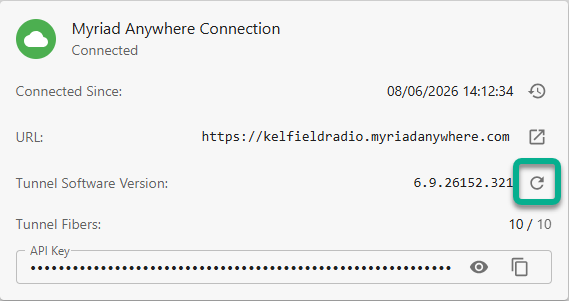
You can also use the Restart Tunnel Service button to the right of the version number, to restart the service that connects your Myriad Cloud system to the Myriad Anywhere platform.
Caution - This will disconnect all Remote Users for a few seconds.
This should be the first step in troubleshooting Remote User issues. - Tunnel Fibres - This shows the number of Fibres connected to Myriad Anywhere out of the maximum number available. You will only need this information if our support team asks for it.

- Myriad Anywhere API Key - The API Key needed to connect Remote Edit Server (RES) applications to your Myriad Anywhere portal. This connection is established automatically for Myriad Cloud customers but on-premise Myriad Playout customers will need to use RES to connect their Myriad Playout with the Myriad Anywhere servers (so remote connections never connect directly to your on-premise playout).
When you are setting up the Myriad Anywhere Tunnel Service within RES, you will be prompted to add in your API key.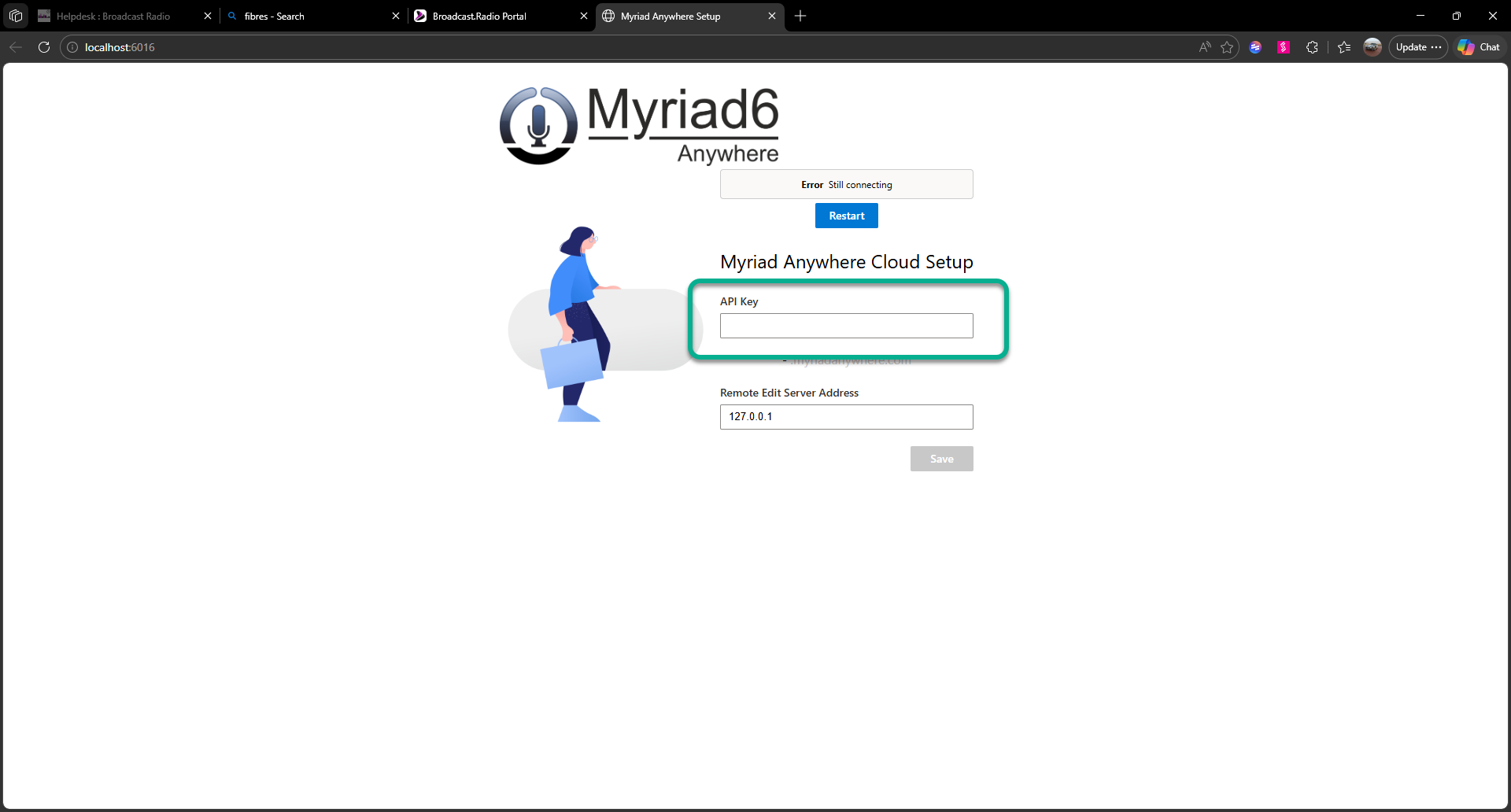
Use the Copy button to the right of your API key in the Myriad Control Panel to copy the API and past it into the Myriad Anywhere 6 setup page.
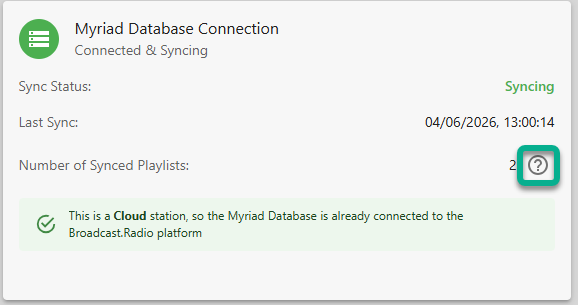
You can also view your API key by clicking on the eye icon beside the copy button. - Sync Status - The Sync Status field in the Myriad Database Connections section,displays the current status of any synchronisation processes setup to synchronise Song Categories in Myriad Schedule with Playlists which can be displayed in the optional Broadcast.Radio Website CMS platform.
The BR Website CMS allows you to create Playlists that are automatically updated from Myriad Schedule. As an example, you may have a Song Category for 'New This Week' in Myriad Schedule and a page on your B.R Website called Latest Music that will automatically show you a list of all the songs in the New This Week Category (see - Automate Your 'Featured Song of the Week' with Myriad Schedule Pro & Broadcast.Radio Website CMS).
Please Note - Points 24,25 & 26 are only relevant if you have the Broadcast.Radio Website CMS option. - Last Sync - This field shows the date and time of the last successful synchronisation.
- Number of Synced Playlists - This field shows the number of Song Categories / Playlists synced between Myriad Schedule and your B.R Website CMS. You can click on the ? button to the right to manage the Playlists within your B.R Website CMS.
- Add Notification Group - Notification Groups are a group of one or more people that will be notified by email, Pushover or HTTP, when one or more of the criteria set within the group is met.
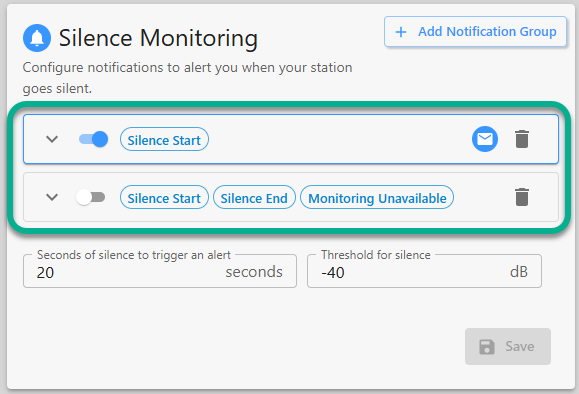
In the example above, two Notification Groups have been setup (although only one is currently active).
The Add Notification Group button is used to add additional Notification Groups to the Silence Monitoring section. - Notification Group Settings - To view and edit the settings for a Notification Group, click the down arrow to expand the group settings section.

This will show the available options within the Notification Group.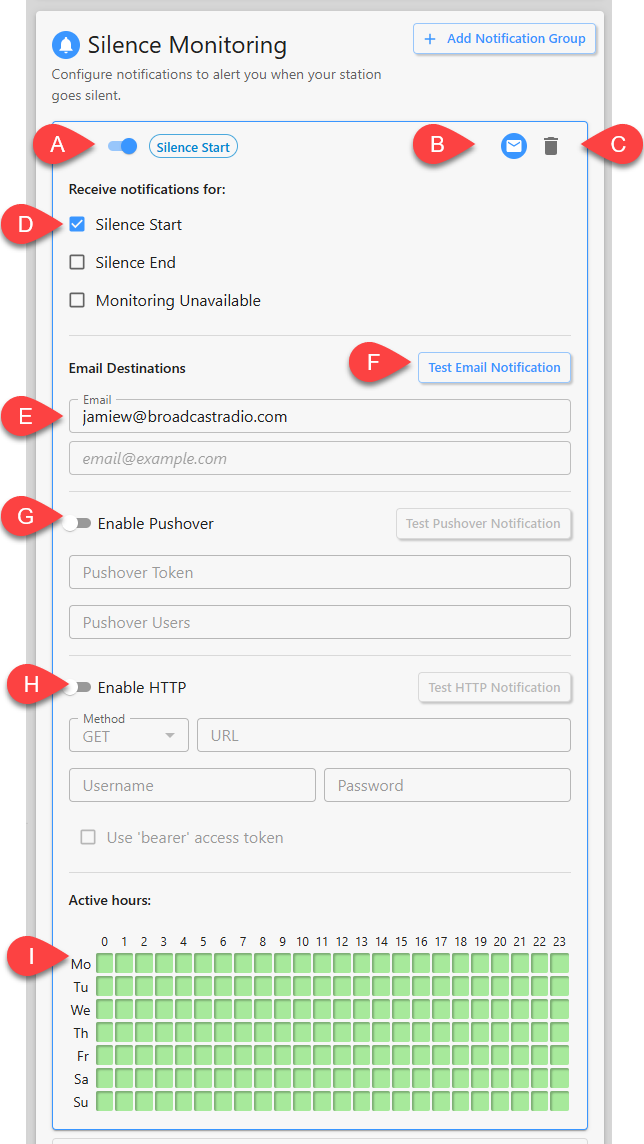
- Enable / Disable - Toggle to enable or disable the Notification Group.
- Active Communication Icon - This section shows an icon for each of the configured communication methods within the Notification Group (ie Email, Pushover & HTTP).

- Delete Notification Group - This option will remove the Notification Group. Note that your deleted Notification Group will only be permanently deleted when you click on the Save button.
- Receive Notifications For - You can select the triggers for when a notification is set via the group.
The options are:
Silence Start - Notification is sent when silence is first detected.
Silence Stop - Notification is sent when a silent period ends.
Monitoring Unavailable - Notification is sent if the audio monitor service is not available.
Tick the options you want to act as triggers for the Notification Group.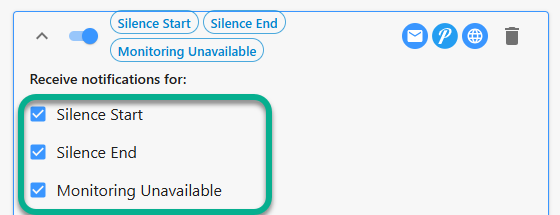
- Email Addresses - You can add up to two email addresses, which will be used when the Notification Group is triggered.
- Test Email Notification - The Test Email Notification button will send a test email to the selected email addresses.
- Enable Pushover Notifications - This options allows you to configure and test a Pushover Notification to be sent when the group is triggered. To configure, toggle the Enable Pushover switch and add in your Pushover Token and Pushover Users to send the notification to. You can test the Pushover Notification using the Test Pushover Notification button.
- Enable HTTP - You can also configure an HTTP action when the group is triggered, for use with 3rd party websites or platforms. Toggle the Enable HTTP option and add in the following settings:
Method - State the required HTTP Method (GET, POST, PUT, PATCH or DELETE).
URL - Type or paste in the URL along with any additional arguments your 3rd party system is expecting.
Username & Password - If your 3rd party system requires authentication by username and password, add them to the appropriate fields.
Use Bearer Access Token - Some 3rd party HTTP systems will use a bearer token instead of a Username / Password. If you tick this option, the Token field will replace the Username & Password fields.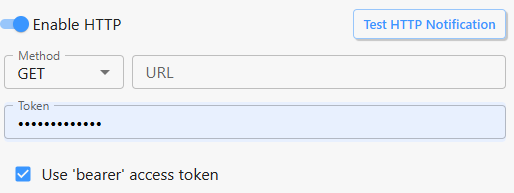
You can test your HTTP notification method using the Test HTTP Notification button. - Active Hours - The Active Hours grid allows you to select the hours during which the Notification Group is active. For example, if you wanted to configure a Notification Group that emailed your Station Engineer when silence was detected but only overnight and weekends, you could change the Active Hours grid to only be active outside of standard working hours.
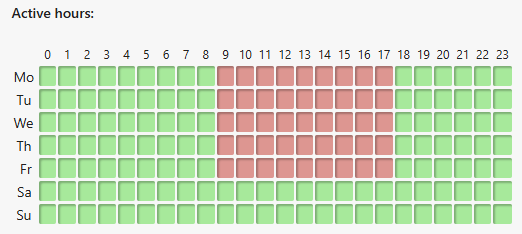
Click on individual hours or select multiple hours with your mouse, to toggle between Green (Notification Group is active) and Red (Notification Group is disabled).
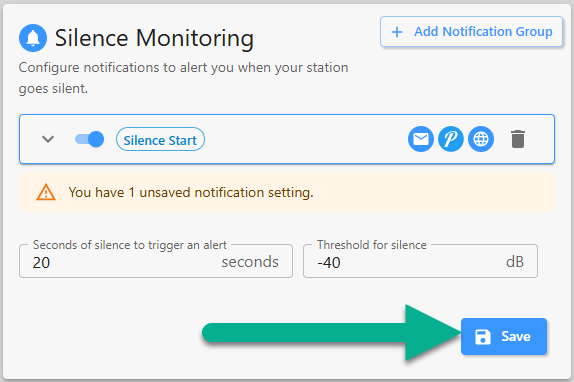
- Second of Silence / Threshold of Silence - As music and speech content can often include short periods of silence for legitimate reasons, you can setup the required duration of silence detected before all Notification Groups are triggered.
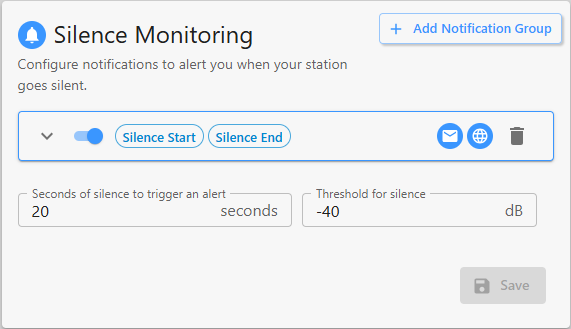
In the example above, the Notification Groups will only be triggered once the detected silence exceeds 20 seconds.
You can also set the audio threshold below which is considered 'silent'. In the example above, if audio is detected to be below -40dB then it is considered 'silent'.
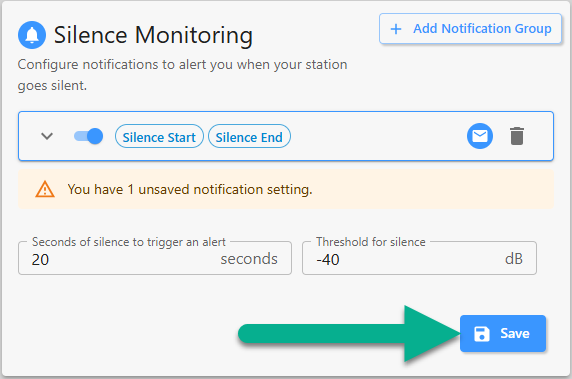
When combined, the example above will trigger the Notification Groups if the detected audio level falls below -40dB for a duration greater than 20 seconds. - Save Silence Monitor Settings - Whenever you make a change to any of the settings in the Silence Monitoring section, the Save button will be enabled. Click the Save button to save the changes.
- Other Links - The Control Panel in Broadcast.Radio v3 is an amalgamation of settings found in the Myriad Anywhere Control Panel and the Myriad Cloud Control Panel in previous versions of the Broadcast.Radio portal. Other Links section provides links back to the legacy settings pages.
Please note that this option is likely to be removed in a future release.
Was this article helpful?
That’s Great!
Thank you for your feedback
Sorry! We couldn't be helpful
Thank you for your feedback
Feedback sent
We appreciate your effort and will try to fix the article