Myriad Cloud customers can shut down playback on their Station altogether with the Shut Down Station Playback. This would be the equivalent to closing the Myriad Playout software in a traditional studio setup. Once fully shut down, you can restart station playback using the Start Station Playback button.
1. Login to your Broadcast.Radio portal.
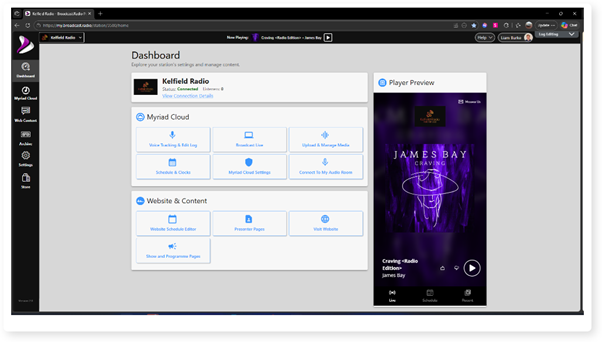
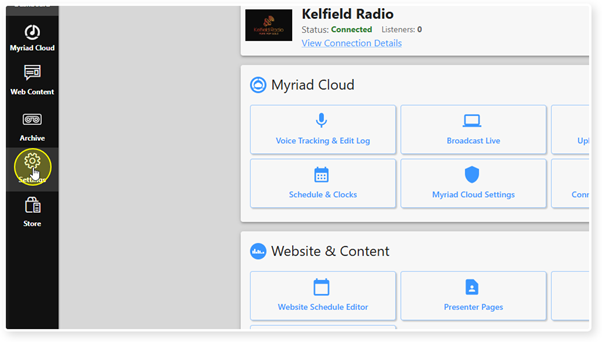
2. Click on the Settings menu option.
3. Expand the Myriad / Myriad Cloud option and select Control Panel.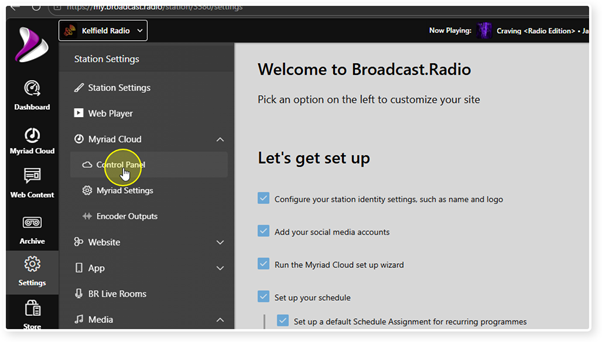
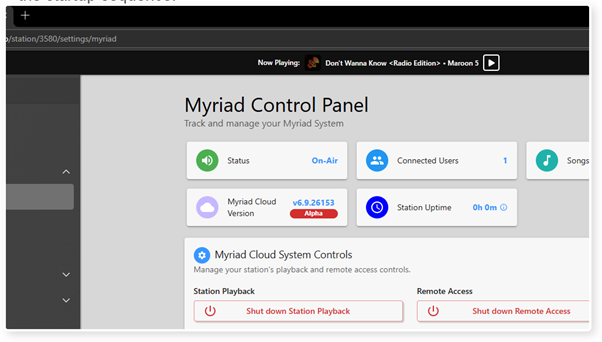
4. When Myriad Cloud is running and the Log is in either Live or Auto, the Status will be displayed as On-Air.
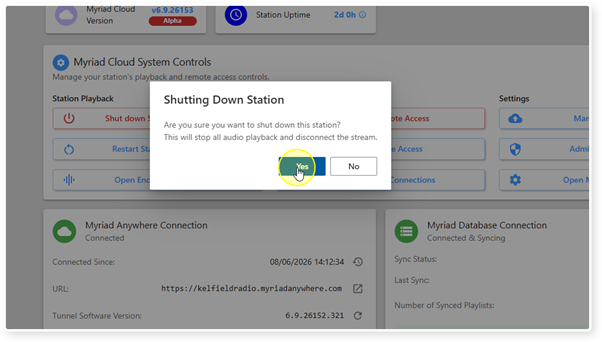
To shut down station playback, click on the Shit Down Station Playback button.
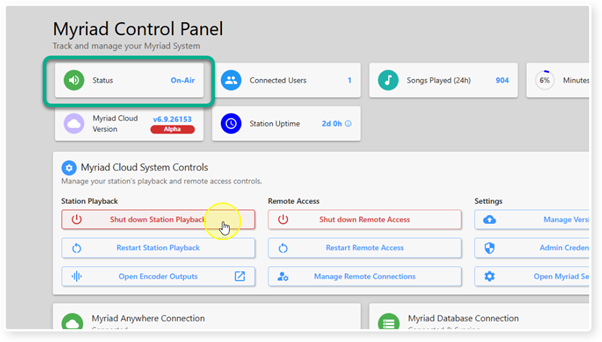
5. Click Yes to confirm you want to shut down station playback
CAUTION: This action will take your station Off-Air.
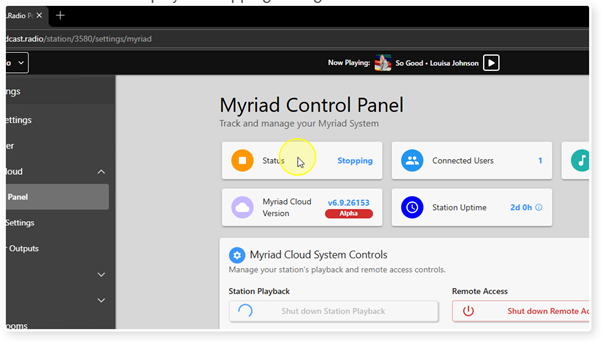
6. It may take up to 120 seconds for your Myriad Cloud playback to fully shut down. The Status will display as Stopping during this time.
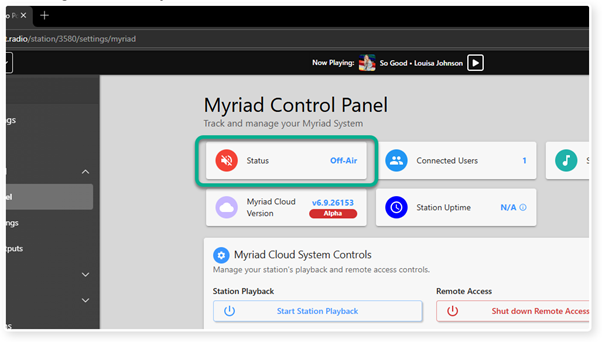
7. Once fully shutdown, the Status will display as Off-Air. Your station is now Off-Air.
Even when Off-Air, you can still add Voice Tracks, edit the Log, schedule, manage Users etc, just not broadcast live or automated.
8. To restart station playback, click on the Start Station Playback button.
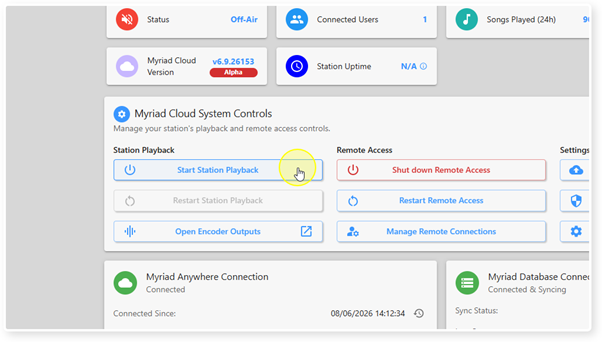
9. Starting station playback can take upto 120 seconds, during this time the Status will display as Starting
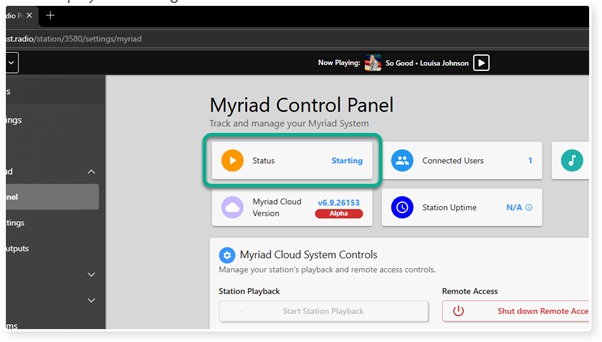
10. Once the station is fully up and running, the Status will change to On-Air. Your station will now be broadcasting again.
This process will also start the Log playing from the closest Log Item as part of the startup sequence.
Was this article helpful?
That’s Great!
Thank you for your feedback
Sorry! We couldn't be helpful
Thank you for your feedback
Feedback sent
We appreciate your effort and will try to fix the article