The Myriad Control Panel in the Broadcast.Radio portal is used to access key information and tools related to both the Myriad Cloud playout system and remote access via Myriad Anywhere for Myriad Playout (on-premise) users.
For stations using Myriad Playout (on premise), the Myriad Control Panel options are restricted to managing remote access via Myriad Anywhere and synchronising Playlists between Myriad Schedule Categories and websites hosted on the Broadcast.Radio Website CMS.
To access the Myriad Control Panel, login to your Broadcast.Radio portal and click on Settings > Myriad > Control Panel.
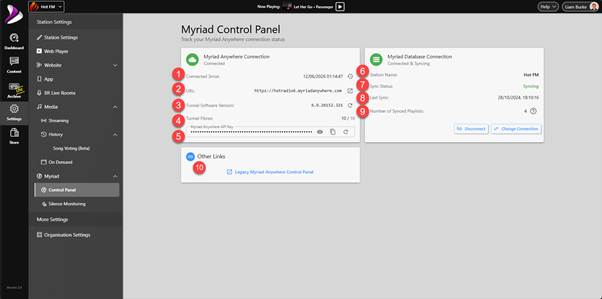
- Connected Since - The Connected Since field in the Myriad Anywhere Connection section shows the date and time the connection was established between your on-premise Remote Edit Server and the Myriad Anywhere servers.
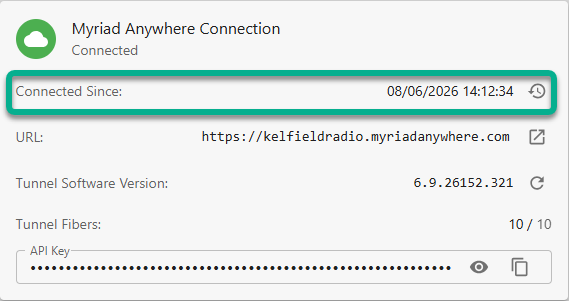 You can view a more detailed connection history by clicking on the History button to the right.
 This will open a window showing more details about the recent Remote User Connections.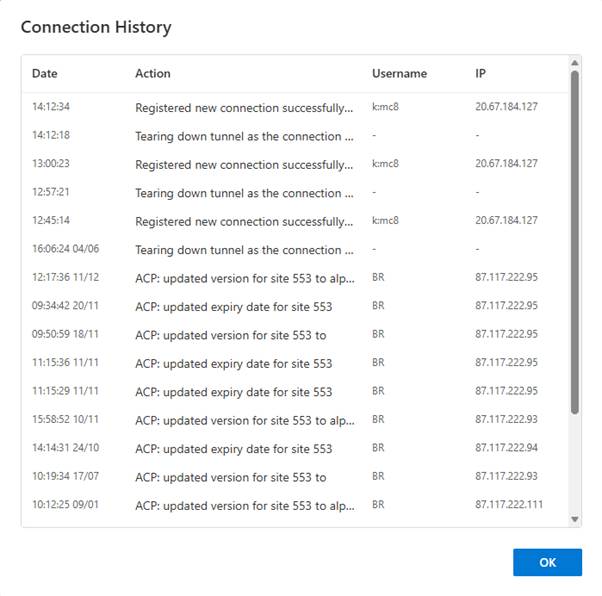
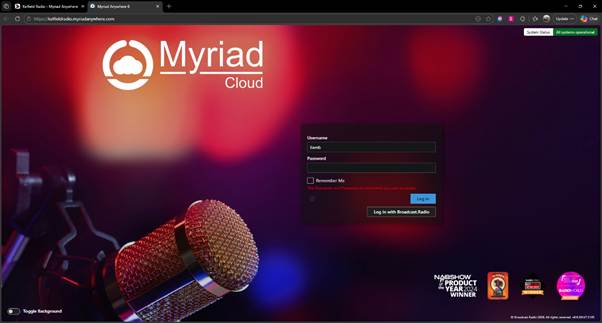
- Myriad Anywhere URL - The Myriad Anywhere URL is unique to your Station and allows Users to remote access your station via a web browser without needing a Broadcast.Radio account. They will still need a valid Myriad User Account with remote permissions in order to access Myriad Anywhere.
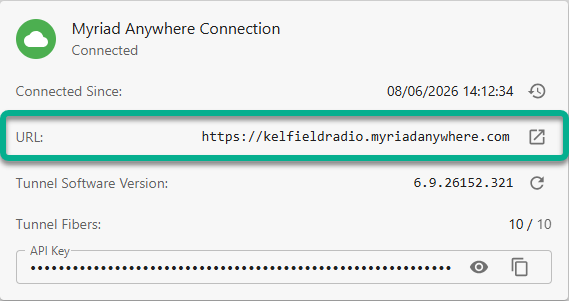 You can click the link button to the right of the URL to open the address in a new browser tab.
- Tunnel Software Version / Restart Tunnel Service - The Tunnel Software Version field shows the exact version of the Tunnel Services your Station is using to connect Remote Edit Server (RES) or Myriad Cloud systems to the Myriad Anywhere service. This information is usually only required if requested by our Technical Support team.
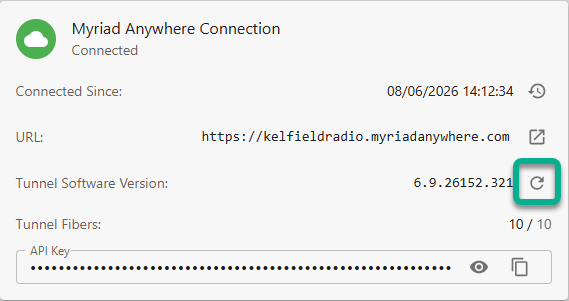 You can also use the Restart Tunnel Service button to the right of the version number, to restart the service that connects your Myriad Cloud system to the Myriad Anywhere platform.
Caution - This will disconnect all Remote Users for a few seconds.
This should be the first step in troubleshooting Remote User issues. - Tunnel Fibres - This shows the number of Fibres connected to Myriad Anywhere out of the maximum number available. You will only need this information if our support team asks for it.

- Myriad Anywhere API Key - The API Key needed to connect Remote Edit Server (RES) applications to your Myriad Anywhere portal. This connection is established automatically for Myriad Cloud customers but on-premise Myriad Playout customers will need to use RES to connect their Myriad Playout with the Myriad Anywhere servers (so remote connections never connect directly to your on-premise playout).
When you are setting up the Myriad Anywhere Tunnel Service within RES, you will be prompted to add in your API key.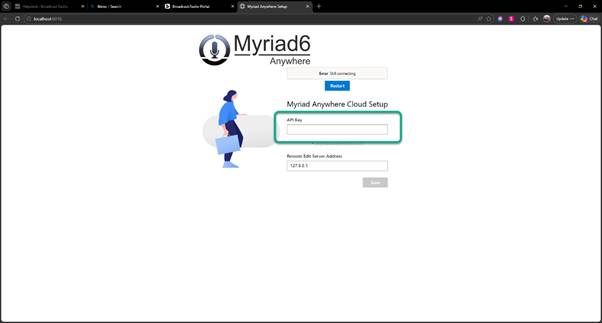 Use the Copy button to the right of your API key in the Myriad Control Panel to copy the API and past it into the Myriad Anywhere 6 setup page.
 You can also view your API key by clicking on the eye icon beside the copy button.
 - Station Name – The BR Website CMS allows you to create Playlists that are automatically updated from Myriad Schedule. As an example, you may have a Song Category for 'New This Week' in Myriad Schedule and a page on your B.R Website called Latest Music that will automatically show you a list of all the songs in the New This Week Category (see - Automate Your 'Featured Song of the Week' with Myriad Schedule Pro & Broadcast.Radio Website CMS).
The Station Name shows the name of the Station being synchronised.
Please Note - Points 6,7,8 & 9 are only relevant if you have the Broadcast.Radio Website CMS option.
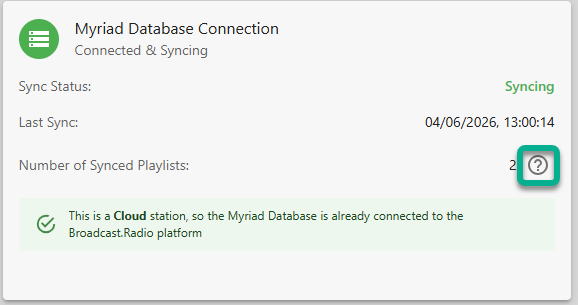
- Sync Status - The Sync Status field in the Myriad Database Connections section, displays the current status of any synchronisation processes setup to synchronise Song Categories in Myriad Schedule with Playlists which can be displayed in the optional Broadcast.Radio Website CMS platform.
- Last Sync - This field shows the date and time of the last successful synchronisation.
- Number of Synced Playlists - This field shows the number of Song Categories / Playlists synced between Myriad Schedule and your B.R Website CMS. You can click on the ‘?’ button to the right to manage the Playlists within your B.R Website CMS.
- Other Links - The Control Panel in Broadcast.Radio v3 is an amalgamation of settings found in the Myriad Anywhere Control Panel and the Myriad Cloud Control Panel in previous versions of the Broadcast.Radio portal. Other Links section provides links back to the legacy settings pages.
Please note that this option is likely to be removed in a future release.
Was this article helpful?
That’s Great!
Thank you for your feedback
Sorry! We couldn't be helpful
Thank you for your feedback
Feedback sent
We appreciate your effort and will try to fix the article