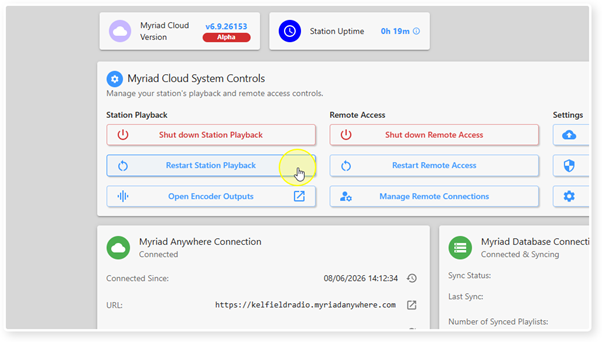
If you want to restart your Myriad Cloud station playback (equivalent to closing and opening traditional Myriad Playout software), the Restart Station Playback button can be used to trigger the restart process.
Please note that Remote Access for Voice Tracking, Media Management, Schedule & Station Settings will remain available throughout this process. Access to the Connect to Live Studio will be disabled for the duration of this process.
1. Login to your Broadcast.Radio portal.
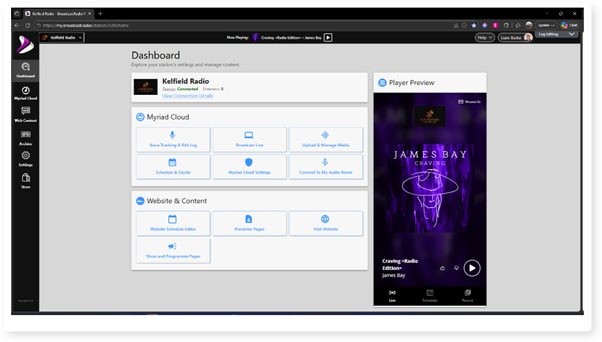
2. Click on the Settings menu option.
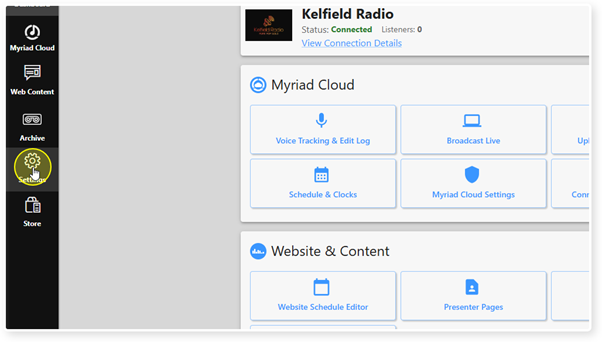
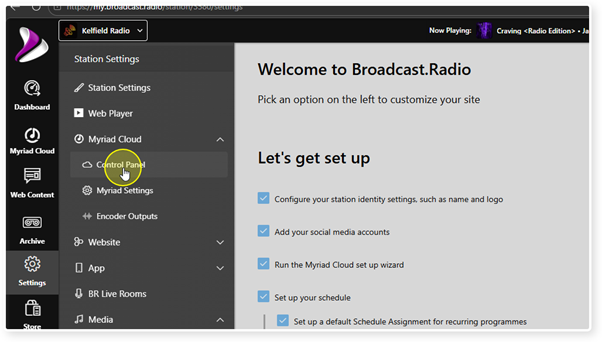
3. Expand the Myriad / Myriad Cloud option and select Control Panel.
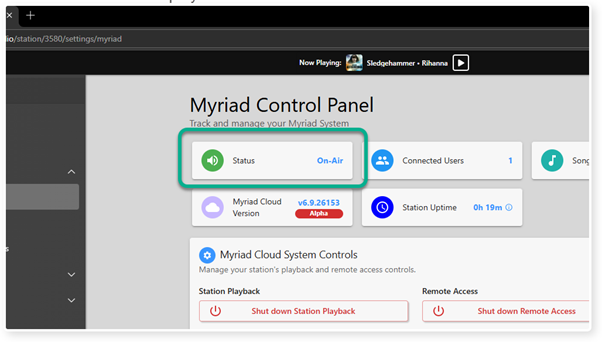
5. Click on the Restart Station Playback to trigger the restart process.
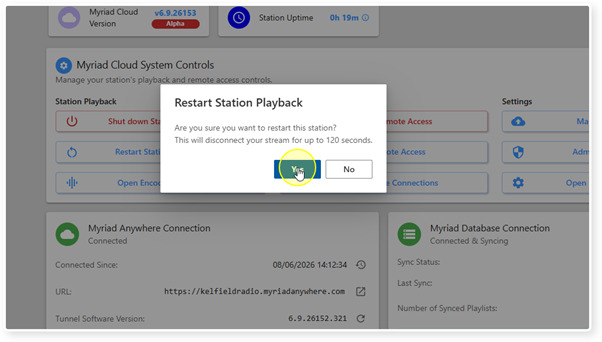
6. You will be asked to conform by clicking on the Yes button.
WARNING - This will take your Station off air for up to 120 seconds.
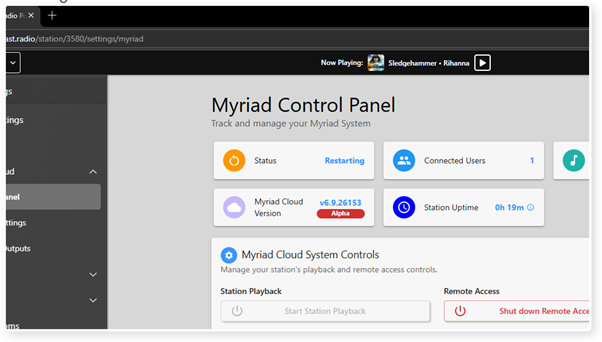
7. The Status will display as Restarting throughout the restart process.
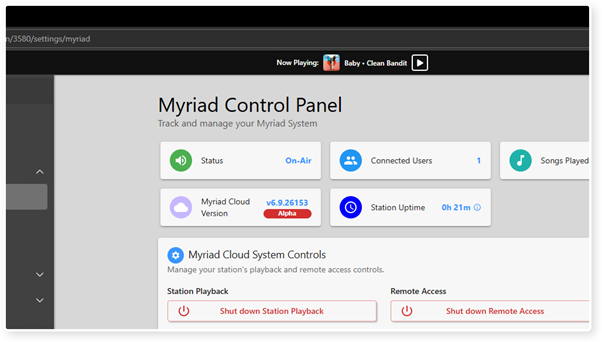
8. Once the restart is complete, the Status will display as On-Air.
The Log will also be restarted from the closest Log Item (to now).
Was this article helpful?
That’s Great!
Thank you for your feedback
Sorry! We couldn't be helpful
Thank you for your feedback
Feedback sent
We appreciate your effort and will try to fix the article