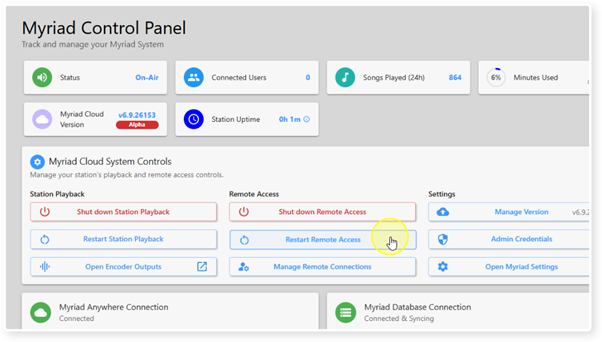
The Restart Remote Access button in Myriad Cloud System Controls allows you to disconnect all connected Users and restart the software that allows connections (equivalent to restarting the Remote Edit Server (RES) software in an on-premise installation.
Please note this will disconnect all remote Users including any connected to the Live Studio, but it will NOT take your Station Off-Air.
1. Login to your Broadcast.Radio portal.
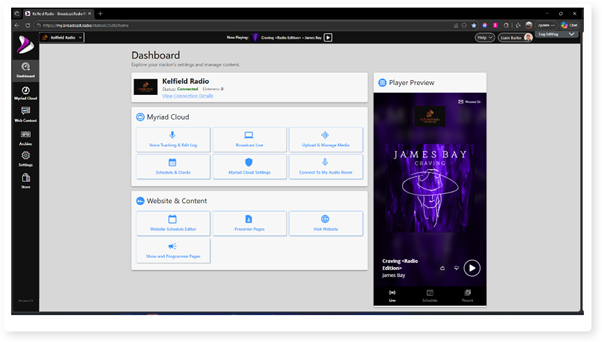
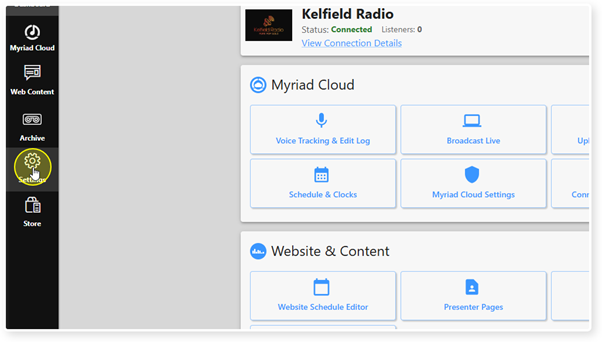
2. Click on the Settings menu option.
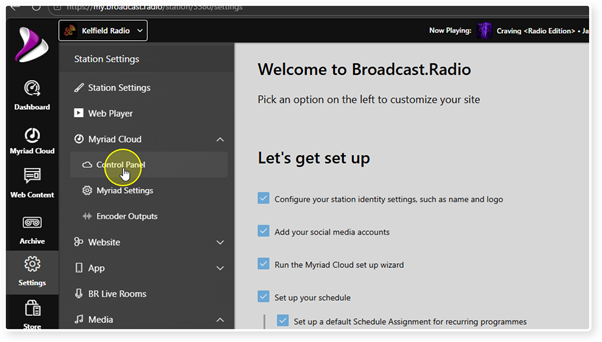
3. Expand the Myriad / Myriad Cloud option and select Control Panel.
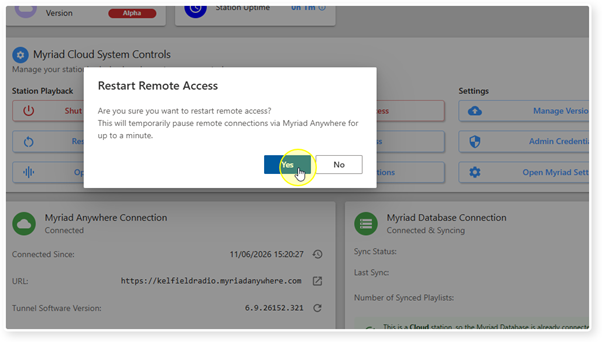
4. To restart Remote Access, click on the Restart Remote Access button.
5. You will be asked to confirm the action. Click on Yes to proceed.
WARNING - This will disconnect all remote Users including any currently connected to the Live Studio.
It will NOT take your Station Off-Air.
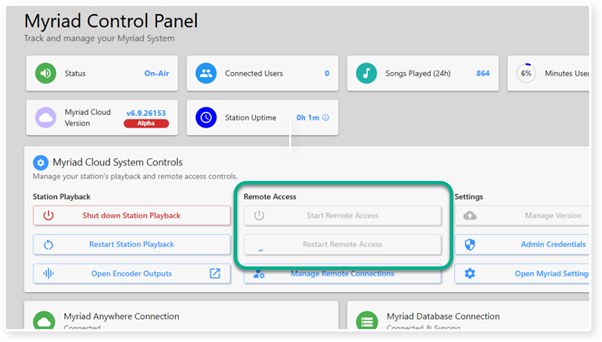
6. While Remote Access is restarted, both the Start Remote Access and Restart Remote Access buttons will be disabled.
It is also possible the Status will briefly show as Off-Air but that is just because it will not be able to access Myriad Cloud remotely, audio from the Log will continue to play uninterrupted.
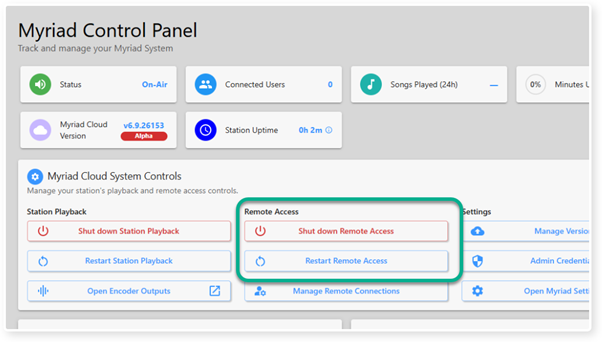
7. Remote Access is fully restored once the Shut Down Remote Access and Restart Remote Access buttons are re-enabled.
Was this article helpful?
That’s Great!
Thank you for your feedback
Sorry! We couldn't be helpful
Thank you for your feedback
Feedback sent
We appreciate your effort and will try to fix the article