The Shut Down Remote Access prevents all access to your Myriad Cloud system until remote access is restarted.
The Station Playback is also shut down as part of this process to prevent your station playing audio without any mechanism for controlling it.
CAUTION - This action will take your Station off-air.
1. Login to your Broadcast.Radio portal.
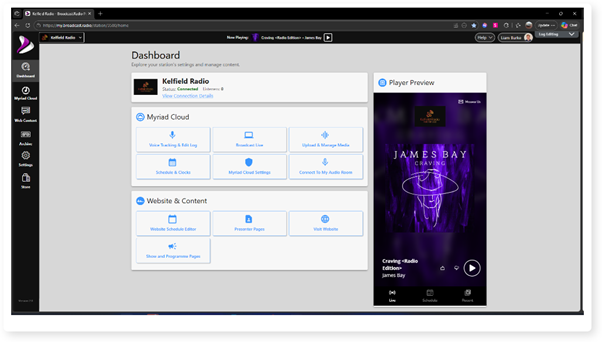
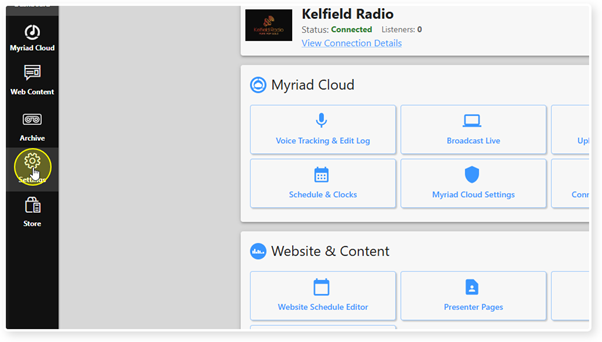
2. Click on the Settings menu option.
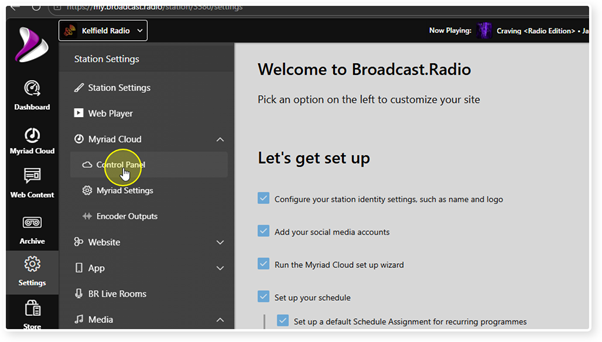
3. Expand the Myriad / Myriad Cloud option and select Control Panel.
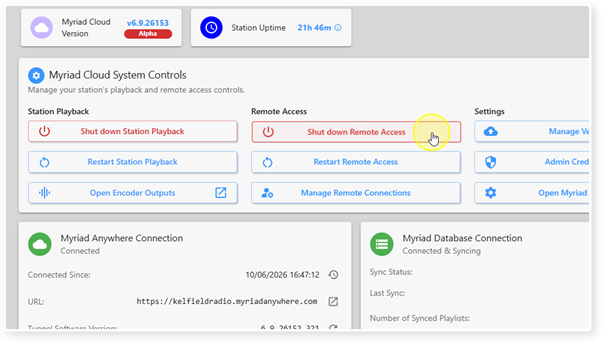
4. Click on the Shut Down Remote Access button in the Myriad Cloud System Controls section.
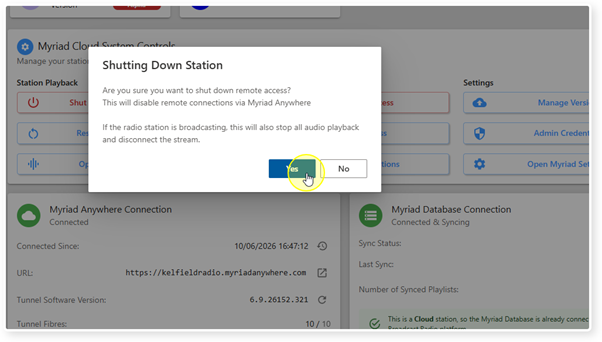
5. You will be asked to confirm that you want to shut down remote access. Click Yes to continue.
CAUTION - This action will take your Station off-air.
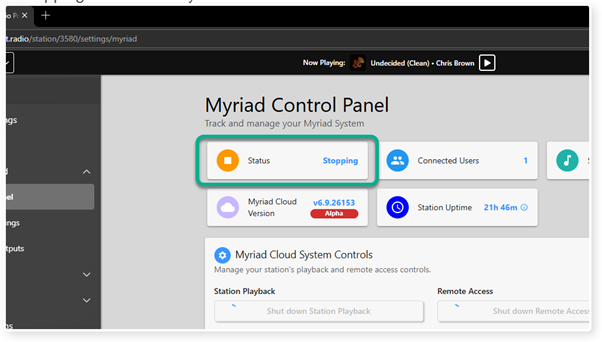
6. The shut down process can take up to 120 seconds. The Status will display as Stopping while as the system is shut down.
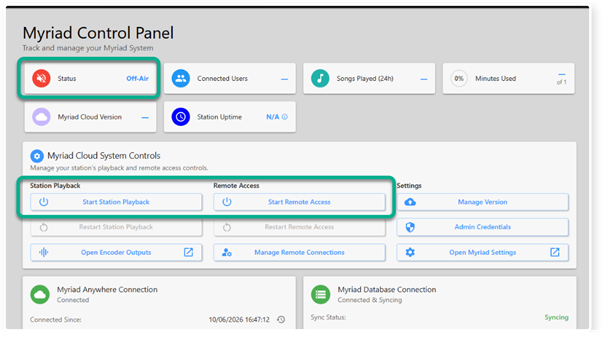
7. Once the process of shutting down is complete, the Status will change to Off-Air.
You Station is now off-air with nothing playing and no remote access other than the Myriad Control Panel which can be used to start your station again using the Start Remote Access and Start Station Playback buttons.
Was this article helpful?
That’s Great!
Thank you for your feedback
Sorry! We couldn't be helpful
Thank you for your feedback
Feedback sent
We appreciate your effort and will try to fix the article