If you use the Shut Down Remote Access button to take your Station full off-air, you will need to start both Remote Access and Station Playback to return your Station to On-Air status.
You can also just start Remote Access if you need to manage content, add Voice Tracks, Schedule or any other functions other than live or automated playback.
1. When Station Playback and Remote Access are not enabled, your Status will show as Off-Air.
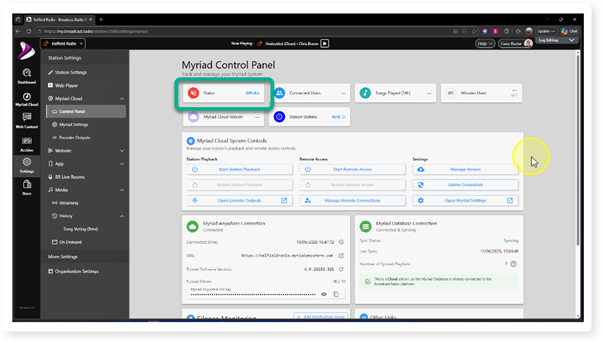
2. To start Remote Access, click on the Start Remote Access button.
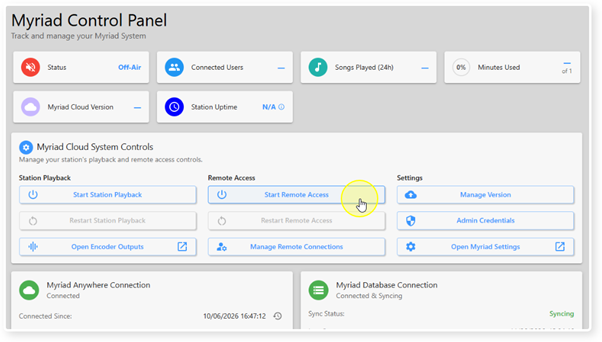
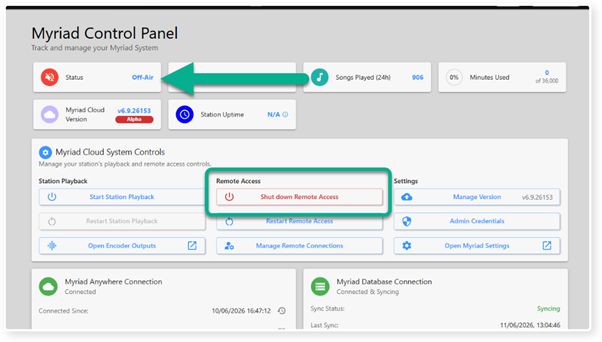
3. The Remote Access startup process can take up to 120 seconds. Once complete, the button caption will change from Start Remote Access to Shut Down Remote Access.
But the Status is still showing as Off-Air as we have not started Station Playback.
In this status you will have access to the following remote features:
- Voice Tracking & Log Editing.
- Media Management.
- Schedule.
- News (optional).
- Station Management & Security.
You will not be able to access the Connect to Live Studio features as Station Playback is still not running at this stage.
Your Station will also not be playing an audio.
4. To start playing audio on your Station and enable the Connect to Live Studio features, click on the Start Station Playback button.
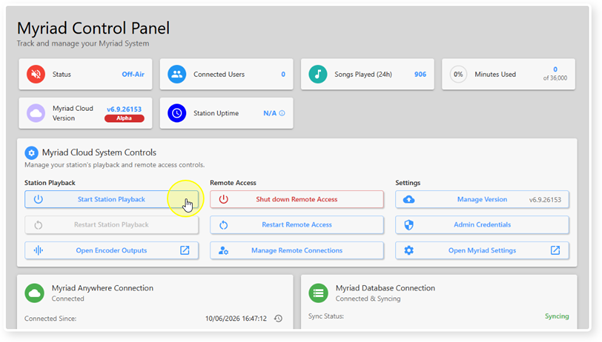
5. The Status will change to Starting. This process can take a up to 120 seconds.
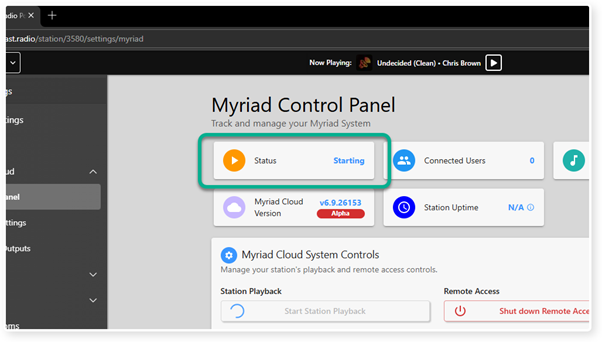
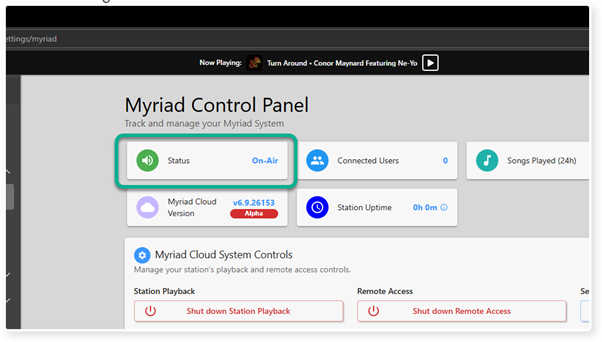
6. Once the Status changes to On-Air, your Station will be playing audio content from the Log and the Connect to Live Studio features will be accessible.
Was this article helpful?
That’s Great!
Thank you for your feedback
Sorry! We couldn't be helpful
Thank you for your feedback
Feedback sent
We appreciate your effort and will try to fix the article