The Start Station Playback option will only be available if you have previously stopped Station Playback using either the Shut Down Station Playback or Shut Down Remote Access buttons.
Clicking the Start Station Playback button will start audio playback from the Log and enable the Connect to Live Studio features. If Remote Access is also stopped, it will restarted automatically as part of the Start Station Playback process as you will need that to be able to access your Station.
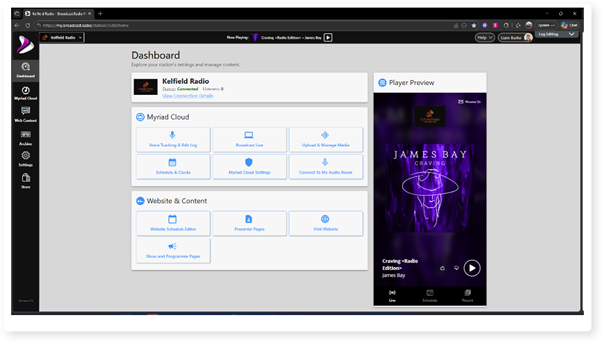
1. Login to your Broadcast.Radio portal.
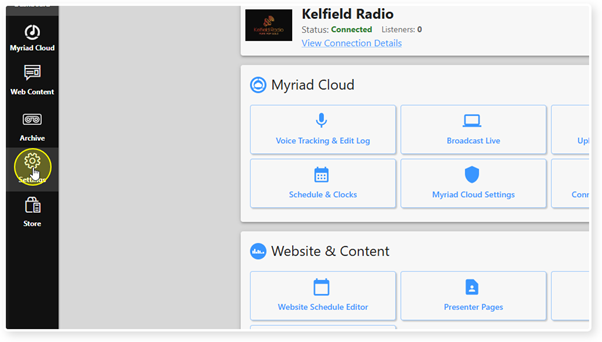
2. Click on the Settings menu option.
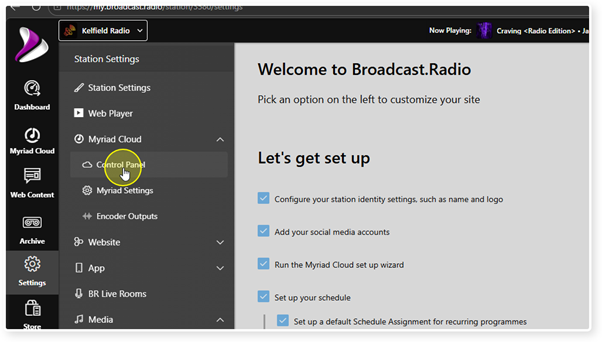
3. Expand the Myriad / Myriad Cloud option and select Control Panel.
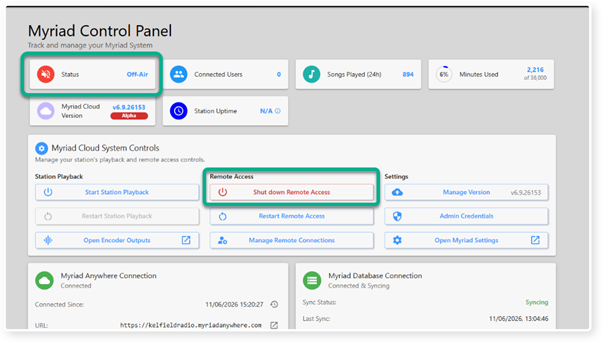
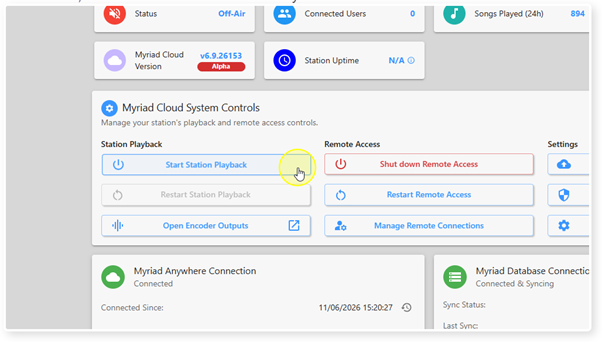
4. In the screen shot below, Station Playback is currently stopped and the Status is displayed as Off-Air.
This means that the Station is not playing any audio and the Connect to Live Studio features are not available.
But we can also see that Remote Access is still running as the button caption is Shut Down Remote Access.
This means Users will have access to:
Voice Tracking & Log Editing.
Media Management.
Schedule.
News (optional).
Station Management & Security.
But not any of the Connect to Live Studio Features.
5. To enable audio playback on the Station and the Connect to Live Studio features, click on the Start Station Playback button.
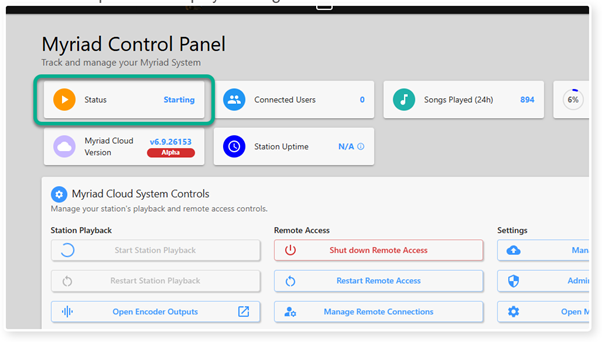
6. This process can take up to a couple of minutes to complete. During this time, the Status panel will display Starting.
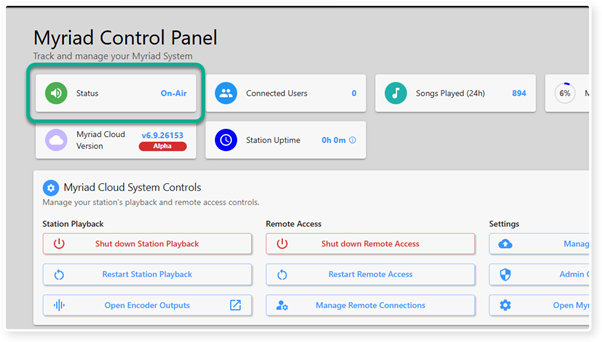
7. Once the Start Playback process is complete, the Status will change to On-Air.
Your Station will now be playing audio from the Log and the Connect to Live Studios will be enabled.
Was this article helpful?
That’s Great!
Thank you for your feedback
Sorry! We couldn't be helpful
Thank you for your feedback
Feedback sent
We appreciate your effort and will try to fix the article