The Generate Embed option is used to generate HTML code that can be added to 3rd party websites to directly embed your Web Player into the page. This is done using an <iFrame> tag to display the Broadcast Radio hosted Web Player on any website.
1. Login to your Broadcast.Radio portal.
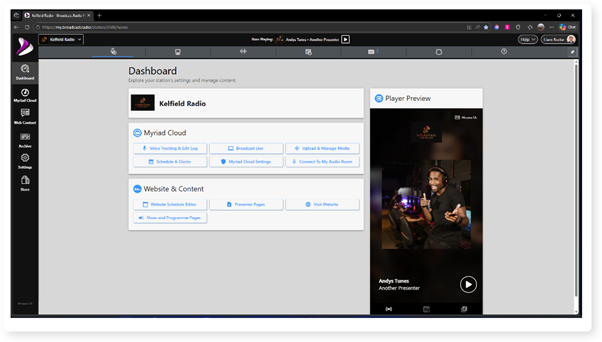
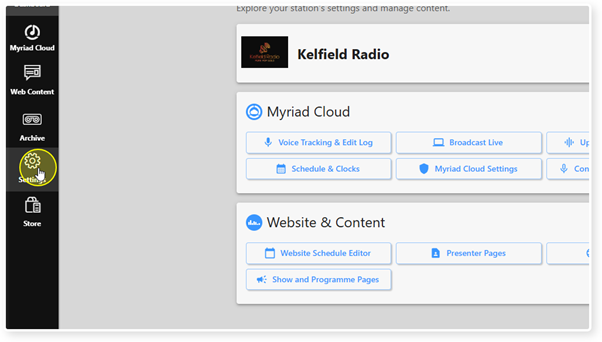
2. Click the Settings menu option.
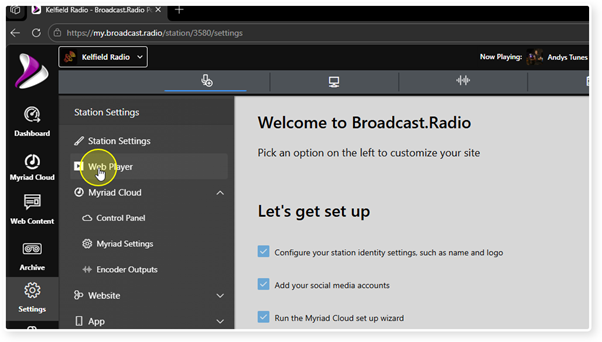
3. Select Web Player.
4. Scroll down to the Links and Embed Options section.
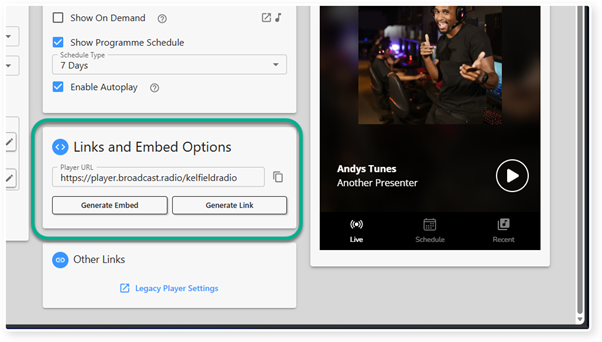
5. Click on the Generate Embed button.
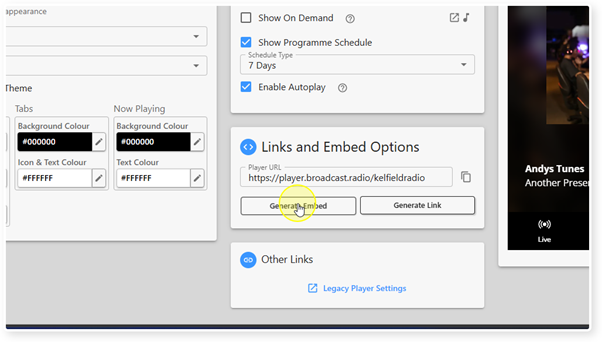
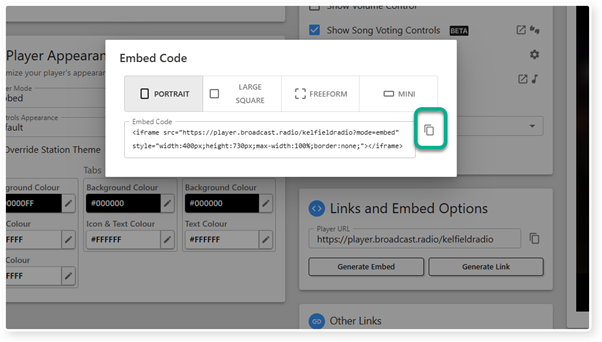
6. This will open the Embed Code window which can be used to generate the embed code.
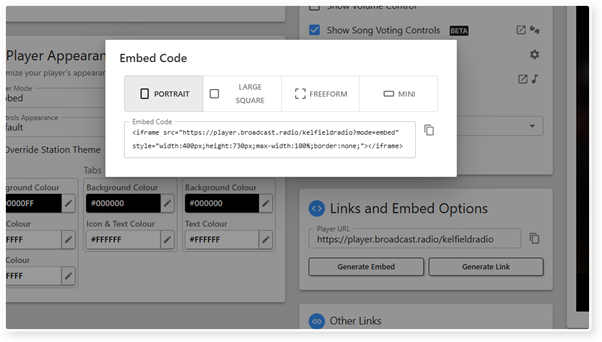
7. Select the size & behaviour using the options buttons.
Portrait - Standard tall Web Player.
Large Square - Creates a larger, square Web Player.
Freeform - Creates a Web Player that will expand to fill the HTML container it is placed in.
Mini - Creates a compact Web Player ideal for placing in a header section on a website.
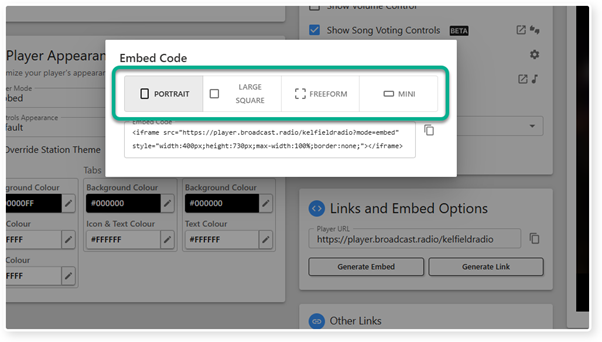
8. As you select options (Portrait, Large Square etc), the embed code is automatically generated in the Embed Code section.
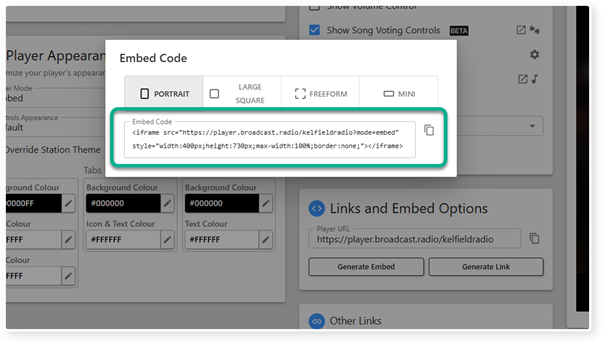
9. Click on the Copy button to copy the embed code to the clipboard.
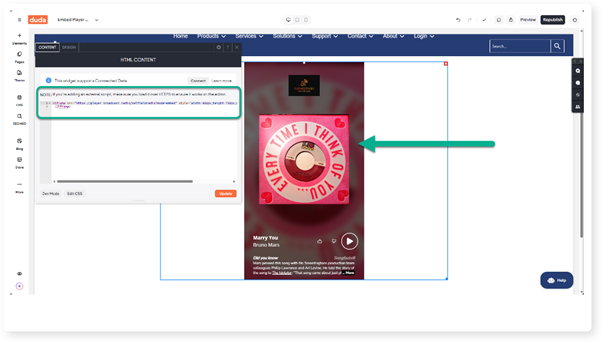
10. In your 3rd party website CMS, add an HTML widget (also sometimes called an element or block) and paste the embed code into the HTML section. This will embed the Web Player directly on the website page.
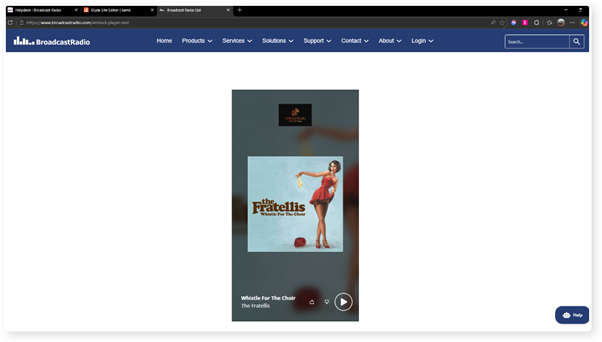
11. Once your 3rd party website is published, the Web Player will be embedded on the page.
Was this article helpful?
That’s Great!
Thank you for your feedback
Sorry! We couldn't be helpful
Thank you for your feedback
Feedback sent
We appreciate your effort and will try to fix the article