Applies to: SmartSign v3.6.1 or later
Overview
The Now Playing tile in SmartSign has traditionally displayed any plain text received on a configured TCP port.
From SmartSign v3.6.1, the tile can also display a rich graphical layout containing:
- Current Show title
- Show strapline
- Show publicity image
- Primary presenter
- Multiple presenters and their roles
- Currently playing song title
- Artist(s)
- Album artwork
Example:
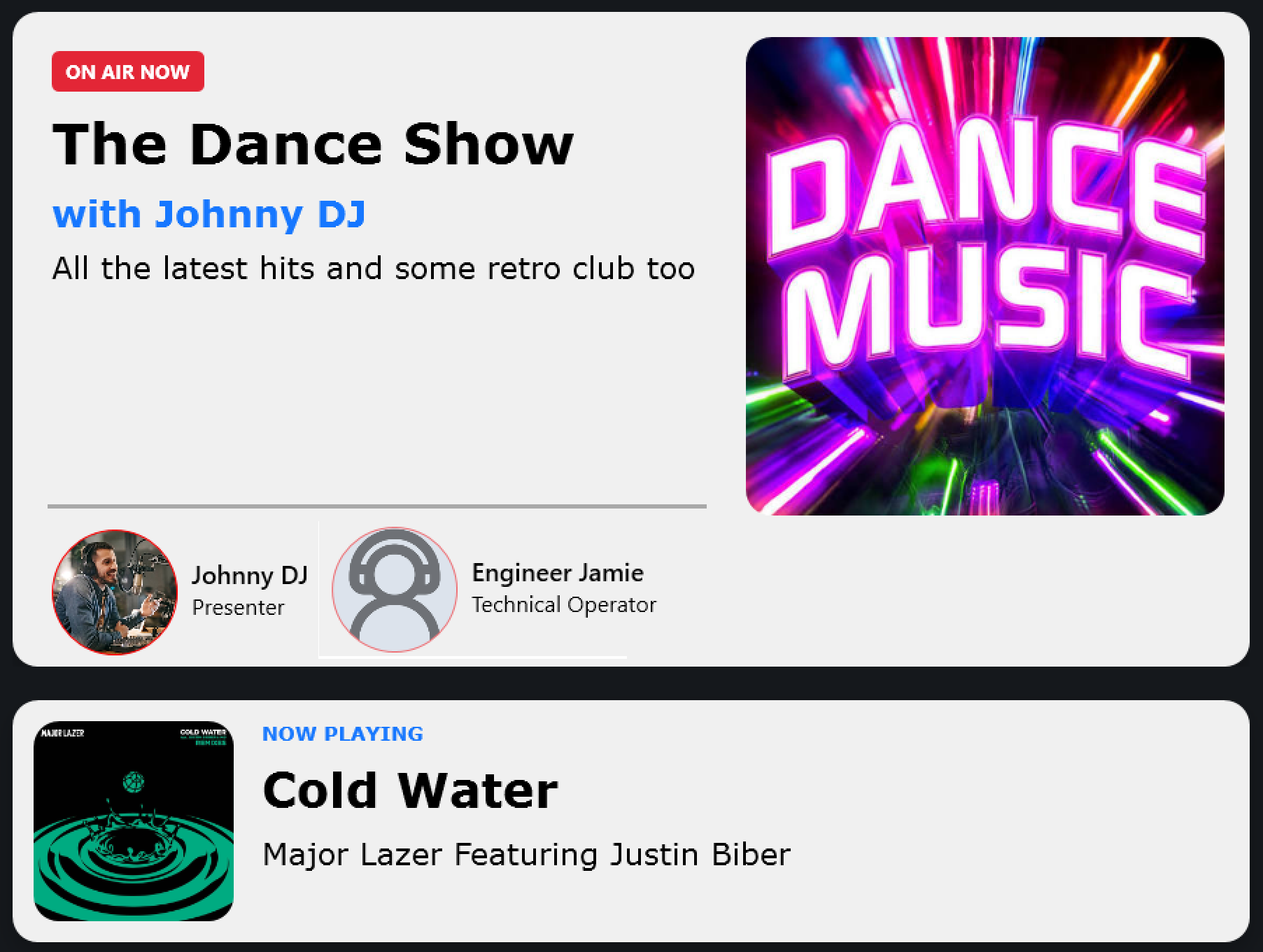
This allows you to create attractive studio, reception and public information displays without having to design a custom layout yourself.
The feature is fully backwards compatible with existing installations.
- If a plain text string is received, the tile behaves exactly as before.
- If Advanced Display is enabled and the received text contains valid JSON in the supported format, the tile automatically switches to the new graphical display.
Enabling Advanced Display
Edit the Now Playing tile and enable:
Advanced Display
When enabled, SmartSign expects incoming TCP messages to contain a JSON document rather than simple text.
If the received data is not valid JSON, SmartSign will fall back to displaying the received text.
Supported Information
The following information can be displayed.
Current Show
- Show title
- Strapline
- Publicity image
Presenters
- Multiple presenters
- Presenter role
- Presenter photograph
- Primary presenter highlighted within the show title
Currently Playing Item
- Title
- Artist(s)
- Artwork
- Item type
JSON Format
A typical JSON message looks like this:
{
    "current": {
        "title": "Test Episode",
        "artists": "Test Artist",
        "type": "song",
        "image": {
            "data": "data:image/png;base64,iVBORw0KGgoAAAANSUhEUgAAAEAAAABACAIAAAAlC+aJAAABR0lEQVR4nO2YzQ3CMAxGKWIEzh2BCRiBSRiCA0MwGCNw7hAcKkUIKY1/8yWN3wmJYvv1cwt0mufroWeO6AG0hACa7gVOHkXnZ/atz8O4V/cJhACaEEBjeRd6v5b1xW05F4+53LPHsDAQSDPJPqU00a6QbHrDCvIE9KP/lZJFIUzAcHplTYmAx/TiymwBv+ll9XkC3tMLujAE6kzP7dX9N/FE/FNf8/QnKDdWUgKQ6Yl9u1+hAQRQ+0PsPkACjVMQwO4PZYa9J9A+IYAmBNCEAJqCgNXzMw3bM+w9gfYpC2C3qNh9gAQahySA2iKzpxLEWrYQO46xQis1Q6D34iVQx4HVhb1C3g7c+pJrwM9BUFl4EXs4yGpSn07nMHnuojkd2tuoPgplBW0Cv7DSsFpCS4HEhon5xeMiUJORfkq0SQigCQE0IYDmC/Z0WfP/OhsXAAAAAElFTkSuQmCC"
        }
    },
    "show": {
        "title": "Test Show",
        "strapline": "Test Episode",
        "image": {
            "data": "data:image/png;base64,iVBORw0KGgoAAAANSUhEUgAAAEAAAABACAIAAAAlC+aJAAABR0lEQVR4nO2YzQ3CMAxGKWIEzh2BCRiBSRiCA0MwGCNw7hAcKkUIKY1/8yWN3wmJYvv1cwt0mufroWeO6AG0hACa7gVOHkXnZ/atz8O4V/cJhACaEEBjeRd6v5b1xW05F4+53LPHsDAQSDPJPqU00a6QbHrDCvIE9KP/lZJFIUzAcHplTYmAx/TiymwBv+ll9XkC3tMLujAE6kzP7dX9N/FE/FNf8/QnKDdWUgKQ6Yl9u1+hAQRQ+0PsPkACjVMQwO4PZYa9J9A+IYAmBNCEAJqCgNXzMw3bM+w9gfYpC2C3qNh9gAQahySA2iKzpxLEWrYQO46xQis1Q6D34iVQx4HVhb1C3g7c+pJrwM9BUFl4EXs4yGpSn07nMHnuojkd2tuoPgplBW0Cv7DSsFpCS4HEhon5xeMiUJORfkq0SQigCQE0IYDmC/Z0WfP/OhsXAAAAAElFTkSuQmCC",
            "imageUri": "https://example.com/testshowimage.png"
        }
    },
    "primaryPresenterName": "Presenter 1",
    "presenters": [
        {
            "name": "Presenter 1",
            "role": "Presenter",
            "image": {
                "data": "data:image/png;base64,iVBORw0KGgoAAAANSUhEUgAAAEAAAABACAIAAAAlC+aJAAABR0lEQVR4nO2YzQ3CMAxGKWIEzh2BCRiBSRiCA0MwGCNw7hAcKkUIKY1/8yWN3wmJYvv1cwt0mufroWeO6AG0hACa7gVOHkXnZ/atz8O4V/cJhACaEEBjeRd6v5b1xW05F4+53LPHsDAQSDPJPqU00a6QbHrDCvIE9KP/lZJFIUzAcHplTYmAx/TiymwBv+ll9XkC3tMLujAE6kzP7dX9N/FE/FNf8/QnKDdWUgKQ6Yl9u1+hAQRQ+0PsPkACjVMQwO4PZYa9J9A+IYAmBNCEAJqCgNXzMw3bM+w9gfYpC2C3qNh9gAQahySA2iKzpxLEWrYQO46xQis1Q6D34iVQx4HVhb1C3g7c+pJrwM9BUFl4EXs4yGpSn07nMHnuojkd2tuoPgplBW0Cv7DSsFpCS4HEhon5xeMiUJORfkq0SQigCQE0IYDmC/Z0WfP/OhsXAAAAAElFTkSuQmCC"
            }
        },
        {
            "name": "Presenter 2",
            "role": "Extra Presenter",
            "image": {
                "data": "data:image/png;base64,iVBORw0KGgoAAAANSUhEUgAAAEAAAABACAIAAAAlC+aJAAABR0lEQVR4nO2YzQ3CMAxGKWIEzh2BCRiBSRiCA0MwGCNw7hAcKkUIKY1/8yWN3wmJYvv1cwt0mufroWeO6AG0hACa7gVOHkXnZ/atz8O4V/cJhACaEEBjeRd6v5b1xW05F4+53LPHsDAQSDPJPqU00a6QbHrDCvIE9KP/lZJFIUzAcHplTYmAx/TiymwBv+ll9XkC3tMLujAE6kzP7dX9N/FE/FNf8/QnKDdWUgKQ6Yl9u1+hAQRQ+0PsPkACjVMQwO4PZYa9J9A+IYAmBNCEAJqCgNXzMw3bM+w9gfYpC2C3qNh9gAQahySA2iKzpxLEWrYQO46xQis1Q6D34iVQx4HVhb1C3g7c+pJrwM9BUFl4EXs4yGpSn07nMHnuojkd2tuoPgplBW0Cv7DSsFpCS4HEhon5xeMiUJORfkq0SQigCQE0IYDmC/Z0WfP/OhsXAAAAAElFTkSuQmCC"
            }
        }
    ]
}
JSON Fields
current
Contains information about the item currently playing.
| Field | Description |
|---|---|
| title | Song or programme title |
| artists | Artist name(s) |
| type | Item type (for example song, advert, news) |
| image | Artwork |
show
Contains information about the current programme.
| Field | Description |
|---|---|
| title | Show name |
| strapline | Short description shown beneath the title |
| image | Show publicity image |
primaryPresenterName
Specifies which presenter should be displayed alongside the show title.

presenters
Contains zero or more presenters currently associated with the show.
Each presenter supports:
| Field | Description |
|---|---|
| name | Display name |
| role | Presenter role (Presenter, Co-Presenter, Producer etc.) |
| image | Presenter photograph |
Presenters are displayed across the bottom of the tile.
Images
Images are supplied using the image object.
The simplest format is a Base64 encoded Data URI.
Example:
"image": {
            "data": "data:image/png;base64,iVBORw0..."
         }
SmartSign supports common image formats including PNG and JPEG.
If no image is supplied, SmartSign will display a placeholder image instead.
Image URIs
As well as embedded Base64 data, images may optionally include an image URI.
"image": {
            "imageUri": "https://example.com/testshowimage.png"
        }
If both data and imageUriare supplied, SmartSign will always prefer the embedded Base64 image.Using embedded images ensures the display updates immediately without requiring SmartSign to download additional content from the networ, however can result in slower updates, particularly if the images are very large due to the size of the Base64 encoded image data.
Plain Text Compatibility
When Advanced View is disabled, SmartSign continues to behave exactly as previous versions.
Example:
Call me by Blondie
will simply display as text.
This means existing integrations require no changes after upgrading to SmartSign v3.6.1.
Example Uses
The enhanced display is ideal for:
- Studio wall displays
- Outside studio doors
- Reception displays
- Visitor information screens
- Public areas
- Open day demonstrations
- Live event displays
Tips
- Keep show titles reasonably short for the best appearance.
- Use square artwork where possible.
- Supply presenter photographs for the most visually engaging display.
- Include the primaryPresenterName property to highlight the main presenter.
- Embedded Base64 artwork provides the fastest and most reliable updates.
Example Layout
When a complete JSON message is received, the tile displays information similar to the following:
- Show title
- Primary presenter ("with Johnny DJ")
- Show strapline
- Show publicity image
- Presenter photographs and roles
- Currently playing artwork
- Song title
- Artist names
This allows SmartSign to create an attractive, information-rich display suitable for studio, reception and public-facing screens while remaining fully compatible with existing plain text integrations.
Was this article helpful?
That’s Great!
Thank you for your feedback
Sorry! We couldn't be helpful
Thank you for your feedback
Feedback sent
We appreciate your effort and will try to fix the article