TABLE OF CONTENTS
This guide will walk you through the process of licensing your new Myriad Playout 7 installation. Even if you have an existing and licensed Myriad 6 installation, you will still need to apply a separate license to access Myriad 7.
When you run Myriad Playout 7 without a license applied, you will see the standard Myriad License window.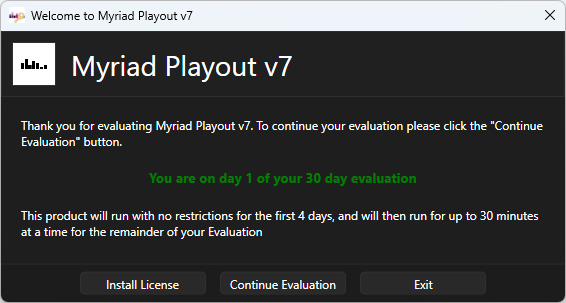
This allows you to:
- Install License - Apply the license key supplied by Broadcast Radio and enable your purchased features.
- Continue Evaluation - You can use Myriad Playout 7 without a license, in a limited capacity for a period of up to 30 days. During the initial four days, you can access all basic Myriad 7 Playout features with no time restrictions. After the initial four day period, you can continue to access basic Myriads 7 Playout features for for up to 30 days (in total) but with a maximum runtime of 30 minutes applied.
- Exit - Quit the application.
Not all features are unlocked in Evaluation mode as some of the more advanced options are unlocked with the Station Enabler code.
In this guide, we will assume you already have emails from Broadcast Radio that contain the License and Station Enabler codes.
Install License
The Myriad application license is installed 'per machine' and enabled access to the Myriad Playout software on this specific PC. You will needs to repeat the steps below for each PC running a licensed copy of Myriad Playout 7.
To install your Myriad 7 License Code, follow these steps:
- Run the Myriad 7 installation application and follow the onscreen instructions.
- Once the installation is complete, run Myriad Playout 7.
- If no license is detected, the Licence Options window will automatically launch.
- Click on the Install License button.
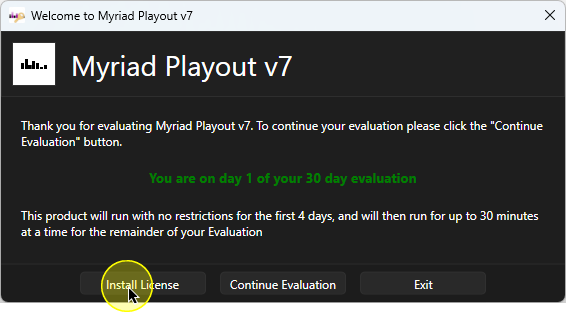
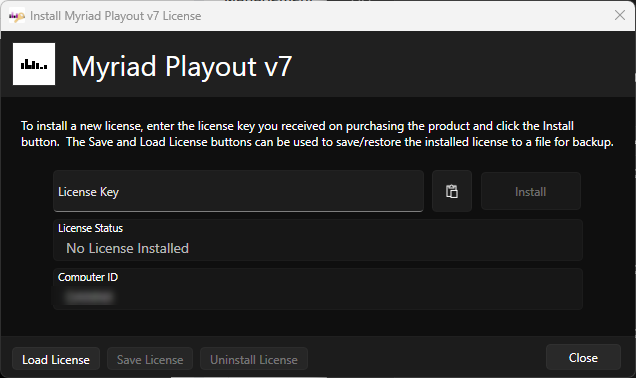
This will open the Myriad 7 License window, you will use this to enter the license key that has been emailed to you.
Go to your inbox and find the email with your Myriad 7 Playout license key.
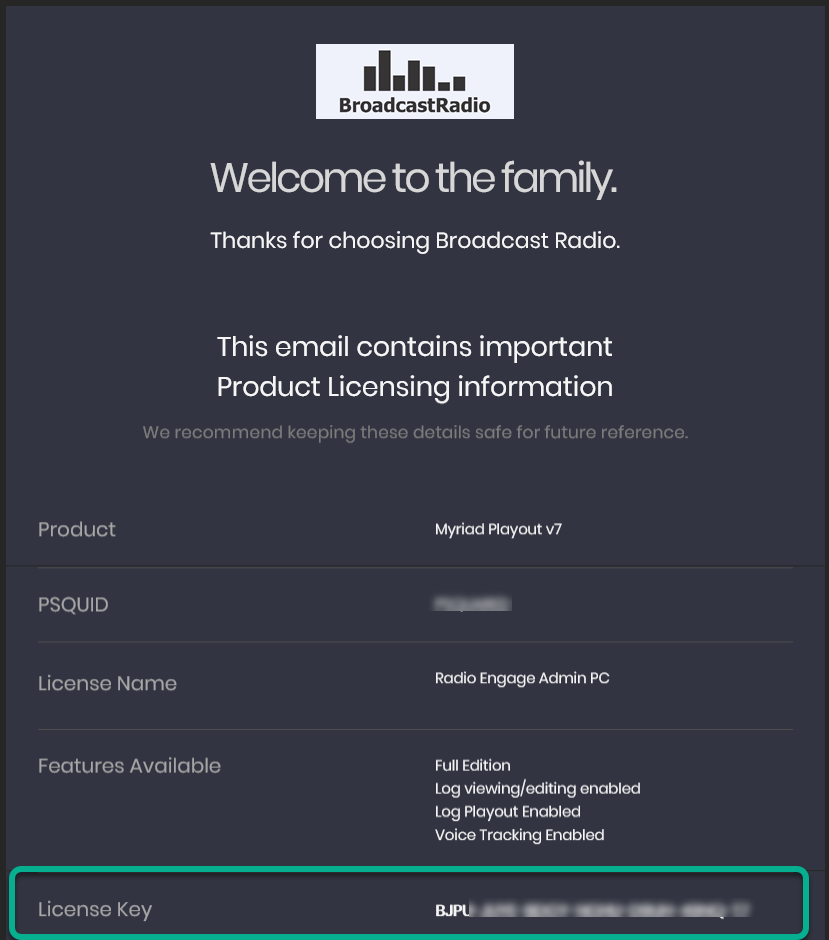
Locate the License Key section and copy the license key to your clipboard (Ctrl +c or right click copy).
In the Myriad Playout 7 License Window, select the License Key section and click on the Paste button.
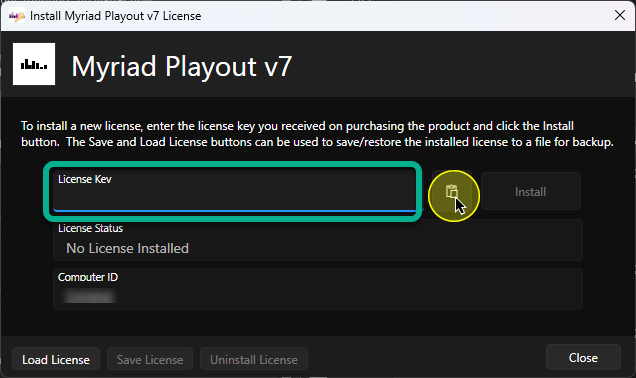
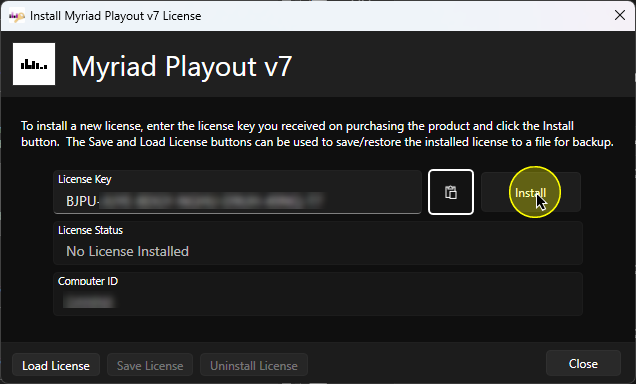
The license code will be displayed in the License Key section. Click on the Install button to apply the license key.
The License Status section will change to show when the license is due to expire. Don't worry if that date is in the near future, Myriad will automatically update the license as the expiry approaches, now that the key is applied.
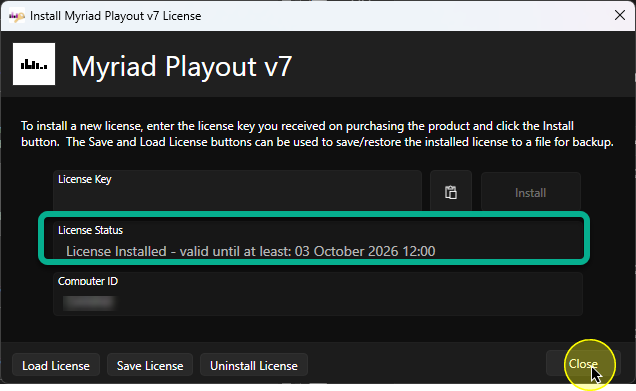
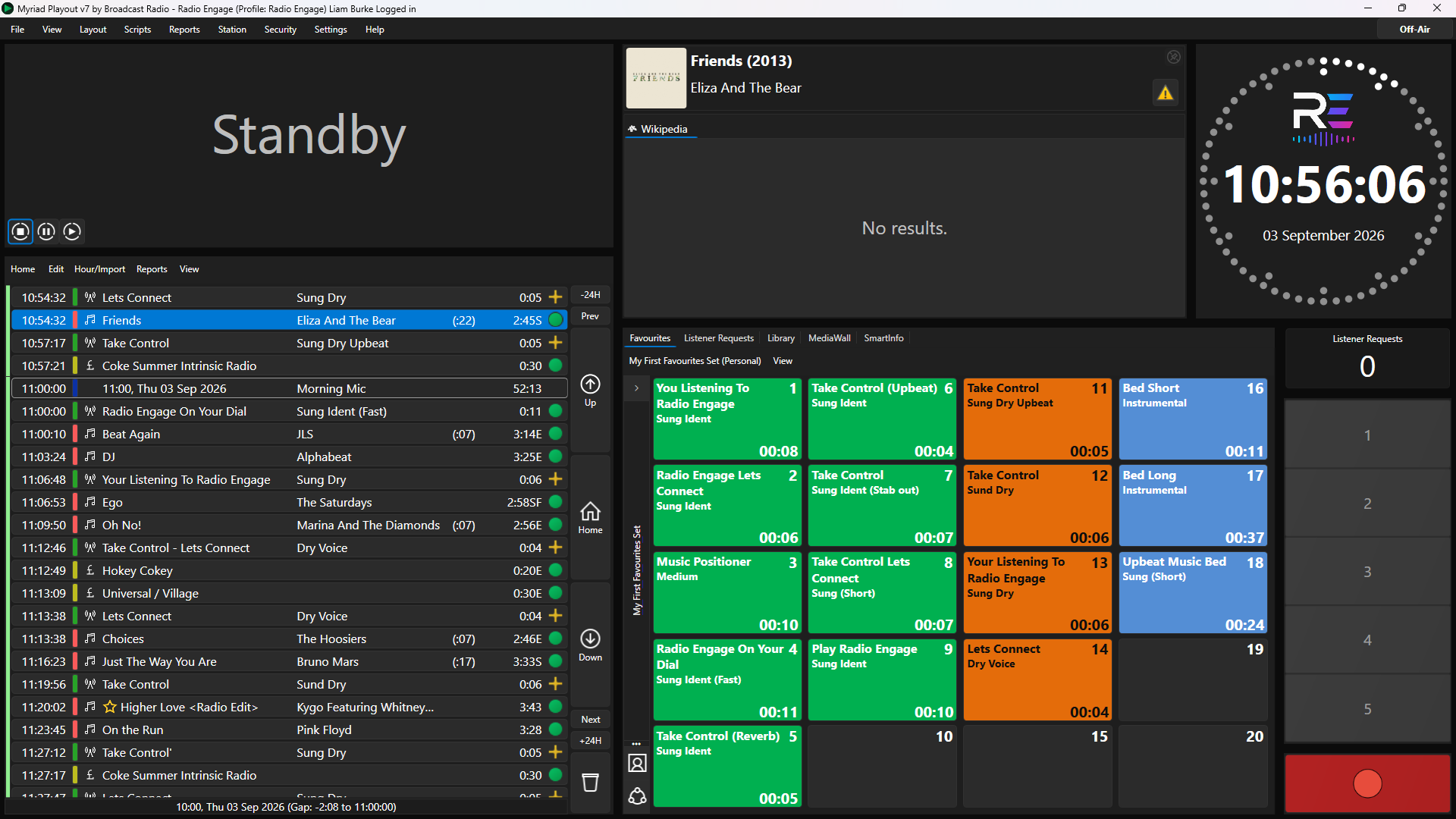
Click on the Close button. Myriad 7 will now load normally.
Installing Station Enabler
The Station Enabler code enabled features on a 'per Station' level and is only applied once per Station. All licensed Myriad applications access the Station will be able to utilise the features enabled in the Station Enabler (for that Station).
If you purshase new features to your Station, you may need to renew your Station Enabler in order for the code to reflect you recent purchases.
To install your Station Enabler, follow these steps:
- In Myriad Playout, click on the Settings Menu option.
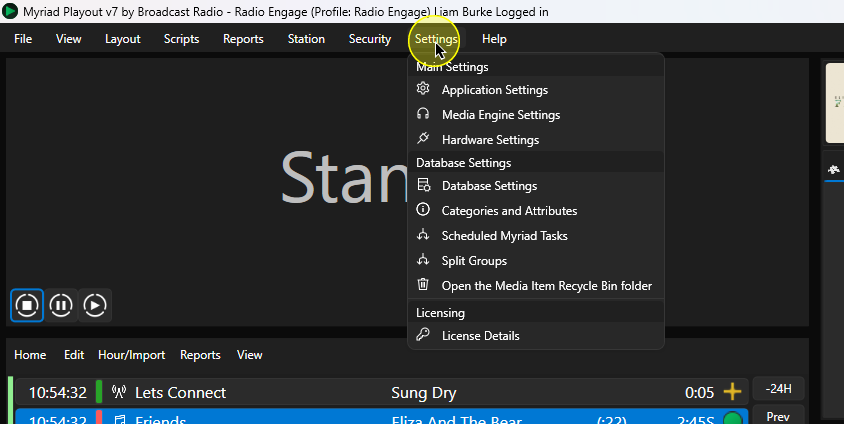
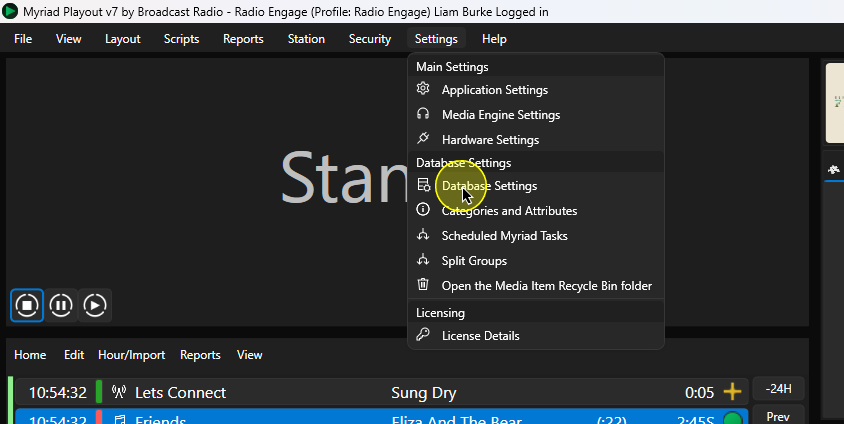
- Select Database Settings.
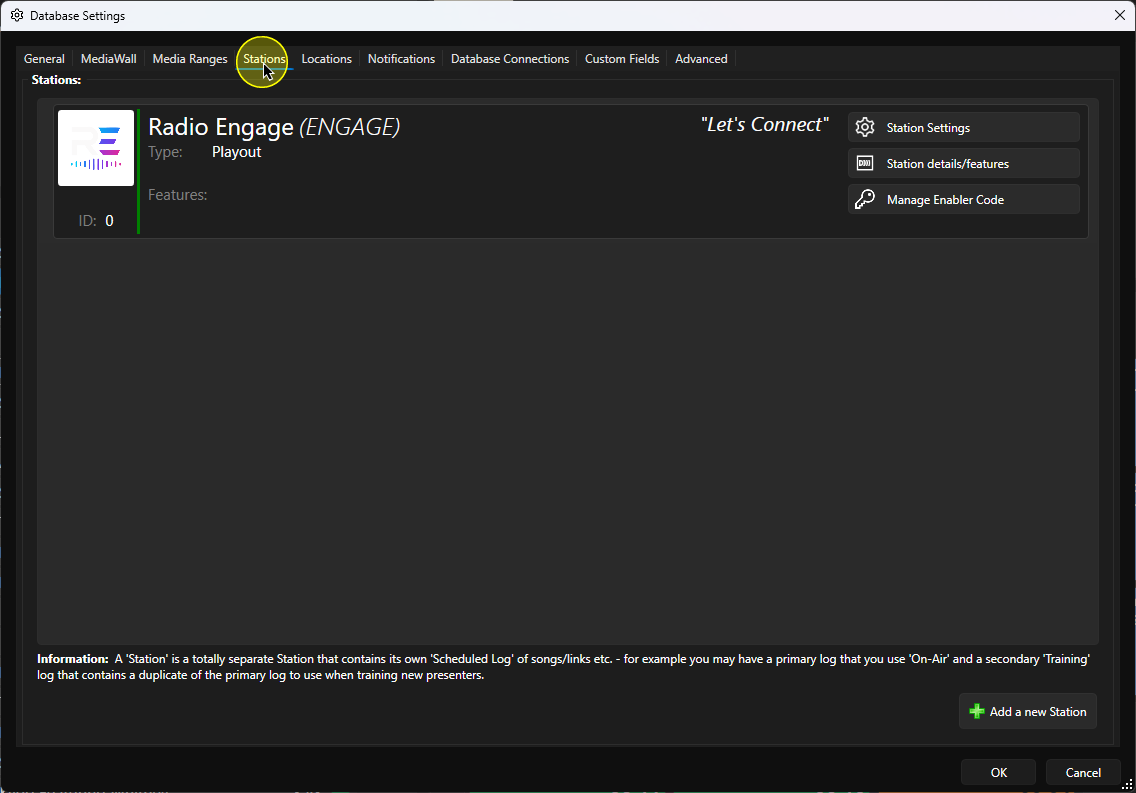
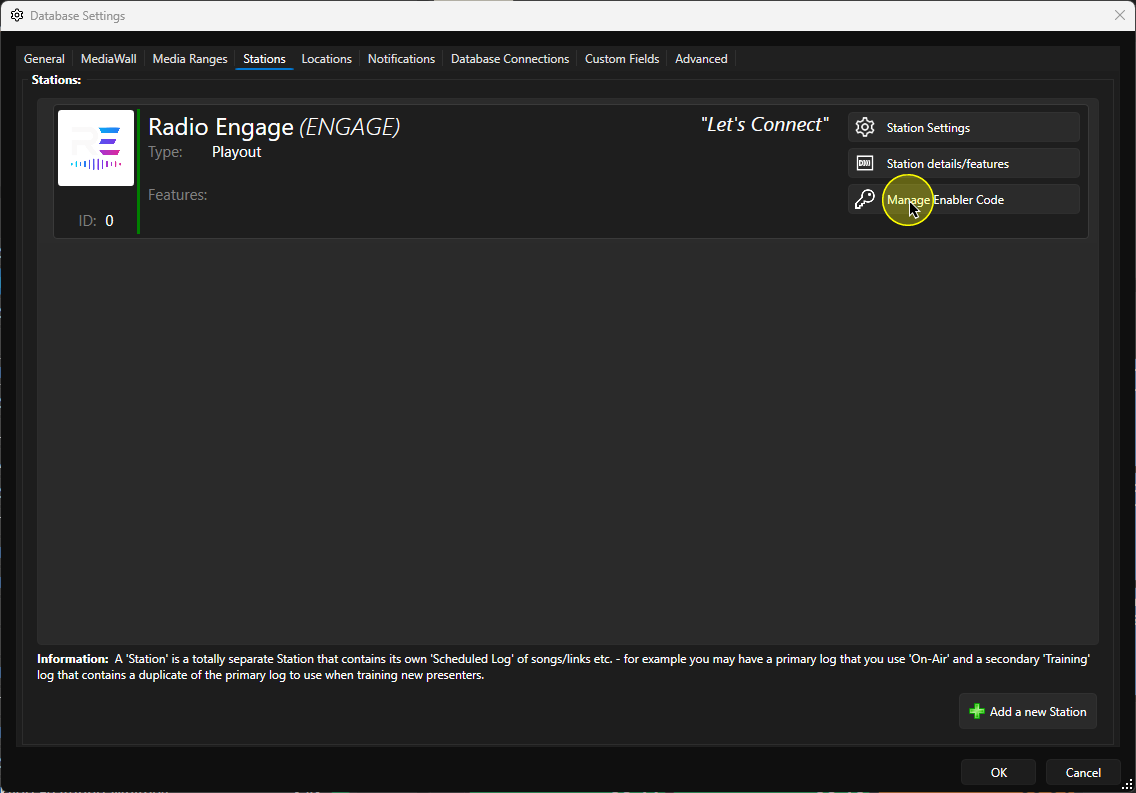
- Switch to the Stations tab. Here you will see a list of all configured Stations.
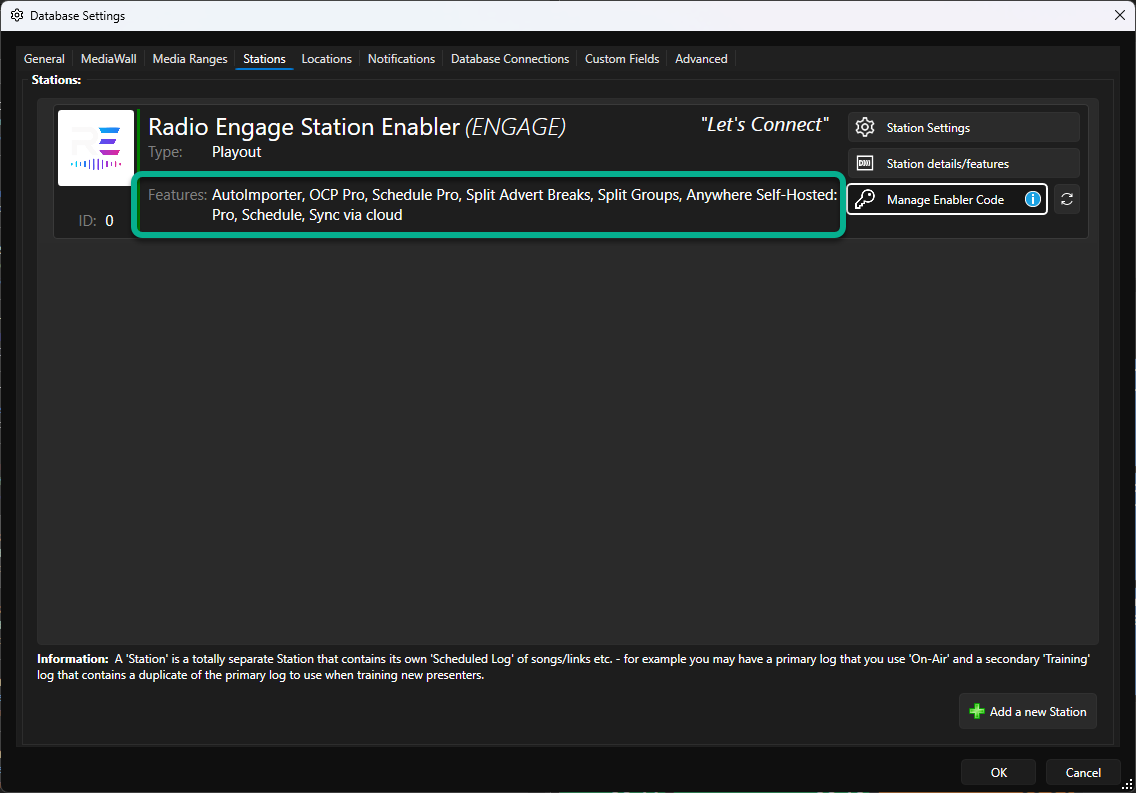
Here you will see a list of all configured Stations, with the features currently enabled for each Station. In the example below, we have not yet applied a Station Enabler code so there are no features listed.
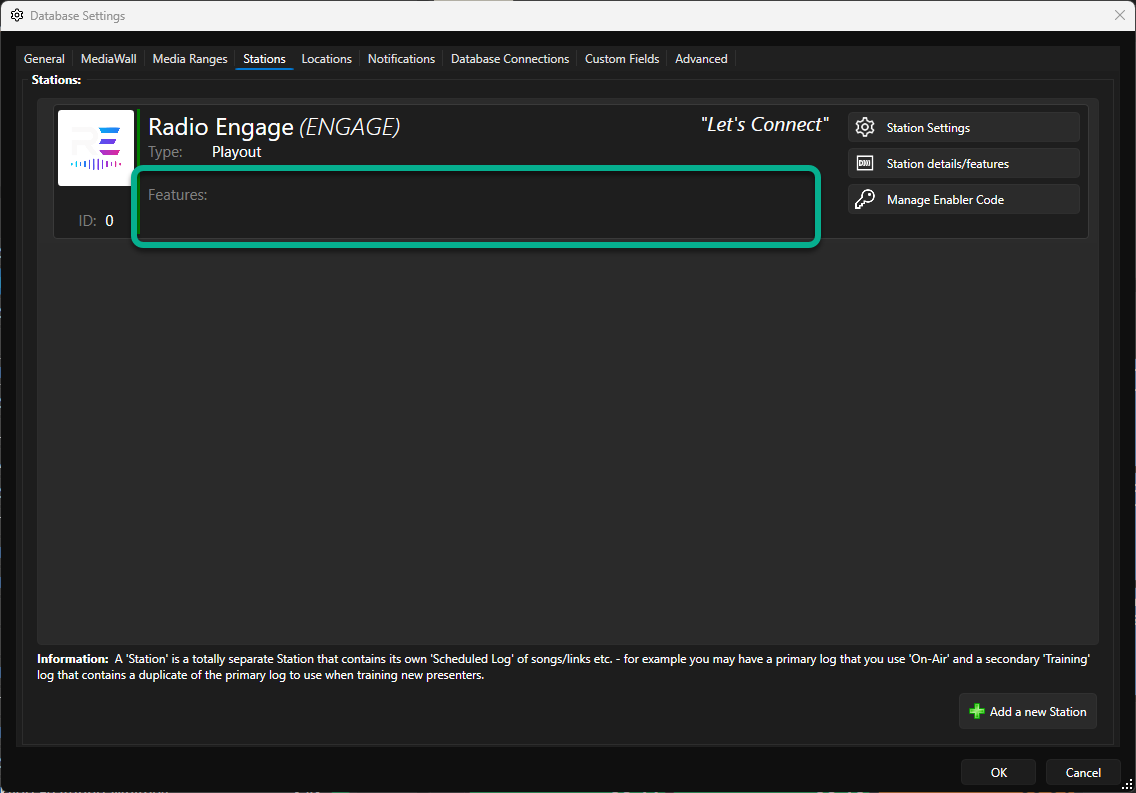
To add the Station Enabler code, click on the Manage Enabler Code button.
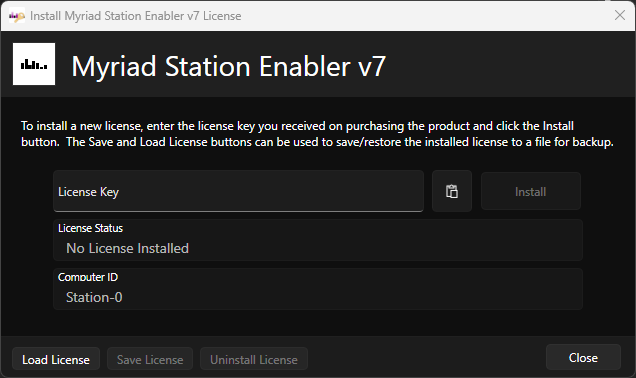
This will open the Station Enabler License Key window.
Open the email containing your Station Enabler Code..
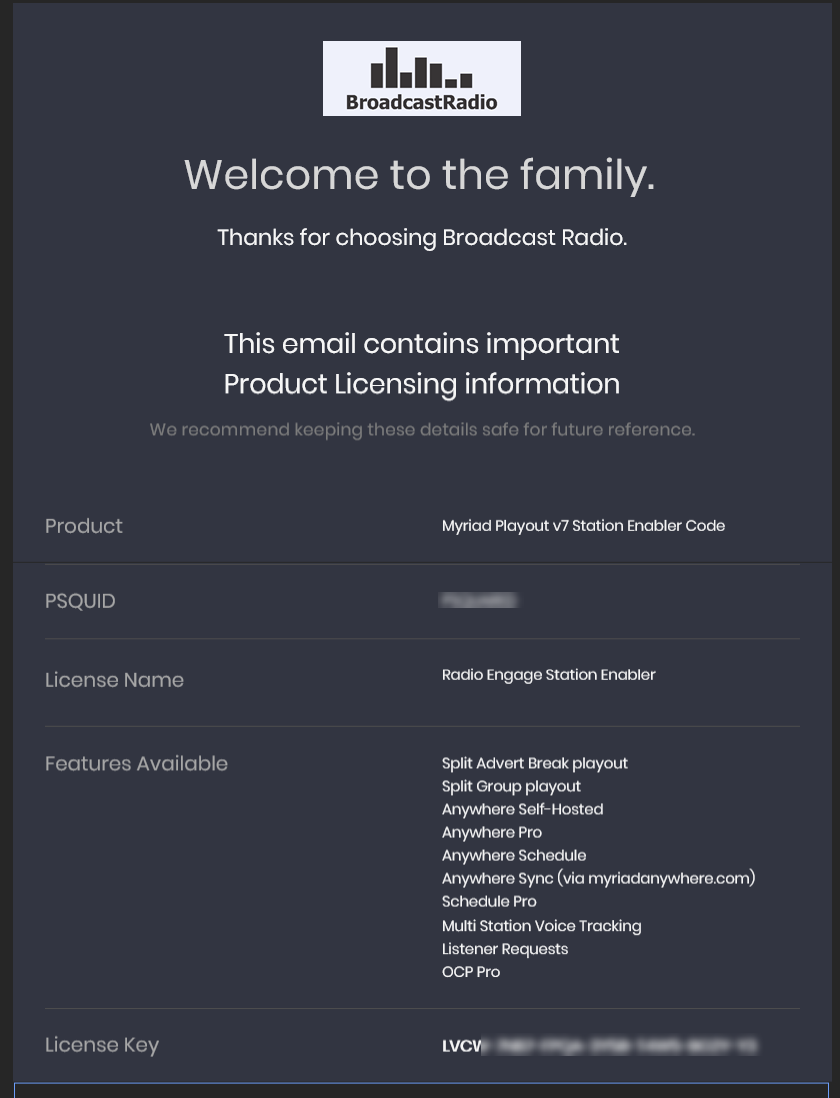
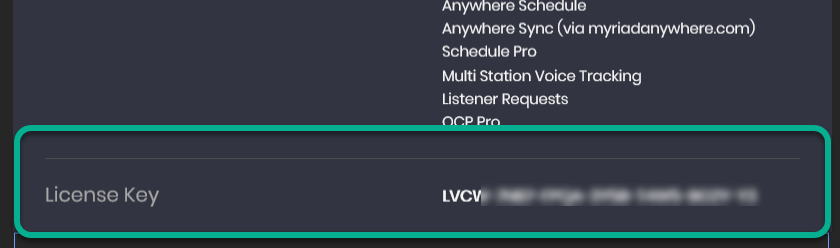
Locate the License Key section and copy the license code (use Ctrl+c or right-click menu).
In the Station Enabler License Key window, paste the code into the License Key section using the Paste button (or Ctrl+v or right-click menu).
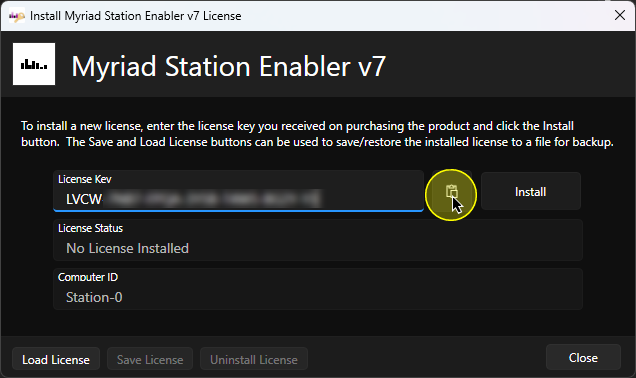
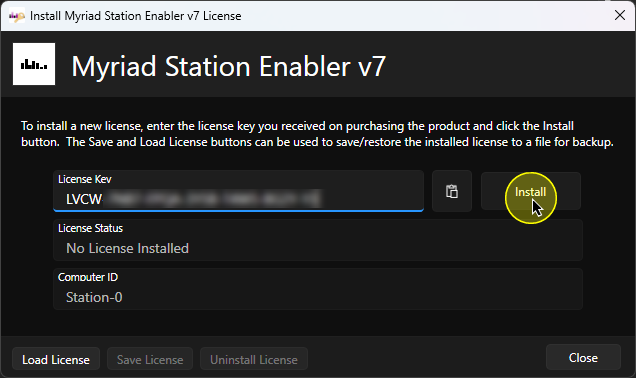
- Click on the Install button to apply the Station Enabler code.
The License Status section will show the expiry date for the applied Station Enabler code. Don't worry it it is in the near future, Myriad will automatically extend this now as required now that a valid code has been entered.
Click on the Close button.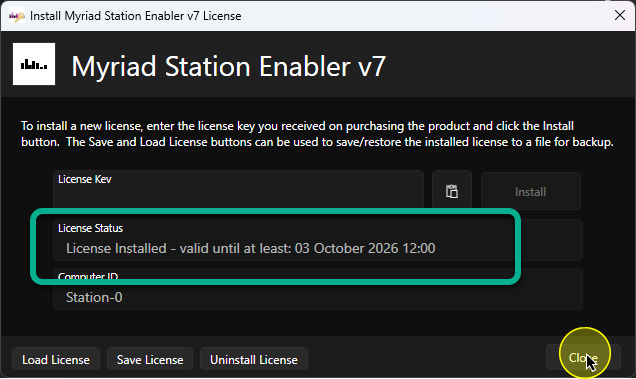
The Features section will not show the enabled features within the Station.
Force Update Station Enabler
If you purchase additional features for your Station,these will typically be enabled via an updated Station Enabler. Myriad 7 Playout will check for new features every 24 hours, so new features will automatically be picked up, but you can manually force an update if you wish to enable new features immediately.
- In Myriad Playout, click on the Settings Menu option.
- Select Database Settings.
- Switch to the Stations tab. Here you will see a list of all configured Stations.
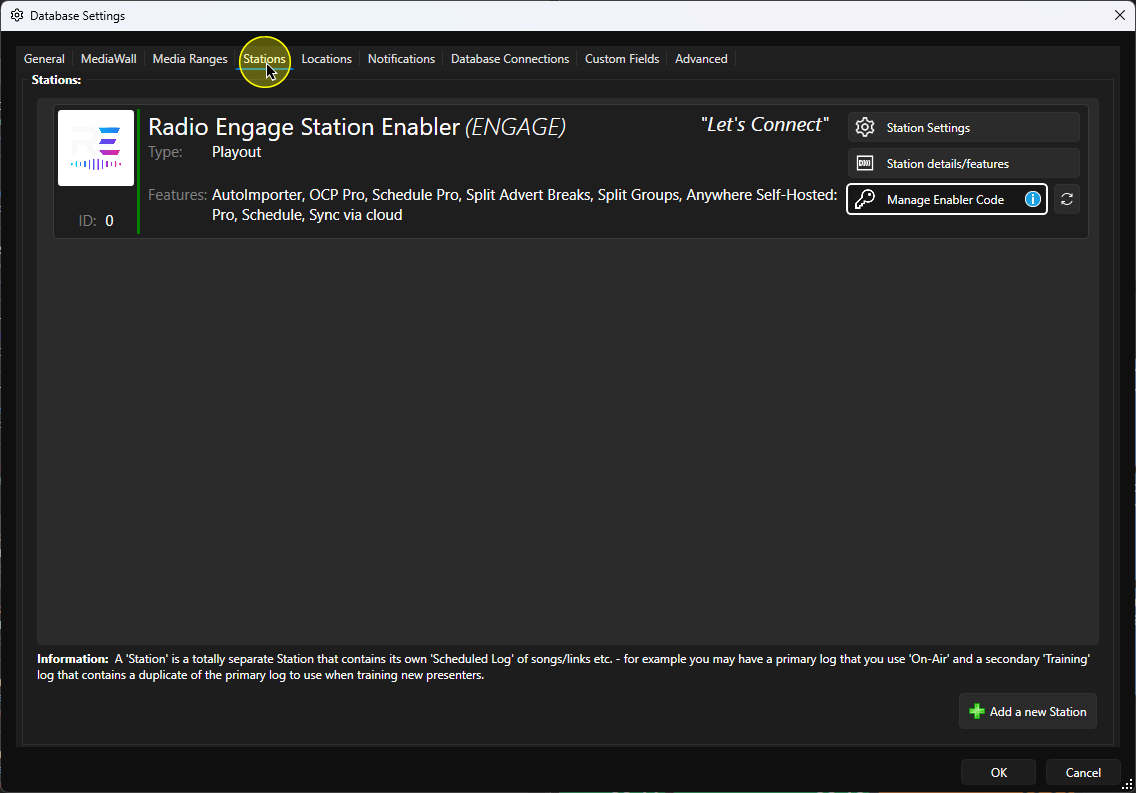
- Click on the Renew Now button.
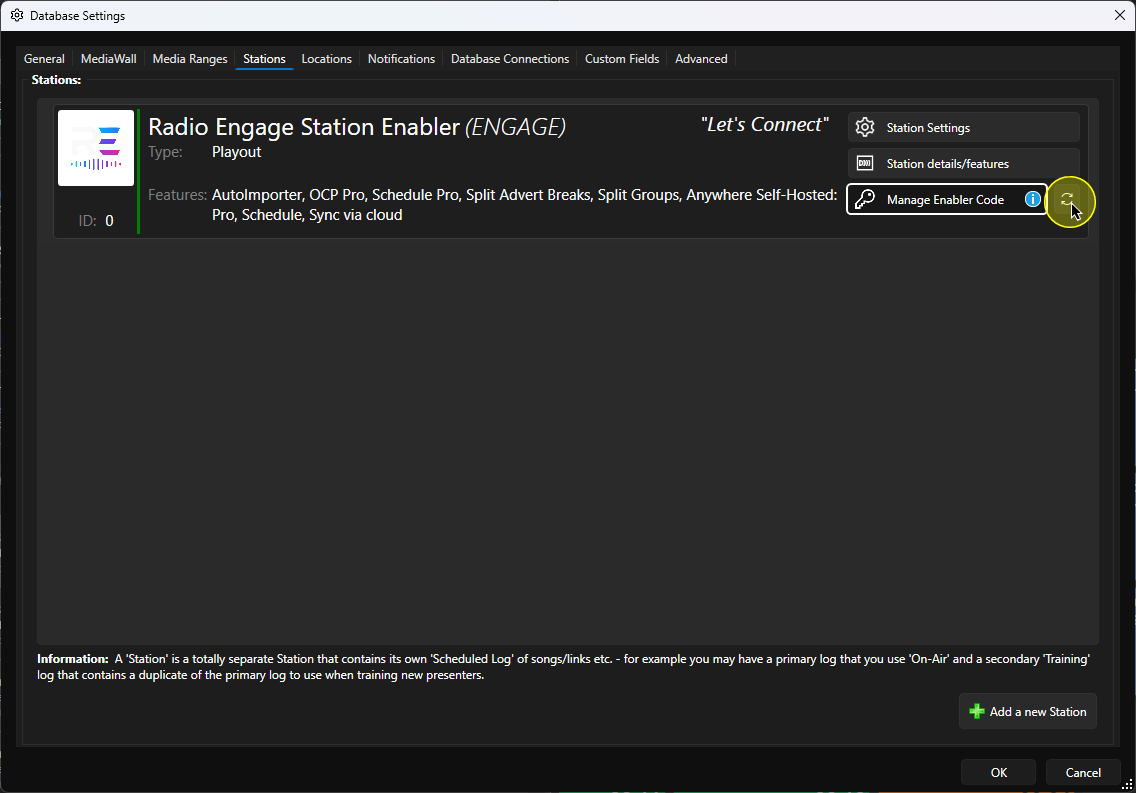
- Myriad will check in with the Broadcast Radio licensing servers and update the enabled features list accordingly.
Was this article helpful?
That’s Great!
Thank you for your feedback
Sorry! We couldn't be helpful
Thank you for your feedback
Feedback sent
We appreciate your effort and will try to fix the article