TABLE OF CONTENTS
- Install and configure Myriad Playout for Stream Deck
- Myriad 7 Playout Setup
- Setting Up Your Local Stream Deck Device
- Available Myriad Actions
- Connecting Stream Deck To Myriad Running On A Remote PC
- Related Content - Video Walkthrough
Install and configure Myriad Playout for Stream Deck
- Make sure you are running Myriad v7.1 or higher. You will also need a Station Enabler code - these are available free of charge, and if you don't have one yet, please contact hello@broadcastradio.com to request one.
- Download and install the Stream Deck software (https://www.elgato.com/us/en/s/downloads or google the download location)
- Download the Stream Deck Plugin from the bottom of this article and double click on it to install it into the Elgato software.
Myriad 7 Playout Setup
To configure Myriad 7 to work with your Stream Deck, follow these steps:
- In Myriad Playout, click on the SettingsMenu > Application Settings >Connections Tab.
- You can then either turn on the specific Enable support for the Myriad Stream Deck Plugin option at the top of the tab, or by enabling the Always Allow Http Service Connections on TCP Port XXXX option:
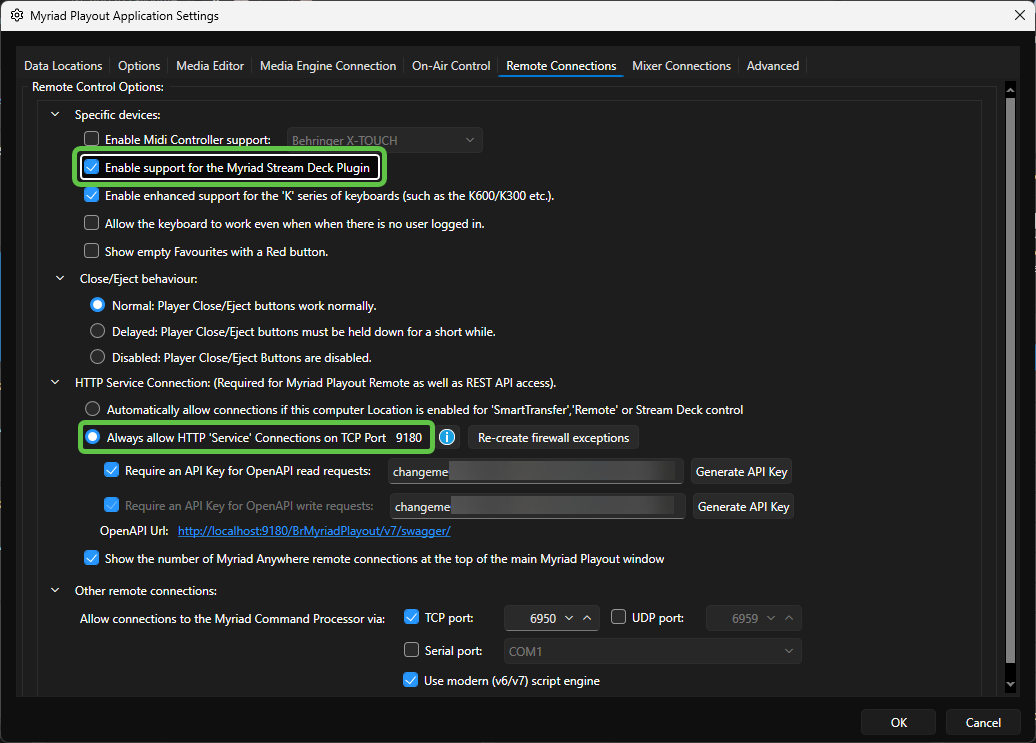
- If you have to turn this on, make sure to then restart Myriad so the change can take effect.
Setting Up Your Local Stream Deck Device
To configure a Stream Deck device connected to a PC running Myriad, follow these steps:
- Click on the link at the bottom of this article to download the Myriad 7 Stream Deck Plugin.
- Locate the download and double click on the com.streamdeck.myriadplayout7.streamDeckPlugin file. This will launch the Stream Deck configuration application. Follow the onscreen prompts to install the plugin.
- Scroll down in the Actions panel until you see the Myriad Playout v7 section.
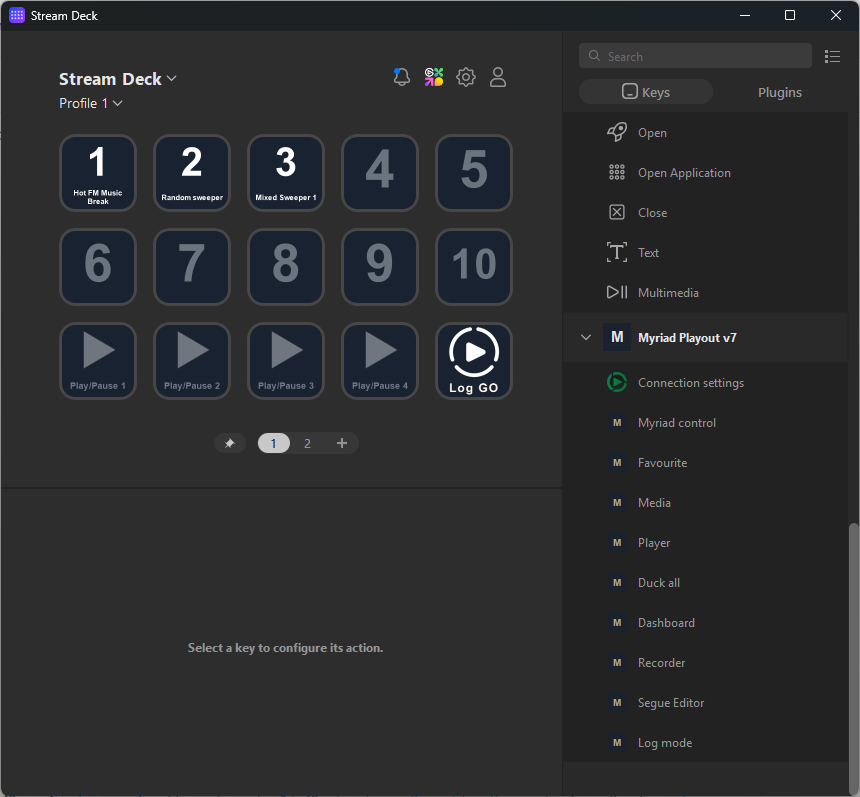
- You can drag any of the listed Myriad Actions on to the virtual buttons in the Stream Deck Profile.
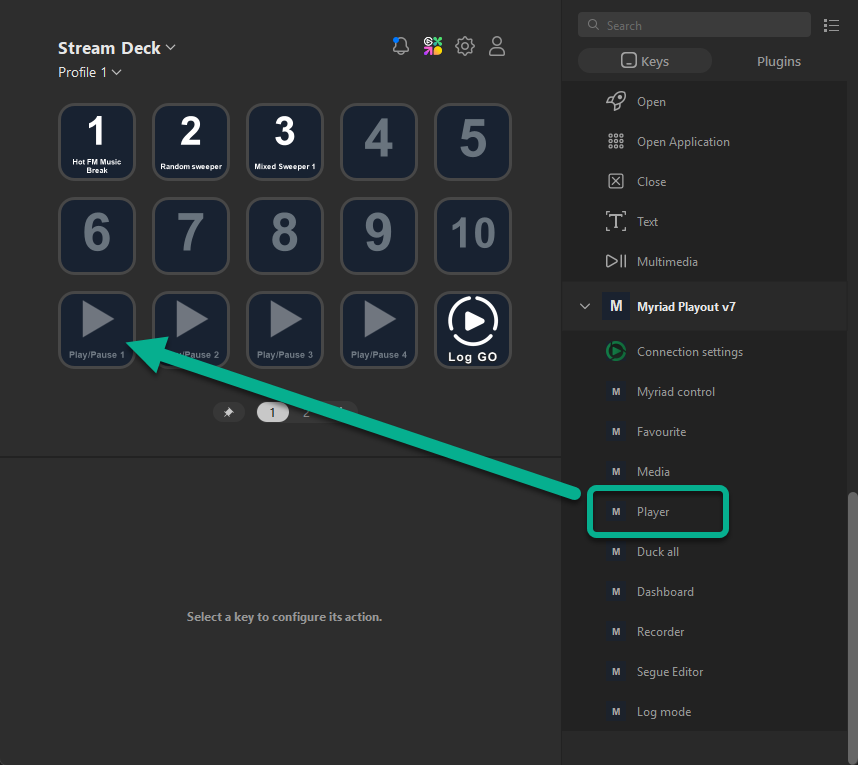
- Most Myriad Actions have a reference field (Media ID, Player number etc) and an action field (Play, Go etc).
In the example below, a Player Action has been assigned to a button. The Player Number is set to 1 (Media Player 1) and the Action is set to Play/Pause.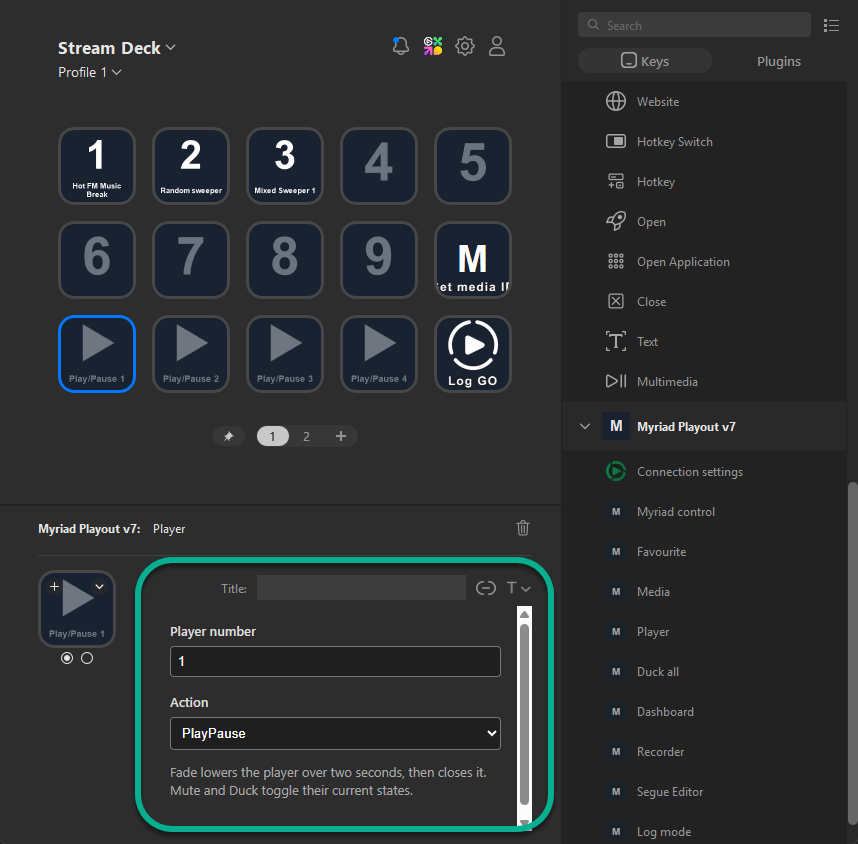
When this button is pressed, Myriad Player 1 will either Play or Pause (depending on current state).
You can also assign a Title to the button and change the icon / colour in the on/off state.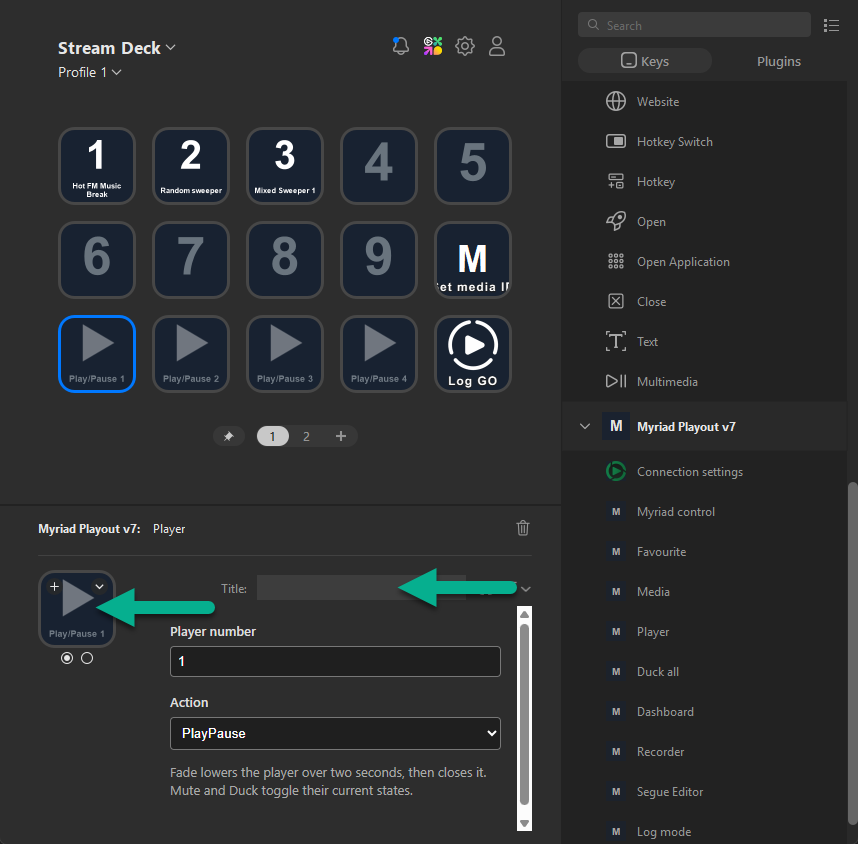
- Continue to assign Myriad Actions to buttons until our keyboard layout is complete.
Available Myriad Actions
Connection Settings - Used to configure the Stream Deck to control a Myriad Instance on a remote PC. This address applies to every Myriad button, so you can remove the settings key after saving it.
- Myriad Computer Address - Set the computer name or IP address of the computer running Myriad you want to control.
Favourite - Controls Myriad Favourites.
- Favourite Number - Set the numeric reference for the Favourite (ie 1 will trigger Favourite 1).
- Action - Sets the triggered action (Play or Cue).
- Play Mode - Sets the Favourite Play Mode (Start New, Restart Play, Start/Stop or Single Item) - see Favourites documentation for more information.
- Colour Options - Set how Favourites appear on your Stream Deck (Media Item Colour, Category Colour, Item Type Colour). The first available colour wins.
Media - Controls a specific Media ID.
- Media ID - Set the Media ID you want this button to control.
- Action - Sets the triggered action (Play or Cue).
Player - Controls a specified Media Player.
- Player Number - Set the Media Player number you want to control (ie 1 will control Media Player 1).
- Action - Sets the triggered action (Play, Play/Pause, Pause, Cue, Close, Fade, Mute, Duck)
Duck All - Lowers the volume on all Media Players to the present 'duck' level in Myriad.
- No settings.
Dashboard - Allows you to control key aspects of the Dashboard and Log Items
- Action - Sets the triggered action (Go, Dump Current, Toggle Current Item Chain, Jump Log View to Now, Toggle Soft Delete on Current Log Item, Show Dashboard Item 1 in SmartInfo - Allows you to select Dashboard item number)
Recorder - Controls the Myriad Recorder.
- Action - Sets the triggered action (Request Record / Resume, Close & Save Recording).
Segue Editor - Controls aspects of the Segue Editor
- Action - Sets the triggered action (Show/Hide Segue Editor, Segue Editor Next Step).
Log Mode - Allows you to switch between the Log Playout Modes (Standby / Live/ AutoFade).
- Action - Sets the Log Mode (Toggle, Standby, Live, AutoFade).
Connecting Stream Deck To Myriad Running On A Remote PC
You can configure your Stream Deck to connect to Myriad Playout 7 running on a remote PC by following these steps:
- Open the Stream Deck software.
- Under the new Myriad Playout v7 section, drag the Connection Settings action onto any button.
- Type in the name or IP address of the remote PC running Myriad, into the Myriad Computer Address box.
Important:The Myriad computer must accept connections on port 9180.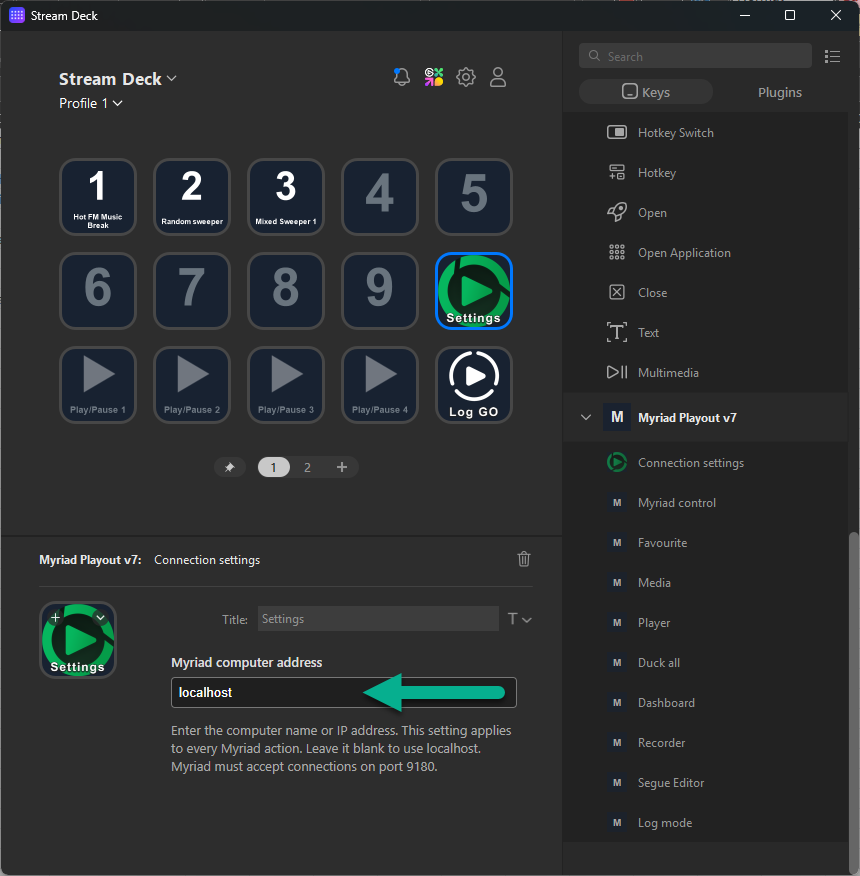
- Click on a different button to save the configuration. This address applies to every Myriad button, so you can remove the settings key after saving it.
- After test that the remote control is working, you can update the button with a more useful Myriad Action.
- If you need to switch back to controlling a locally installed instance of Myriad, repeat these steps using 'localhost' in the Myriad Computer Address field.
Related Content - Video Walkthrough
Was this article helpful?
That’s Great!
Thank you for your feedback
Sorry! We couldn't be helpful
Thank you for your feedback
Feedback sent
We appreciate your effort and will try to fix the article