Encoder outputs in Myriad Cloud are used to configure how the station audio is sent from Myriad Cloud to your chosen streaming provider. All Myriad Cloud accounts include BR Streaming which is setup as the default Encoder Output. Myriad Cloud Pro and Ultimate allows you to configure additional Encoder Outputs to send to 3rd party streaming providers or DAB Multiplex operators.
1. Login to your Broadcast.Radio portal.
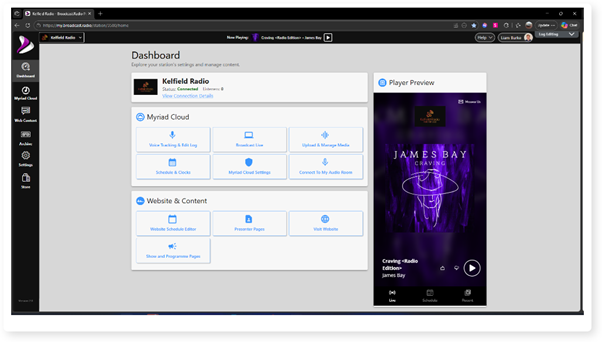
2. Click on the Settings menu option.
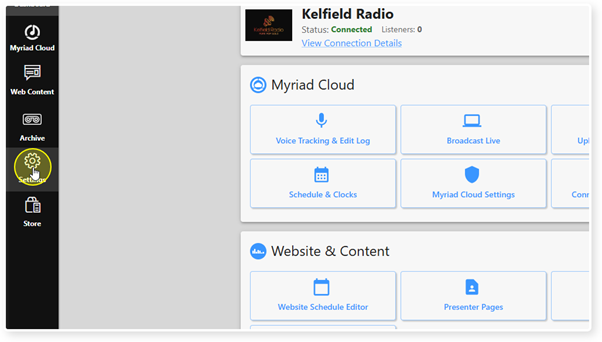
3. Expand the Myriad / Myriad Cloud option and select Control Panel.
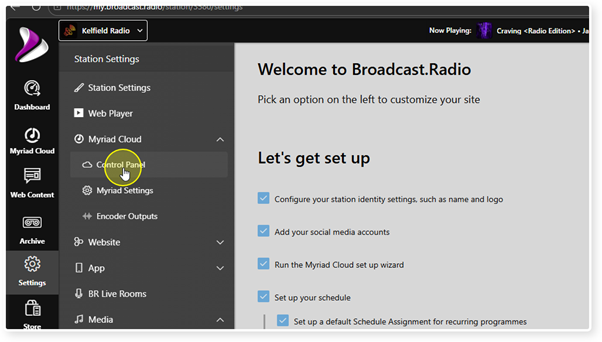
4. Click on the Open Encoder Outputs button in the Myriad Cloud System Controls section.
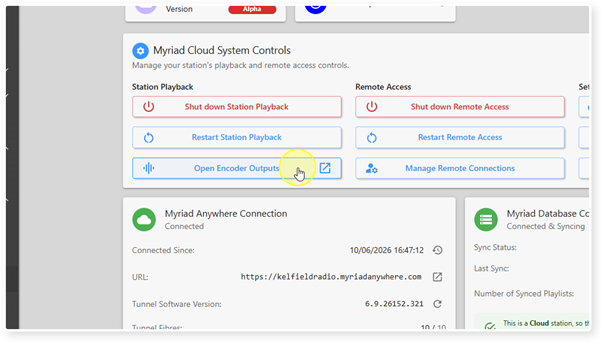
Please note that you can also get to this information directly via the Settings Menu > Myriad (or Myriad Cloud) > Encoder Outputs option.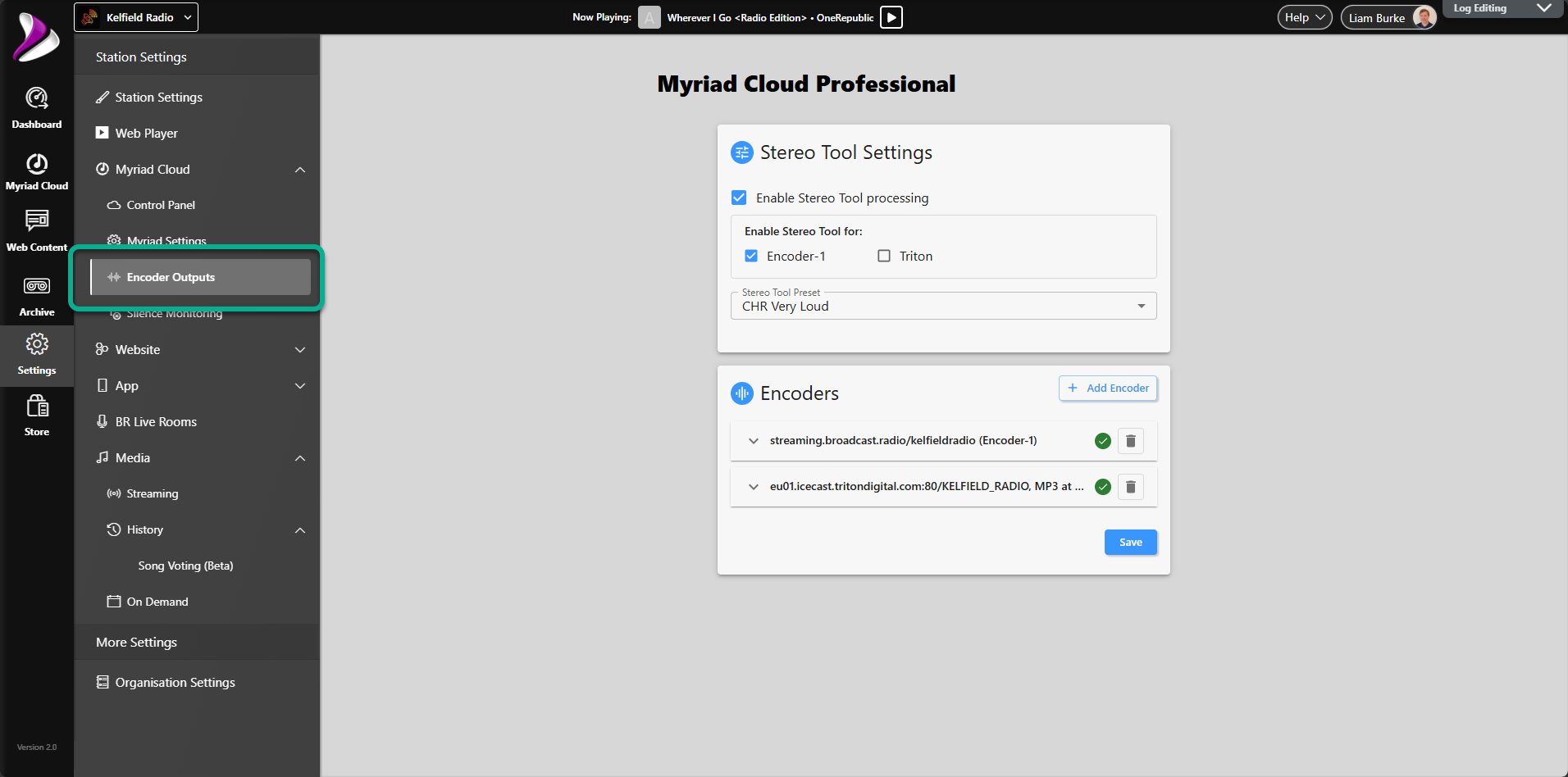
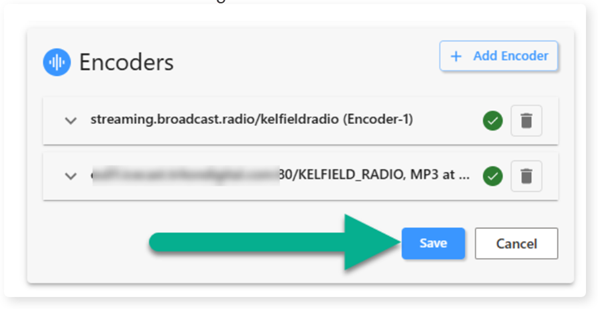
5. The Encoders section lists all the currently configured Encoder Outputs.
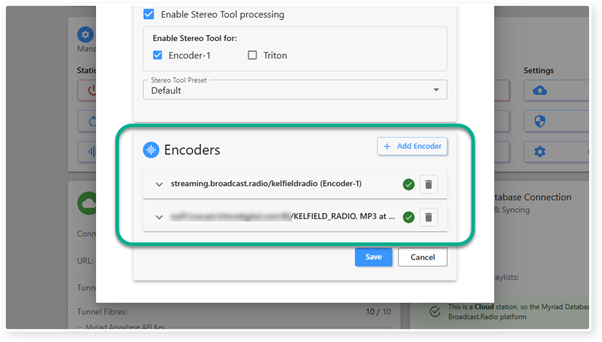
6. Click on the drop down arrow on an Encoder to expand or contract the setting details.
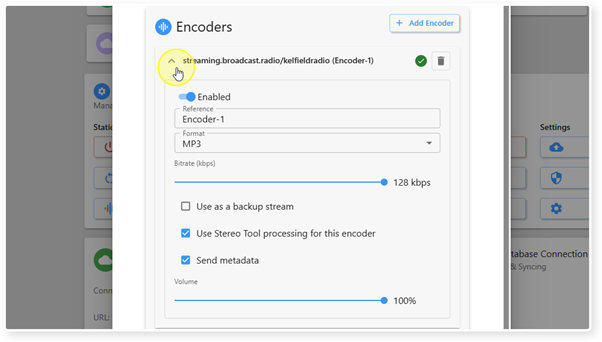
7. The default Encoder output has limited settings as it is pre-configured to work natively with the BR streaming platform.
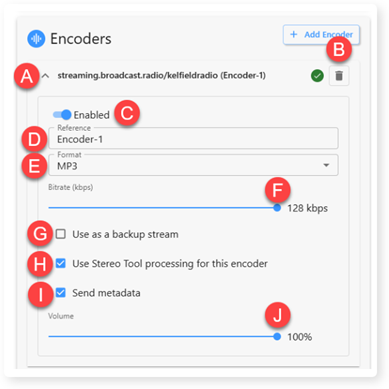
The options are:
A - Expand or contract setting details panel.
B - Delete Encoder Output.
C - Enable / Disable Encoder Output.
D - Set Encoder Reference (leave as preset as this is configured to match the preset in Myriad Cloud playout).
E - Set output format (MP3, AAC, HE-AAC)
F - Bitrate (quality). This option is limited to the top bitrate included in your subscription.
G - When the 'Use as a backup stream' option is ticked, the Myriad Cloud audio will be used as the backup stream. If you connect to your stream with an external encoder, it will disconnect Myriad Cloud and stream the audio from your external encoder. The Myriad Cloud audio will reconnect to your stream once the external stream encoder is disconnected. You should use this option if Myriad Cloud is your automation solution and you want to take live control from an external studio or location whenever you wish.
H- Use the optional Stereo Tool audio processing on this Encoder Output.
I - Send metadata embedded in the stream.
J - Set the audio volume (1-100%) for the stream output.
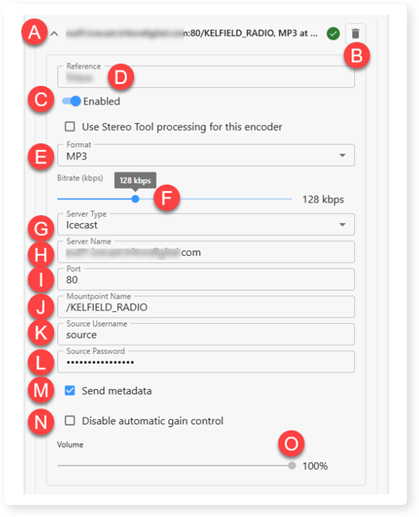
8. The Encoder Outputs connecting to 3rd party streaming platforms have some additional options that need to be configured.
The options are:
A - Expand or contract setting details panel.
B - Delete Encoder Output.
C - Enable / Disable Encoder Output.
D - Set an encoder rerefence.
E - Set output format (MP3, AAC, HE-AAC)
F - Bitrate (quality). This option is limited to the top bitrate included in your subscription.
G - Set Server Type to connected to (Icecast or Shoutcast).
H - Server Name is used to set the server URL (address) for the 3rd party streaming server. Your services provider will provide this information.
I - Port allows you to specify the port to connect to. Your services provider will provide this information.
J - Mountpoint Name is the unique name for your service on the streaming server. Your services provider will provide this information.
K - Source Username - leave this set to Source unless told otherwise by your server provider.
L - Type in the password for your stream connection. Your services provider will provide this information.
M - Send metadata embedded in the stream.
N - Toggle whether to use automatic gain control (AGC) on this stream encoder output (this increases the volume automatically to provide a smoother audio level).
O - Set the audio volume (1-100%) for the stream output.
P - Use the optional Stereo Tool audio processing on this Encoder Output.
9. When you have finished editing the Encoder Output settings, click on the Save button to save the changes.
Was this article helpful?
That’s Great!
Thank you for your feedback
Sorry! We couldn't be helpful
Thank you for your feedback
Feedback sent
We appreciate your effort and will try to fix the article