Myriad Cloud customers have the option to enhance the audio output of their Station using the built in Stereo Tool functionality.
Stereo Tool Audio Processing and be added to the Basic, Standard and Pro subscriptions via the Store link in the main menu. Myriad Cloud Ultimate includes Stereo Tool as part of the base subscription.
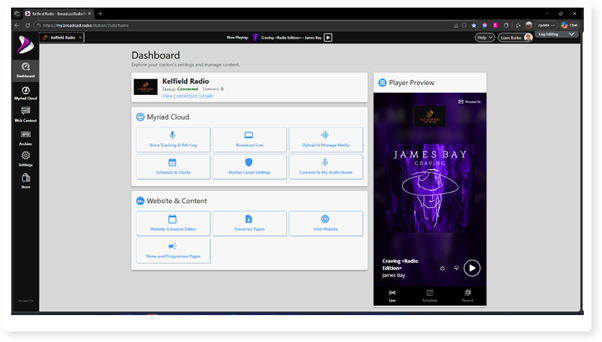
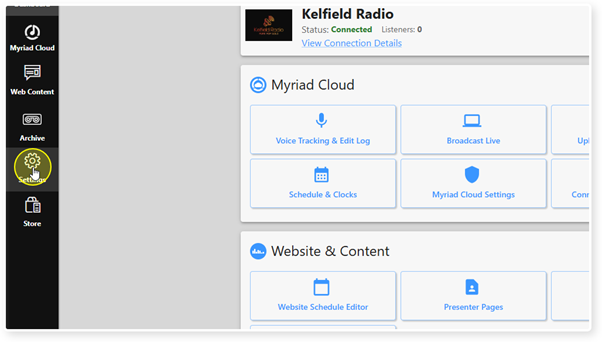
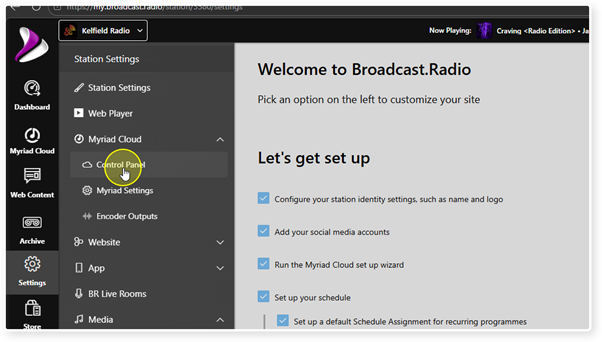
4. Click on the Open Encoder Outputs button in the Myriad Cloud System Controls section.
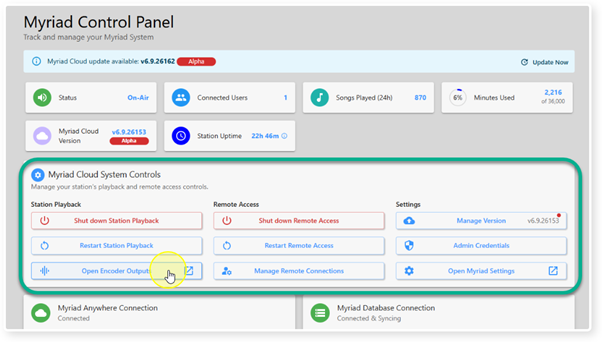
Please note that you can also get to this information directly via the Settings Menu > Myriad (or Myriad Cloud) > Encoder Outputs option.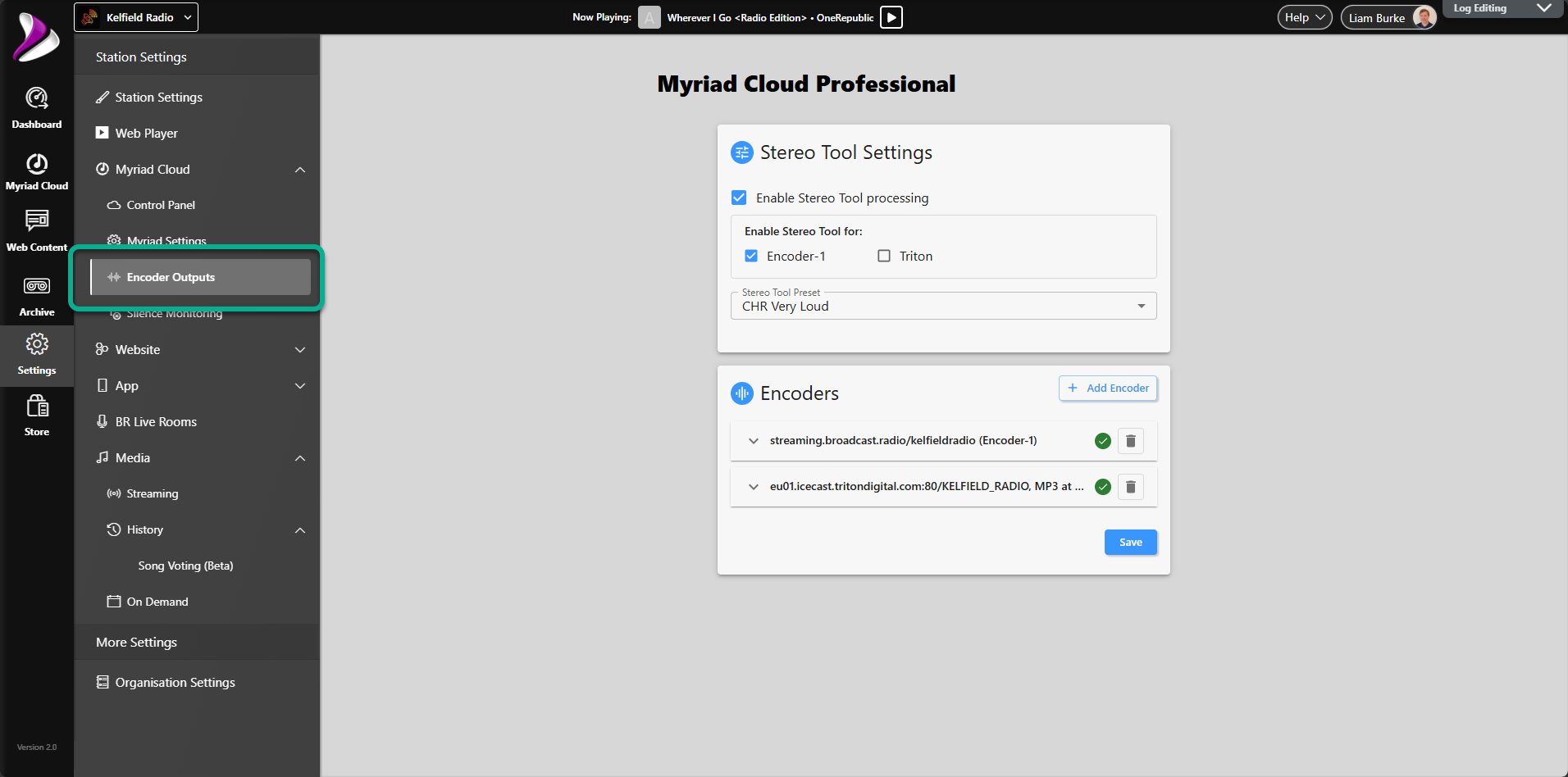
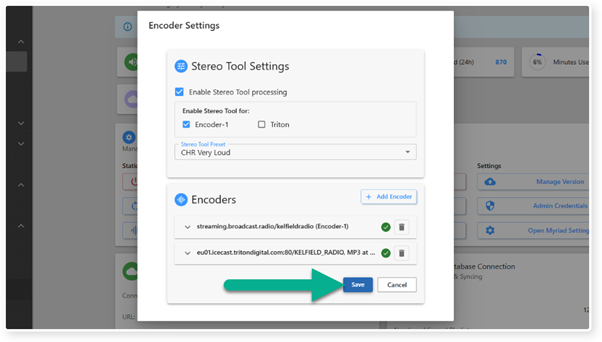
5. If Stereo Tool Audio Processing is included in your subscription, you will see the Stereo Tool Settings at the top of the Encoder Settings window.
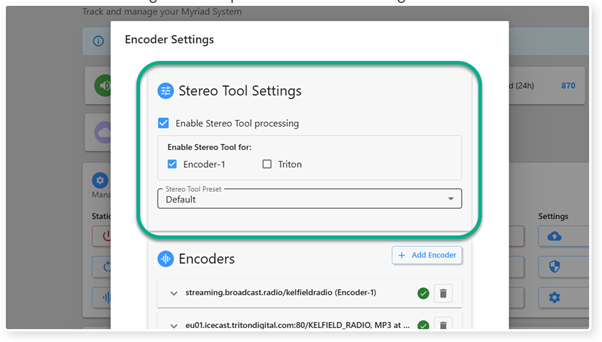
6. If Stereo Tool Audio Processing is included in your subscription, you will see the Stereo Tool Settings at the top of the Encoder Settings window.
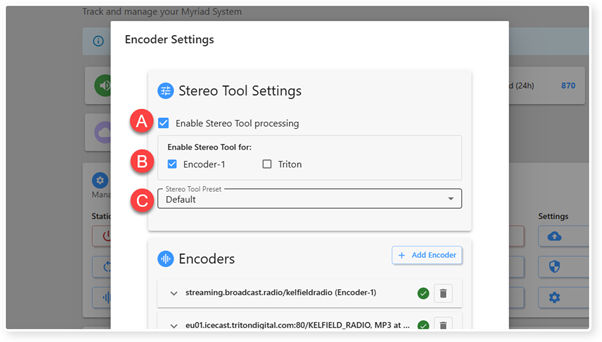
The options are:
A. Enable / Disable Stereo Tool audio processing.
B. Select which Encoder Outputs to apply the audio processing too.
C. Select the Stereo Tool Preset from the drop down list.
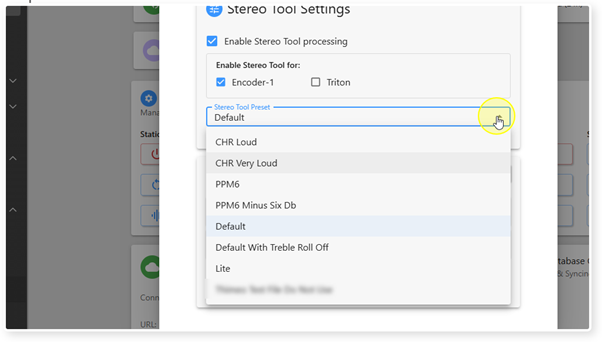
7. To select a Stereo Tool Preset, click on the drop down menu and select an option from the list.
8. When you are happy with your Stereo Tool settings, click on the Save button to save and close the window.
Was this article helpful?
That’s Great!
Thank you for your feedback
Sorry! We couldn't be helpful
Thank you for your feedback
Feedback sent
We appreciate your effort and will try to fix the article