Content imported into Myriad will automatically be scanned to establish a volume scaling factor required to meet target loudness for the Media Type being imported - See Settings Menu > Database Settings > Media Items Tab.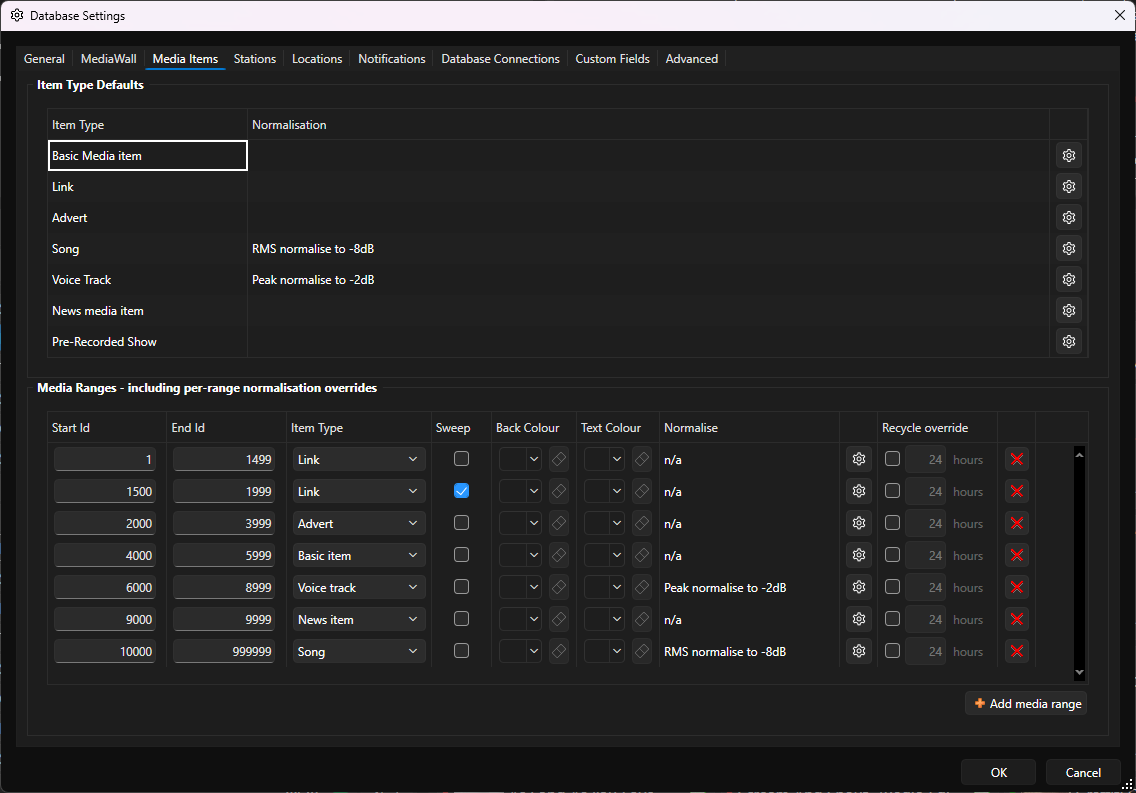
When an audio file is imported as a Media Item Type with a target normalisation value, the media is scanned and Myriad determines the volume scaling factor that needs to apply to the specific Media Item to meet the target. This volume scaling factor is then applied whenever the Media Item is played (manually or as part of Log playout).
Myriad does not alter the audio level in the imported file, just the volume scaling when played in a Media Player, meaning that you can override this volume scaling factor on an individual Media Item and it will apply the new level of volume scaling next time it is played.
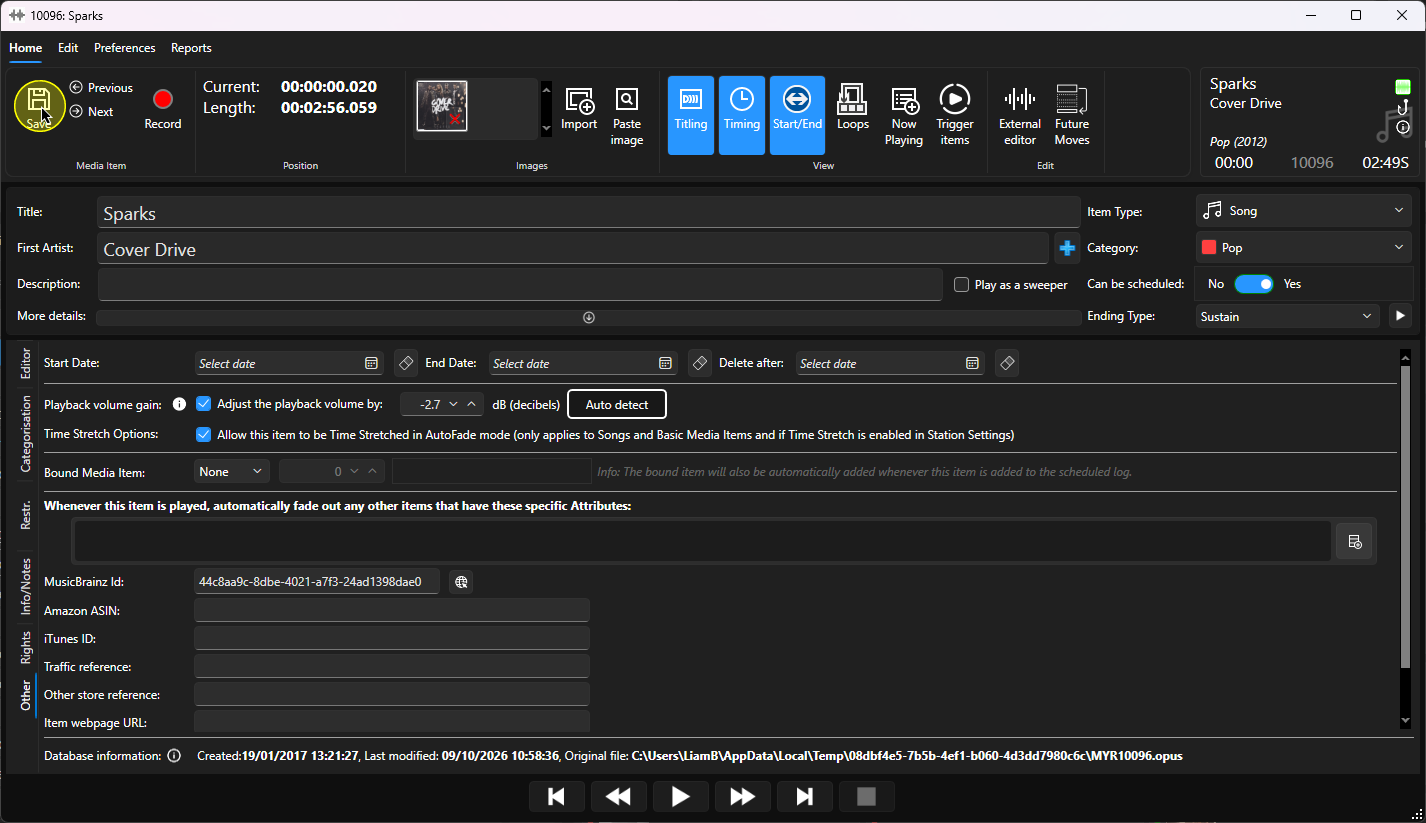
To change the volume scaling factor (playback volume gain), follow these steps:
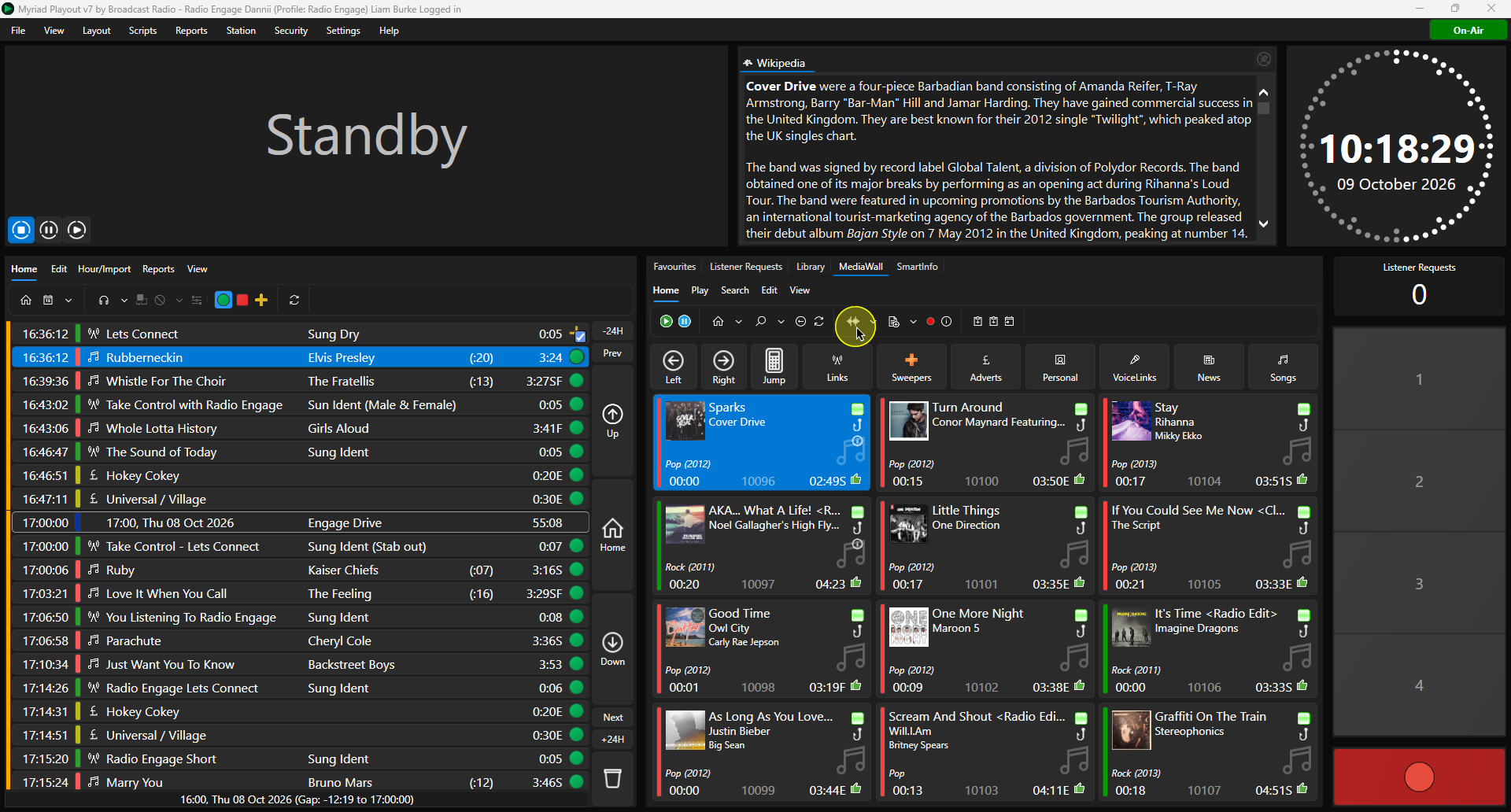
- Select the Media Item you want to add or edit, and click on the Edit button on the ribbon.
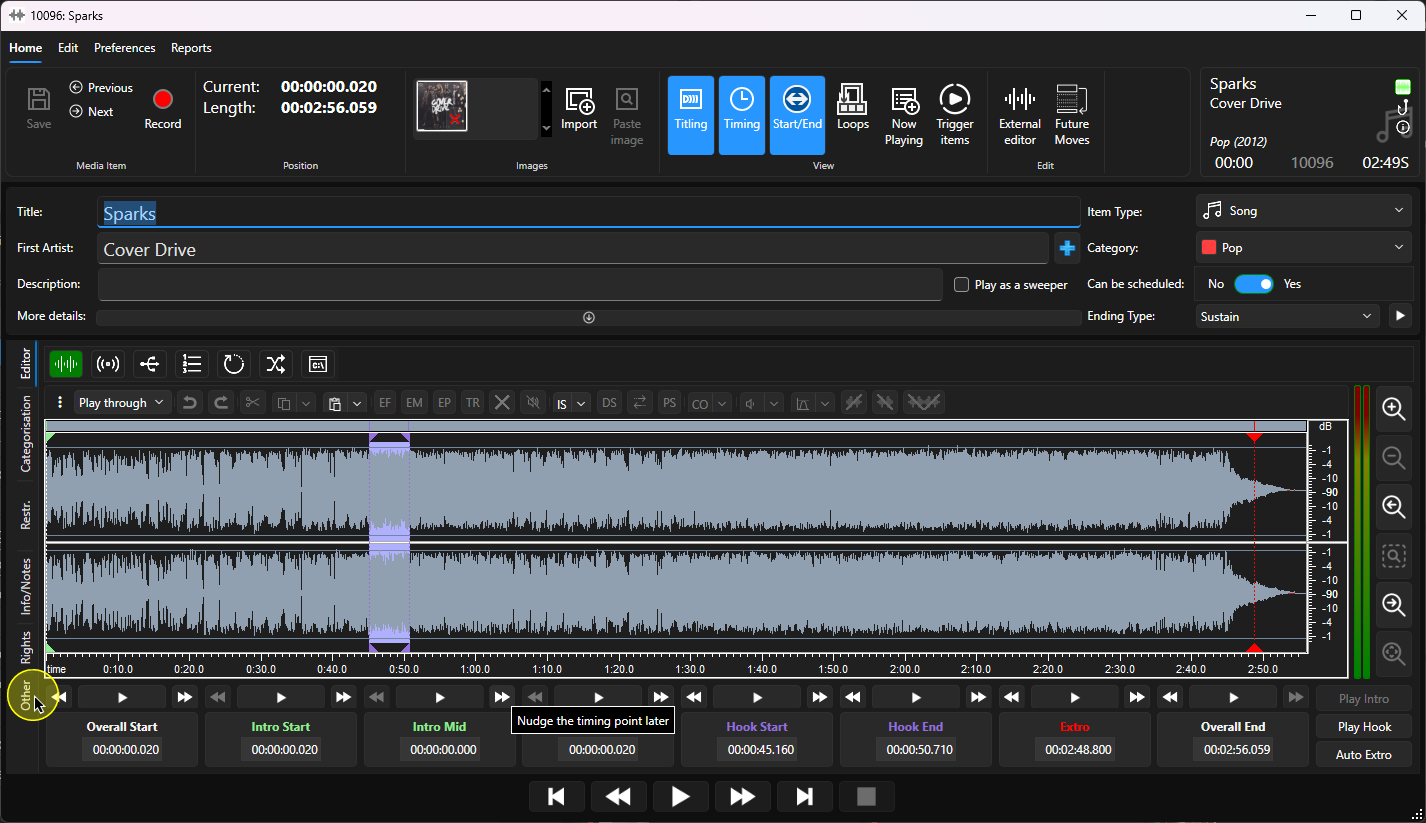
- Click on the Other tab.
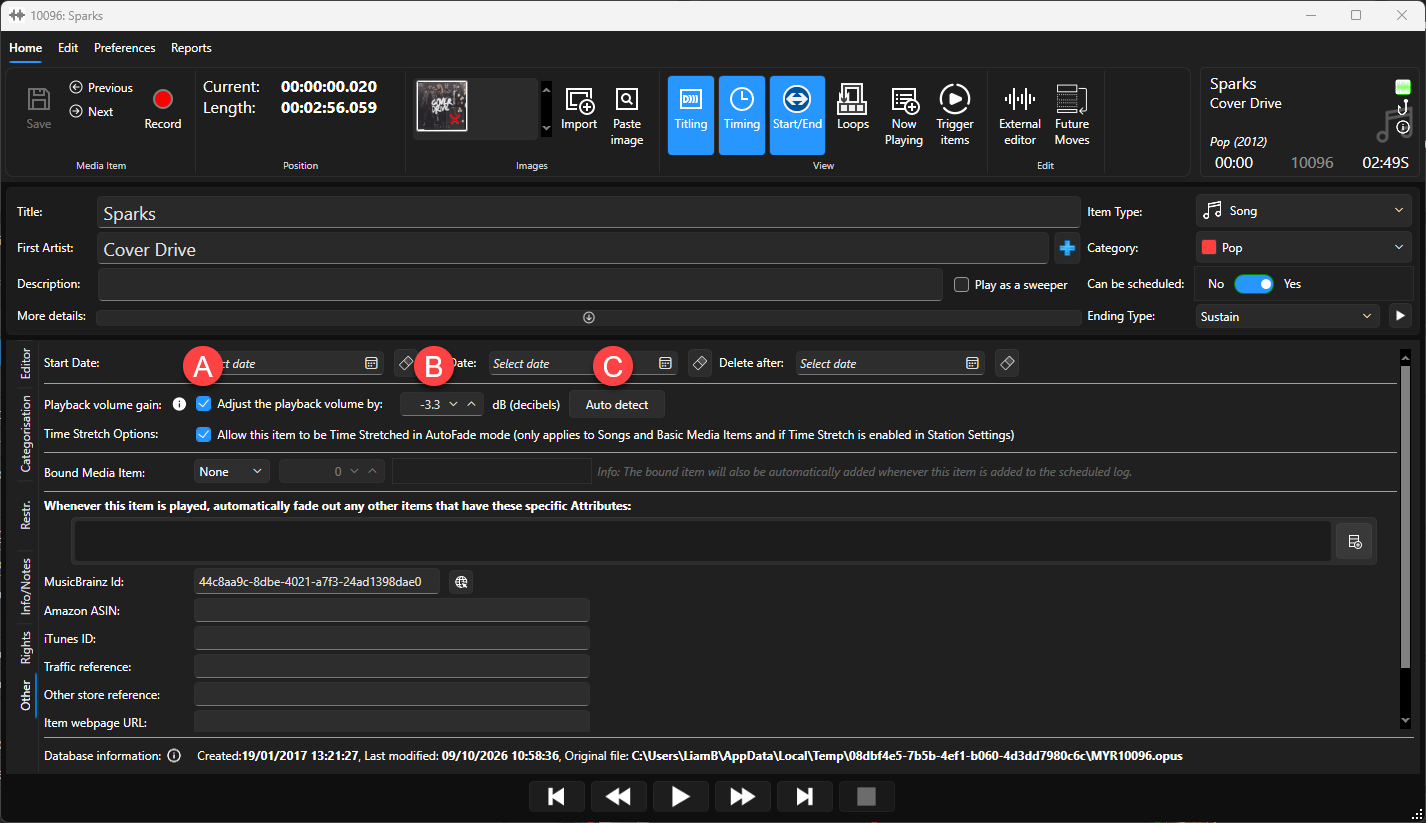
- The Playback Volume Gain section allows you to adjust the following:
- Toggle whether to apply playback volume gain.
- Set the scale factor (in decibels - dB) for the Media Item.
- Auto Detect the desired scale factor based on the target loudness of the Media Item Type.
- When you have finished, click Save,
Was this article helpful?
That’s Great!
Thank you for your feedback
Sorry! We couldn't be helpful
Thank you for your feedback
Feedback sent
We appreciate your effort and will try to fix the article