TABLE OF CONTENTS
- Introduction
- Set Normalisation Per Media Item Type
- Set Normalisation Per Media Range
- Applying Normalisation Retrospectively
Introduction
Myriad 7 introduces the ability to set Normalisation target levels on a Media Item Type (Song, Link, VT etc) basis so that the correct normalisation is applied to each Media Item Type (at point of ingest), regardless of location on the Media Wall.
This replaces the Normalisation per Media ID Range feature in Myriad 5 & 6, although you can continue to use normalisation per Media Range if preferred.
Set Normalisation Per Media Item Type
To set Normalisation per Media Item Type, follow these steps:
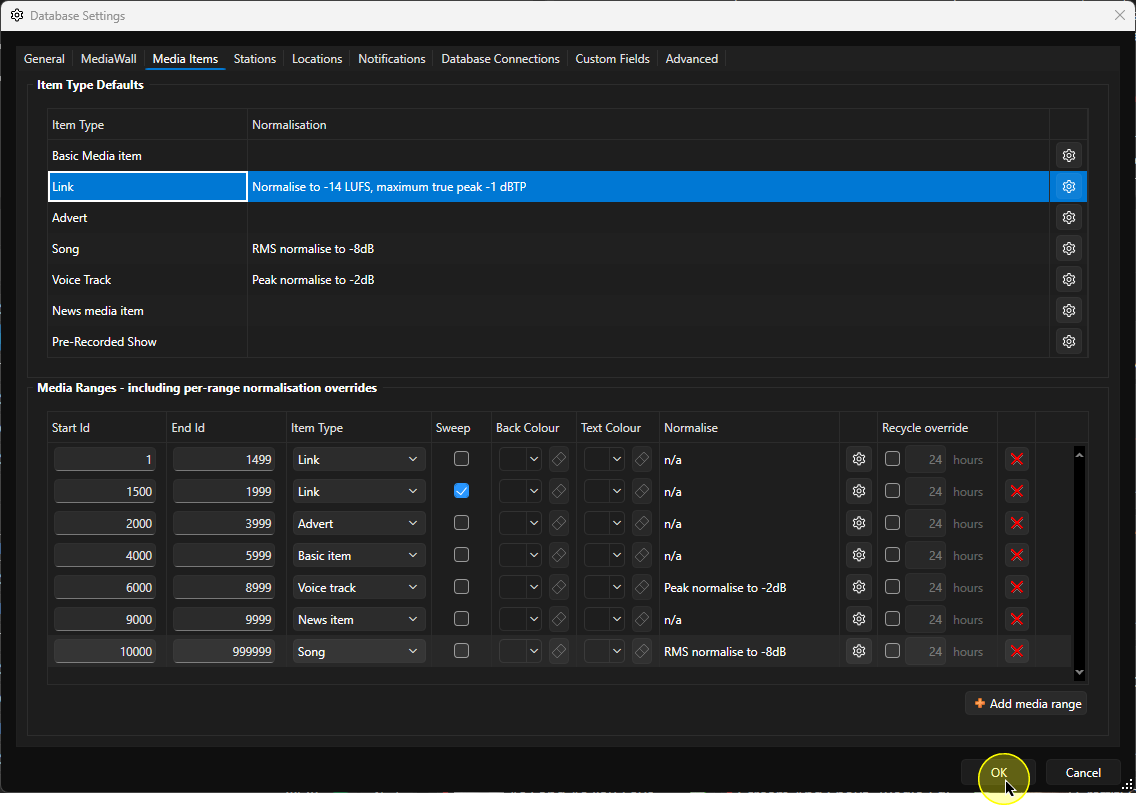
- In Myriad Playout, click on Settings Menu > Database Settings > Media Items tab.
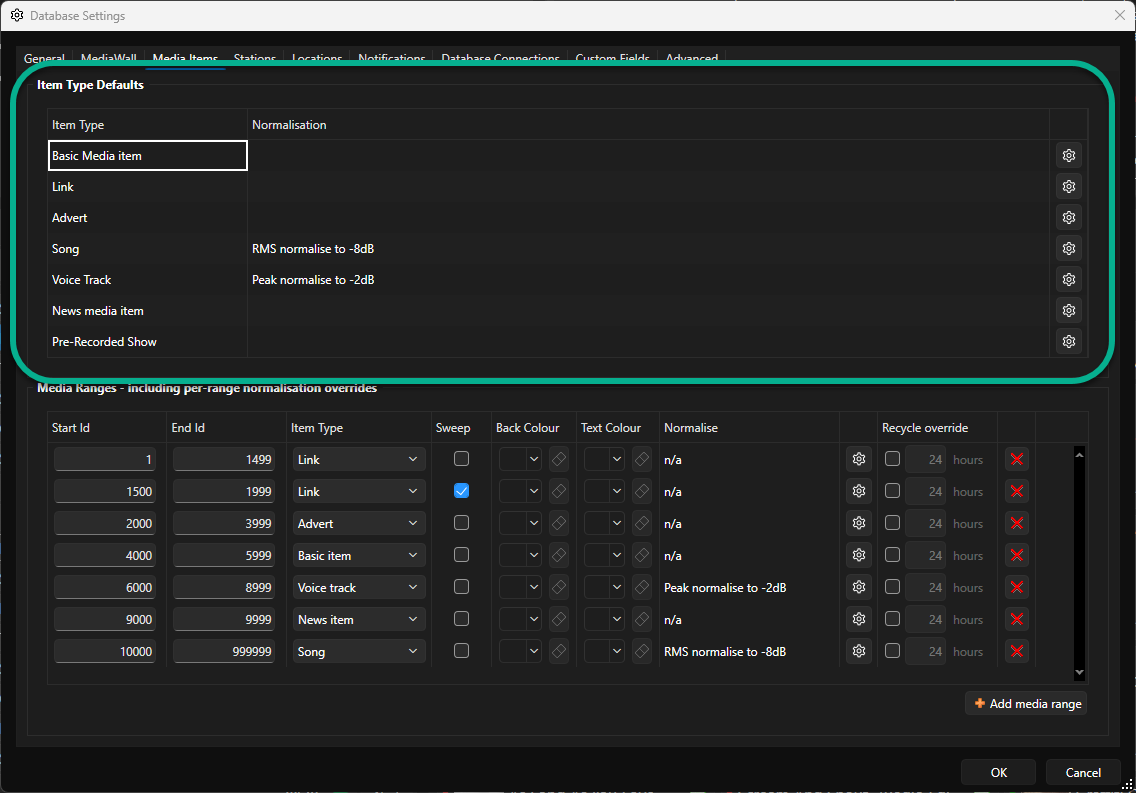
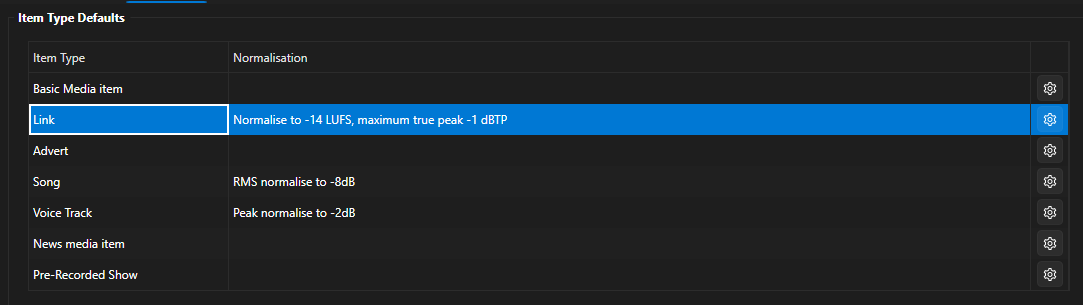
- The Item Type Defaults section shows the normalisation targets for each configured Media Item Type.
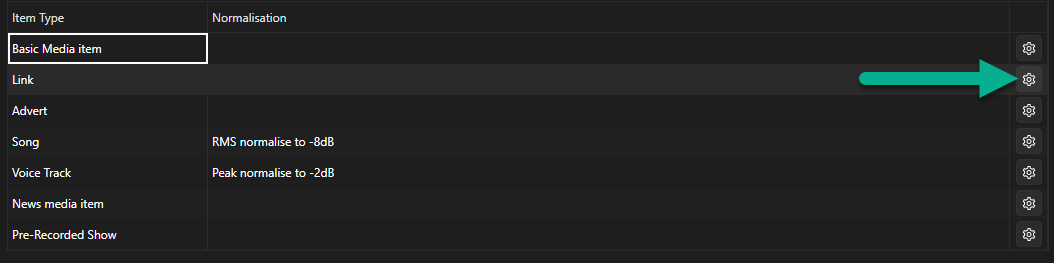
- To add or edit the normalisation target, click on the Edit button to the right if the Media Item Type.
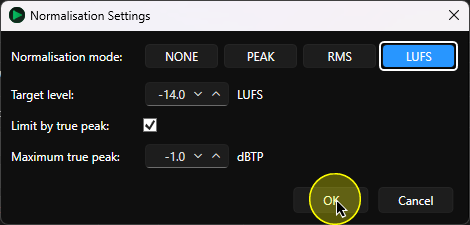
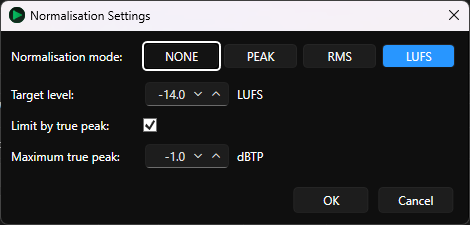
- The Normalisation Settings window allows you to select the normalisation mode to apply (none, Peak, RMS or LUFS) and the target level.
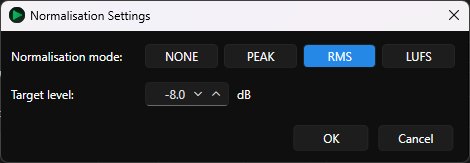
Peak Normalisation: Adjusts the audio so its loudest point reaches a set level, making it suitable for music and other audio with varying volume.
RMS Normalisation: Adjusts the audio based on its average volume, making it suitable for speech and music where consistent volume is important.
LUFS Normalisation: Adjusts the audio based on how loud it sounds to the listener, making it ideal for radio broadcasts containing a mixture of speech, music and other audio.
- If LUFS is selected, there are some additional settings to be applied.
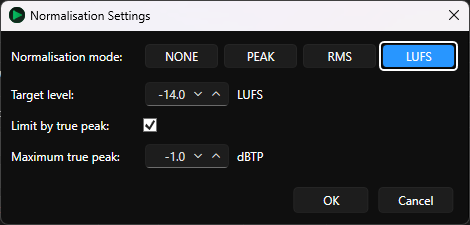
Limit by True Peak: Prevents the audio from exceeding a maximum volume level, helping to avoid distortion during playback or broadcasting.
Maximum True Peak: Sets the highest permitted peak level when True Peak limiting is enabled. A setting of -1.0 dBTP is a good general-purpose choice to help prevent distortion.
- Click on OK to save the Normalisation Settings for the Media Item Type.
The new normalisation settings will be displayed in the Iten Type Defaults list.
- Click on OK to close the Database Settings window.
Set Normalisation Per Media Range
You can also set the default normalisation mode and target for specific Media ID Ranges on the Media Wall.
- Click on Settings Menu > Database Settings > Media Items Tab.
- Click on the Edit button for a Media Range in the Media Range section.
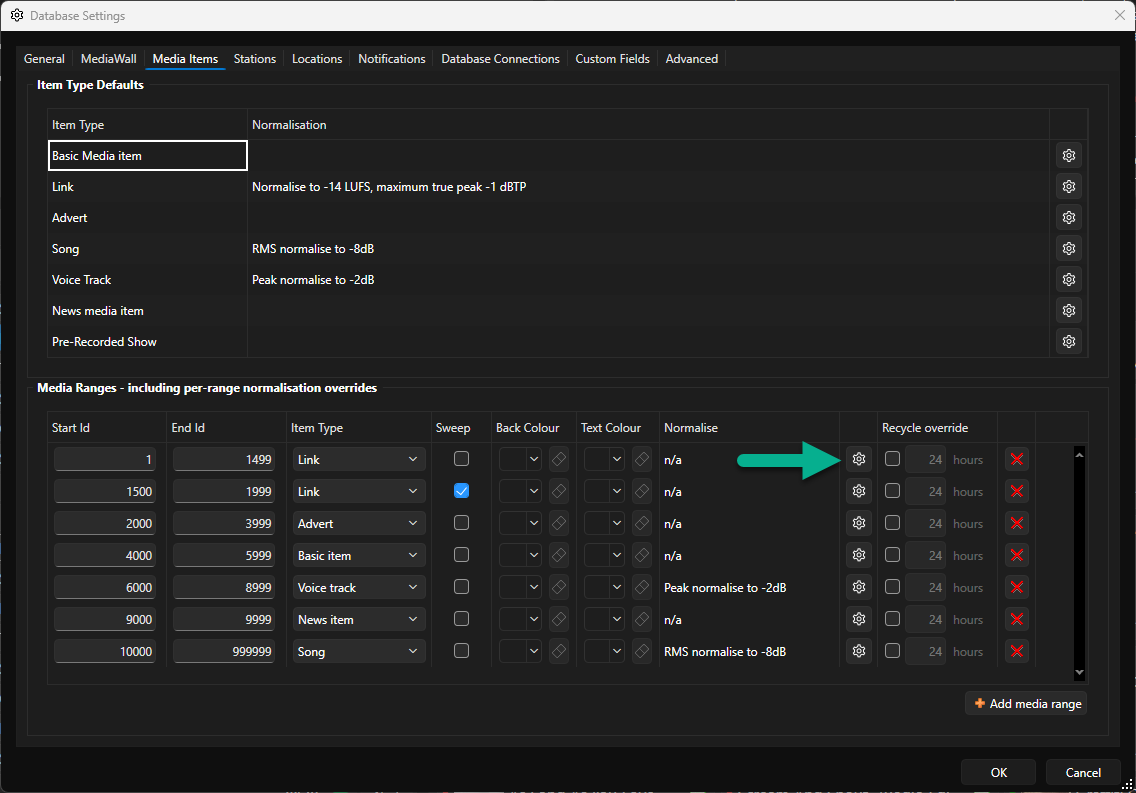
- Set the Mode and Target values. If using LUFS, you also need to set the Limit by true peak option and Maximum true peak value (see above).
- Click on OK.
All audio files Imported as the specified Media Range will have a Playback Volume Gain applied that will meet the normalisation target, whenever the item is played in Myriad.
The original audio file remains unaltered.
Applying Normalisation Retrospectively
IMPORTANT NOTE - The steps above will change the settings for all new content imported as a specific Media Item Type but will not apply the change to any existing Media Items of that Type as their Playback Scaling Factor would of been set when they were imported, using the Item Type or Range Normalisation settings at the time of import.
If you want to apply a new Normalisation Mode / Target to existing Media on your Media Wall, you will need to use the Process Audio tool in the Media Report window.
See - Mass Apply Normalisation to Media Items
Was this article helpful?
That’s Great!
Thank you for your feedback
Sorry! We couldn't be helpful
Thank you for your feedback
Feedback sent
We appreciate your effort and will try to fix the article