You can use the Library to browse the content of your Myriad system by:
- Item Type (Song, Link, Advert etc)
- Category (A-List, Recurrent etc)
- Attributes (Type, Gender, Era etc - Schedule Pro only)
- Tags (Love Song, Hour Opener etc)
This differs from the Media Wall which only shows content by Media ID.
The key to browsing content via the Library tab is using the Navigation Tree to the left of the Library view, to select the criteria you want to use to filter the content in the results window.
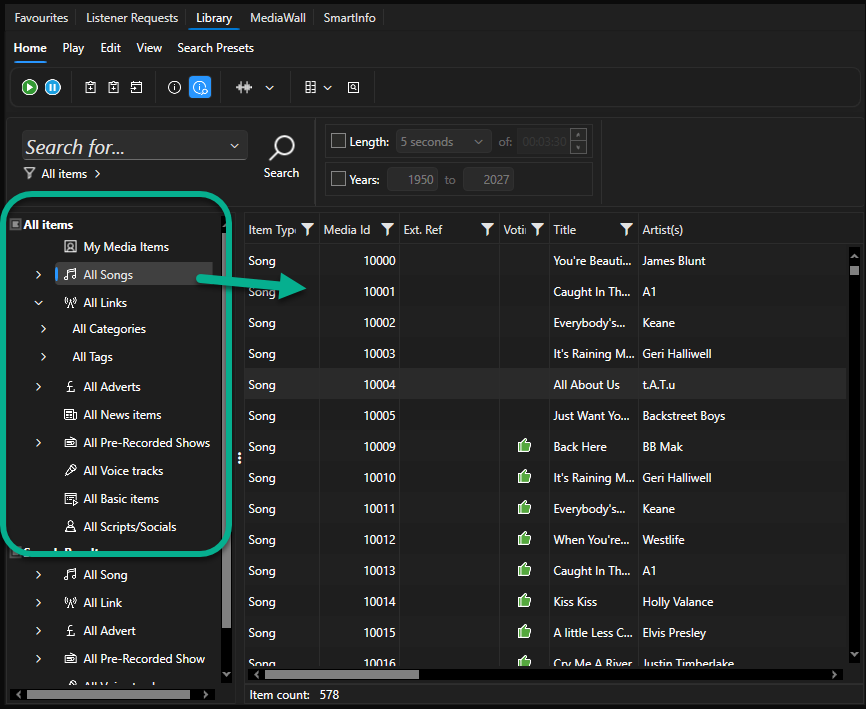
Currently, the All Songs node is selected in the Navigation Tree so the main section is showing all Songs on the system (but not Links, Adverts, Pre-recorded Shows etc).
Click on the All Songs node to expand the options.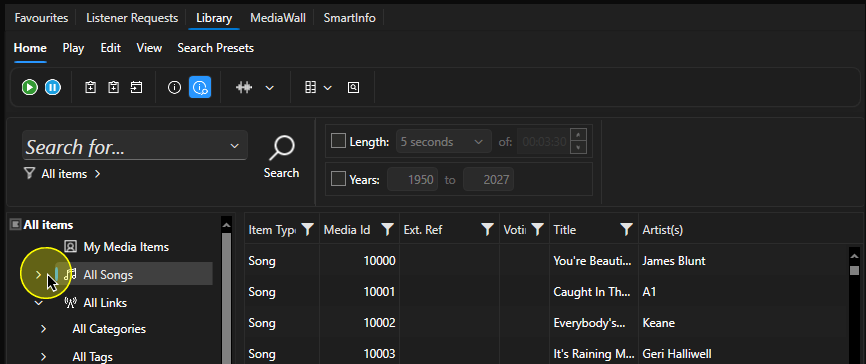
The expanded navigation node shows 'child' options such as Categories, Attributes (Types Genders and Eras - Schedule Pro only), Characteristics (Energy, Tempo etc) and Tags.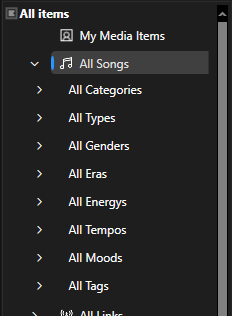
Expanding these child nodes will allow you to select specific options.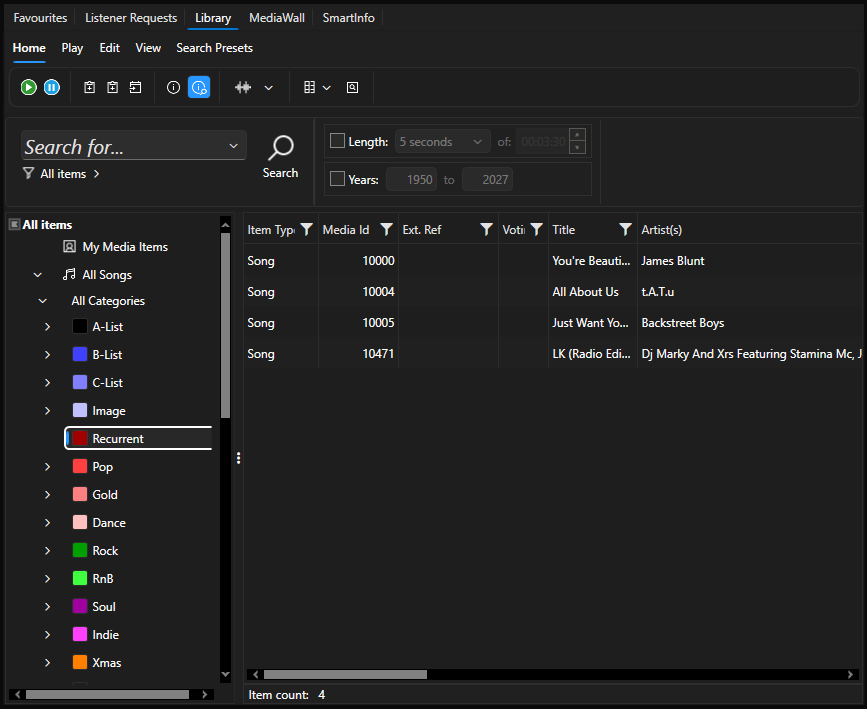
In the example above, the following nodes are selected:
Songs > Categories > Recurrent
The Media Items listed are the Songs in the Recurrent Category.
If you have Myriad Schedule Pro and you are using Categories and Types, the available Type options are displayed under the Category node to allow you to combine the two. Please note that Types are only displayed if the Category contains Media that also has Types set.
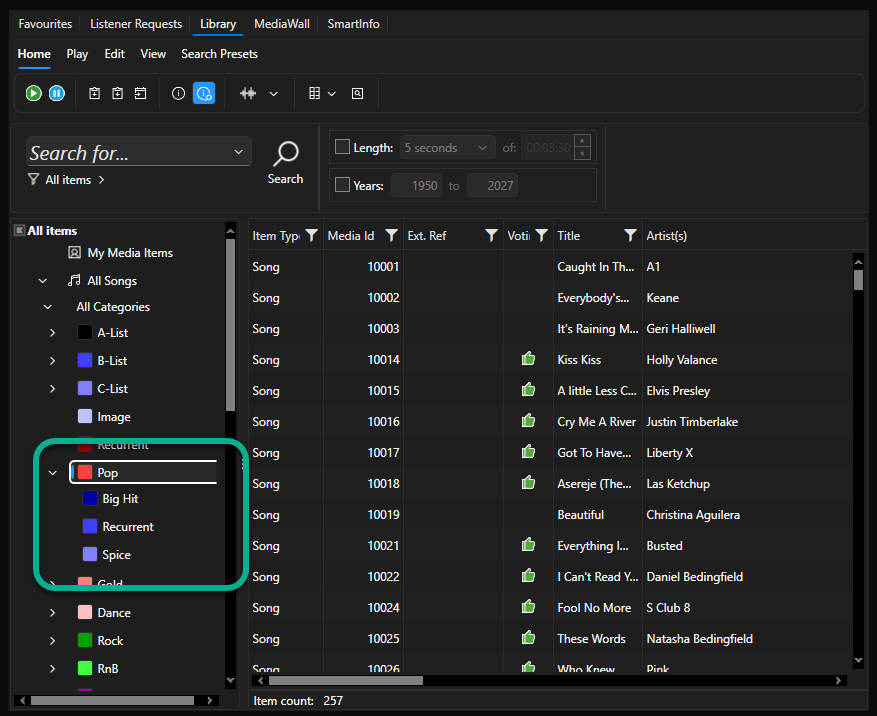
You can use the Navigation Tree to tightly focus the content displayed in the Library window, to the content you are interested in.
Also see:
Was this article helpful?
That’s Great!
Thank you for your feedback
Sorry! We couldn't be helpful
Thank you for your feedback
Feedback sent
We appreciate your effort and will try to fix the article