TABLE OF CONTENTS
- Introduction
- Selecting Columns to Display
- Rearranging Columns
- Sort by Column
- Filter Per Column
- Filter By Item Type, Category, Attribute or Tags
- Search & Advanced Serach
- Include / Exclude Media with Date / Time Restrictions
Introduction
The Library view includes a great deal of information about the content on your Myriad system. To help you organise this content and display the information you need, you can use a range of tools including:
- Selecting Columns to display.
- Rearranging Columns.
- Sort by Columns.
- Filter per Column.
- Filter by Item Type, Caetgeory, Attributes etc using the Navigation Tree.
- Search & Advance Search.
- Include / Exclude Media Items that have Date/Time Restrictions
Please note that some options will only be displayed is you have the Myriad Schedule Pro add on option.
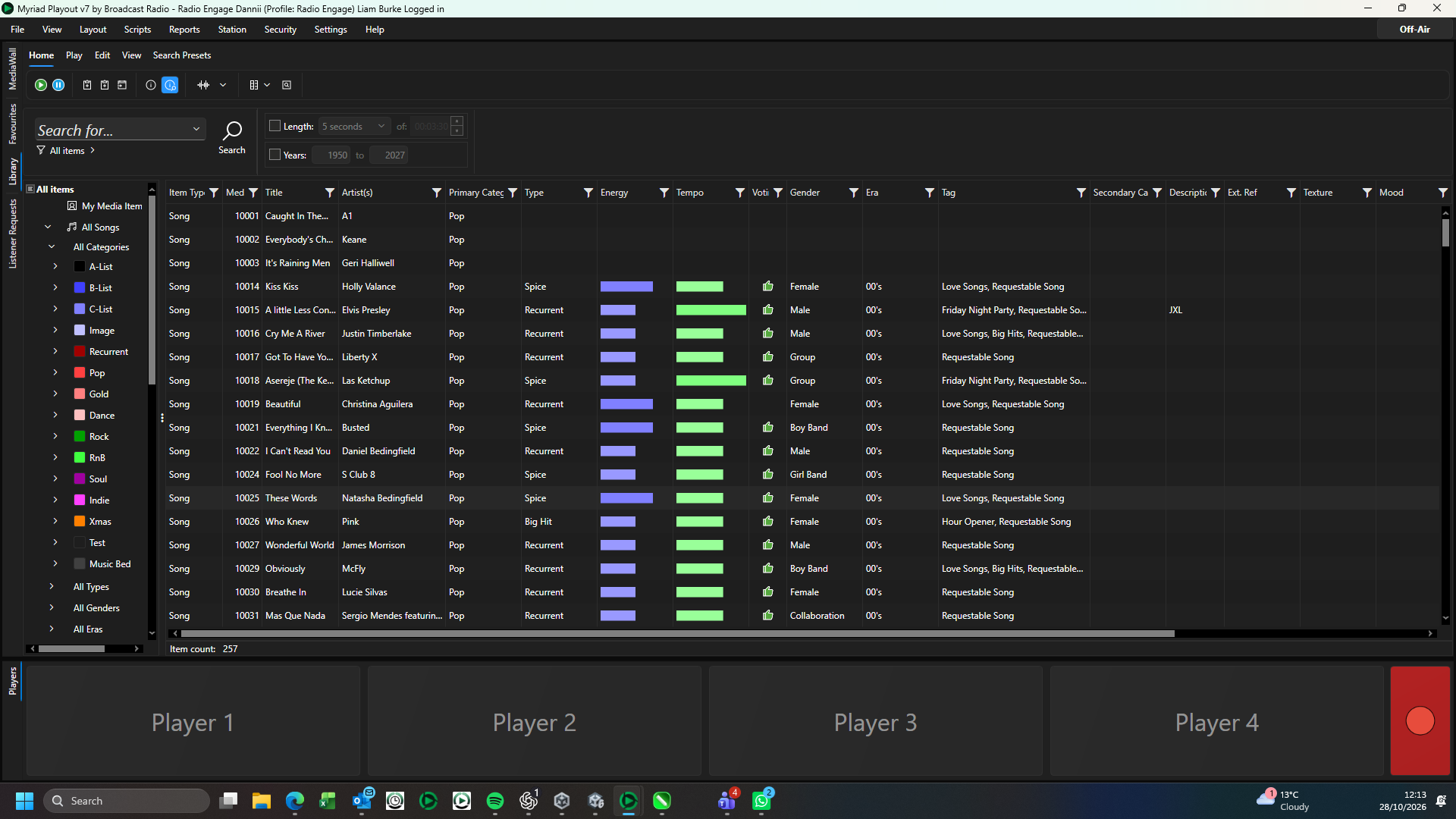
Selecting Columns to Display
To select the Columns to be displayed in the Library, follow these steps:
- Select the Library tab.
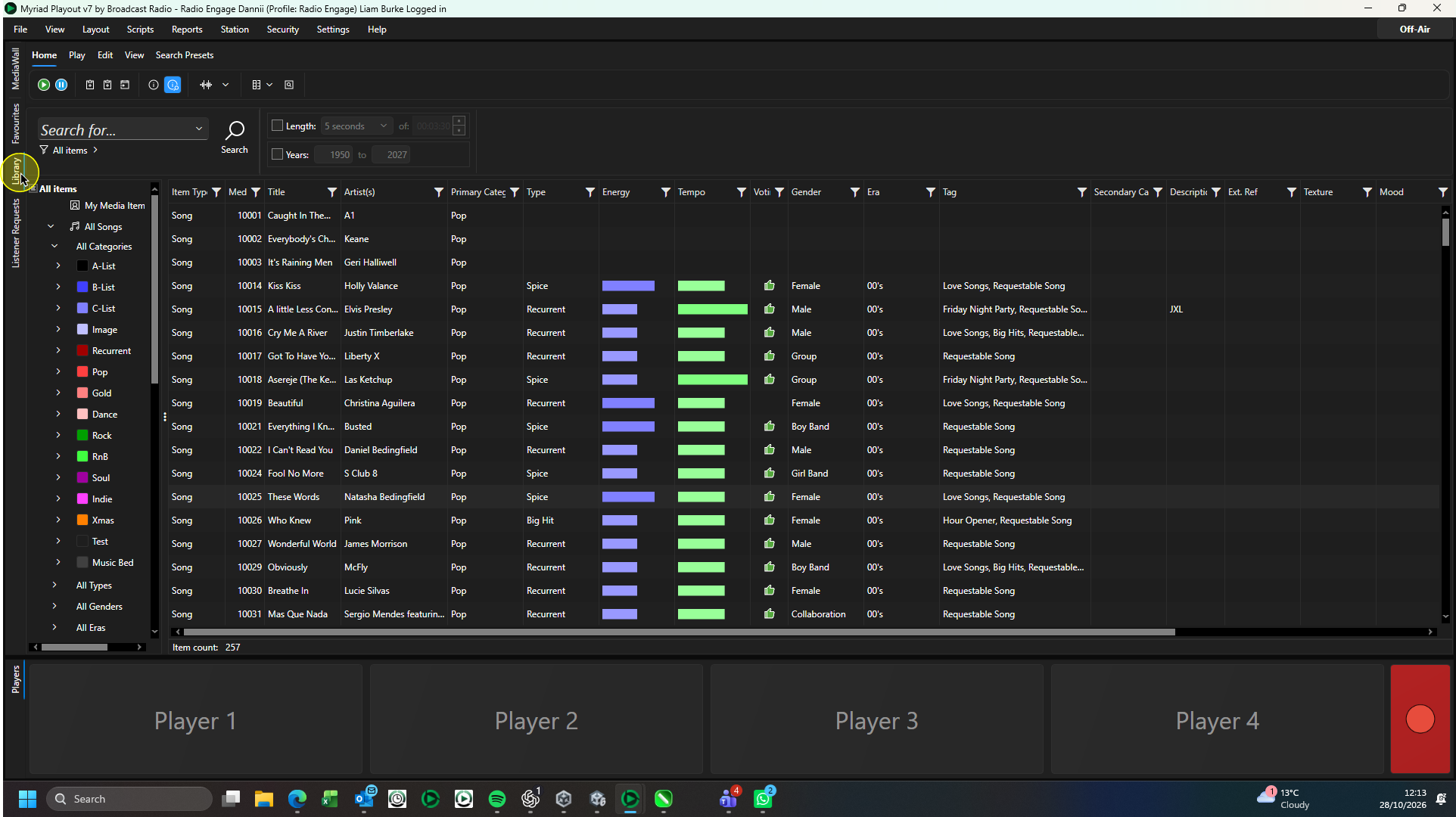
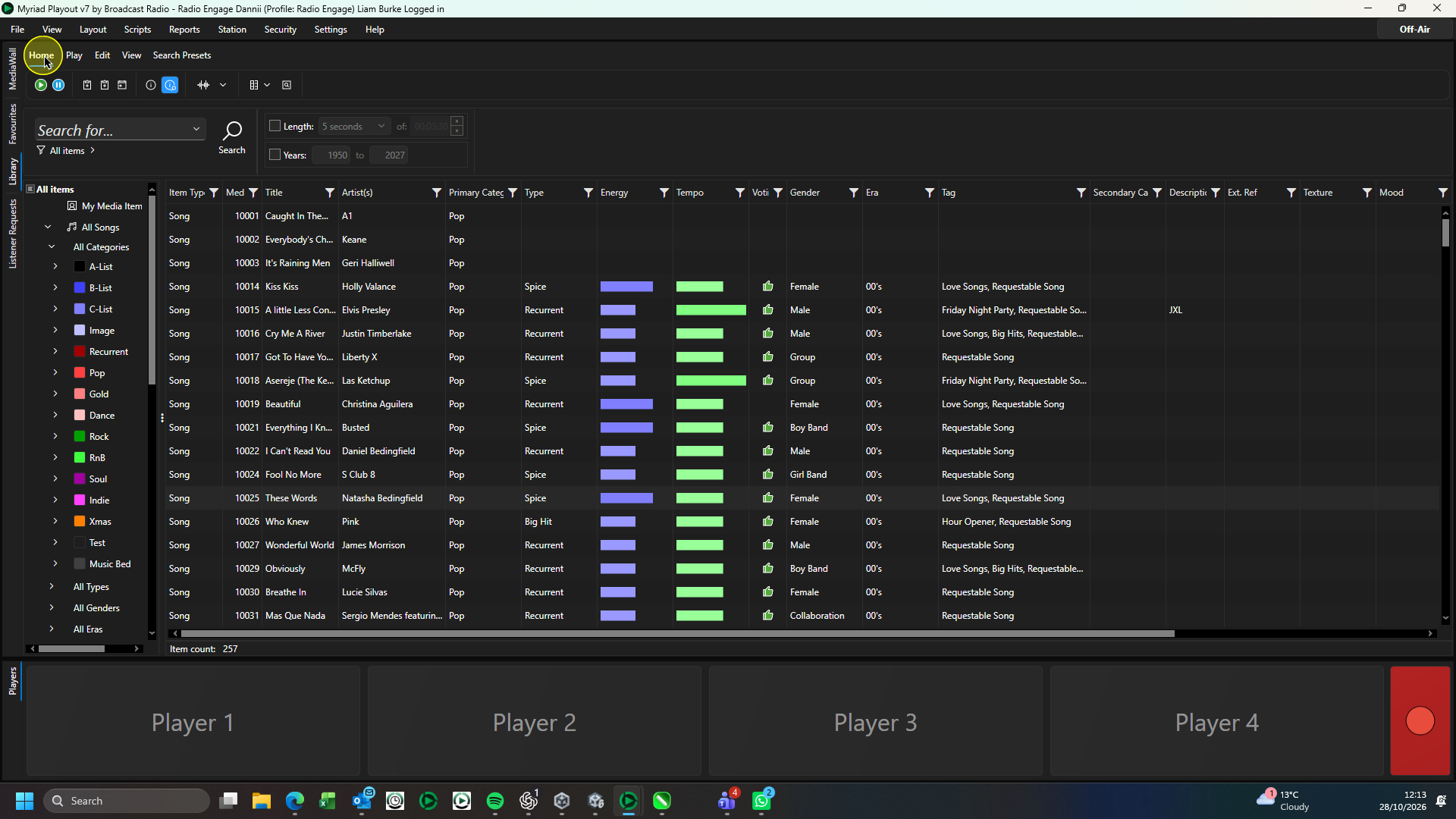
- Click on the Home tab.
- Click on the Columns drop down list to see the available options.
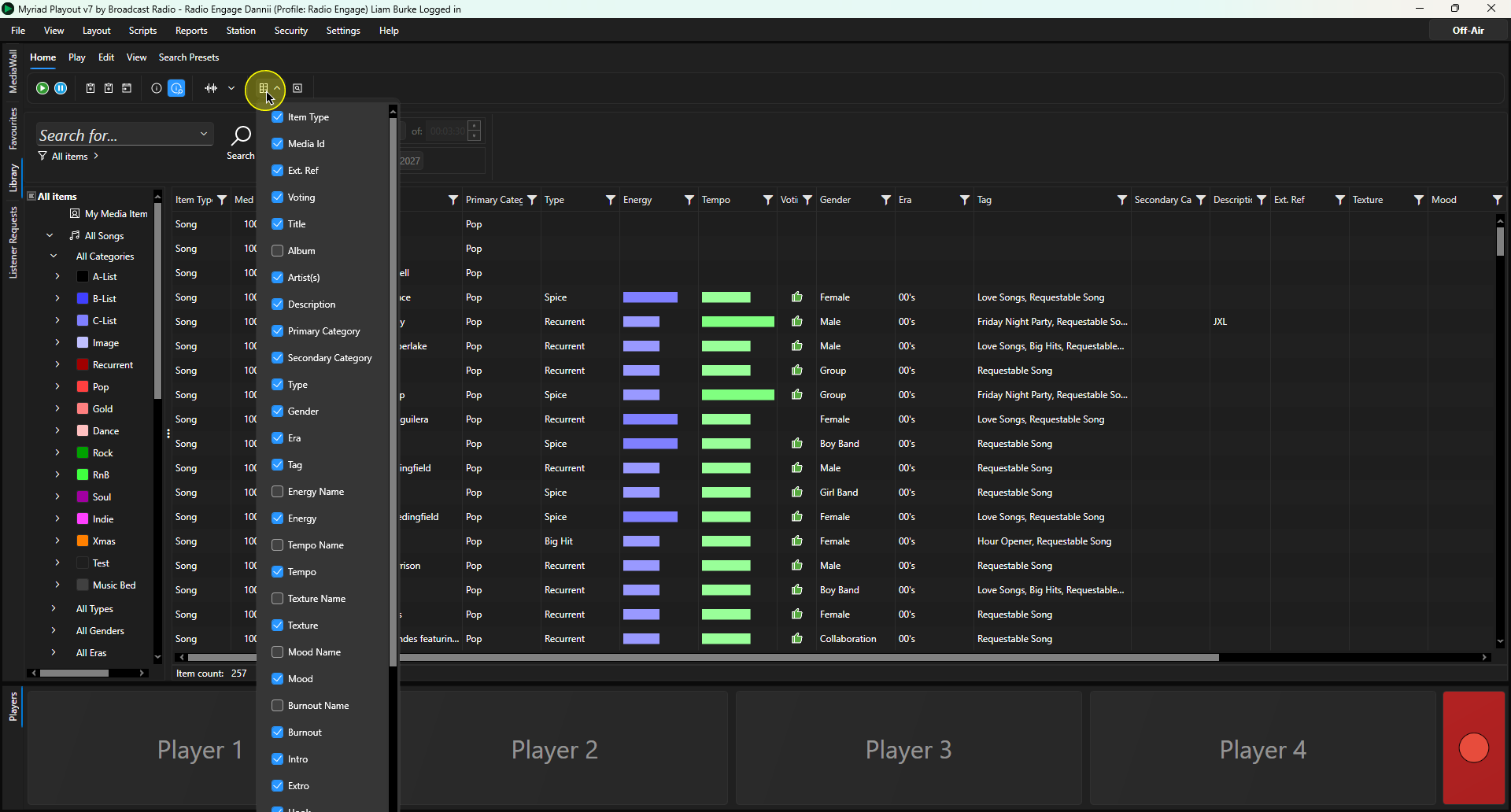
- Tick all the Column options you want to include, untick any you want to exclude.
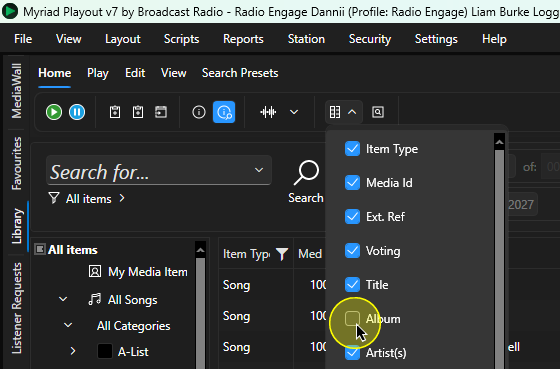
- These settings will be remembered per User, per layout.
Rearranging Columns
You can rearrange the Columns so that the key information you are interested in, is displayed to the left of the Library window.
To rearrange the Column order, simply left-click and drag the column header to the position you want to move it too!
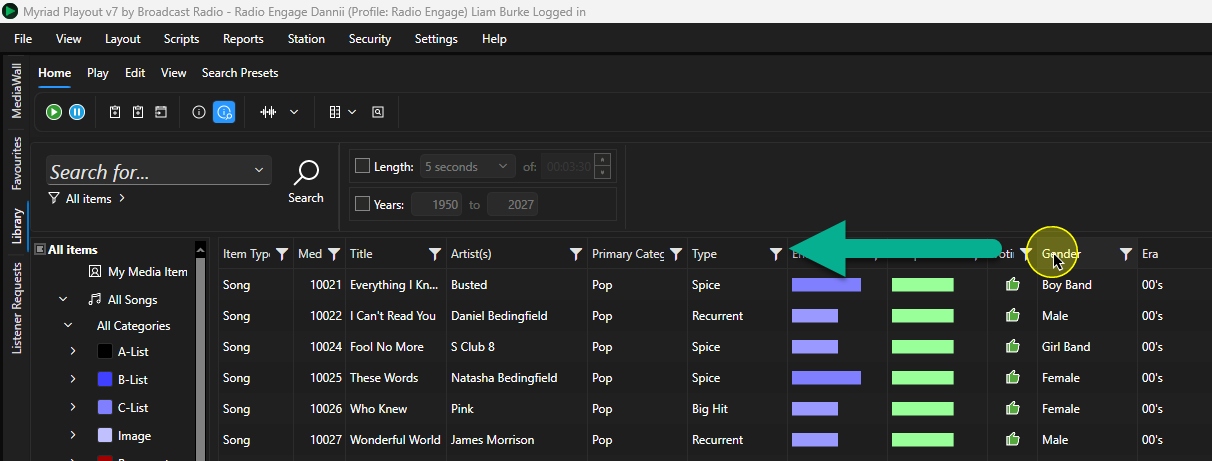
The column will be moved to the new location.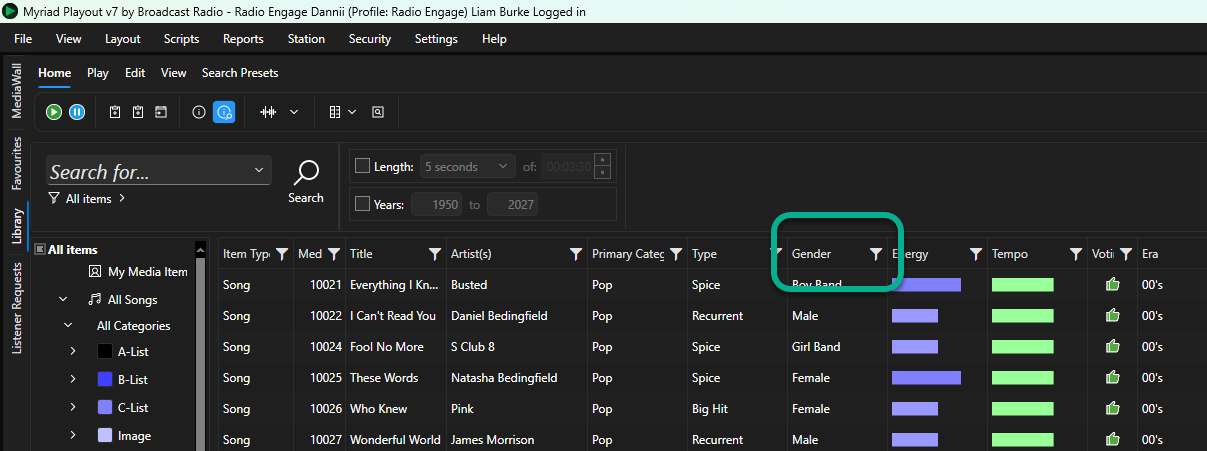
The Column Position is remembered per User, per layout.
Sort by Column
You can sort the results by any Column by simply clicking on the Column Header.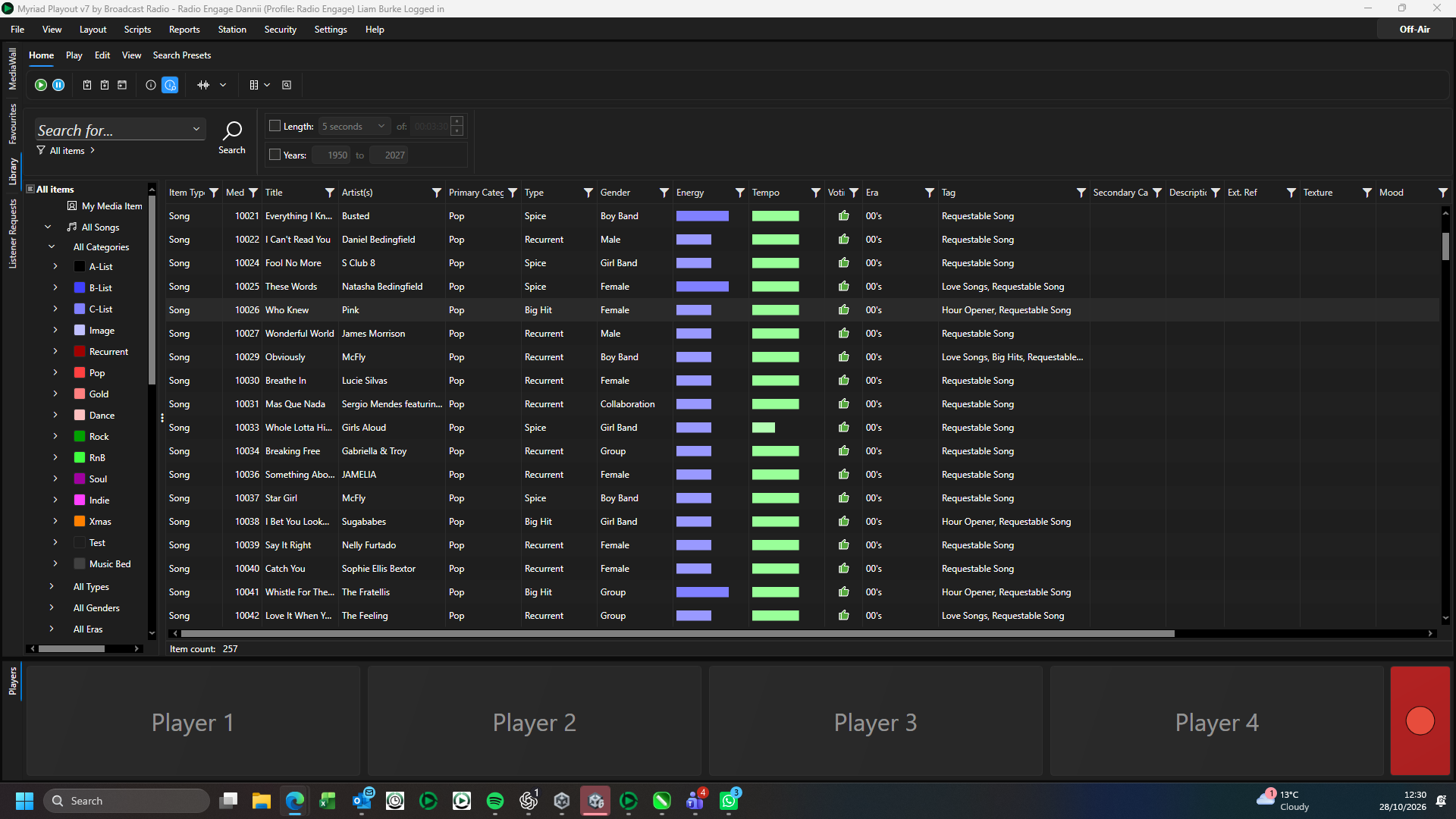
In the screen shot above, the content is listed by Media ID (default). To change the listing alphabetically by Artist, click on the Artist Column Header.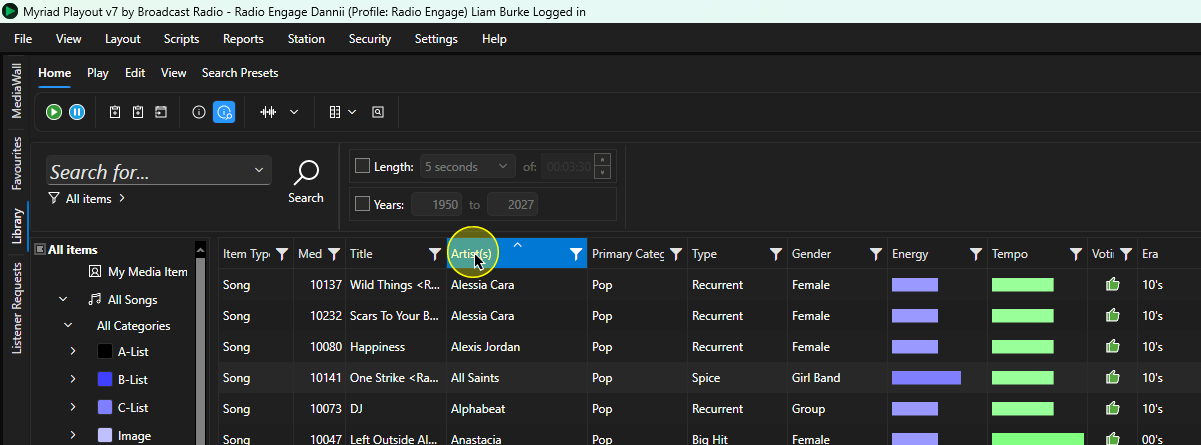
The results will now be listed alphabetically by Artist.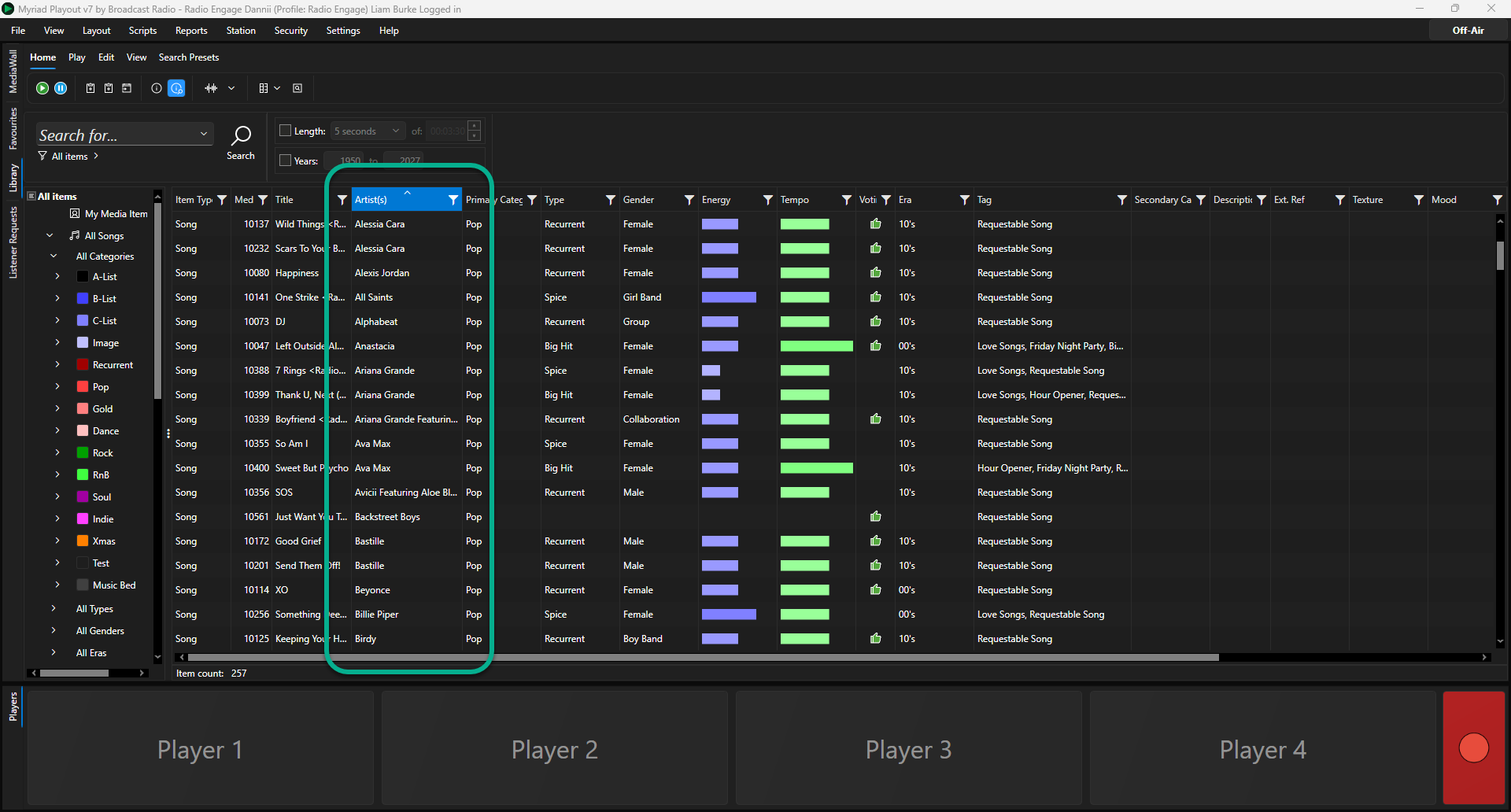
You can reverse the order by clicking on the Artist Column Header again.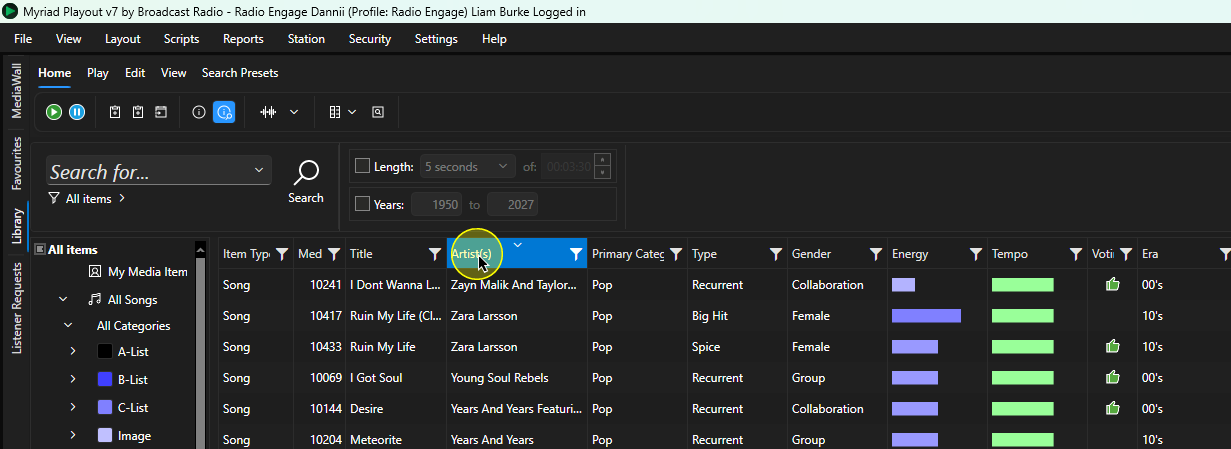
Filter Per Column
In addition to the other search and filter options, you can also apply filters on each Column Header.
To access the filter options for a Column, click on the Filter button on the Column Header.
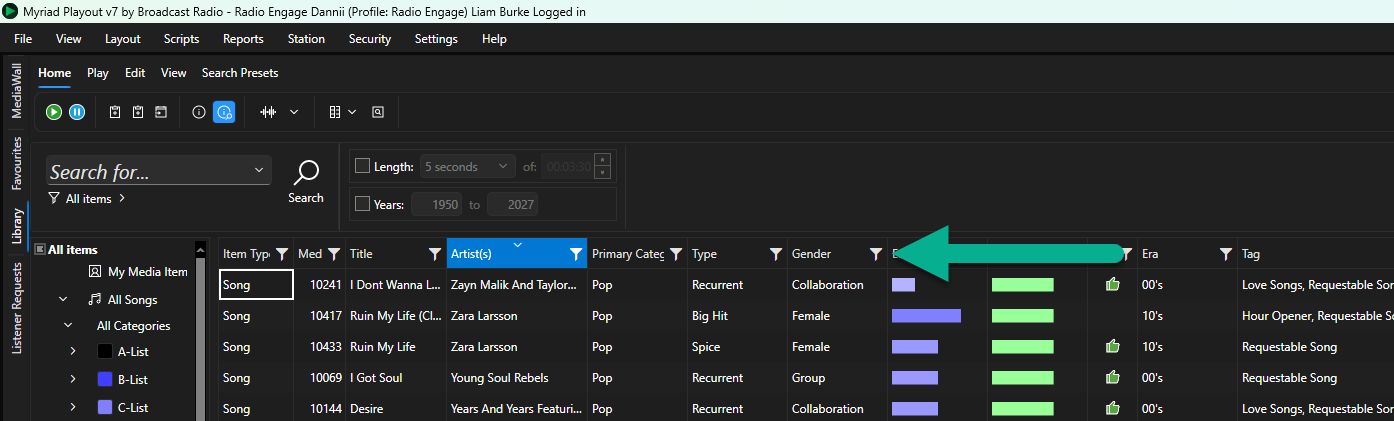
This will open the Filter Options drop down.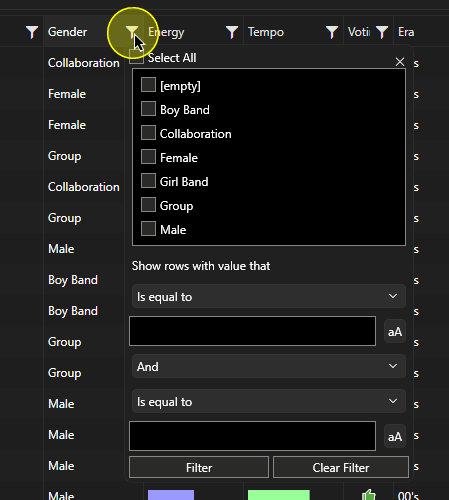
You can use the Select options to tick the options you want to filter by.
In this example, the below, the Female and Girl Band options are ticked which will filter the results to only show Media Items with the Gender set to either Female or Girl Group.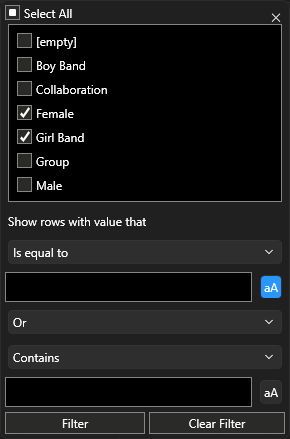
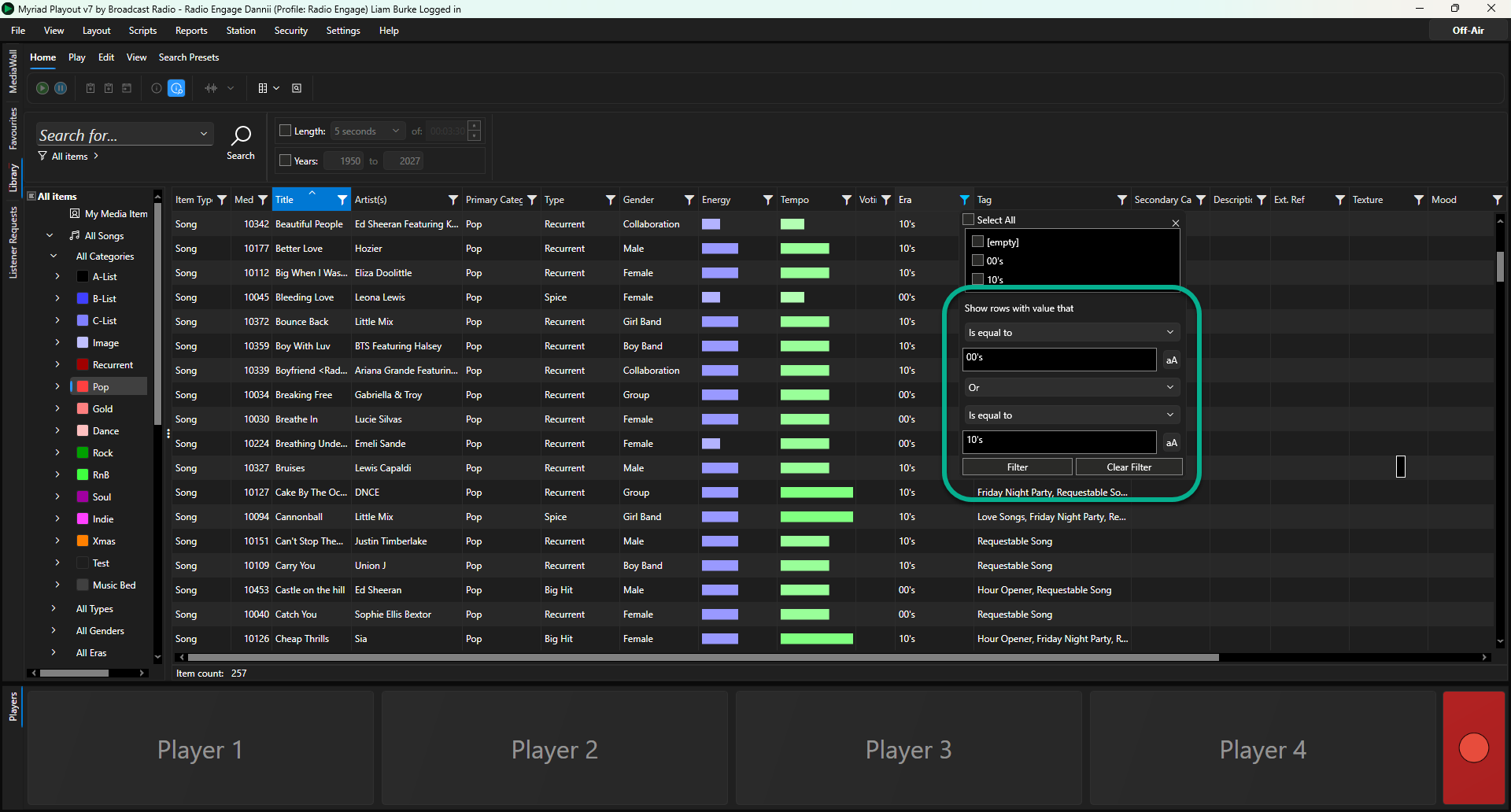
For more advanced filtering you can use the lower section to add conditional filtering.
Filter By Item Type, Category, Attribute or Tags
You can use the Navigation Tree on the left-hand side to select the results displayed in the main Library window.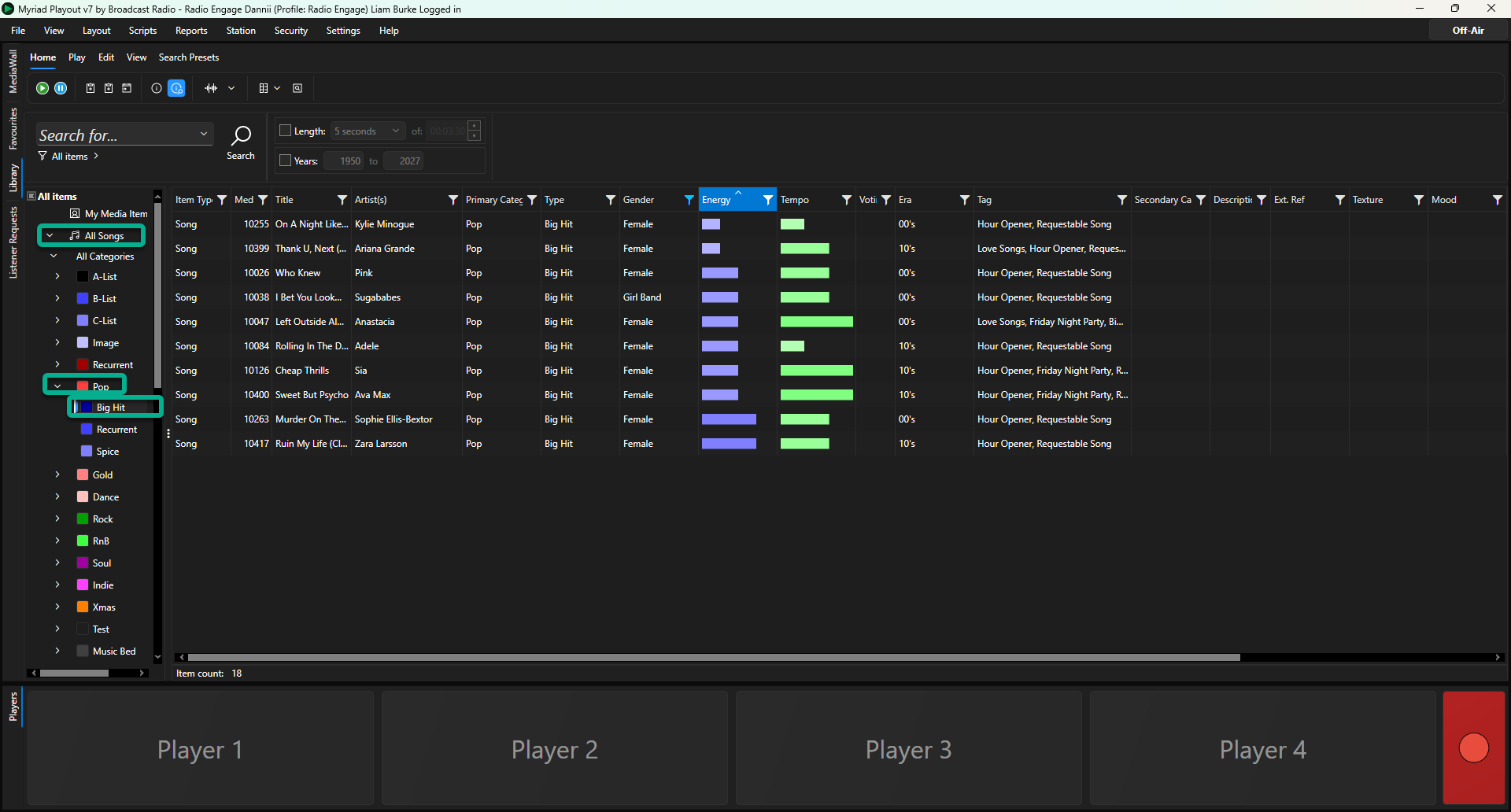
In the example above, the All Songs > Pop Category > Big Hit Type has been selected so the Library is only showing Media Items that are Songs in the Pop Catirgy with the Big Hits Type set.
For more information see - Browsing Content by Item Type, Category & Attributes
Search & Advanced Serach
The search options in the Library view provide powerful options for finding content on your system using one or more search criteria.
To perform a simple search based on a single criteria:
- Click on the Library tab.
- Make sure the Home ribbon is selected.
- Type your search criteria into the Search box.
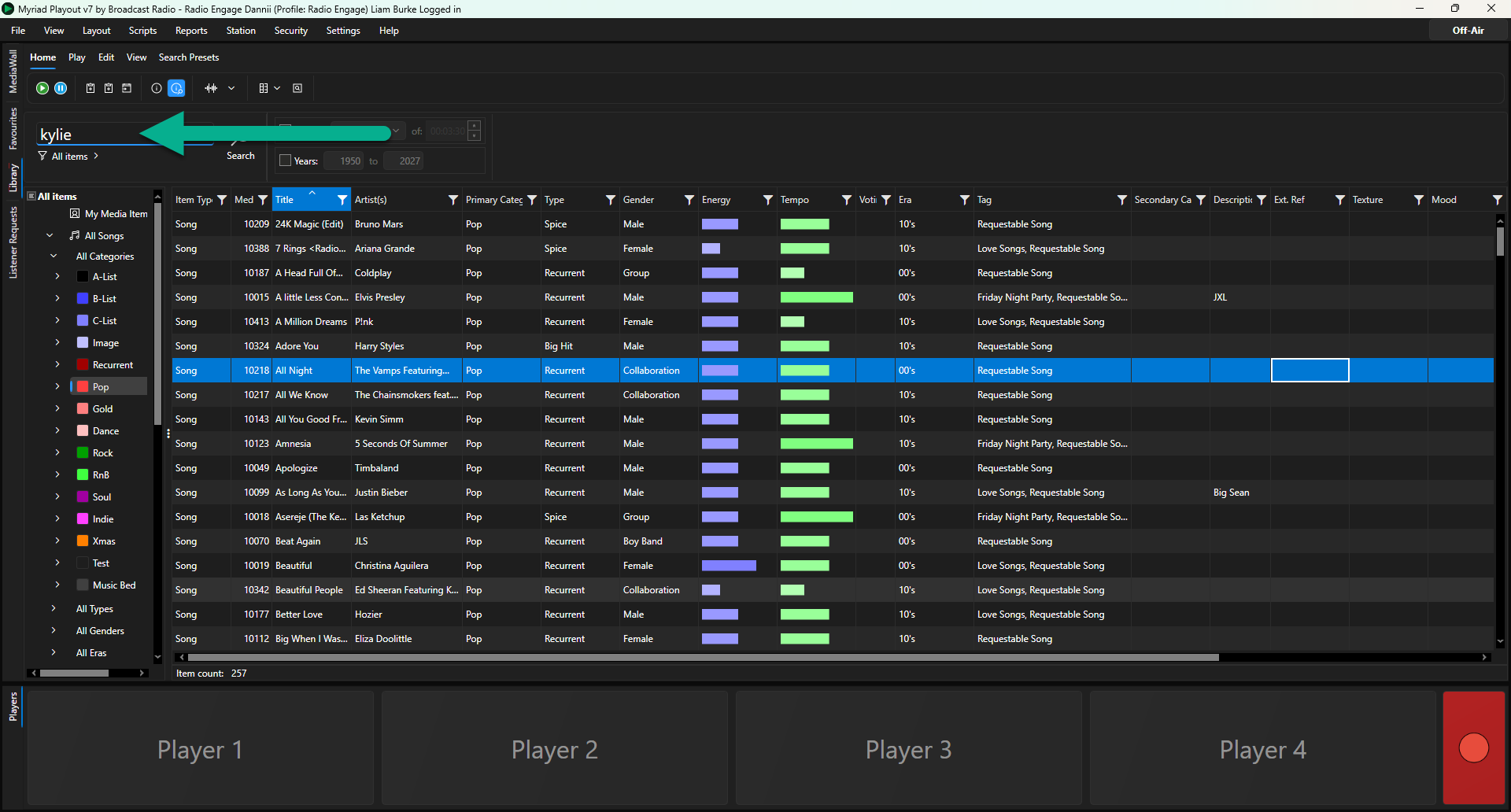
- Click on the Search button or press <ENTER> on your keyboard.
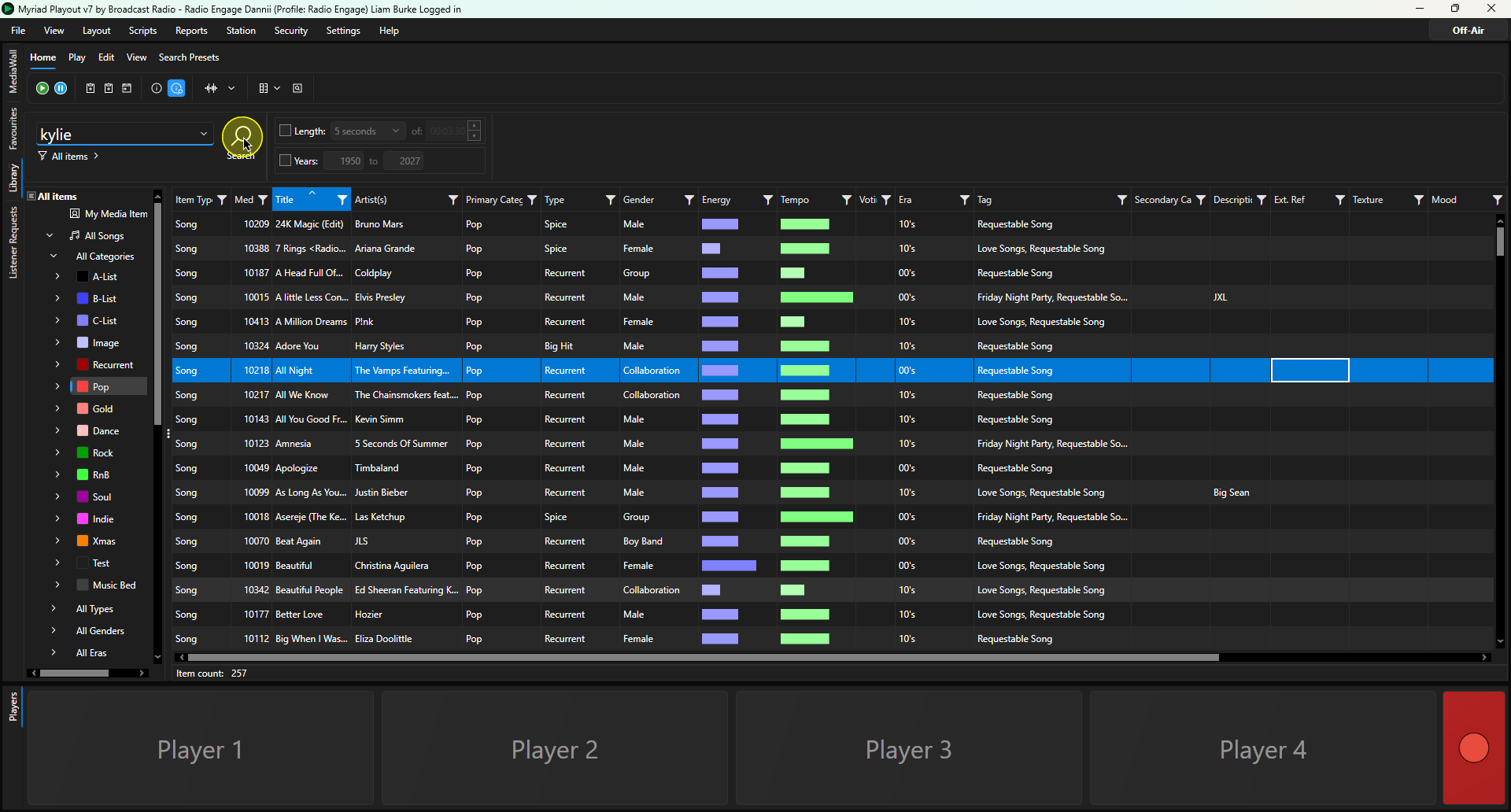
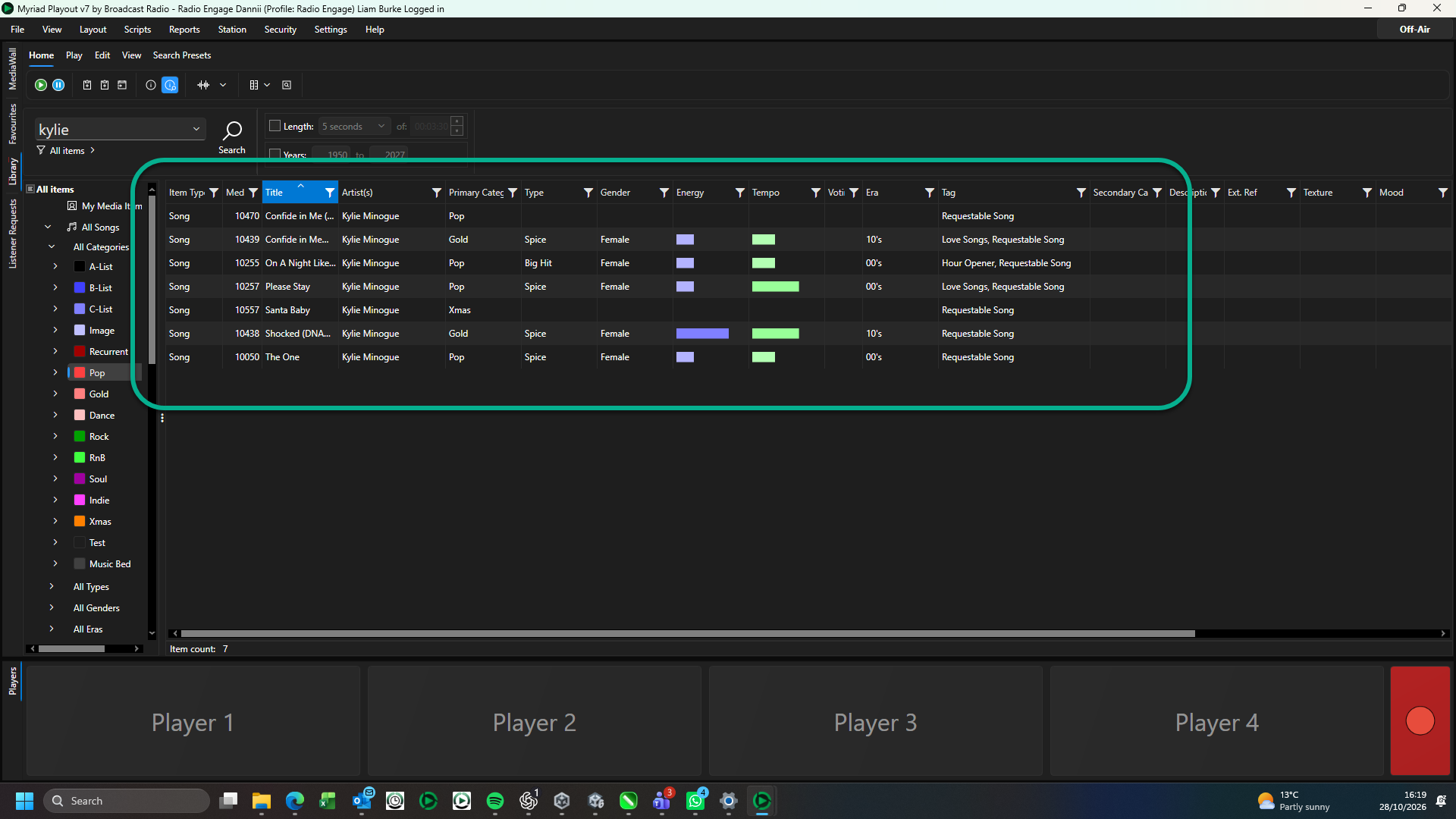
- The results are listed in the main window.
To combine multiple search criteria or if you want to search based on event-based criteria (ie Media edited in the past 7 days), you can use the Advanced Serach feature.
- Click on the Library tab.
- Make sure the Home ribbon is selected.
- Click on the Advanced Search button.
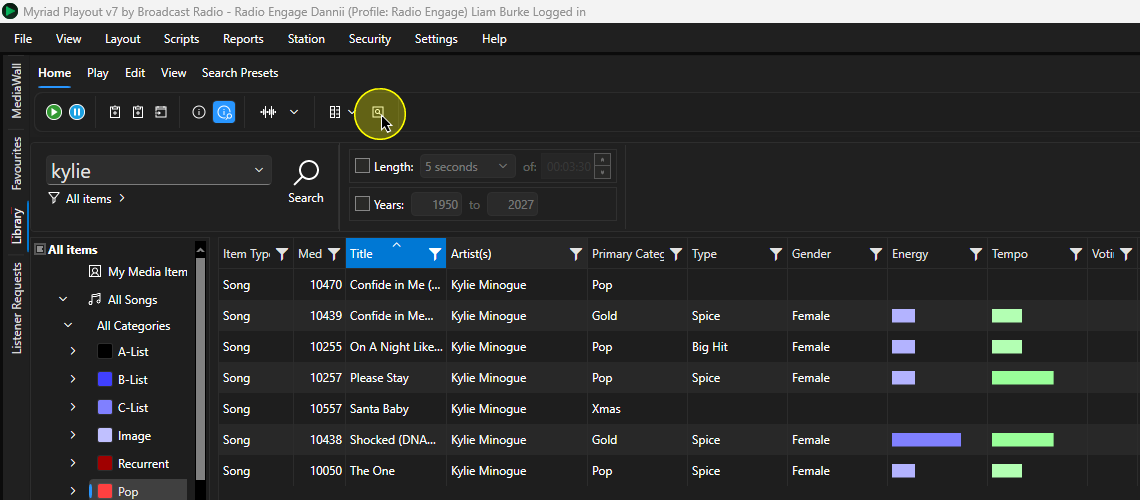
- Enable one or more search criteria.
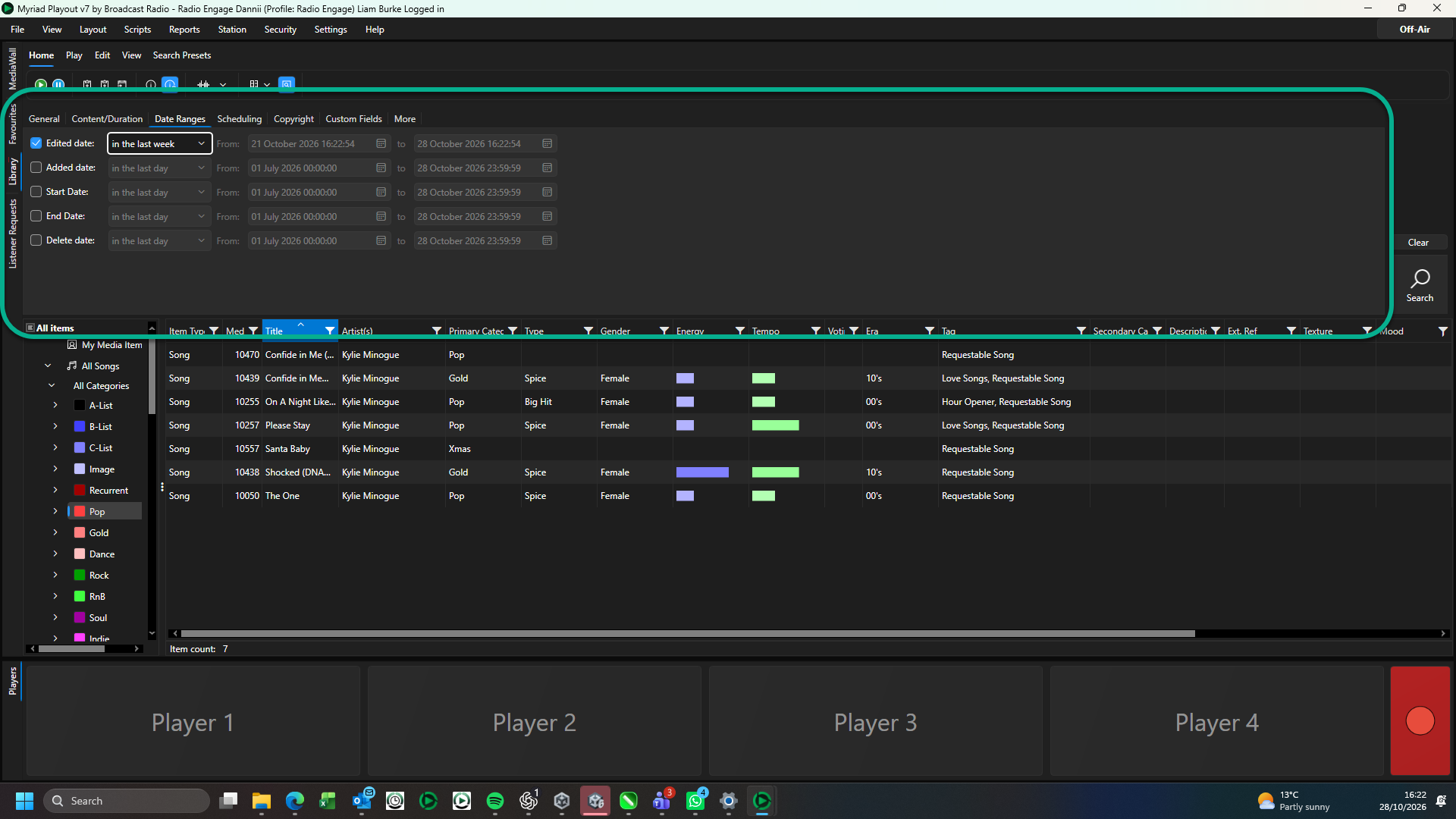
Use the tabs to explore the available options.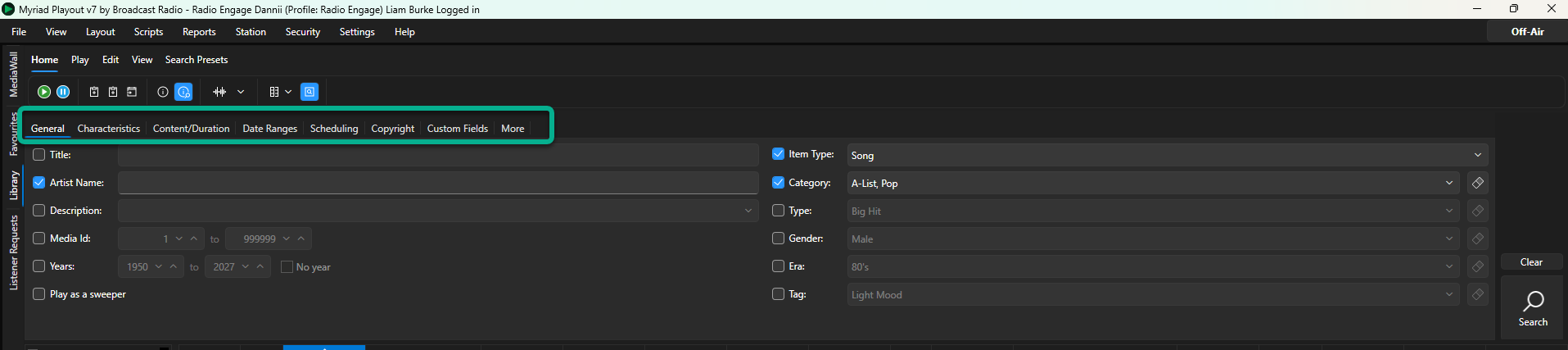
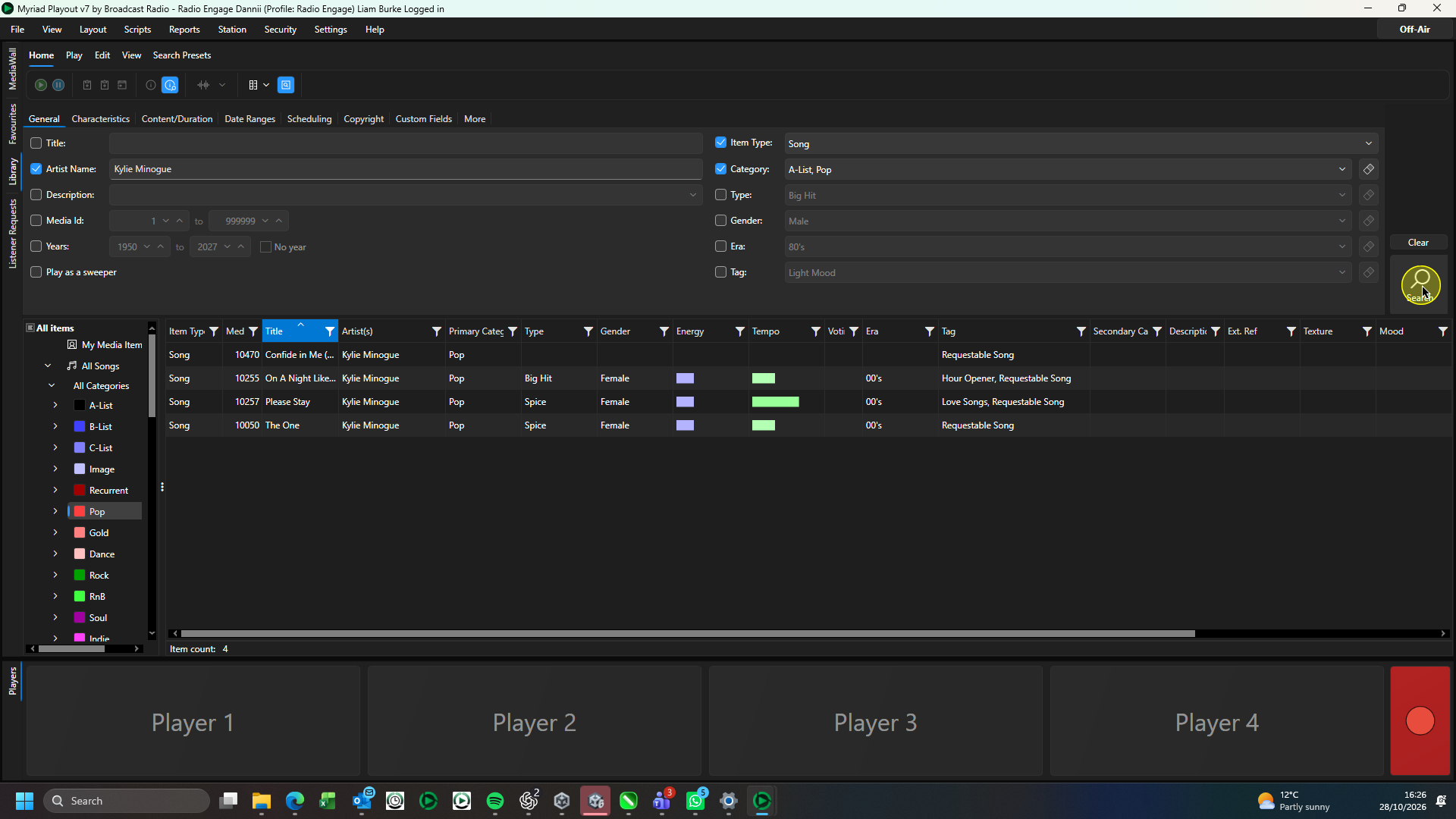
You can set muliple search criteria as required. - Click on the Search button or press <ENTER> on your keyboard.
- The results will be displayed in the main window.
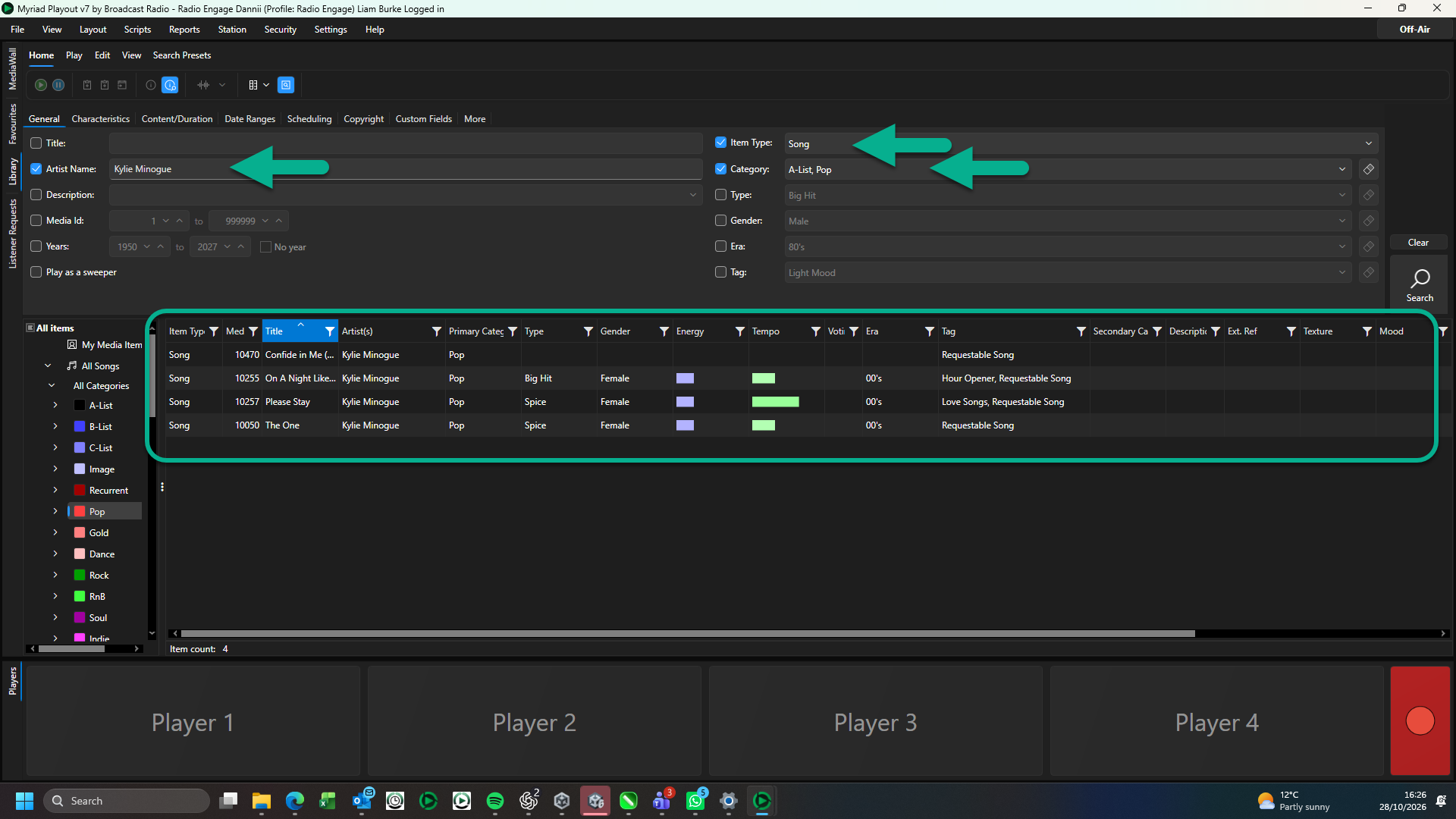
For more details see - Searching For Media Items.
Include / Exclude Media with Date / Time Restrictions
By default, the Library view and search results will exclude Media Items that have Date or Time restrictions applied making them invalid for use.
You can toggle this option on and off using these steps:
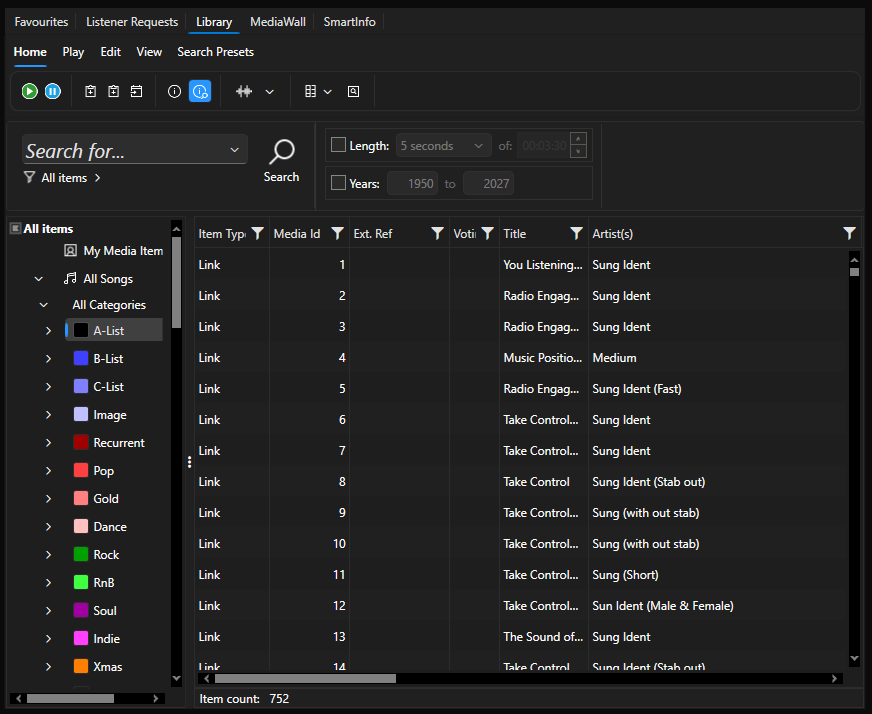
- Select the Library view.
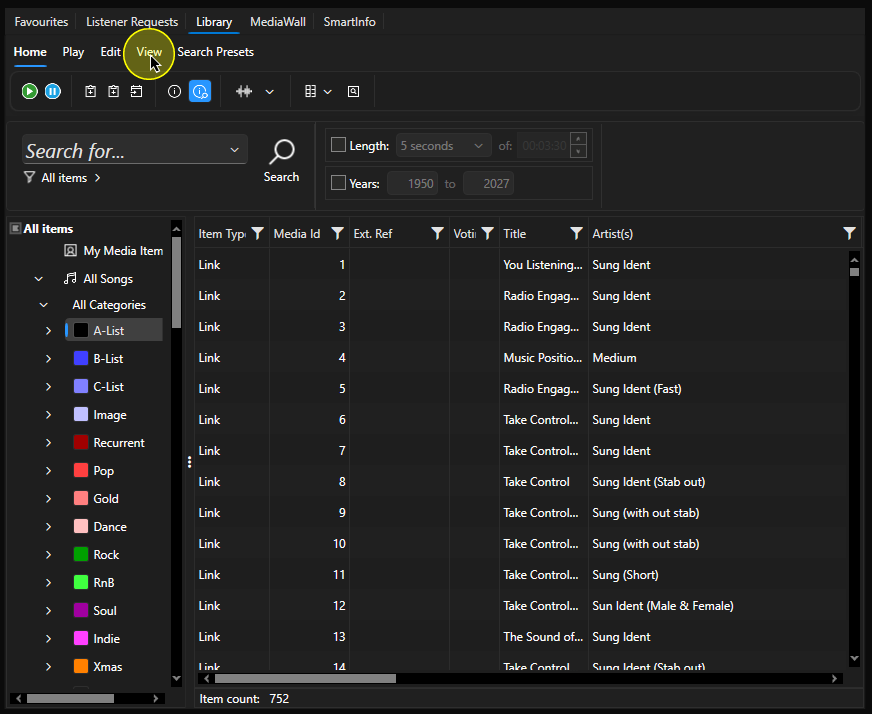
- Click on the View tab.
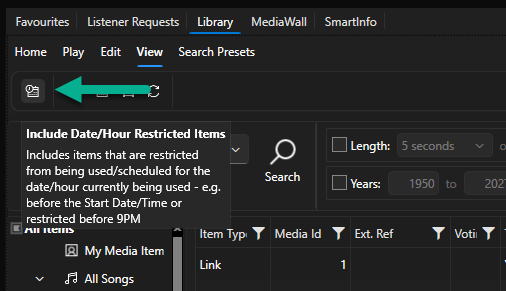
- The left most button on the View tab is the Toggle Date / Time Restrictions option.
- Click to toggle the option on and off.
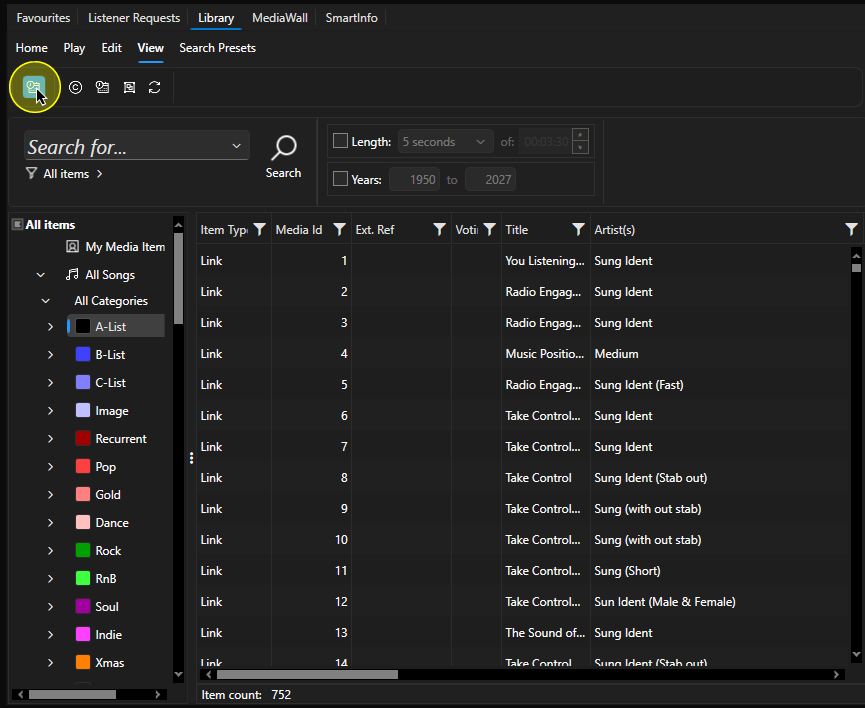
- This setting will be remembered per User and per Layout.
Was this article helpful?
That’s Great!
Thank you for your feedback
Sorry! We couldn't be helpful
Thank you for your feedback
Feedback sent
We appreciate your effort and will try to fix the article