TABLE OF CONTENTS
Searching in Myriad
There are two main methods for searching for content on your Myriad system.
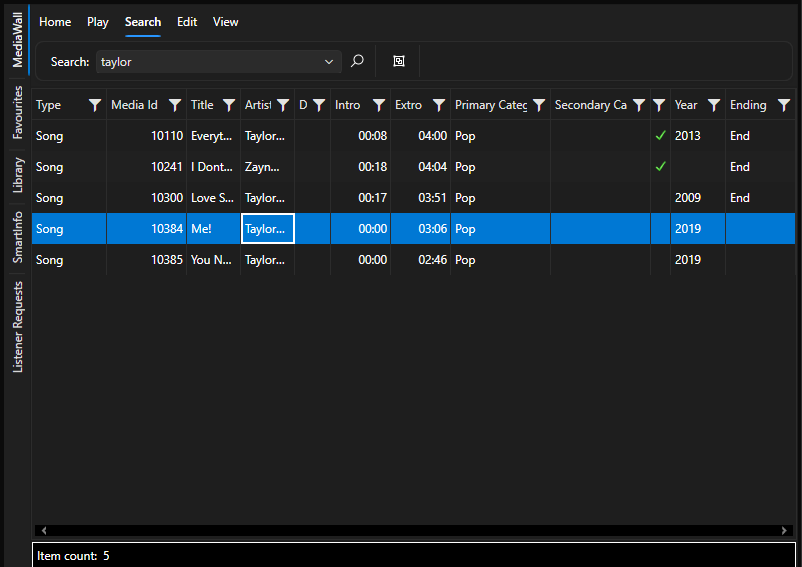
For a quick and simple search by Title or Artist, you can use the search tab on the Media Wall tab.
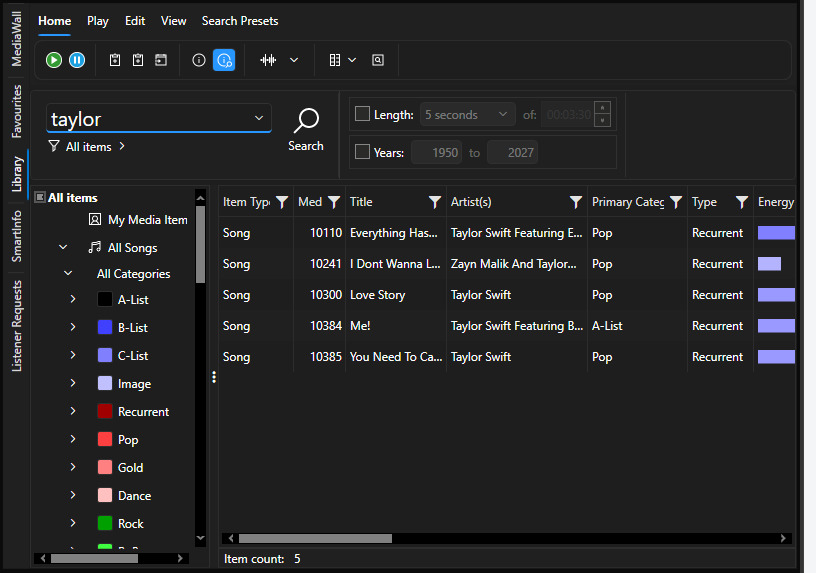
For a more detailed search or if you want to be able to view and filter the result, you should use the Serach options on the Library tab.
The Search tab on the Media Wall allows you to list all Media Items on the Media Wall that contain your search criteria. All matching items will be displayed regardless of Item Type, Category or Date/Time restrictions.
To search the Media Wall follow these steps@
- Click on the Media Wall tab.
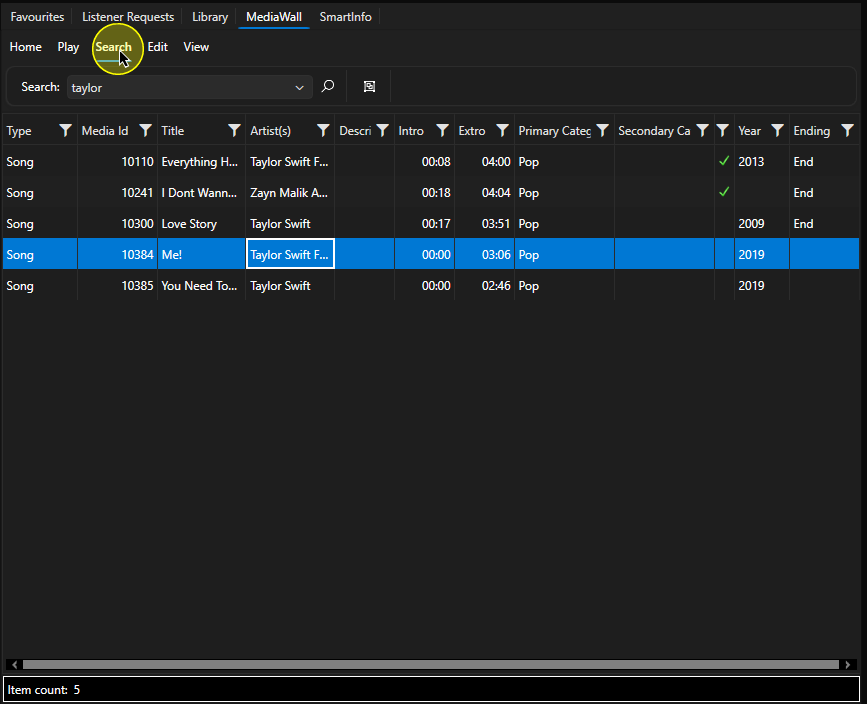
- Click on the Search tab.
- Type in your search criteria.
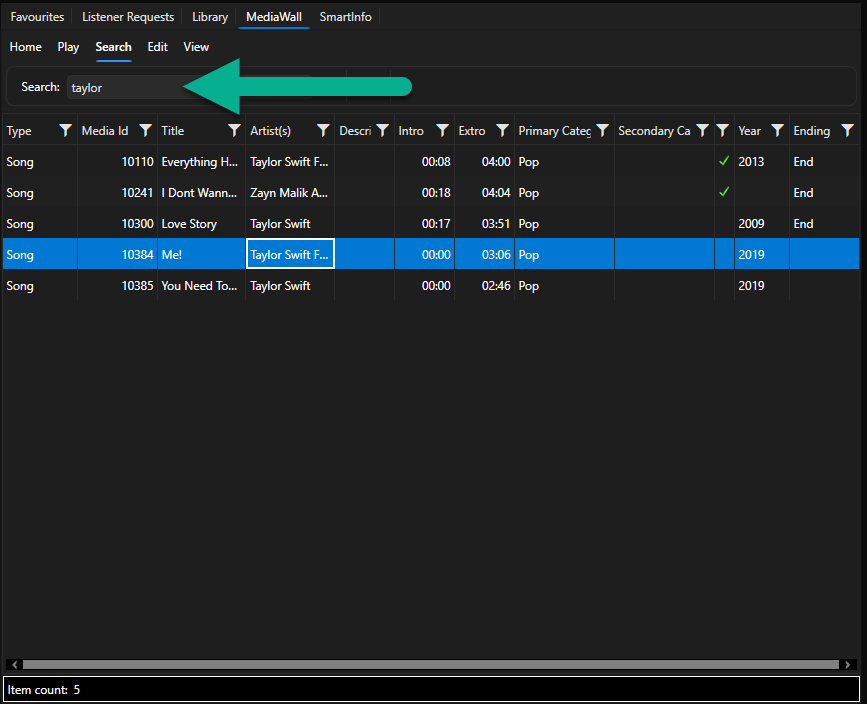
- Click on the Search button or press the <ENTER> key.
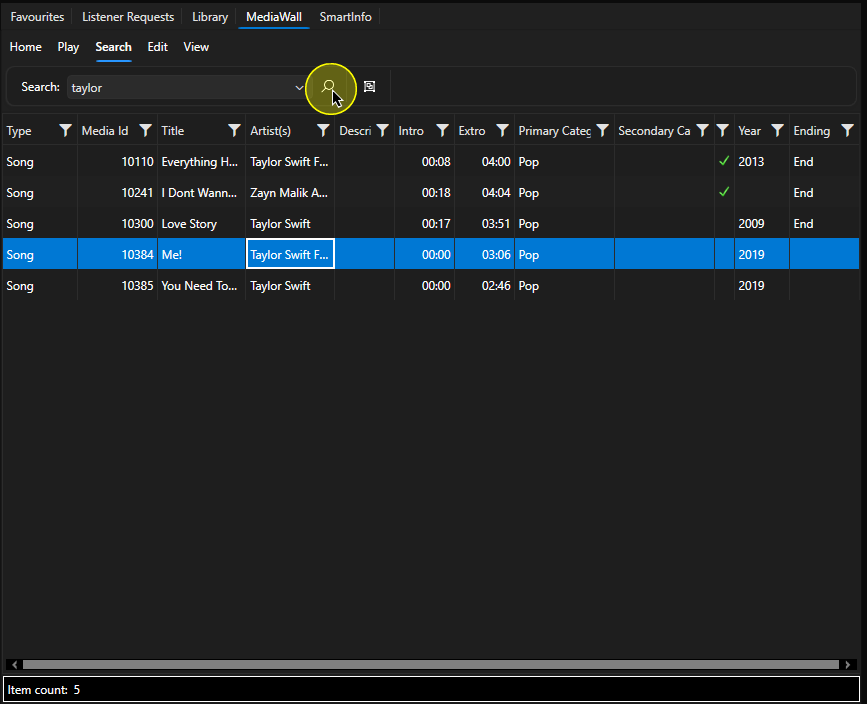
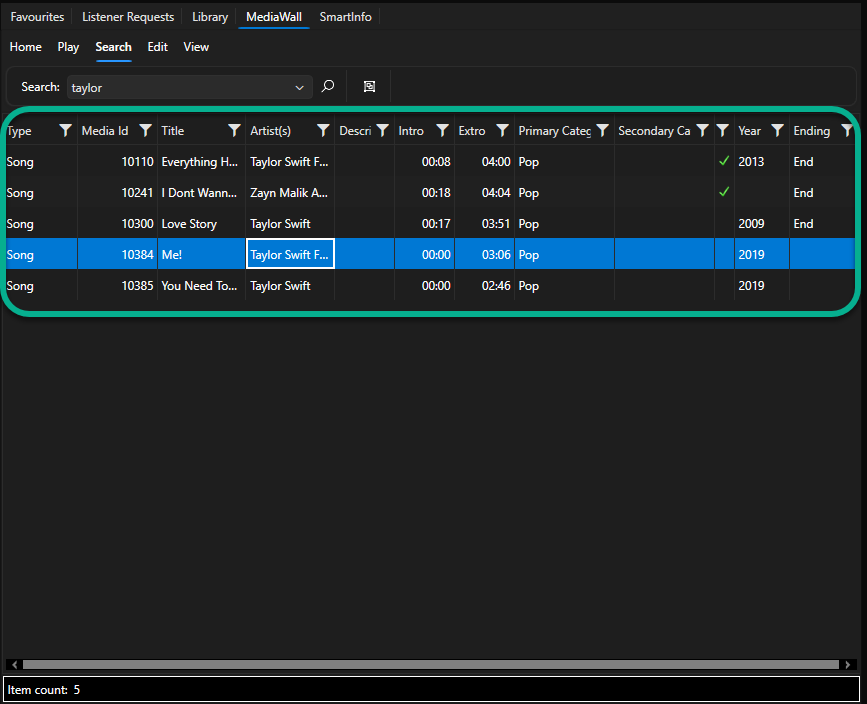
- The results will be displayed in the main window.
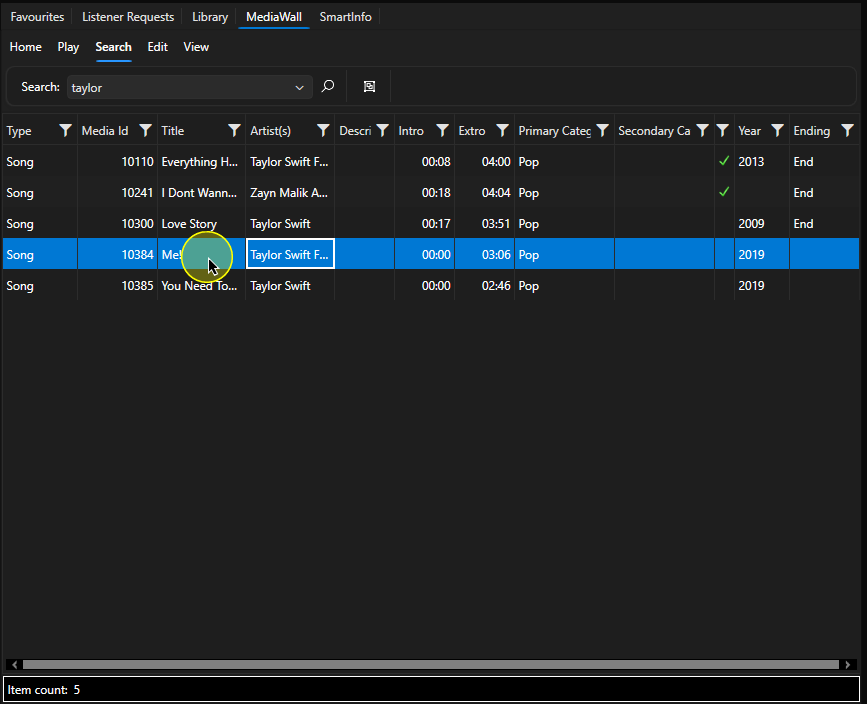
- To jump to a Media Item on the Media Wall, double click on it in the search results.
The Search tab will close and the Media ID will be the selected on the Media Wall.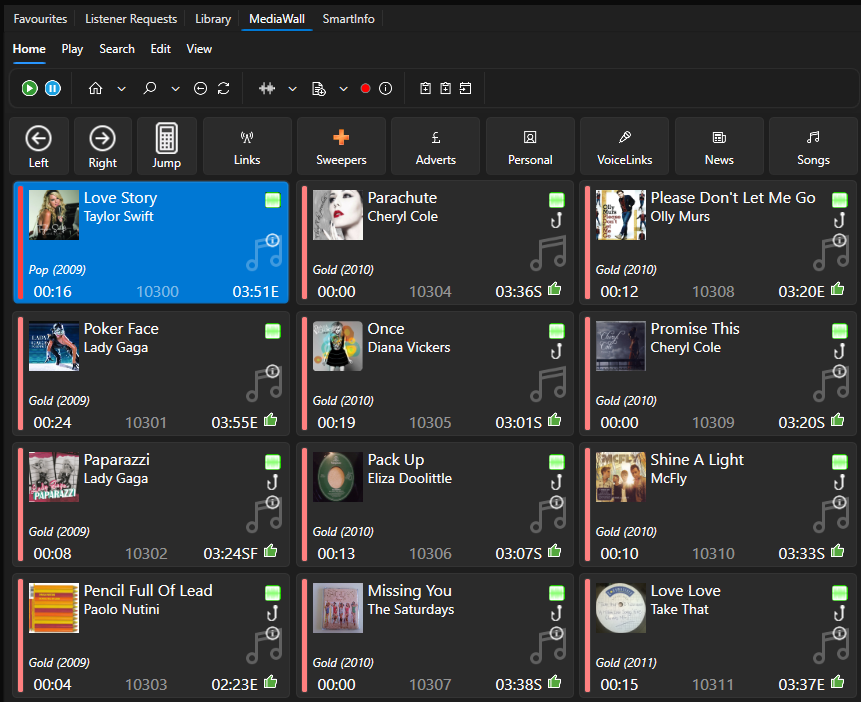
- You can also group results to make finding content in larger search easier. In the example below, we have searched for the word 'Love' which has returned 42 results.
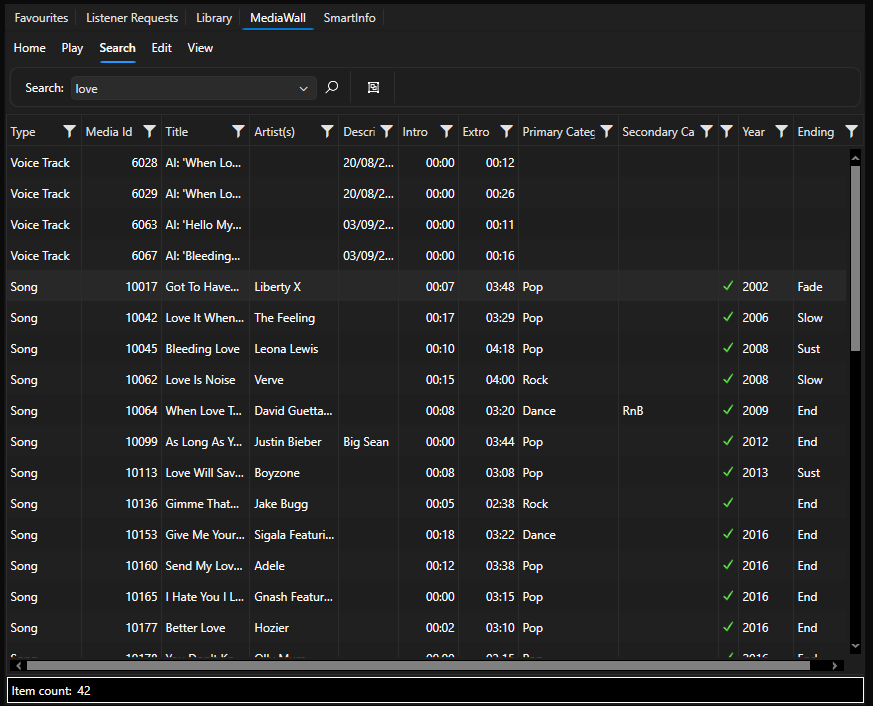
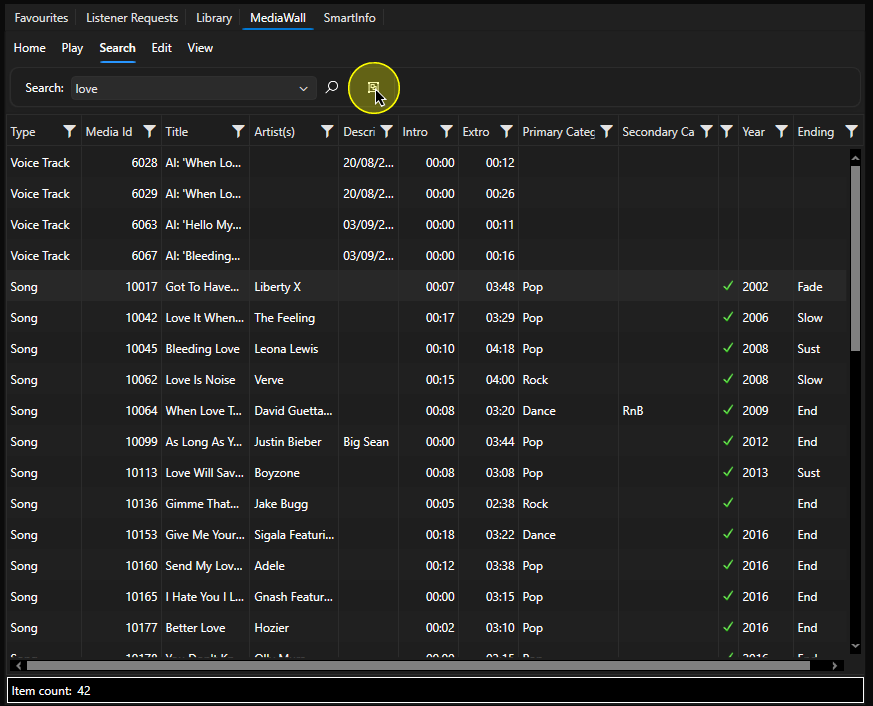
- Let's say we wanted to group these by artist, click on the Group By button.
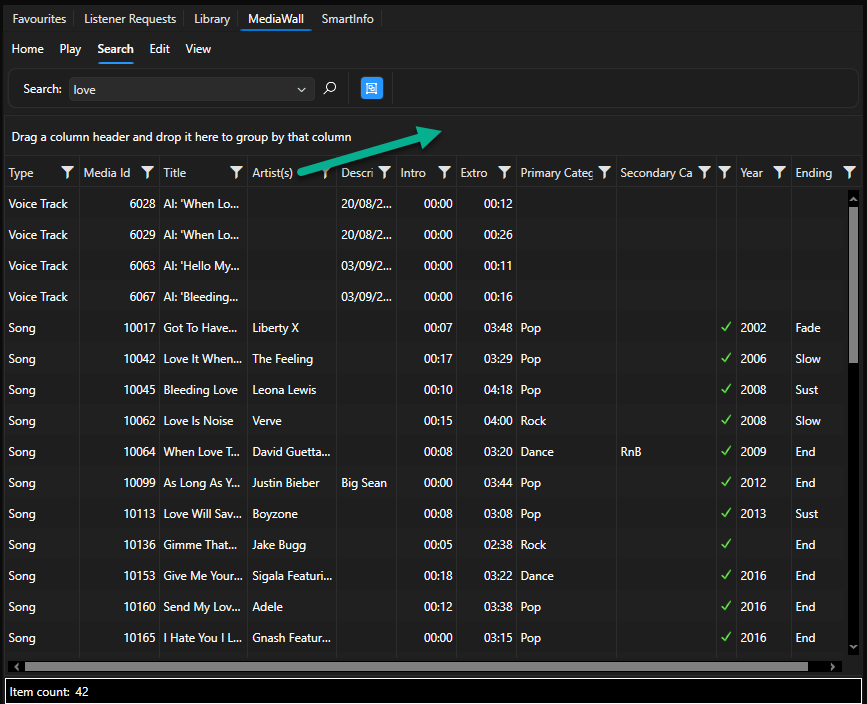
- This opens a new 'Group By' panel which you can drag one or more column headers into, to group the results by those headers. In this example, we will drag the 'Artists' column header into the Group By panel.
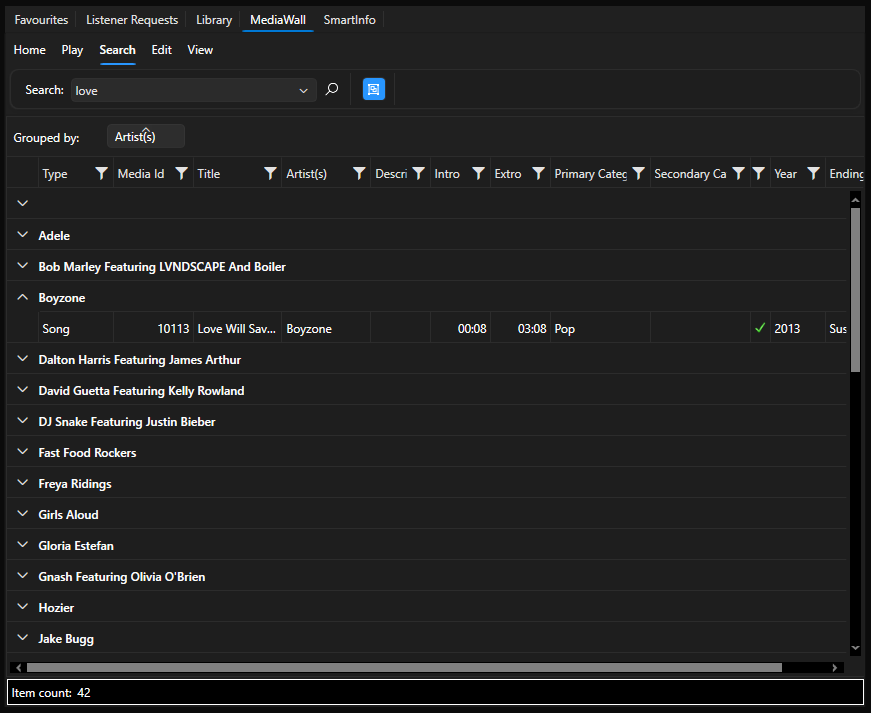
- The results will now be grouped by the selected header (Artists).
Searching the Library
For a more detailed search that can combine multiple search criteria and offers the ability to filter the results by Item Type, Categeory, Attributes and Date/Time Restrictions, use the Library tab.
You can also switch between a Basic Serach and an Advance Search depending on what criteria you want to use.
Basic Search
The Basic Search option allows you to search Media Items for a specific word or phrase.
- Select the Library tab.
- On the Home tab, click type in the Search Criteria.
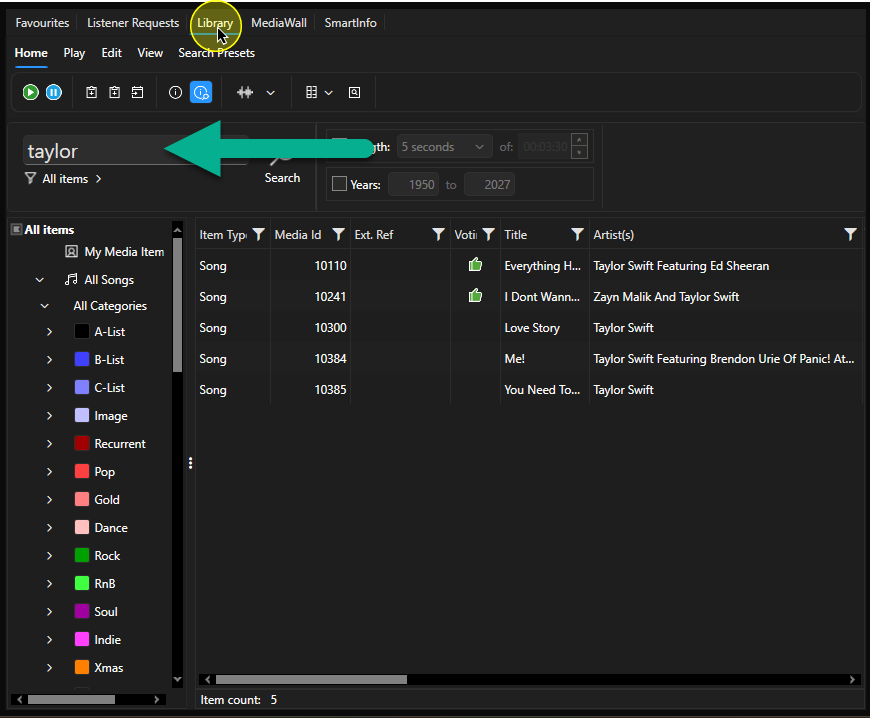
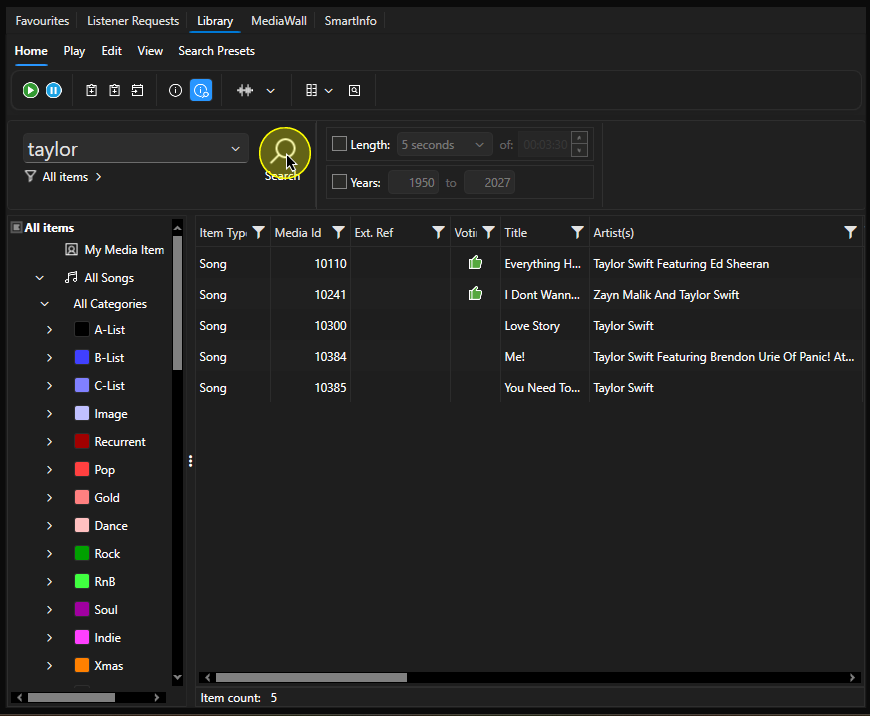
- Click on the Search button or press <Enter>.
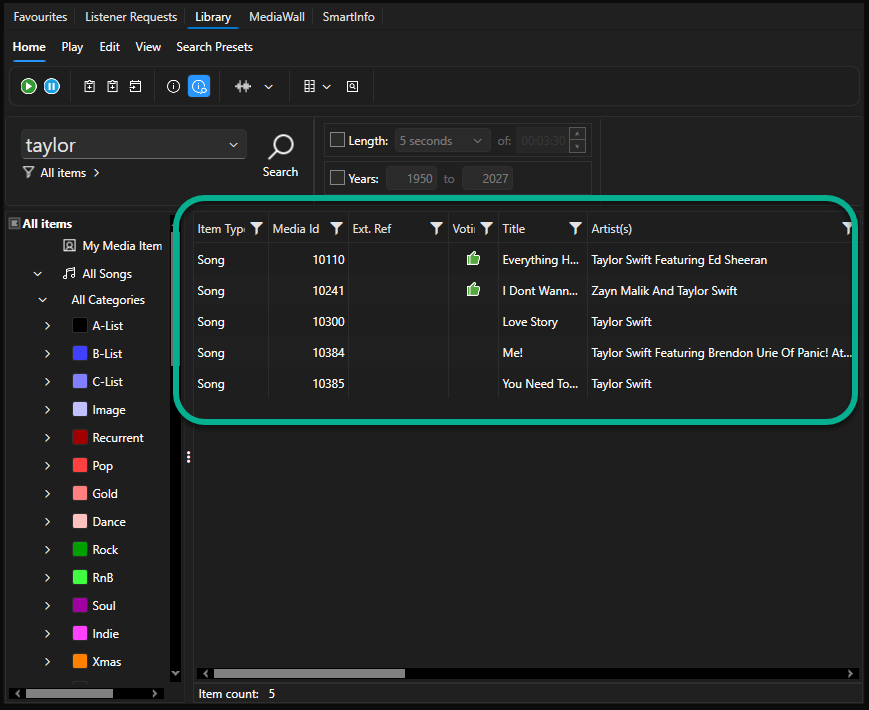
- The results will be displayed in the main window.
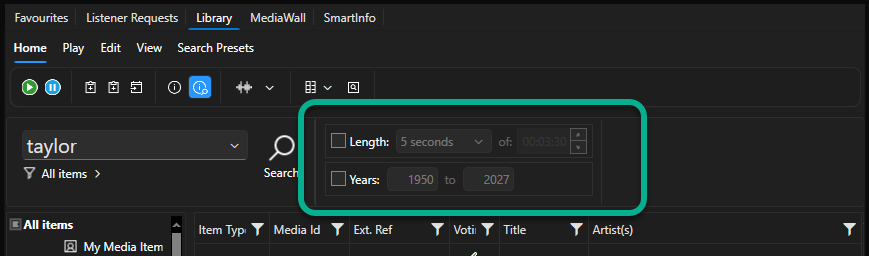
- You can also add additional criteria for duration and year if release.
Advanced Search
If you want to search by more than one criteria, you can use the Advanced Search options to combine multiple search terms. You can search by virtually all Media Item fields using the Advanced Search options.
- Select the Library tab.
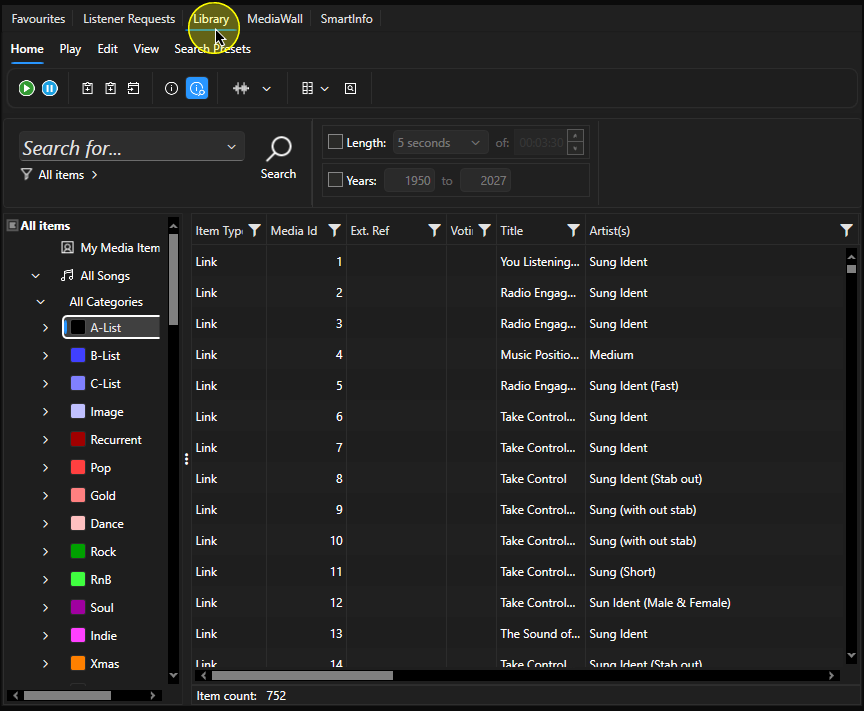
- Click on the Advanced Search button.
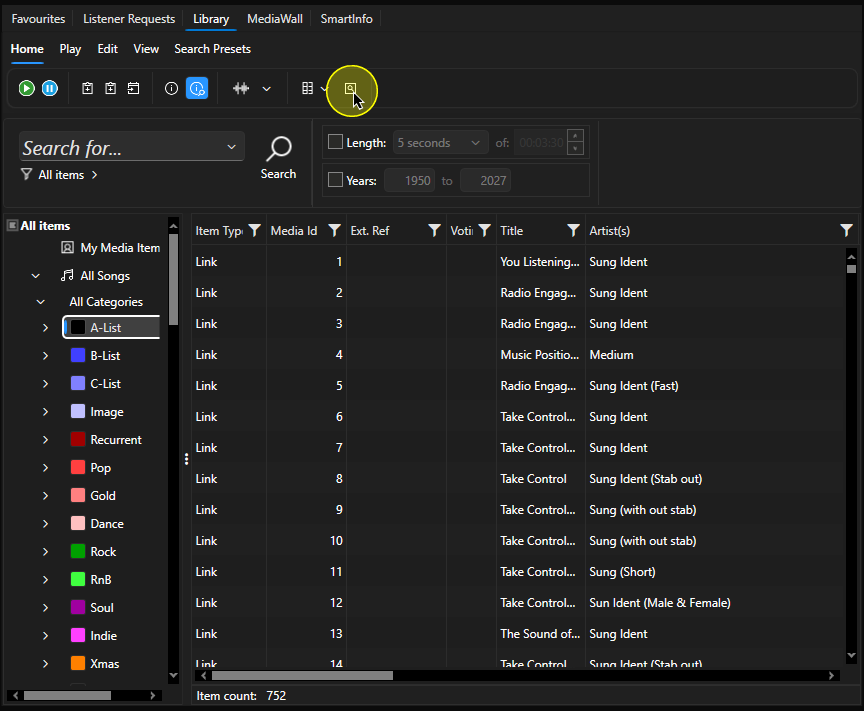
- The Advanced Search option allows you to select one or more Media Item fields and enter the criteria you want to search by.
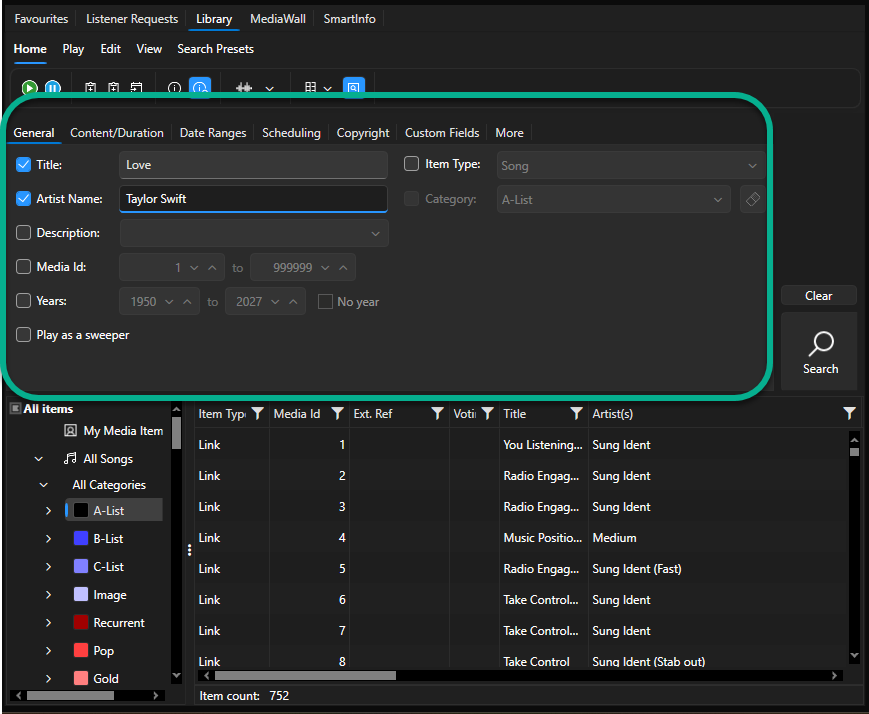
You can search by virtually every field within Media Items as well as by content, duration or key dates (such as added / modified etc).
Switch tabs to explore more Advanced Search criteria options.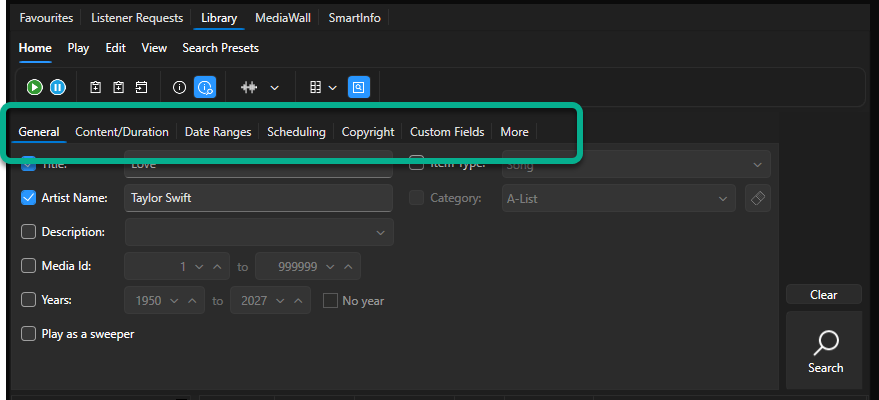
- When you are happy with your search criteria, click on the Search button or press <ENTER>.
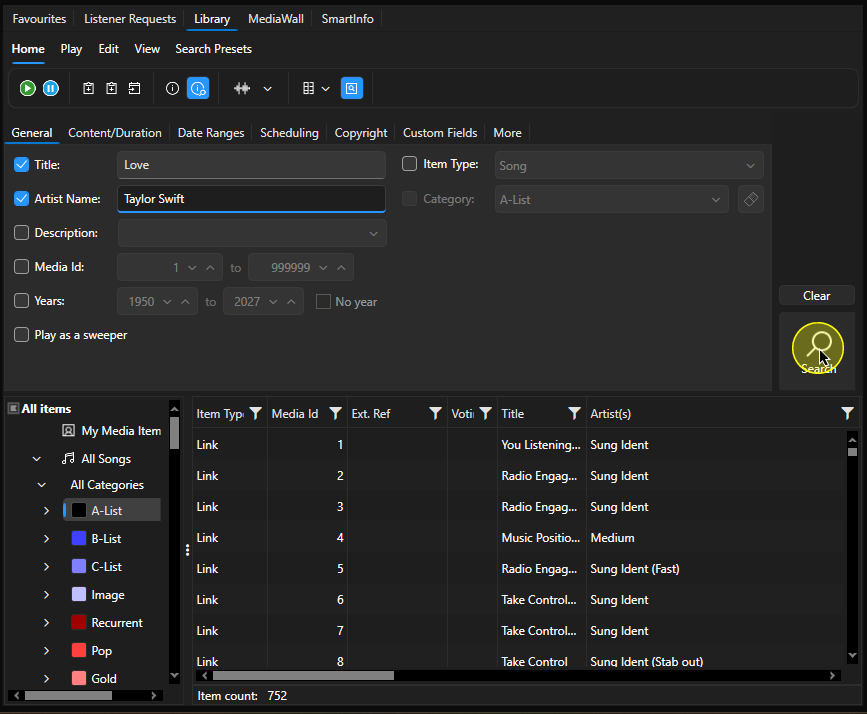
- Any Media Items that meet your combined criteria will be displayed in the main section.
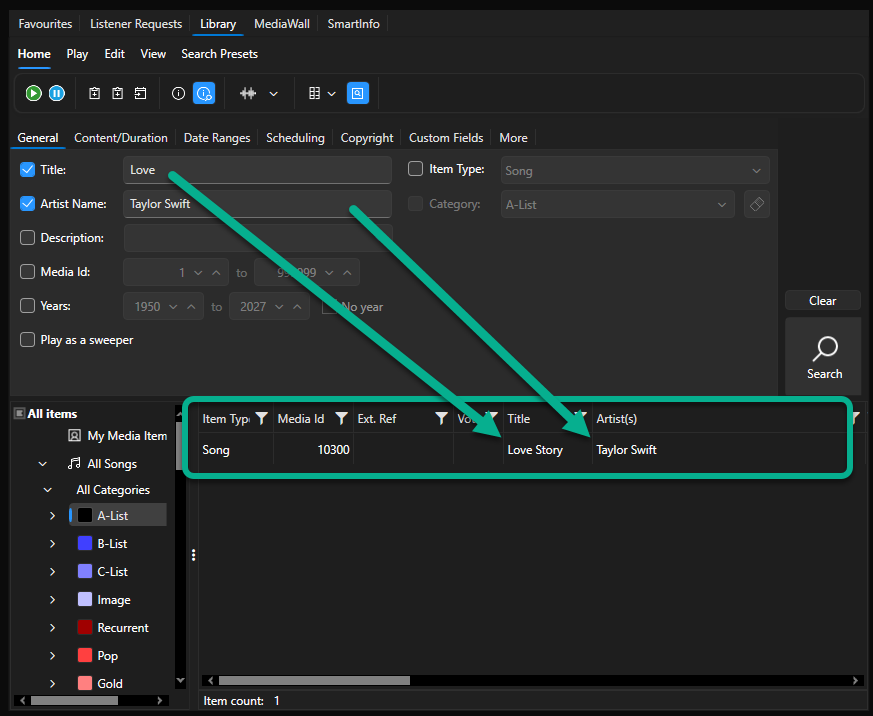
- You can drag Media Items from the search results into the Log, Media Players, Favourites or anywhere else you can use Media Items.
Double clicking will open the Edit Window for the item but will not take you to the item in the Media Wall.
You can also right click on a Media Item in the search results to access more options.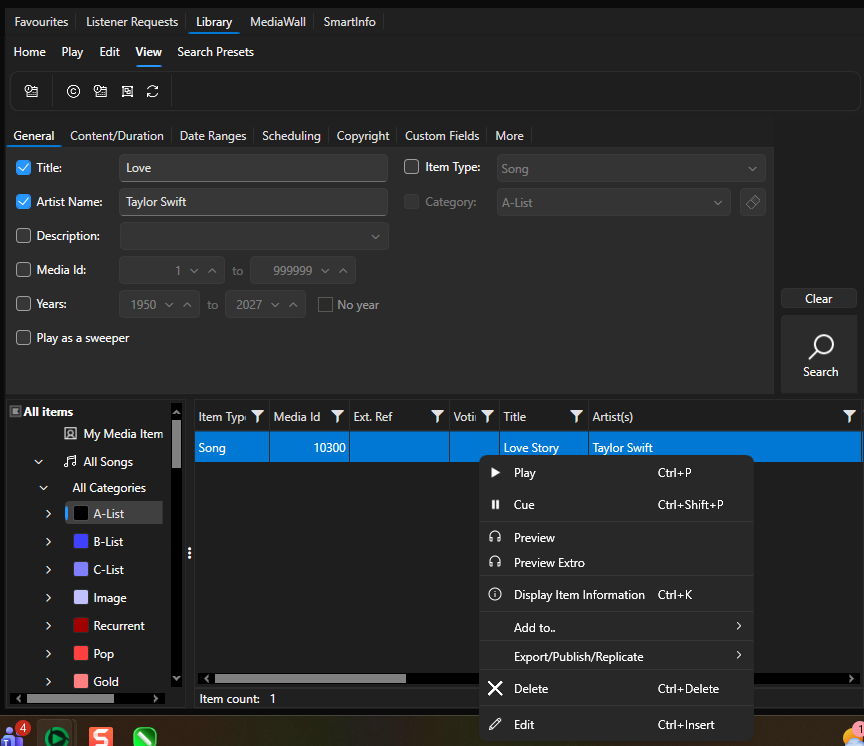
Show Date / Time Restricted Items
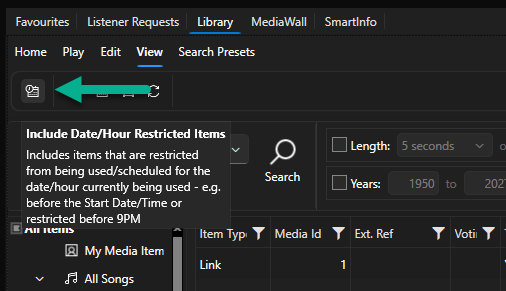
By default, the Library view and search results will exclude Media Items that have Date or Time restrictions applied making them invalid for use.
You can toggle this option on and off using these steps:
- Select the Library view.
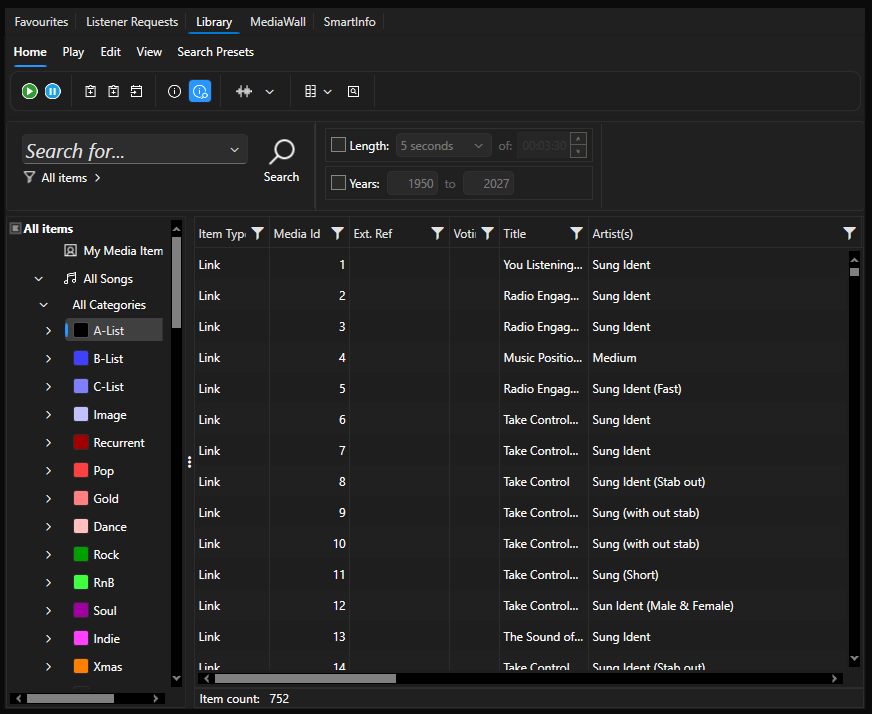
- Click on the View tab.
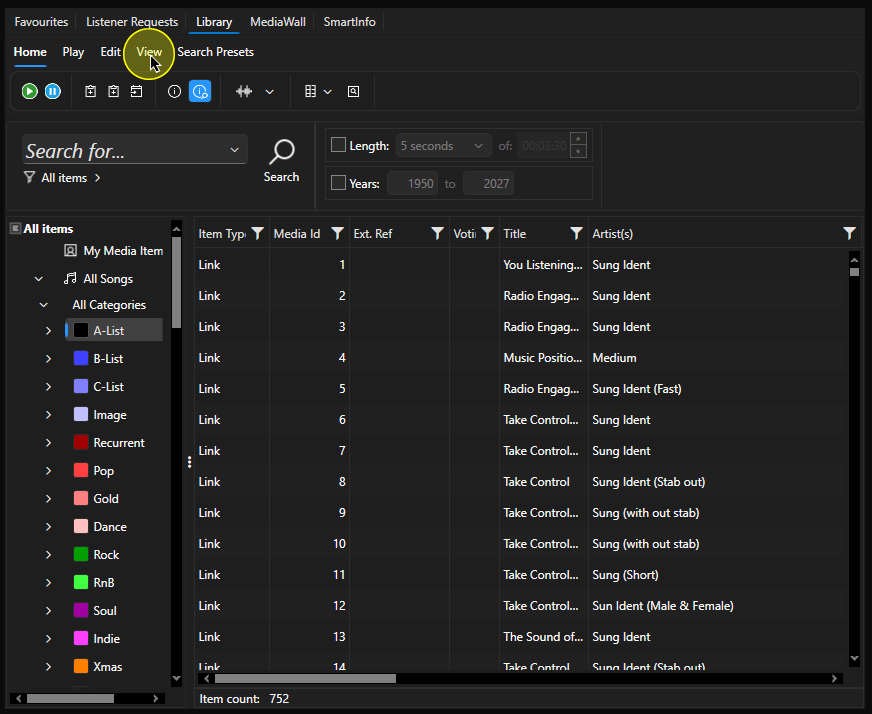
- The left most button on the View tab is the Toggle Date / Time Restrictions option.
- Click to toggle the option on and off.
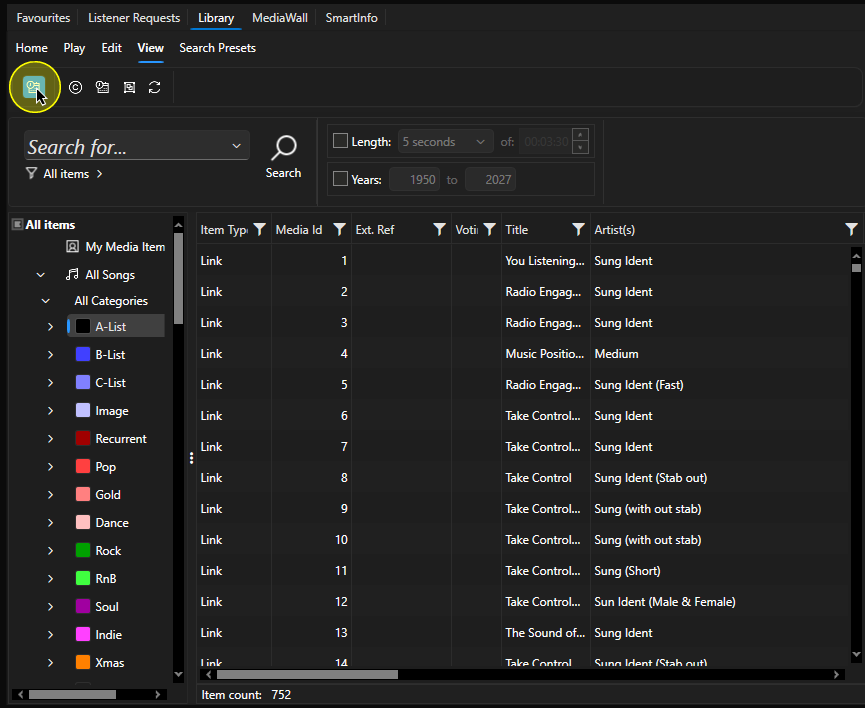
- This setting will be remembered per User and per Layout.
Was this article helpful?
That’s Great!
Thank you for your feedback
Sorry! We couldn't be helpful
Thank you for your feedback
Feedback sent
We appreciate your effort and will try to fix the article