Learn how to Add, Edit and Remove Navigation buttons from the Media Wall.
1. To add a new Navigation button, use the mouse to drag the Media Item you want the button to jump to, into the Navigation button bar.
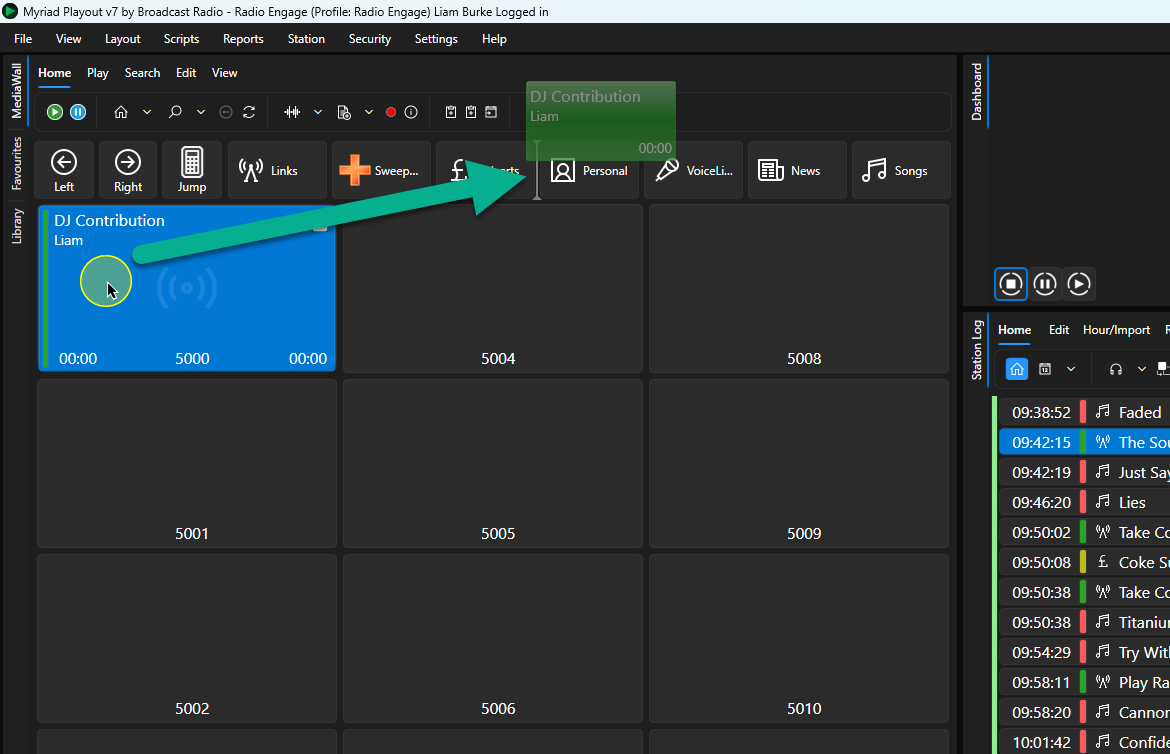
2. The New Navigation button will be added to the bar with the Media Item Title as the button caption by default.
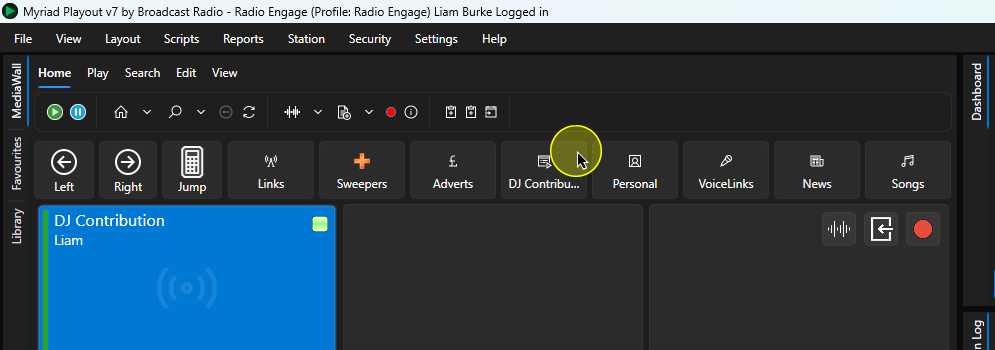
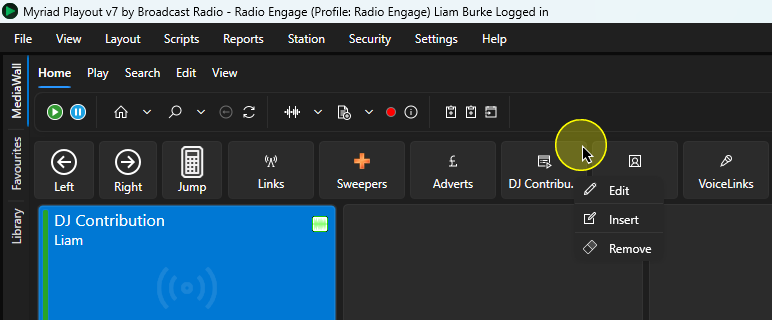
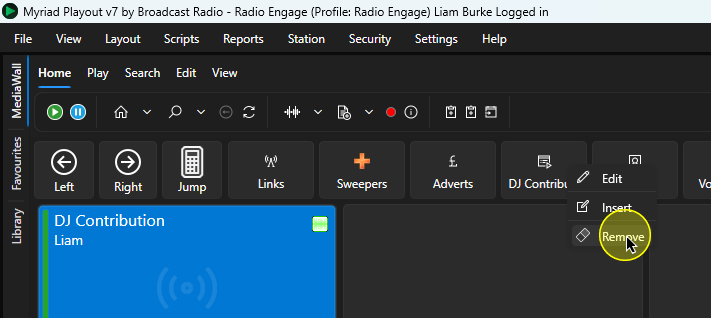
3. Right click on a Navigation button to access the options.
These include
- Edit
- Insert
- Delete
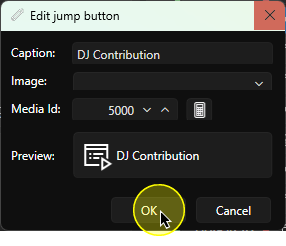
4. If you select Edit you can change the button Caption, Image & Target Media ID.
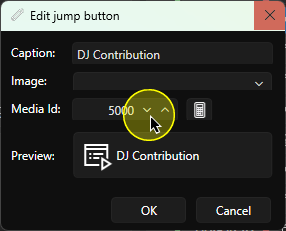
5. When you are happy click "OK"
6. To remove a Navigation button, right click on the button and select Remove from the drop down menu.
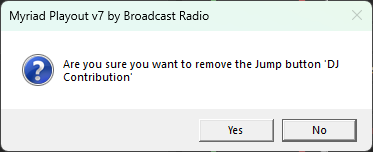
7. Click "Yes" to confirm.
Was this article helpful?
That’s Great!
Thank you for your feedback
Sorry! We couldn't be helpful
Thank you for your feedback
Feedback sent
We appreciate your effort and will try to fix the article