Content imported into Myriad typically has a normalisation Playback Volume Gain scale factor calculated and applied at the point of ingest, based on either the Media Item Type or Media Range.
You can set the normalisation mode (Peak, RMS, LUFS) and target criteria per Media Item Type or Media Range - see Setting Normalisation Levels Per Media Item Type (Song, Link, VT etc) or Range.
Because the Playback Volume Gain factor is calculated when the file is imported, any changes to normalisation that you want to apply retrospectively, need to be applied via the Media Report / Mass Changer window.
Follow these steps:
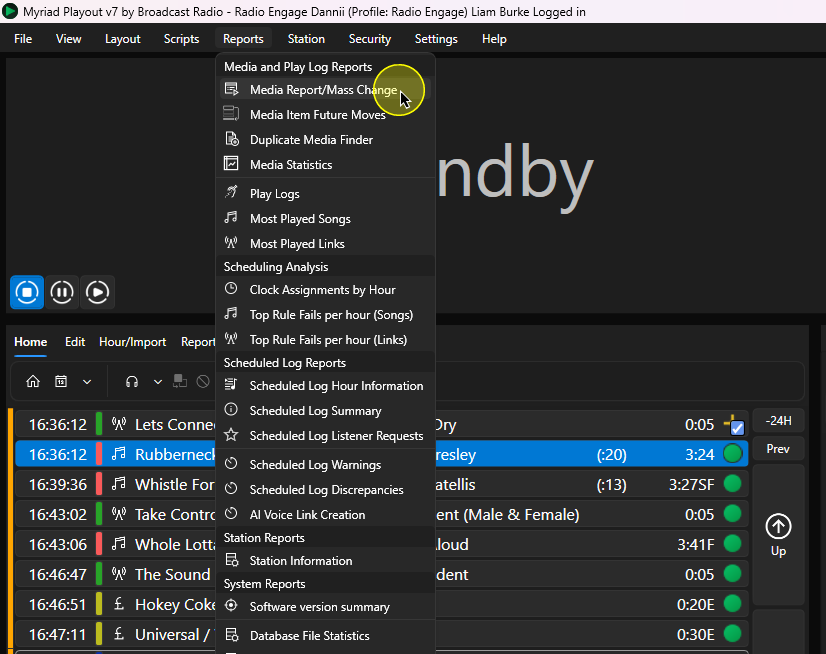
- In Myriad Playout, click on the Reports Menu > Media Reports / Mass Change option.
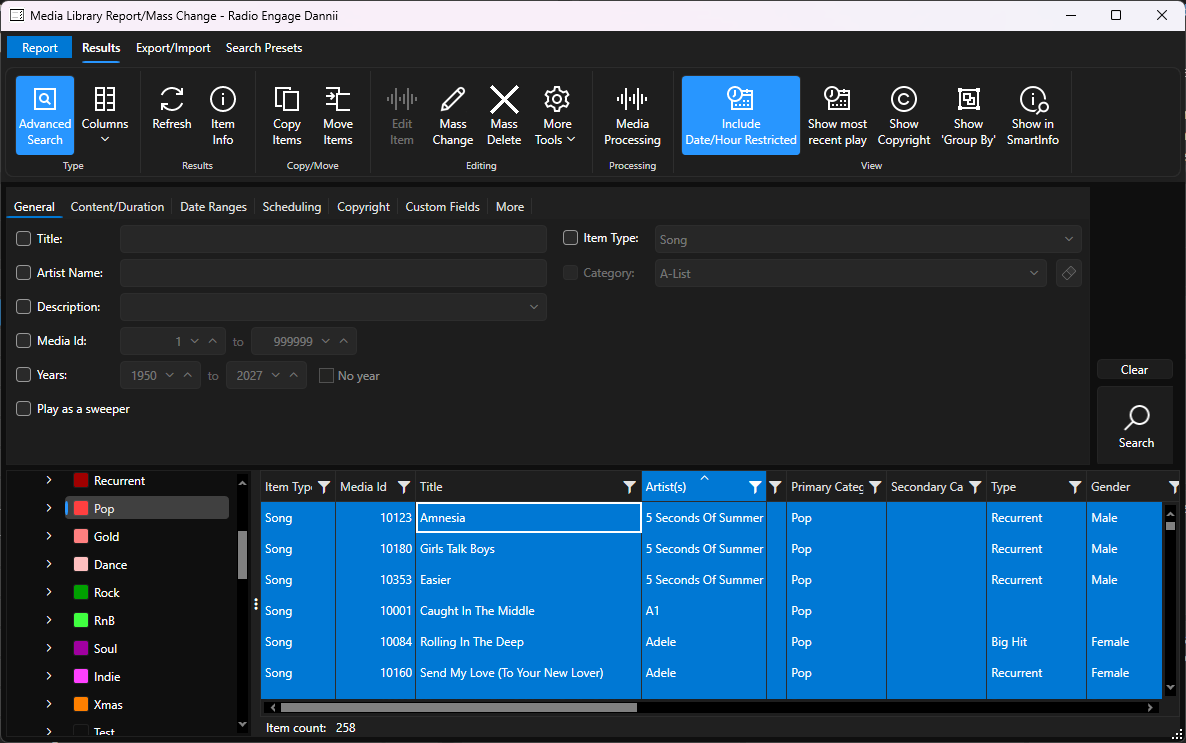
- Select the Media Items you want to apply the updated normalisation to.
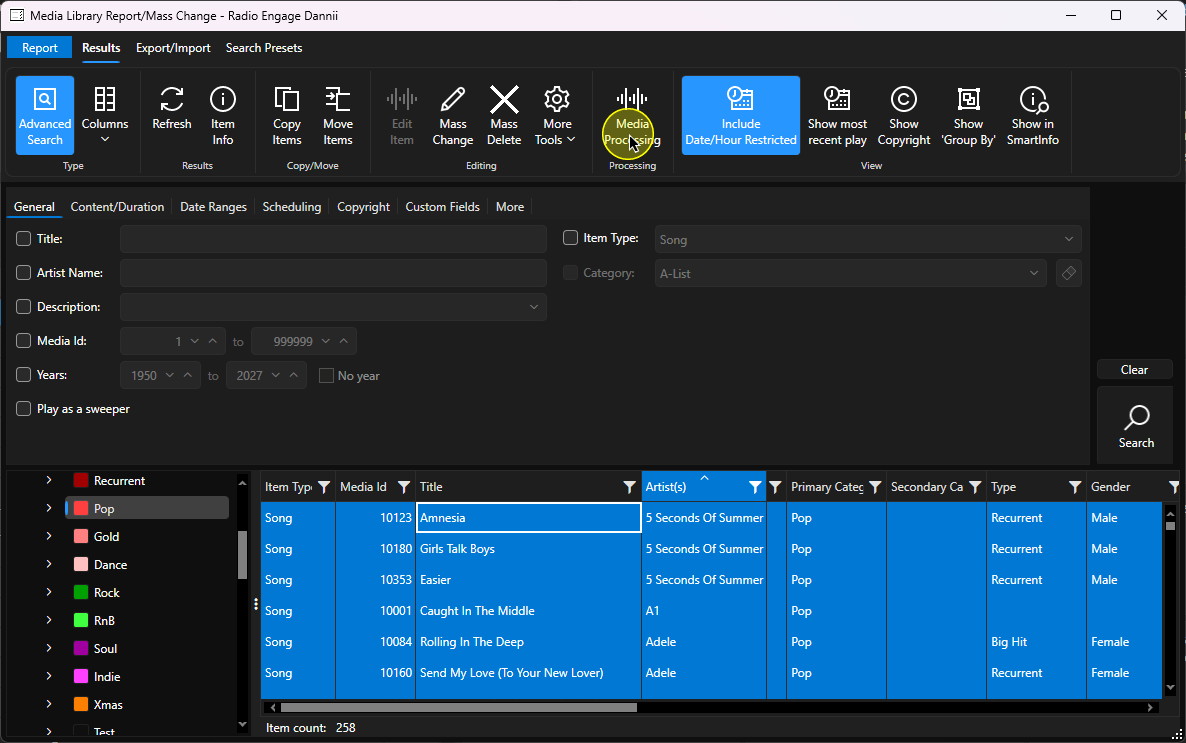
- Click on the Media Processing button on the Results ribbon.
- Click on the Normalise button.
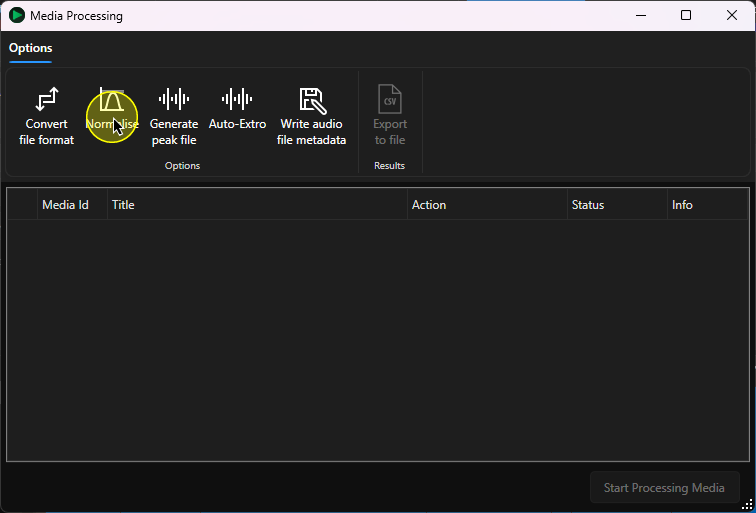
- This will display a list of the Media Items that will be normalised.
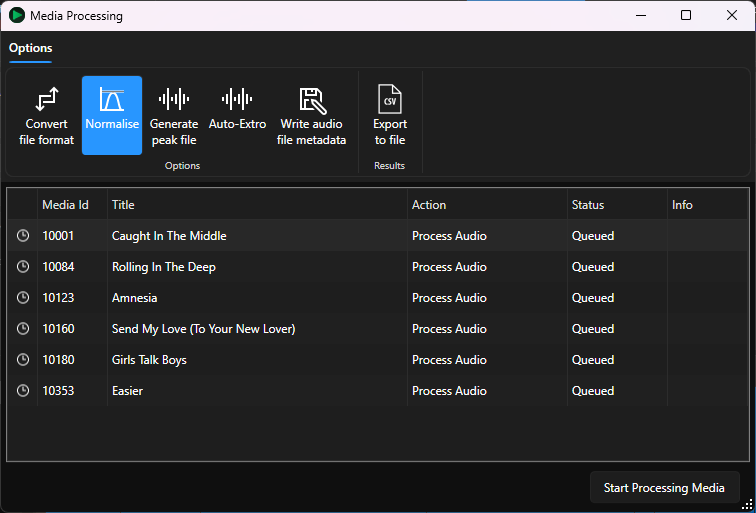
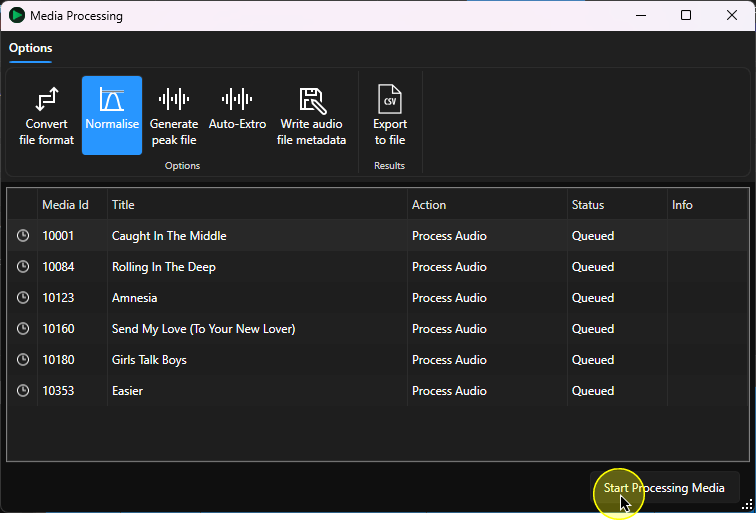
- To begin the process, click on the Start Processing Media button.
- As each item in the list is updated, it will show as a green tick. Once the list is complete, you will see a summary box, click on OK.
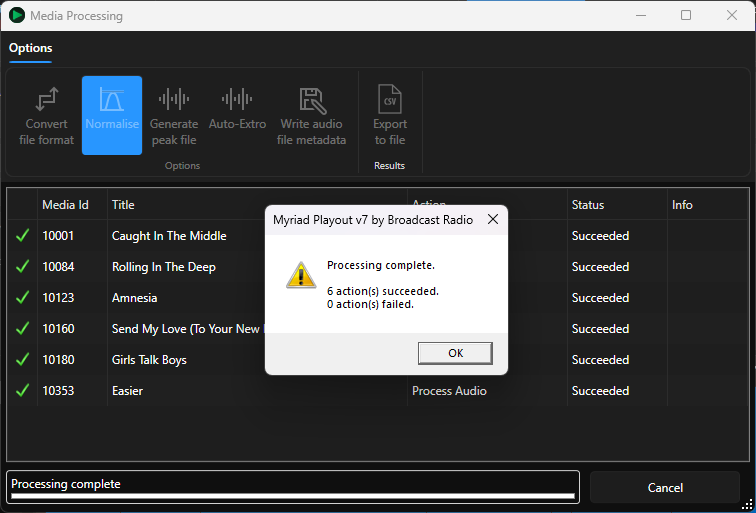
- The items will now have a new Playback Volume Gain factor based on the Normalisation settings for their Media Item Type or if that is not available, the Media Item Range.
Was this article helpful?
That’s Great!
Thank you for your feedback
Sorry! We couldn't be helpful
Thank you for your feedback
Feedback sent
We appreciate your effort and will try to fix the article