You can set default background, text and highlight colours which will be used on your landing page and Web Player, as well as in optional website CMS and mobile apps.
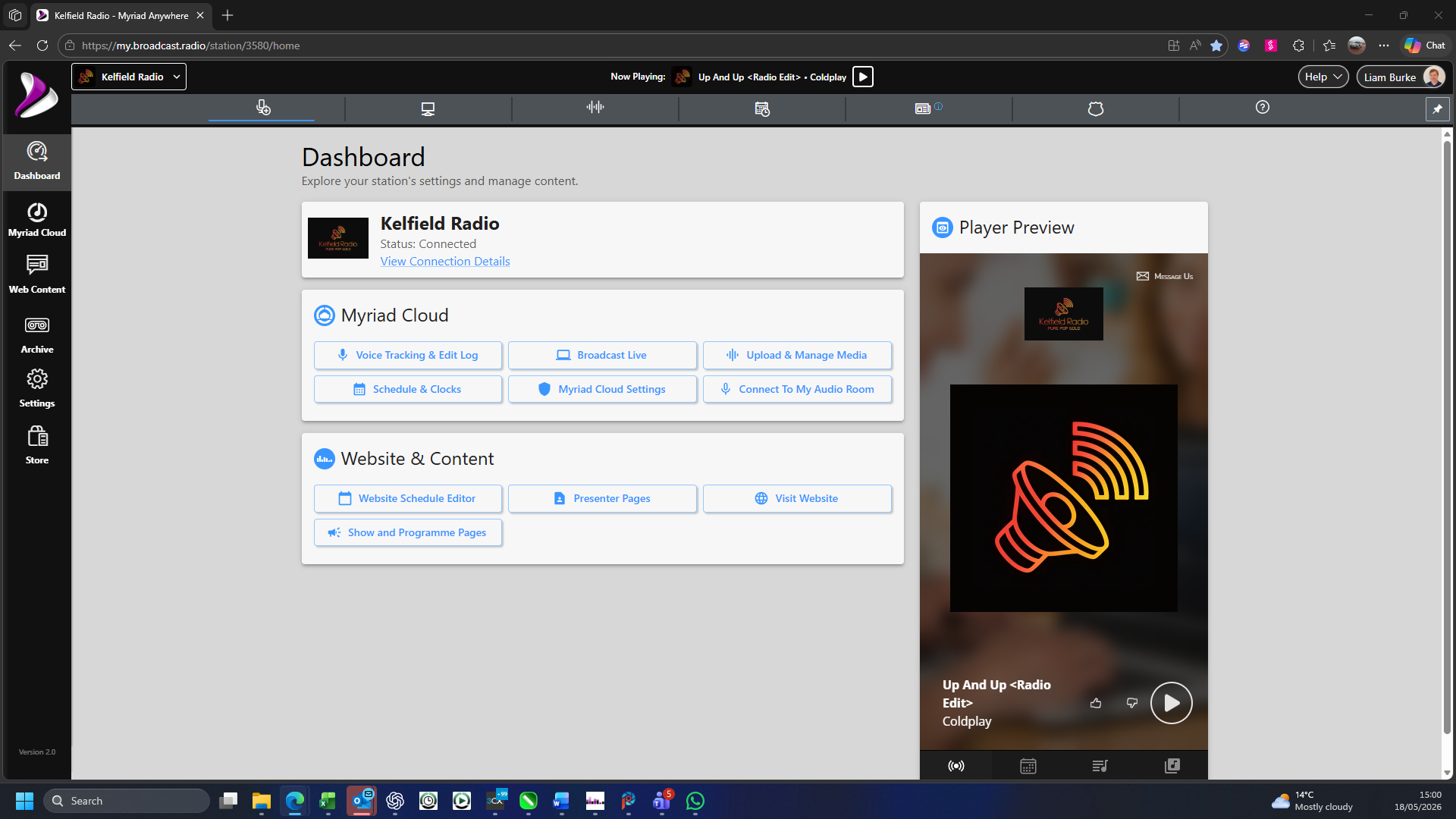
1. Login to your Broadcast.Radio portal.
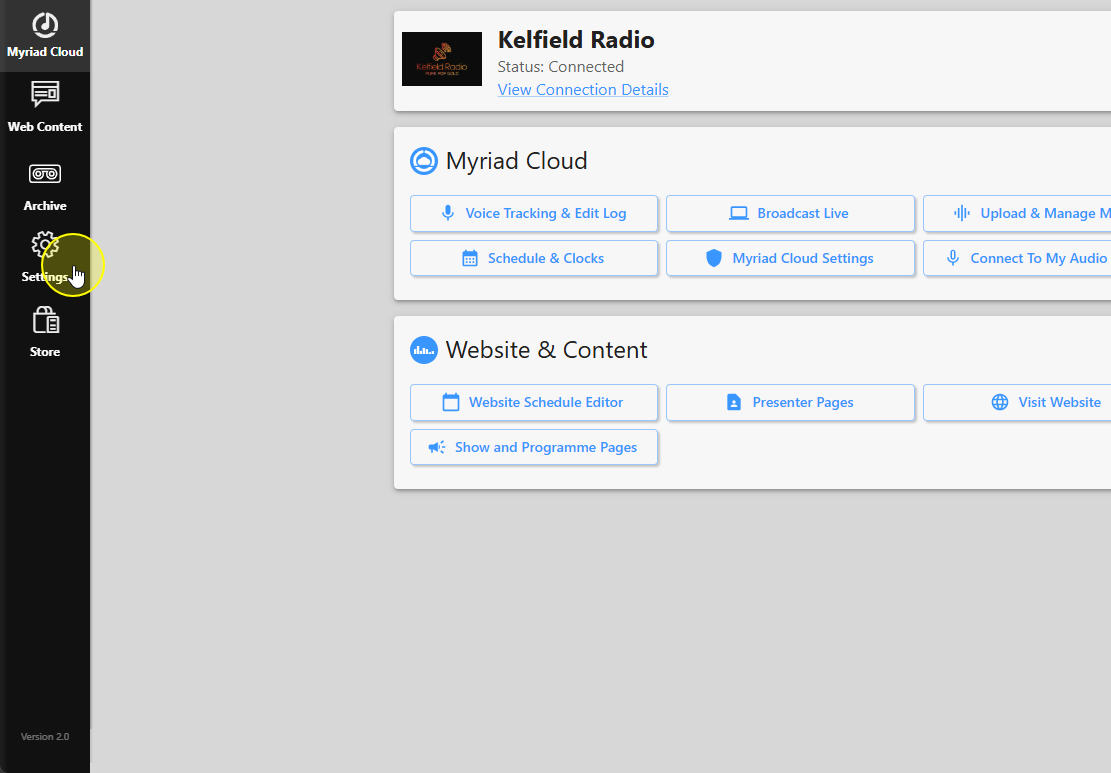
2. Click on the Settings option.
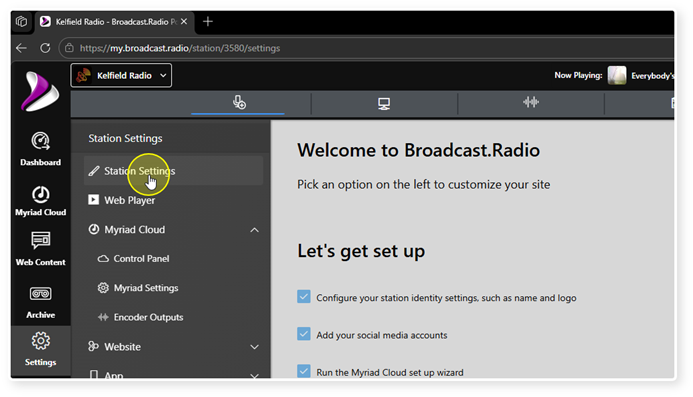
3. Select Station Settings.
4. Scroll down to the Station Theme section.
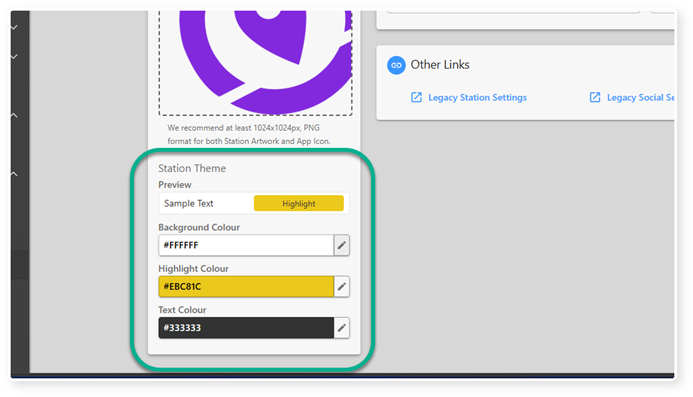
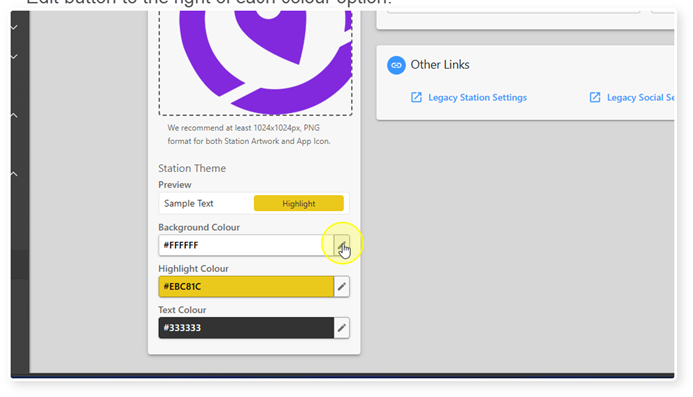
5. To change the Background Colour, Highlight Colour or Text Colour, click on the Edit button to the right of each colour option.
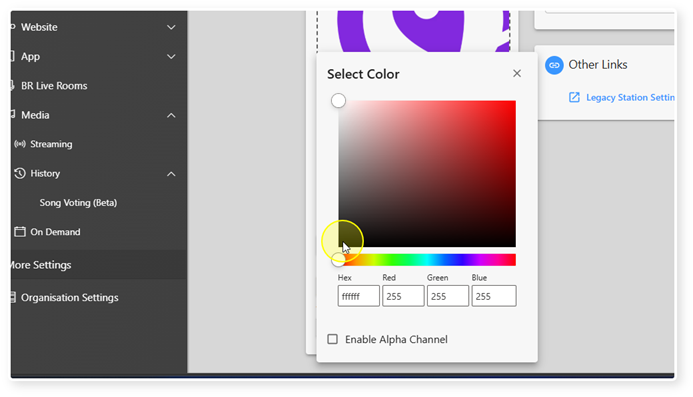
6. Use the colour selector to pick the colour you want to use.
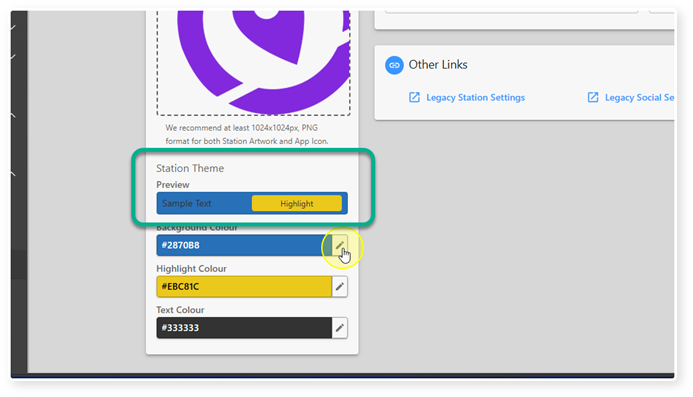
7. The Preview section shows how your selected colours will be displayed.
8. IMPORTANT: Click Save to save your changes,
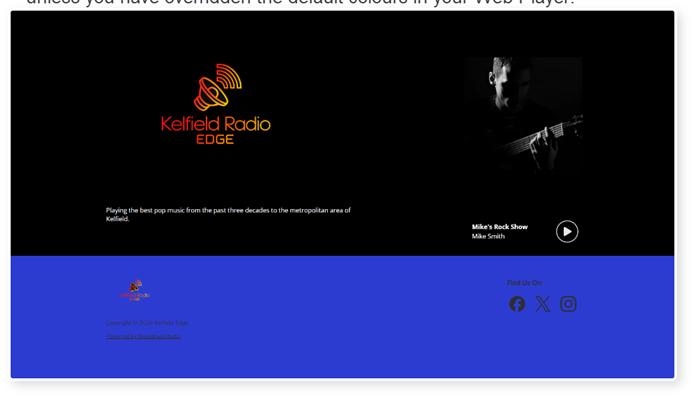
9. These colour changes will apply to your landing page and your Web Player unless you have overridden the default colours in your Web Player.
Was this article helpful?
That’s Great!
Thank you for your feedback
Sorry! We couldn't be helpful
Thank you for your feedback
Feedback sent
We appreciate your effort and will try to fix the article