The Station Settings section of the Broadcast.Radio allows you to set some basic information for your Station, which will be used to set default information on aspects such as your Web Player, contact details and website or landing page.
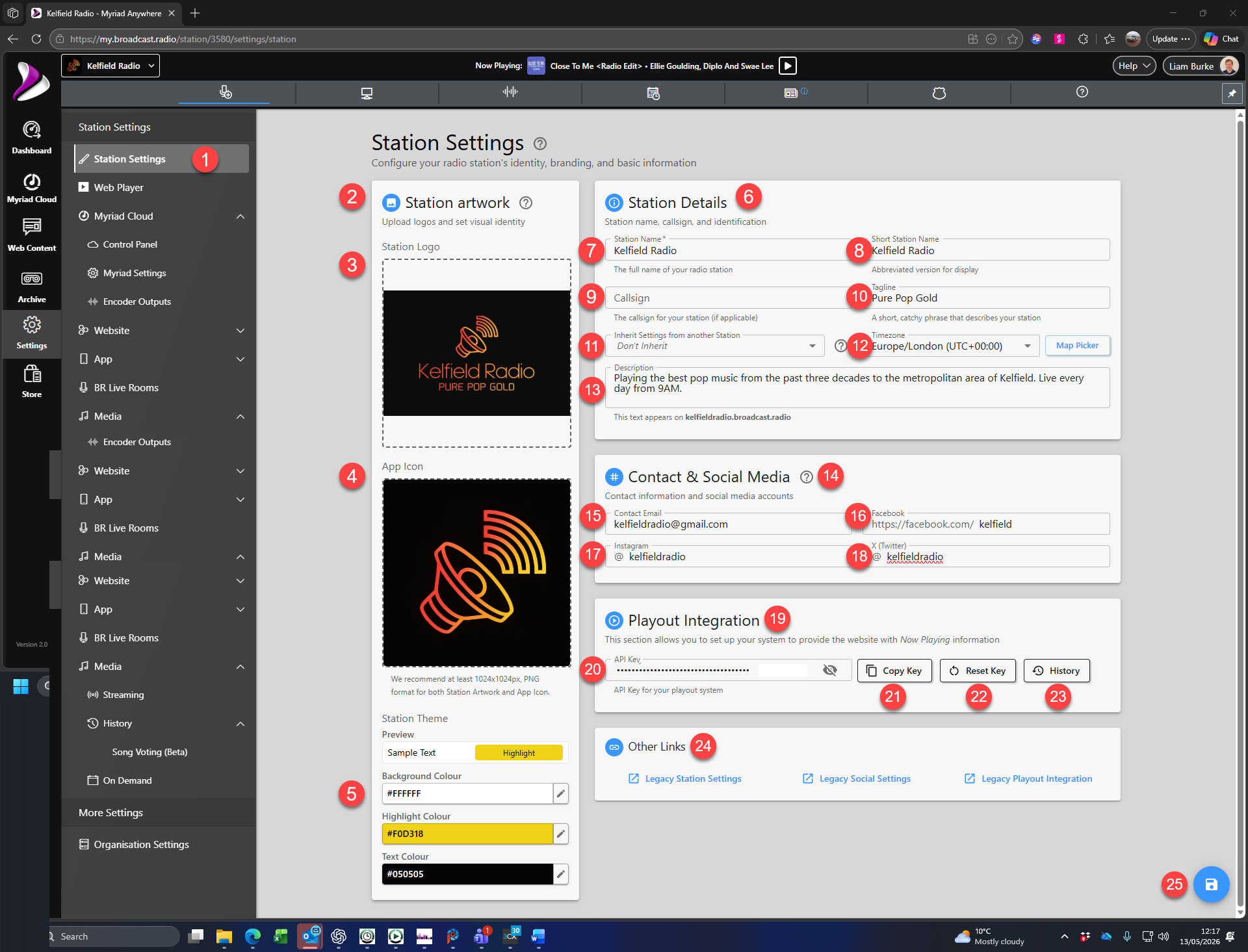
- Station Settings- Click on the Settings > Station Settings option on the left-hand navigation bar.
- Station Artwork - The Station Artwork section allows you to set default artwork and colour schemes that will be used throughout your Broadcast.Radio portal for this station.
- Station Logo - Upload a default image file for your station logo. Click on the box and select a previously uploaded image or upload new artwork.
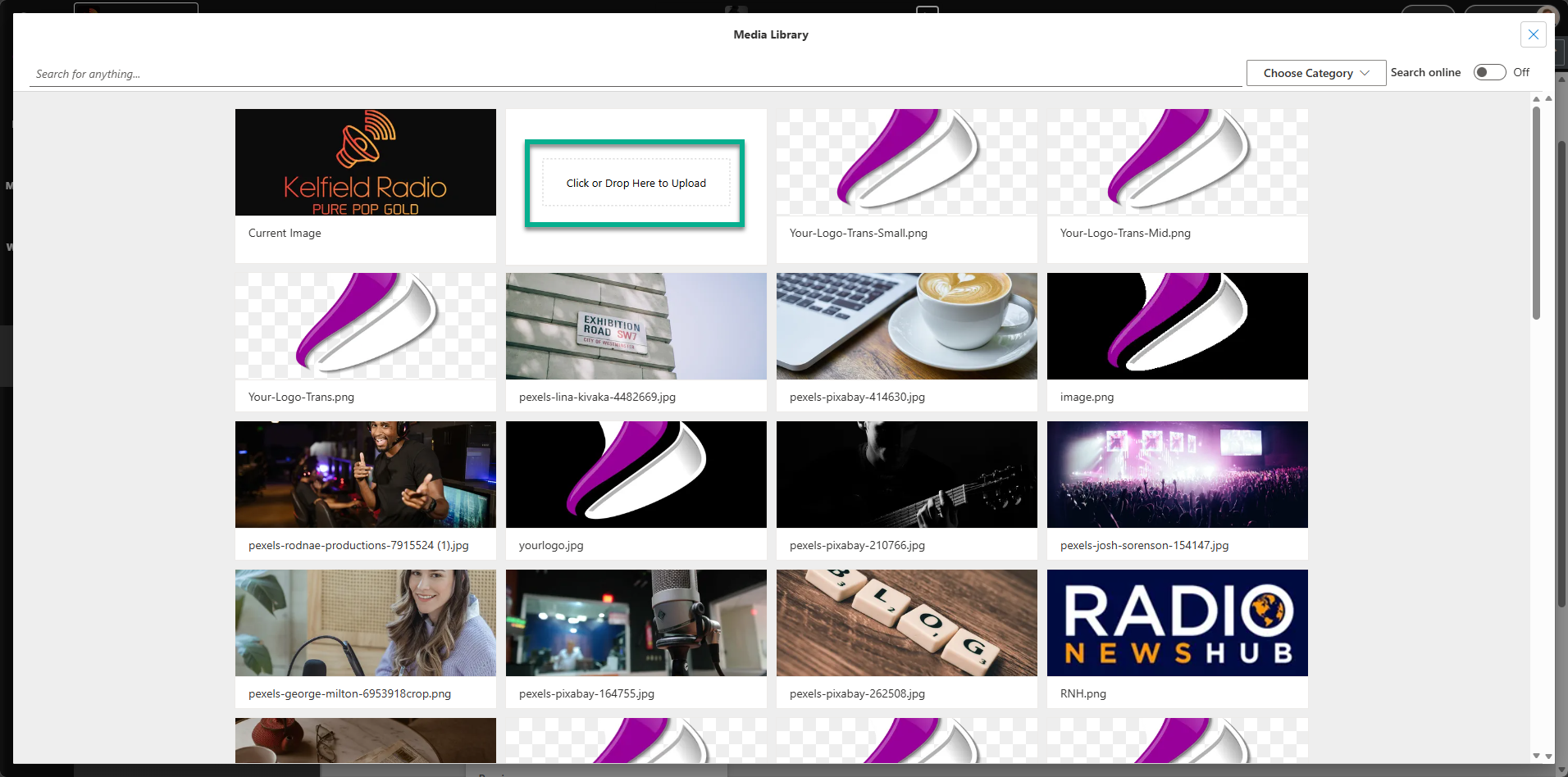
Recommended minimum image size is a 1024x1024 pixel PNG. - App Icon - The App Icon image will be used on mobile devices where a link to the Station's Web Player is saved to the home screen. It will also be used by default for the optional Mobile Apps. Recommended minimum size is 1024x1024px (PNG) but as the icon will be fairly small, it is recommended that no text is included.
- Station Theme Colours - This section allows you to select the default background colour, default text colour and the default highlight colour. These colours will be applied by default to the Web Player and included Landing Page. They will also be used by default in the optional Mobile App and Radio Website CMS.
To select a colour, click on the edit button to the right of each option and choose the colour (and optionally alpha transparency).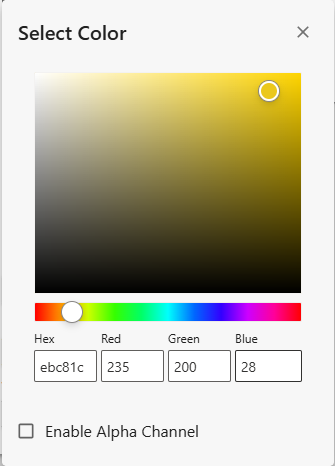
The preview section shows how your colour theme will look.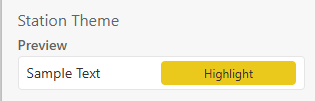
- Station Details - The Station Details section allows you to add some general details about your station which will be used across the Broadcast.Radio platform.
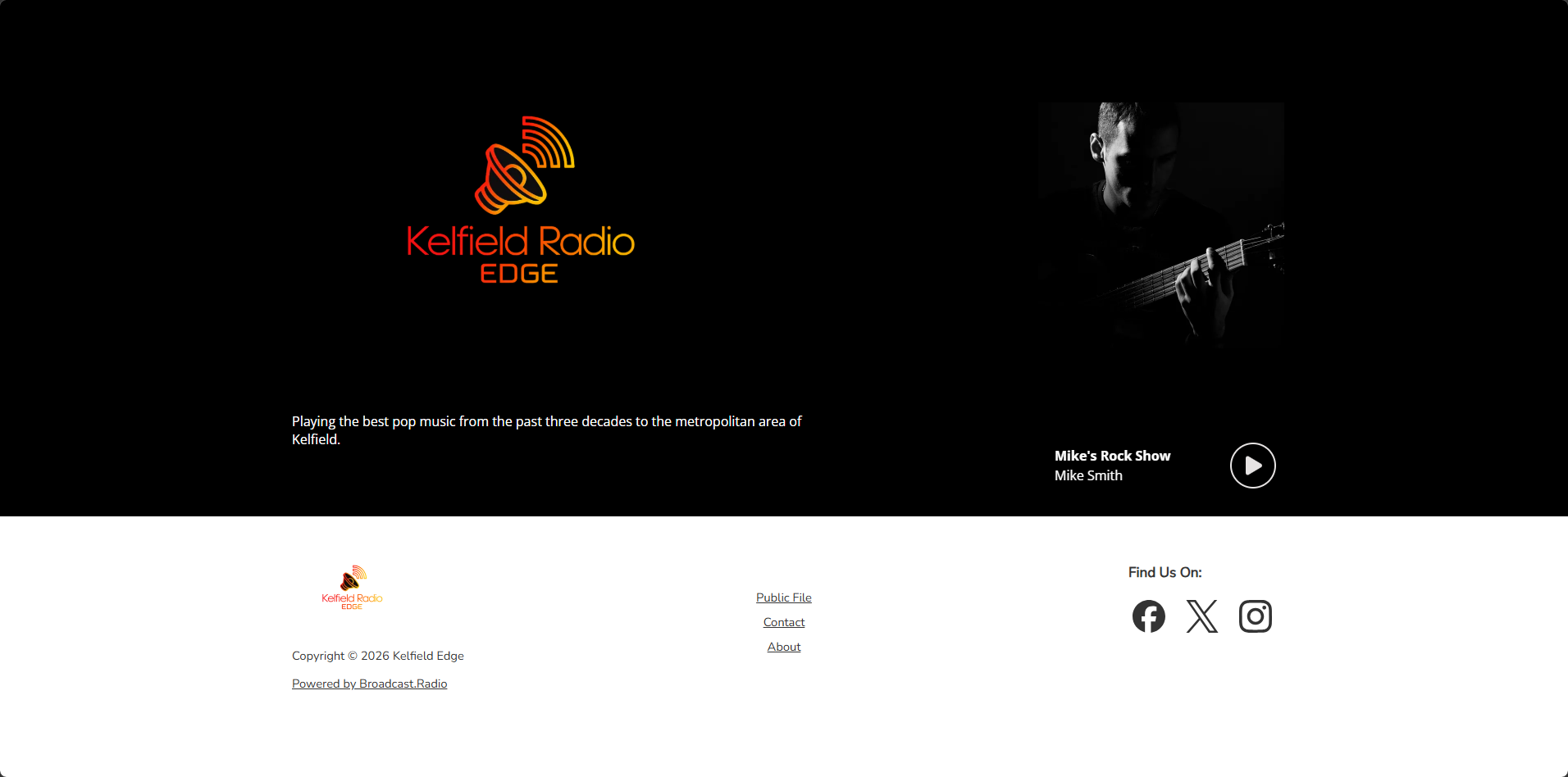 The included Landing Page is built using the logos, colour themes and Station Details.
 - Station Name - This is the name for you station which will be used across the platform as well as in public facing sections such as the Landing Page, Web Player and optional Mobile Apps and Website CMS.
- Short Station Name - You can add a shorter version of your Station Name. This may be used in Mobile Apps when full Station Name would be truncated. It is also used by default as the invocation phrase for optional Alexa skills.
- Call Sign - Add in your station call sign if you have one. The Call Sign is used for some copyright reporting within Myriad Cloud.
- Tag Line - The Station tagline can be added for inclusion in the optional Website CMS add-on.
- Inherit Station Settings - You can select another Station within your Organisation to use as a basis for the settings on this Station. Selecting another Station from drop down list will inherit logos, colour schemes and Station Details from that station. If you manually adjust any settings and options, they will override the inherited settings.
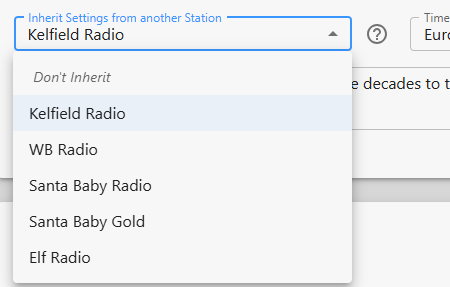
Please note these settings are only related to Broadcast.Radio. Myriad Cloud settings are not inherited. - Time Zone - This setting allows you to select the correct time zone for your station. Click on the Map Picker button to select your time zone.
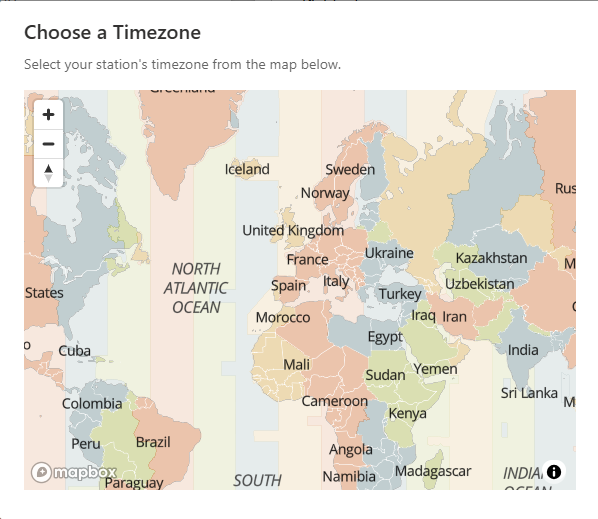
This is particularly important for Myriad Cloud users as it sets the time zone for the Log playout. The system will try to automatically set the correct time zone but if it cannot then the default will be GMT/BST (UK time). - Description - This short description is used to populate the free Landing Page and can be used in the optional Website CMS.
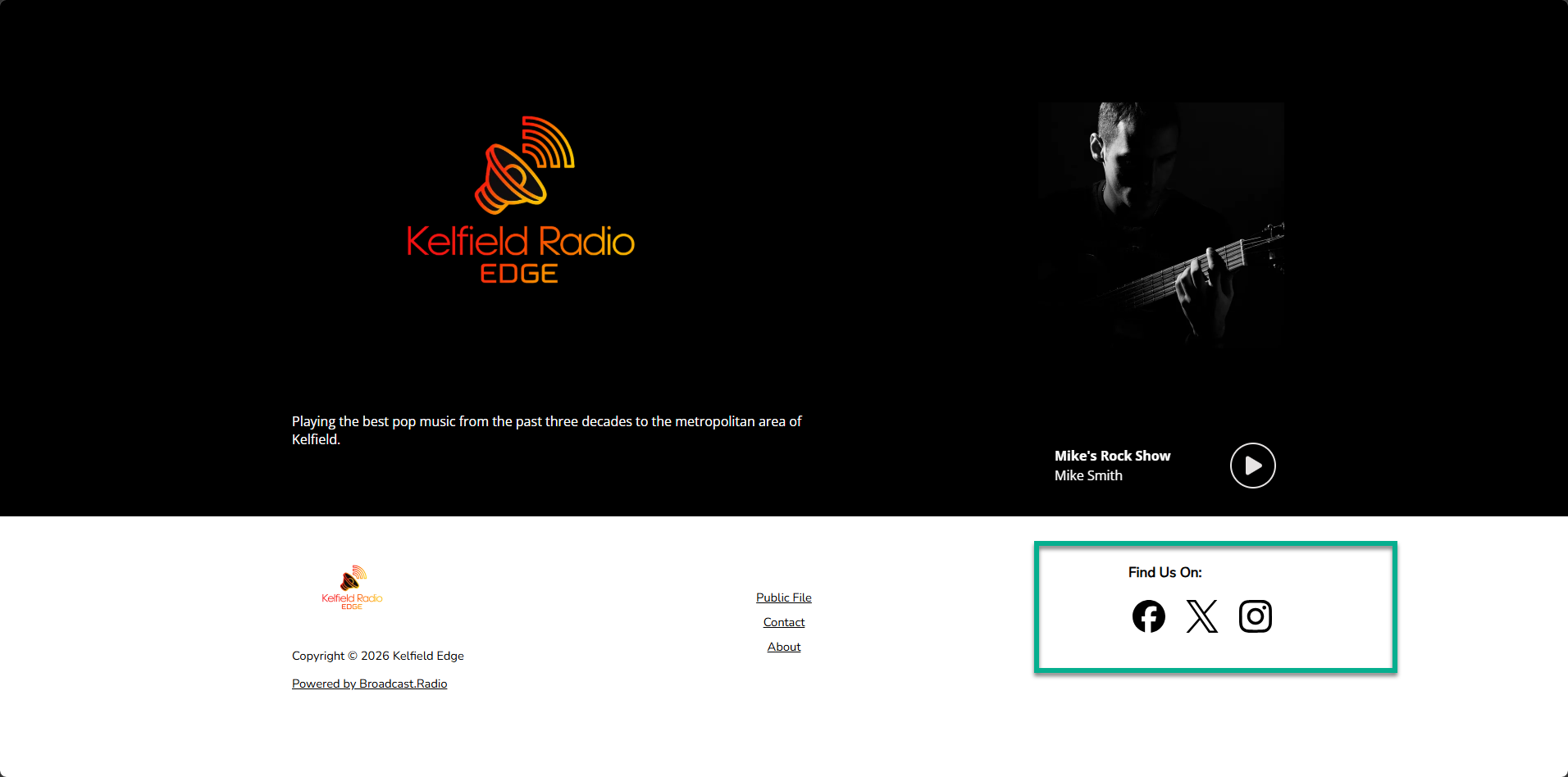
- Contacts & Social Media - This section allows you to add in a default email address as well as links to your social media accounts. These are used across the B.R platform wherever contact information is displayed including the free Landing Page, Web Player, optional Web CMS & optional Mobile apps.
- Contact Email - This is the email address that all Contact forms across the Web Player, Mobile Apps and Website CMS, will be sent to.
- Facebook - This will enable Facebook links on the Landing Page and optional Website CMS and Mobile Apps.
- Instagram - This will enable Instagram links on the Landing Page and optional Website CMS and Mobile Apps.
- X (Twitter) - This will enable X links on the Landing Page and optional Website CMS and Mobile Apps.
- Playout Integration - Provides access to the Broadcast.Radio API key for Myriad Playout and 3rd party system integration.
- API Key - This is the unique key for accessing your Broadcast.Radio Station via the API. Click on the eye icon to reveal your key.
- Copy Key- Copies your API key to the clipboard.
- Reset Key - Resets your API key. You will need to update Myriad Playout and 3rd party systems with the new API key information.
- History - This allows you to view API access history for your station.
- Other Links - These links allow you to access the older, legacy versions of Station Settings, Social Settings and Playout Integration. Please note that these links will be removed from future iterations of this page.
- Save - The Save button will appear whenever you makes changes on this page. It is important to Click Save to save any changes.
Was this article helpful?
That’s Great!
Thank you for your feedback
Sorry! We couldn't be helpful
Thank you for your feedback
Feedback sent
We appreciate your effort and will try to fix the article