You can edit the details for a Station using the Brands / Station window. This allows you to rename a Station, move it to another Brand, change other Station details such as tag line and Station Logo / Icon,
1. Login to your Broadcast.Radio portal.
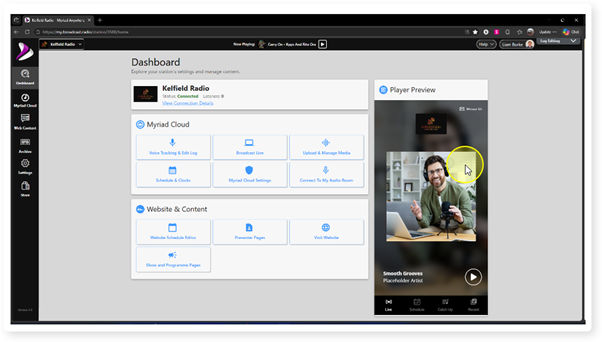
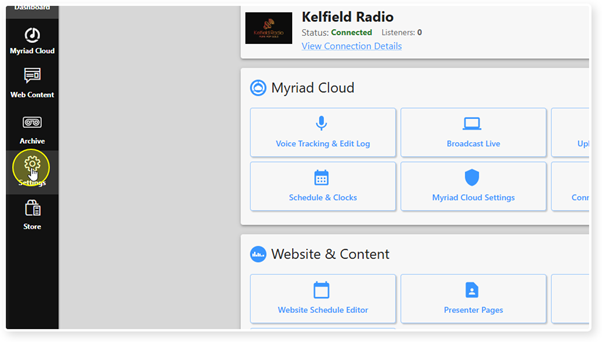
2. Select the Settings menu.
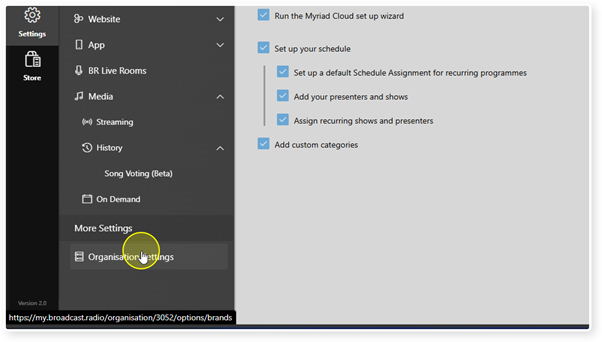
3. Click Organisation Settings in the More Settings section.
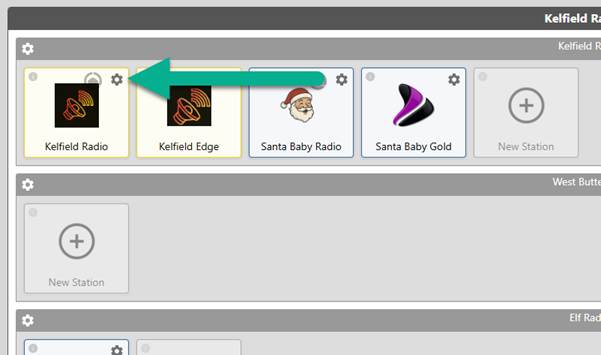
4. Click on the Cog icon on the Station you want to edit.
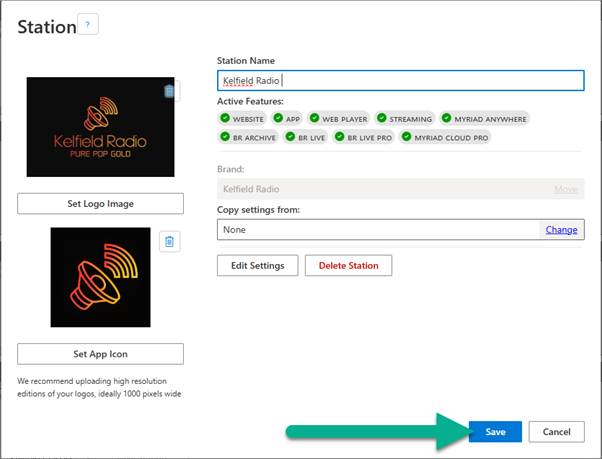
5. The Station Details window allows you to view and edit multiple Station related settings.
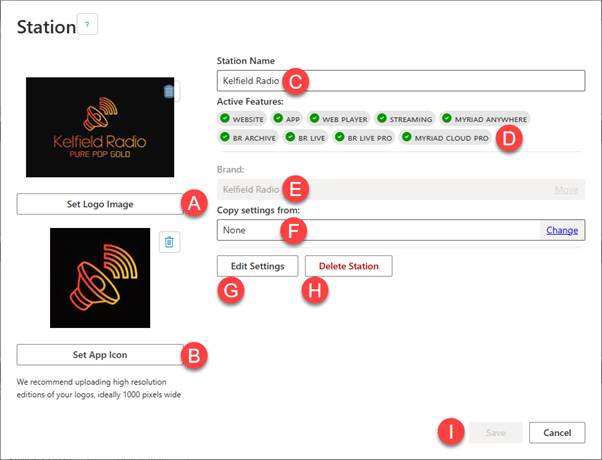
- Set Station Logo – You can add a Station Logo which will be used in multiple places across your Portal as well as the default logo for your Web Player.
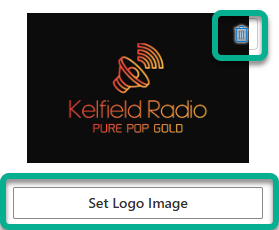 To add a Station Logo, click on the Set Logo Image and either select a previously uploaded image, or upload a new image.
You can also remove the Station Image using the delete icon in the top right. - Set App Icon – You can also upload a separate image to used for the Station Icon if someone adds your Web Player to their mobile device. This is also used in various places across the Portal and as the default for the optional mobile apps.
As with Station Logo, click on the Set App Icon button to select an existing image or upload a new image. You can also remove the App Icon using the delete button in the top right corner. - Station Name – Edit the Station Name used across the portal and by default on the Web Player and landing page etc.
- Active Features – The active features enabled in your subscription are listed in this section.
- Brand – This section shows the Brand the Station is within. For non Myriad Cloud stations, you can also move the Station to another Brand using the Move button. Myriad Cloud stations cannot move Brands as the Media Library in intrinsically linked to the Brand.
- Copy Settings From - You can opt to copy Broadcast.Radio related settings from another Station in your organisation. This can save time when setting up multiple Stations. To select a Station to copy from, click on the Change button and select the Station (after confirming the action).
Please note that this only relates to Broadcast.Radio features and settings, it does not copy any Myriad Cloud based features or settings. - Edit Settings – The Edit Settings button can be used to access the full Station Settings page.
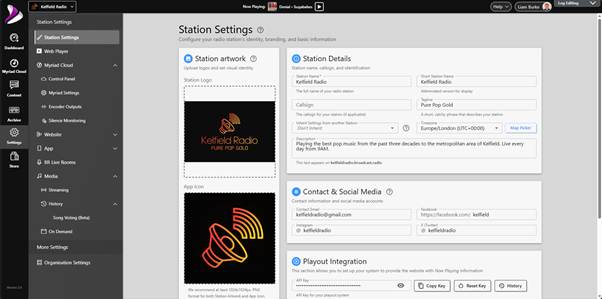
- Delete Station – The Delete Station button is used to permanently delete a Station from the Broadcast.Radio portal.
You will be asked to confirm your actions.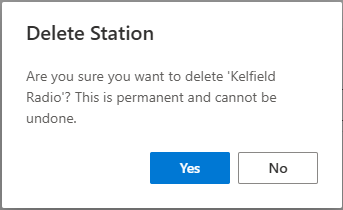 WARNING – This will permanently delete the Station and cannot be undone.
- Save - When you have finished editing the details, click on Save.
Was this article helpful?
That’s Great!
Thank you for your feedback
Sorry! We couldn't be helpful
Thank you for your feedback
Feedback sent
We appreciate your effort and will try to fix the article