The Brands / Stations section in Organisation Settings is used to access and manage your Brand and Stations as well as add new Stations and create new Brands.
1. Login to your Broadcast.Radio portal.
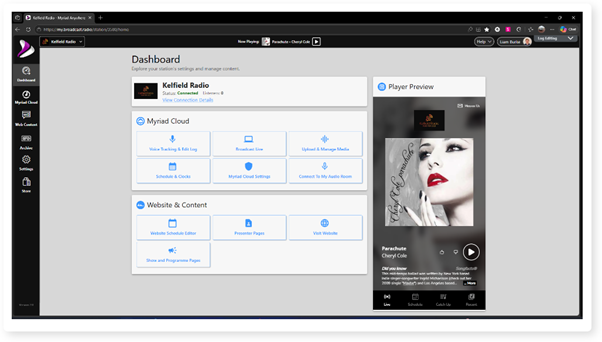
2. Click Settings.
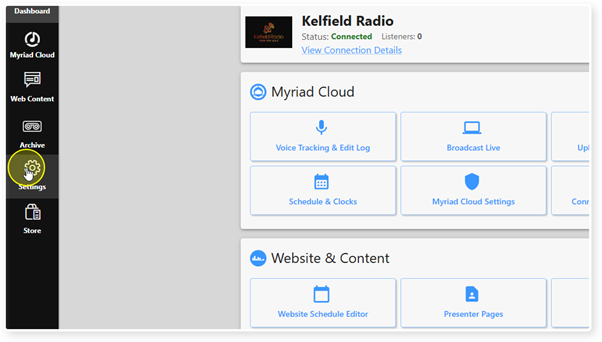
3. Select the Organisation Settings option under More Settings.
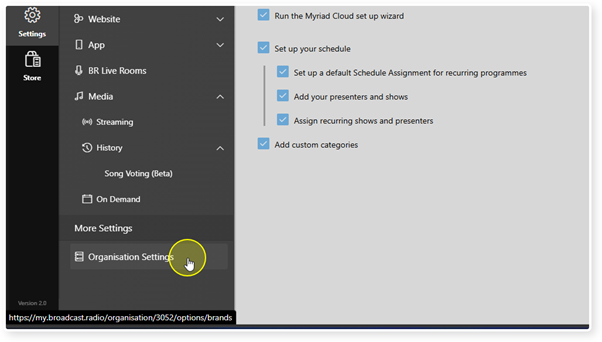
4. Click on the Brands / Stations option (this should be selected by default).
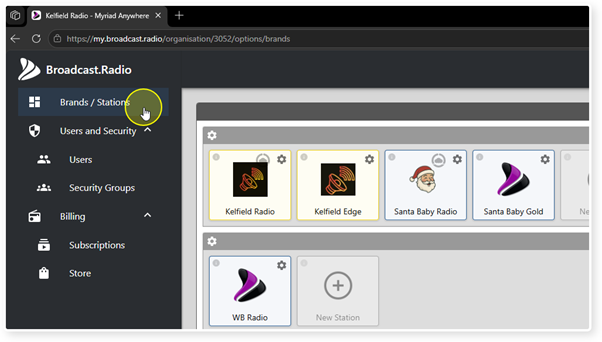
5. The Brands / Stations page shows a list of all your Stations and Brands.
Before we look at the options, let's review what the difference between a Brand and a Station is.
Brand - Contains one or more Stations. Stations within a Brand can share assets (images, web content, posts etc). Myriad Cloud Stations within a Brand also share a single Media Wall. Example - Capital Radio.
Stations - These are individual Stations within a Brand. Example - Capital FM, Capitol Extra etc. All Myriad Cloud stations in a Brand share a common Media Wall.
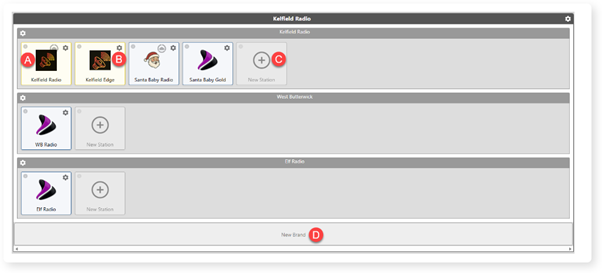
The options on the Brands / Stations page are:
A. Click on an existing Station to open the Station's Dashboard. You can also hover over a Station to see the enabled features for the Station.
B. Edit Station Settings - This offers a quick way to change key settings such as the logo image or which Brand the station is in. Click on the cog to access the settings.
C. Add Station - To add a new Station to a Brand, click on the New Station button.
D. New Brand - To add a new Brand, click on the New Brand button.
These options are covered in more detail in dedicated help articles.
Was this article helpful?
That’s Great!
Thank you for your feedback
Sorry! We couldn't be helpful
Thank you for your feedback
Feedback sent
We appreciate your effort and will try to fix the article