Follow these steps to add a Subscription to a Station that doesn't have any active services.
1. Login to your Broadcast.Radio portal.
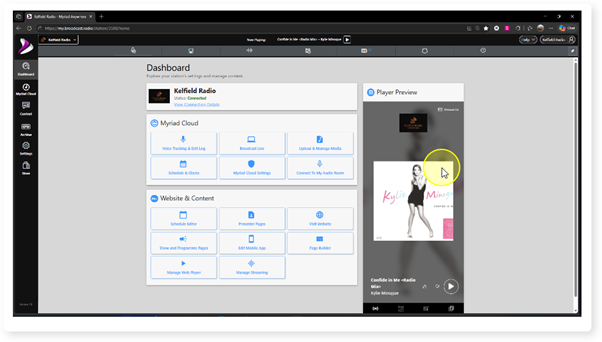
2. Click on the Settings menu option.
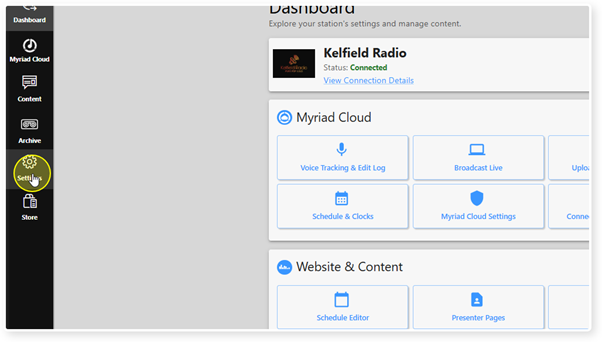
3. Select Organisation Settings.
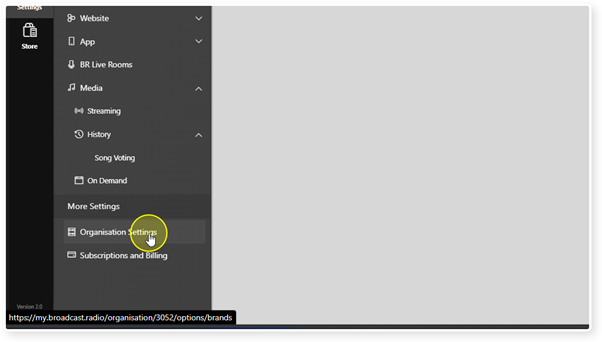
4. The Brands / Stations window shows all the Stations within your Organisation.
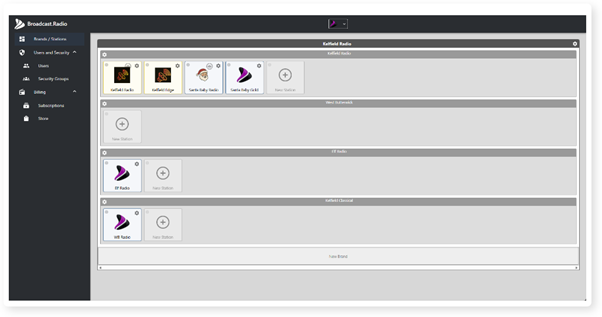
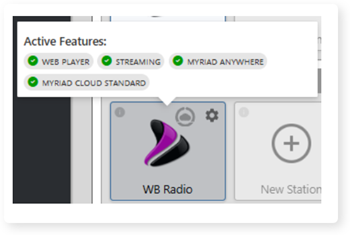
5. You can hover the mouse over Stations to see what Features are currently active.
Click on the Station to go to it's Dashboard.
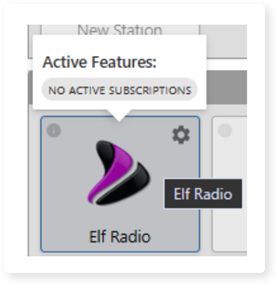
6. If you click on a Station that has no Active Features, the Store page will open to enable you to choose the Subscriptions to add to the Station.
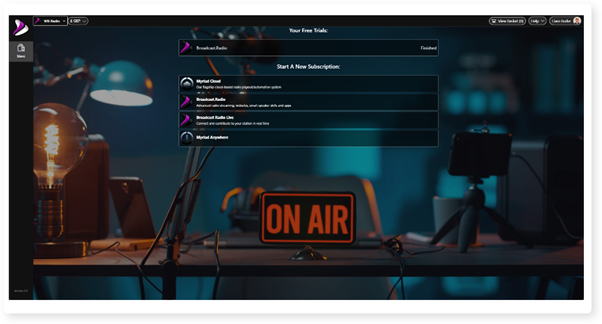
7. Start by selecting the type of Subscription to add. In this example we will add a Myriad Cloud Standard Subscription but you can also add streaming, websites, mobile apps, BR Live, Myriad Anywhere and more.
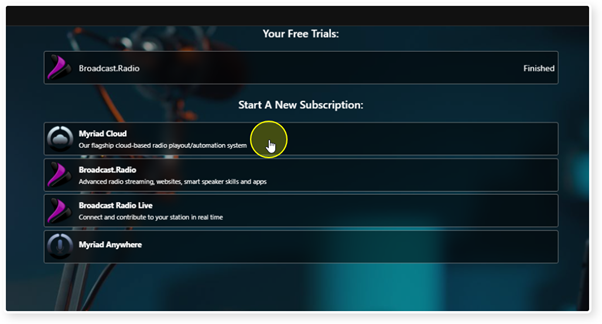
8. Start by clicking on the Myriad Cloud button.
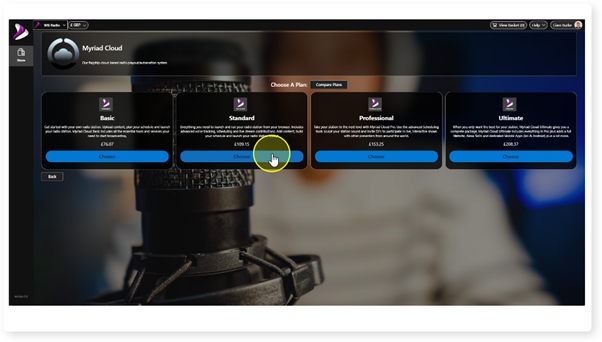
9. If the Subscription you are adding has multiple package options, you can choose the package you want to Subscribe to.
We will choose Myriad Cloud Standard in this example.
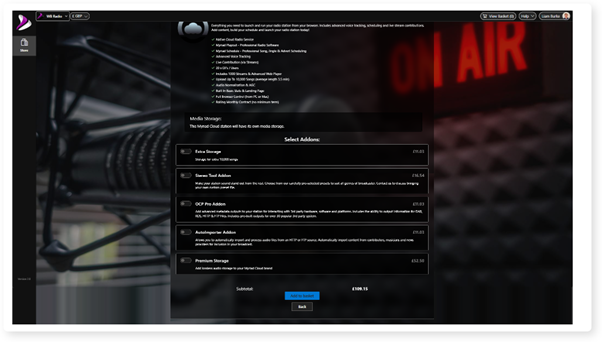
10. Next, choose any add-ons that you want to add to your Subscription.
The list of available add-ons will change depending on your initial package choice, for example, OCP Pro is an add on option for Myriad Cloud Standard but is included in Myriad Cloud Pro & Ultimate so would not be included in the add-on list.
When you are happy with your selection, click on Add to Basket.
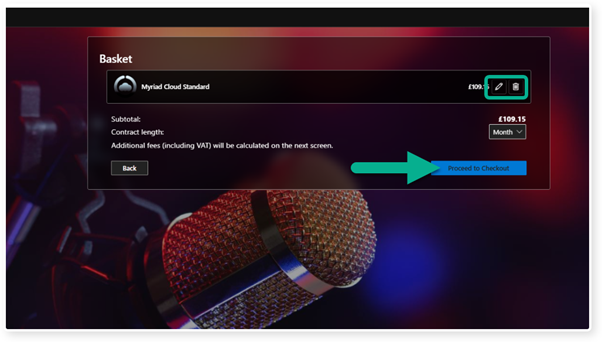
11. You selections will be listed in your Basket.
You can edit the selection or remove it entirely by using the Edit and Delete buttons.
When you are happy, click on Proceed to Checkout.
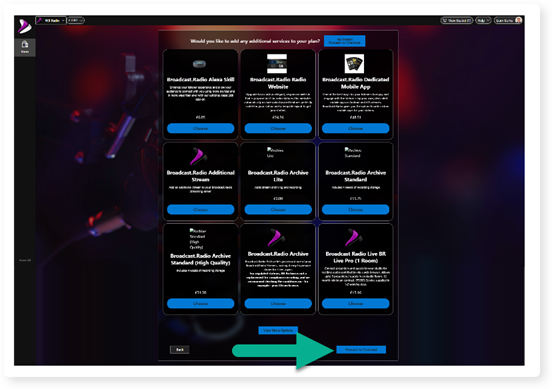
12. Depending on your original selections, you will be offered a range of recommended enhancements to make the most of your Station. Select any additional service and then click on Proceed to Checkout.
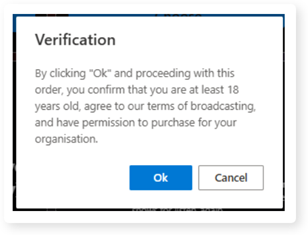
13. You will be asked to verify that you are over 18 and authorised to take out the Subscription on behalf of the Station. Click ok to continue.
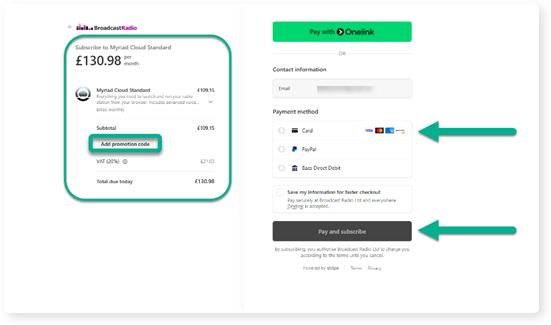
14. The page will automatically open our online payment portal (Stripe) with all your details pre-populated.
Check that the Subscription cost is right, and then add a valid payment method (credit card / Paypal etc).
Once you have added your payment method, click on Pay and Subscribe.
Don't forget to add your Promotional Code if you have one.
15. Some payment methods will require multi-factor authentication such as a one time pass code, biometric input or using a Authenticator app.
Follow whatever steps required to authorise the payment method.
16. Once the payment has been processed, your Subscription service will be automatically configured (with the exception of Mobile apps which require a software dev to build and test).
Depending on the services required, this could take some time. Myriad Cloud, for example, can take up to 10 minutes to deploy and be ready to use.
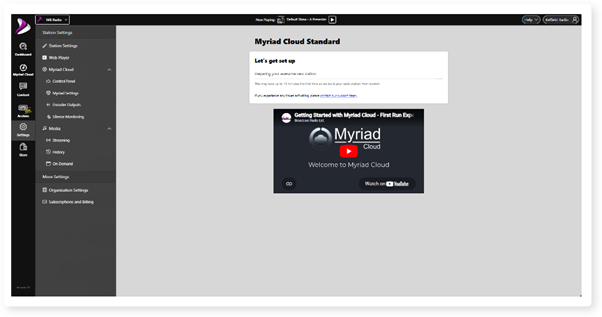
17. Once deployment is complete, the Features will be ready to use on your Station.
Was this article helpful?
That’s Great!
Thank you for your feedback
Sorry! We couldn't be helpful
Thank you for your feedback
Feedback sent
We appreciate your effort and will try to fix the article