You can add Users to allow them to access your Broadcast.Radio portal and optionally, Myriad Anywhere / Myriad Cloud.
1. Login to your Broadcast.Radio portal.
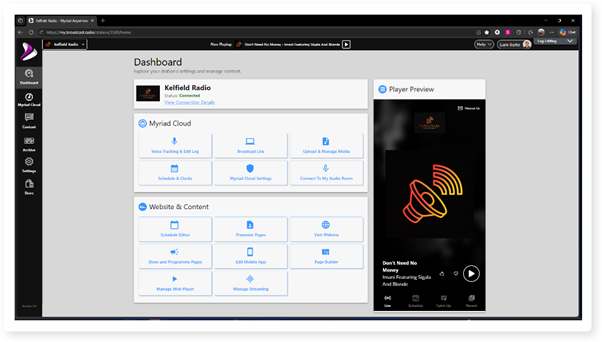
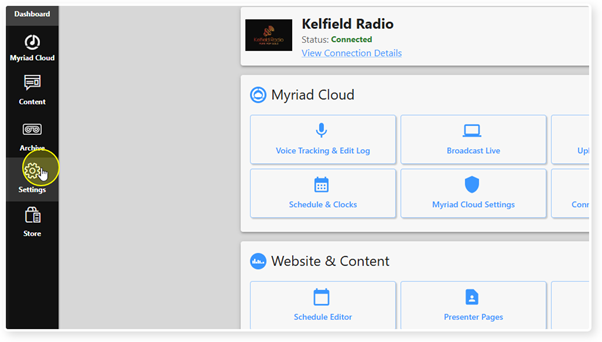
2. Click on the Settings menu option.
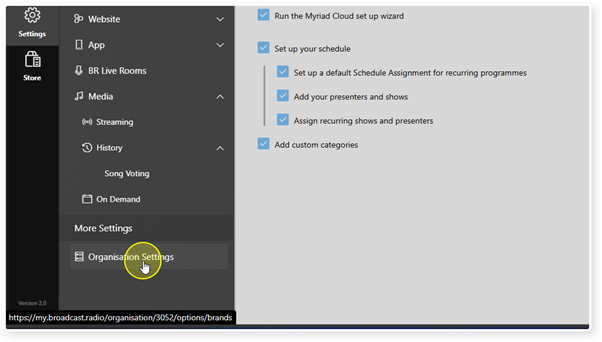
3. Click on Organisation Settings in the More Settings section.
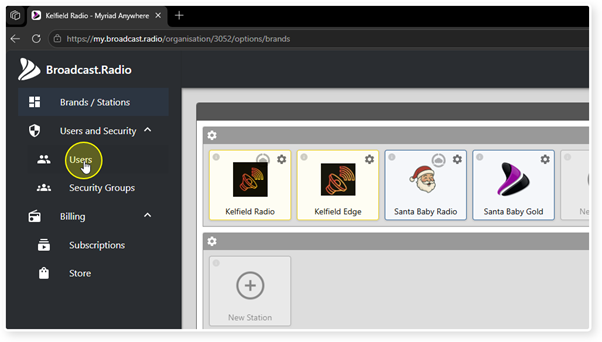
4. Select Users from the Users & Security section.
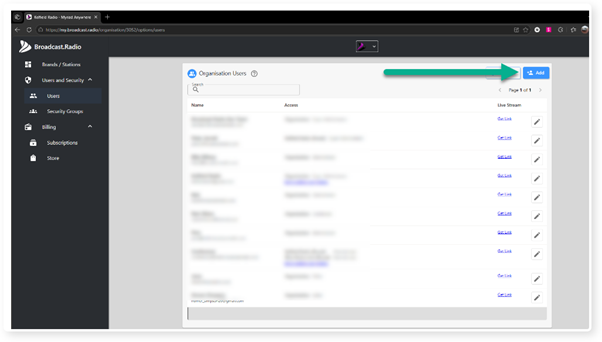
5. Click the Add button in the top right.
6. The new User panel will open to the right of the window.
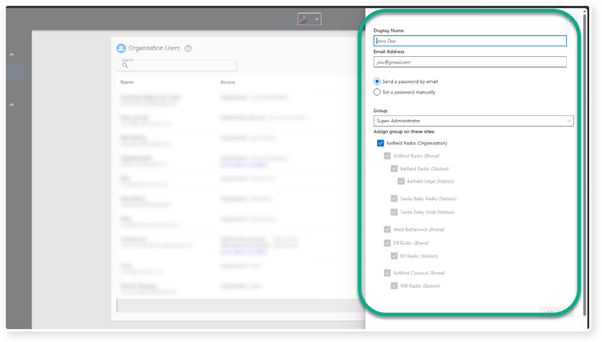
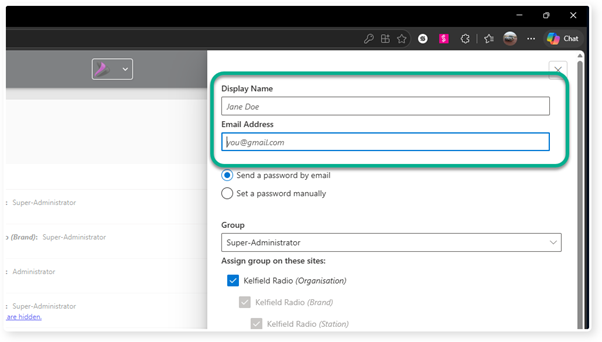
7. Type in a Name and Email address.
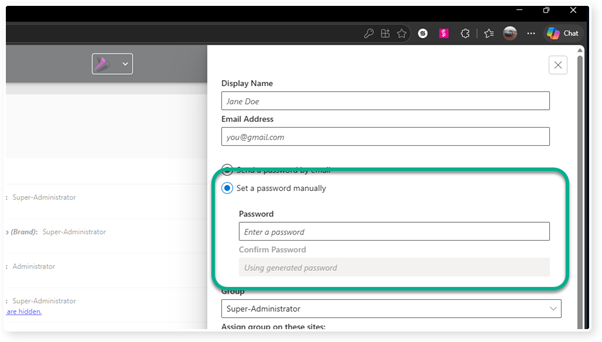
8. The 'Send a password by email' option will send the User a temporary password so they can access the system and change to their own password (recommended).
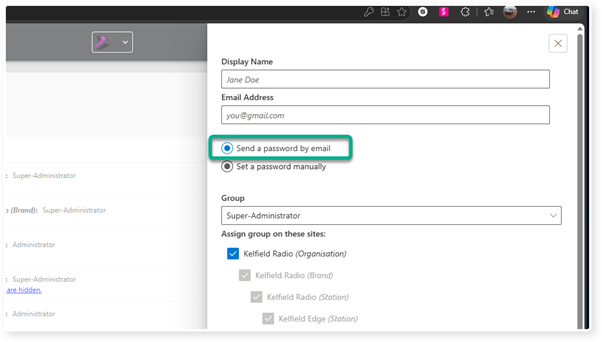
9. If you prefer, you can use the 'Set a password manually' option to manually set a password for the User.
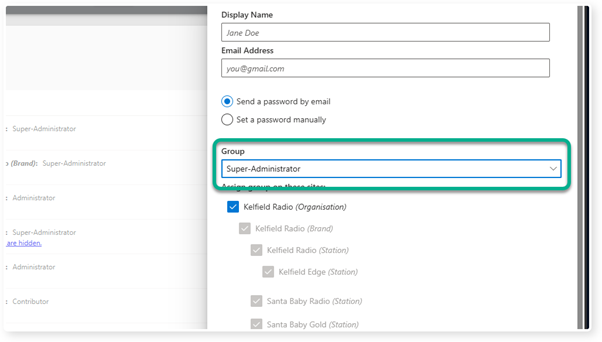
10. Use the Group dropdown to select the User Group you want to add them to. The options are:
Guests - Guests can log into https://broadcast.radio, and can view (but not edit) the programme schedule.
Contributors - Contributors can create new shows, episodes, blog posts, and site pages - but can't publish them - an editor (or above) must finally publish.
Authors - Authors can create and publish shows, episodes, blog posts, and site pages. Authors can edit their own shows, but can't edit content that was published by another user.
Editors - Editors can edit any content, and add/edit/delete attributes like categories, but can't change the schedule or update any settings.
Administrator -Administrators can edit the schedule, and update any settings. Administrators can create/edit/delete users, except for other administrators.
Super Administrator - Super administrators are able to create new administrators and super administrators.
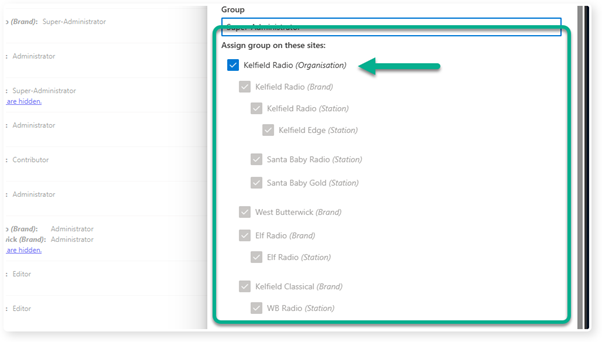
11. You can also assign which Stations within your Organisation, the User can access.
If you tick the Organisation option, the User can access all Stations in your Organisation.
If you untick the overall Organisation, you can select which Bands or Stations the User can access.
If you tick a Brand, the User will have access to everything within the Brand.
If no Brands are selected, you can tick individual Stations.
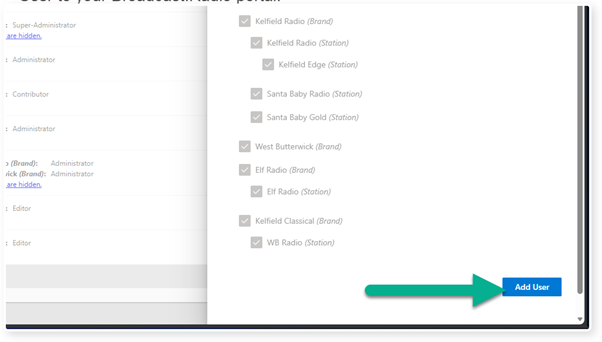
12. Once you have added all the details, click on the Add User button to add the User to your Broadcast.Radio portal.
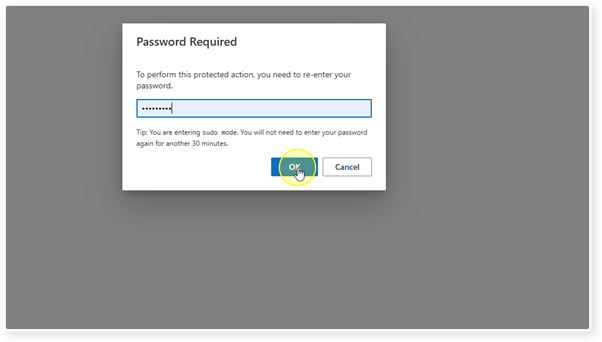
13. You may have to enter your password if you have not done so recently.
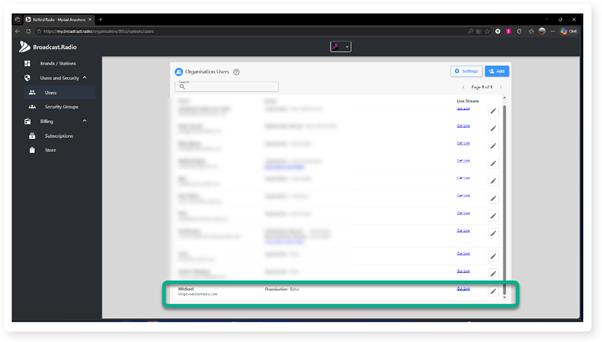
14. The new User will now be displayed in the list.
Was this article helpful?
That’s Great!
Thank you for your feedback
Sorry! We couldn't be helpful
Thank you for your feedback
Feedback sent
We appreciate your effort and will try to fix the article