By default, the background for the Web Player will display a blurred version of the currently playing album art, but for items that are not Songs or items that no album art is available, the Web Player will display a blurred version of your default Station Logo or a specific Default Background of your choosing.
1. Login to your Broadcast.Radio portal.
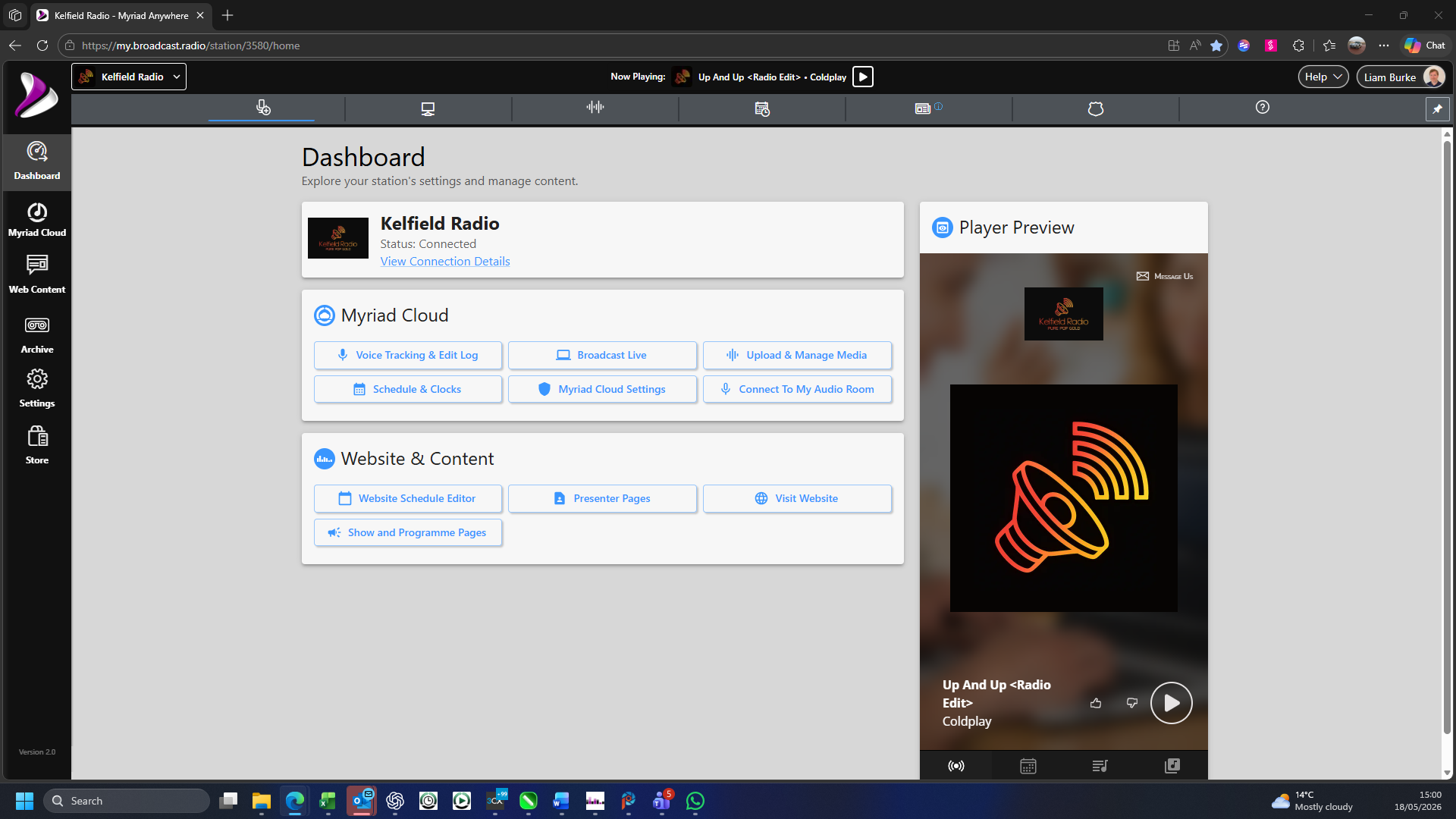
2. Select the Settings option.
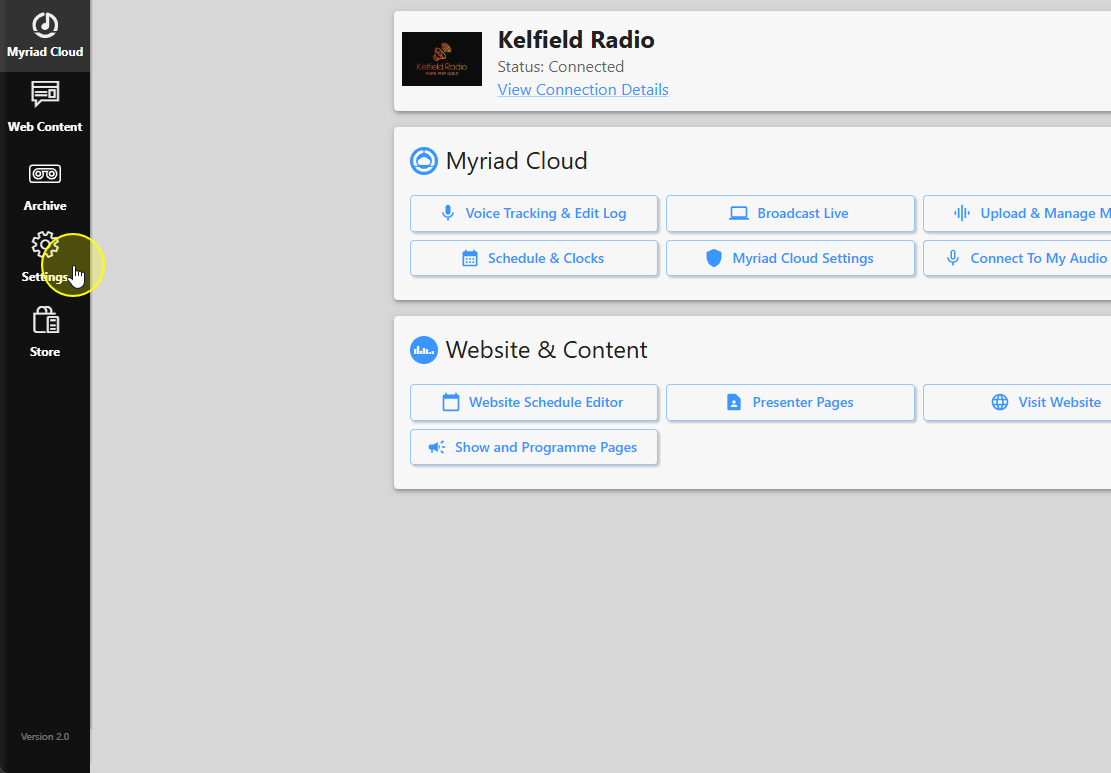
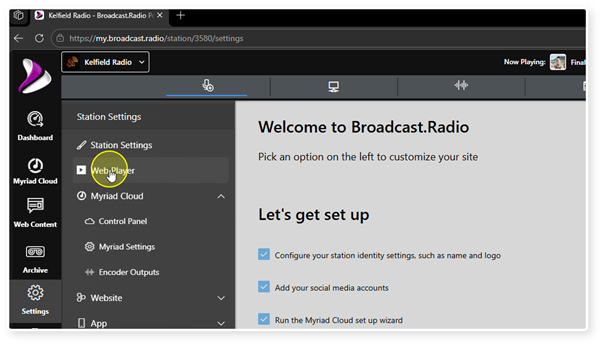
3. Click on Web Player.
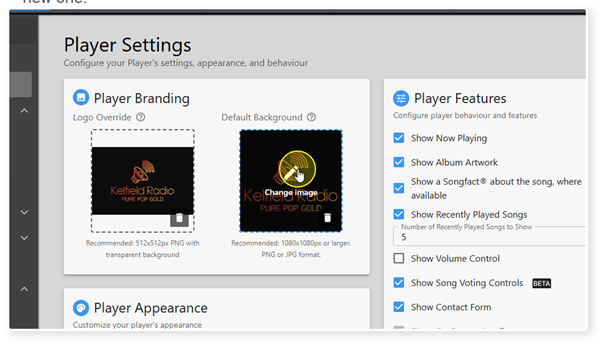
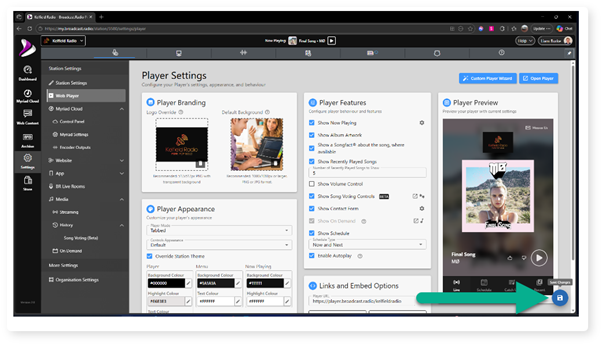
4. Locate the Player Branding section.
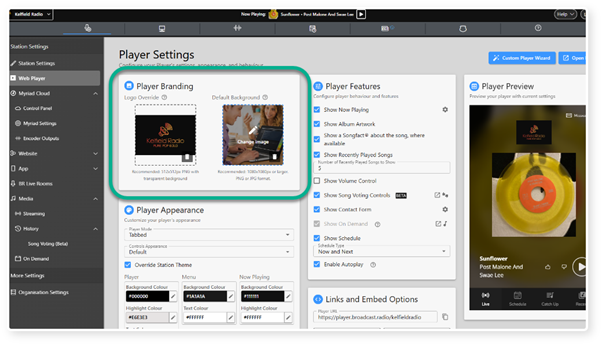
5. Click on the Default Background image to select an existing image or upload a new one.
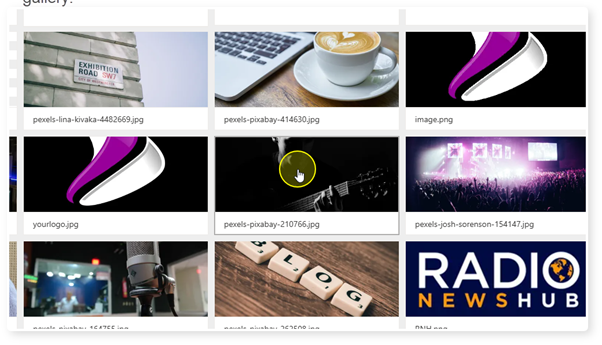
6. If you have already uploaded the image you want to use, select it from the gallery.
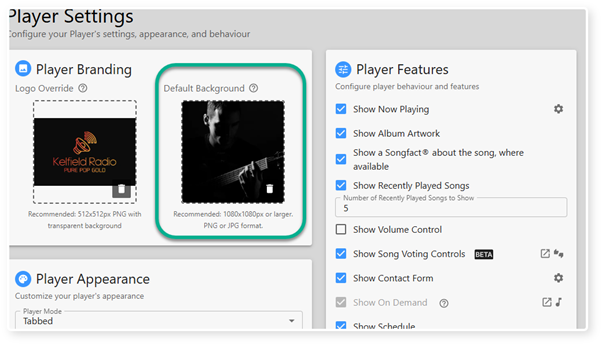
7. The preview will show your selected image.
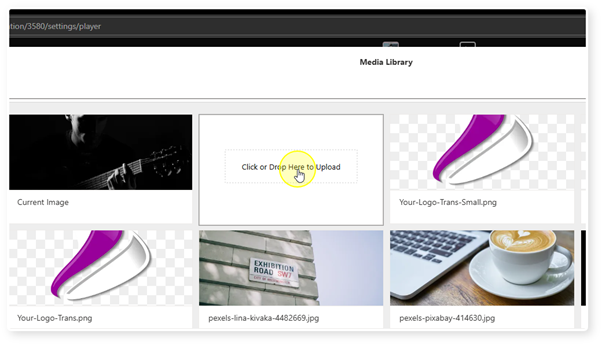
8. If you want to upload a new image, click on the Default Background to open the image gallery.
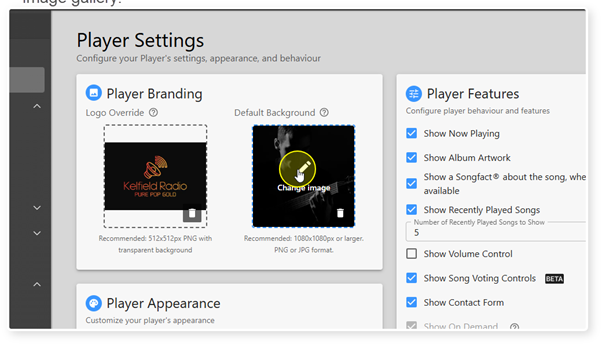
9. Click on the "Click or Drop Here to Upload" area.
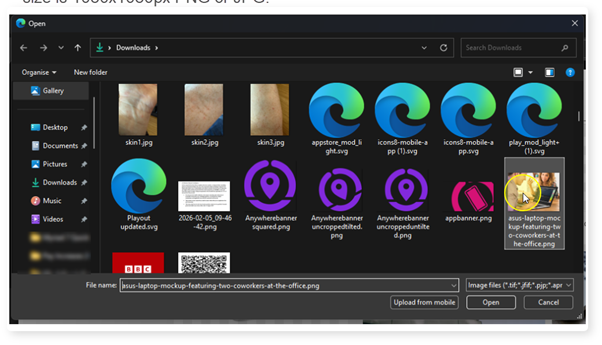
10. Browse and select the image file you want to upload. Recommended minimum size is 1080x1080px PNG or JPG.
11. Click on Save to save your changes.
Was this article helpful?
That’s Great!
Thank you for your feedback
Sorry! We couldn't be helpful
Thank you for your feedback
Feedback sent
We appreciate your effort and will try to fix the article