The BR Website CMS allows you to create Playlists that are automatically updated from Myriad Schedule.
As an example, you may have a Song Category for 'New This Week' in Myriad Schedule and a page on your B.R Website called Latest Music that will automatically show you a list of all the songs in the New This Week Category.
The Myriad Database Connections section shows information relating to the synchronisation between Myriad Schedule Categories and Playlists in the Website CMS.
Please note that this section is only relevant to B.R Website CMS customers.
- Login to your Broadcast.Radio portal.
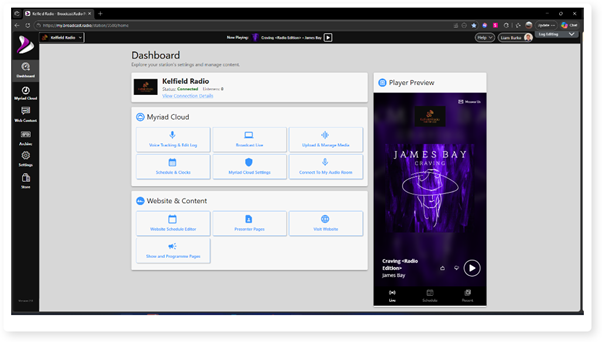
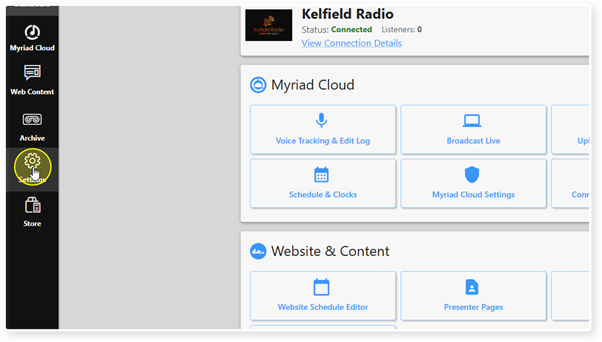
- Click on the Settings menu option.
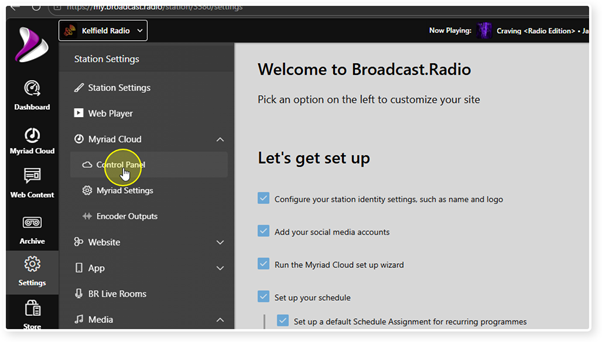
- Expand the Myriad / Myriad Cloud option and select Control Panel.
- Please note that Myriad Control Panel is available to on-premise Myriad Playout customers and Myriad Cloud customers.
Myriad Cloud customers will have additional options relating specifically to Myriad Cloud, but the Myriad Anywhere Connections section is the same for both Myriad Cloud and Myriad Playout customers.
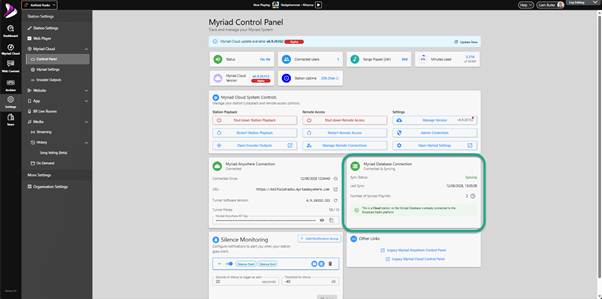
Myriad Cloud customer view.
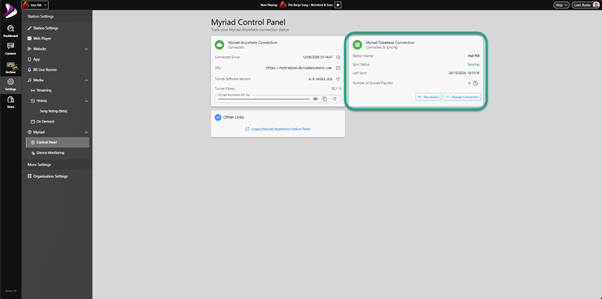 Myriad Playout (on-premise) customer view.
5. Locate the Myriad Database Connection section.
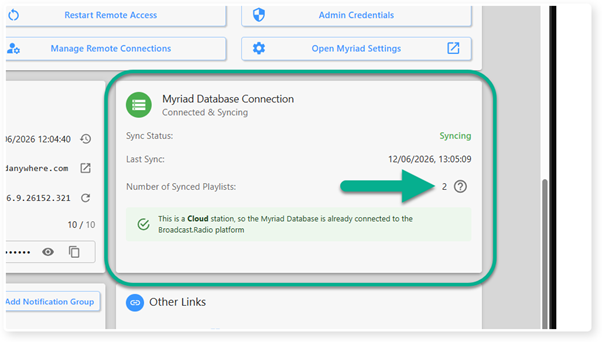
Sync Status - The Sync Status field in the Myriad Database Connections section, displays the current status of any synchronisation processes setup to synchronise Song Categories in Myriad Schedule with Playlists which can be displayed in the optional Broadcast.Radio Website CMS platform.
Last Sync - This field shows the date and time of the last successful synchronisation.
Number of Synced Playlists - This field shows the number of Song Categories / Playlists synced between Myriad Schedule and your B.R Website CMS. You can click on the ‘?’ button to the right to manage the Playlists within your B.R Website CMS.
Was this article helpful?
That’s Great!
Thank you for your feedback
Sorry! We couldn't be helpful
Thank you for your feedback
Feedback sent
We appreciate your effort and will try to fix the article