In addition to sending an email alert (either directly or via Broadcast.Radio), you can also add additional actions that can be triggered at the Silence Start and Silence End events. These include sending a HTTP/Webhook, trigging a state change in the Broadcast Radio Hardware Service or running a third party application with a specific command line switch.
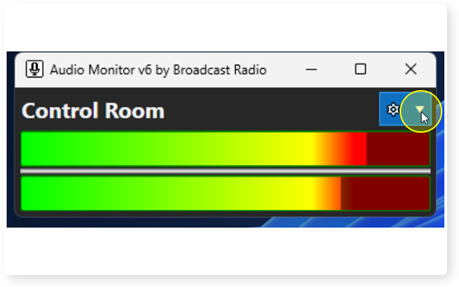
1. Click on the Cog drop down to access the menu options.
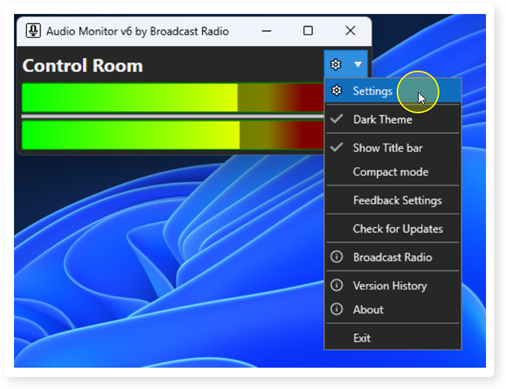
2. Select the Settings option.
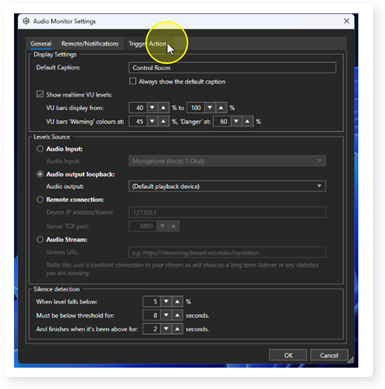
3. Switch to the Trigger Action tab.
4. To send a Webhook / URL when the Silence starts, type or paste the URL into the Webhook/Notification URL field.
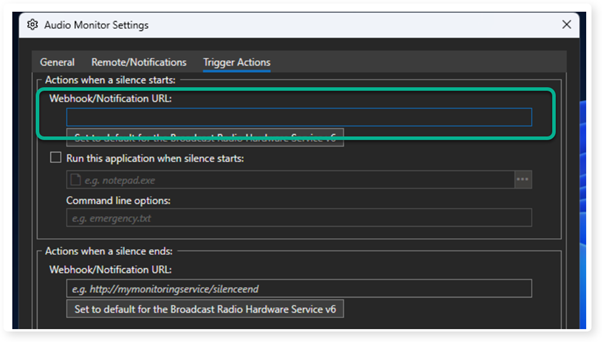
5. If you want the Trigger Action to change the state of a Hardware Line in the Broadcast Radio Hardware Service, click on the 'Set to default for the BR Hardware Service' button.
This will populate the Webhook field with the URL needed to change the state of a Hardware Line.
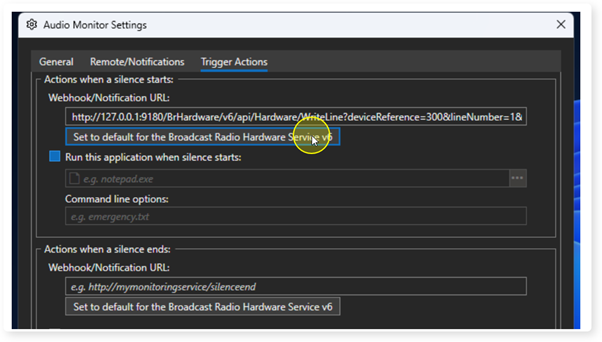
6. The default URL is:
http://127.0.0.1:9180/BrHardware/v6/api/Hardware/WriteLine?deviceReference=300&lineNumber=1&lineState=Set
A - IP address and port for the PC running the BR Hardware Service.
B - Device ID to target.
C - Hardware Line to affect.
D - State to set (Set / Clear etc)

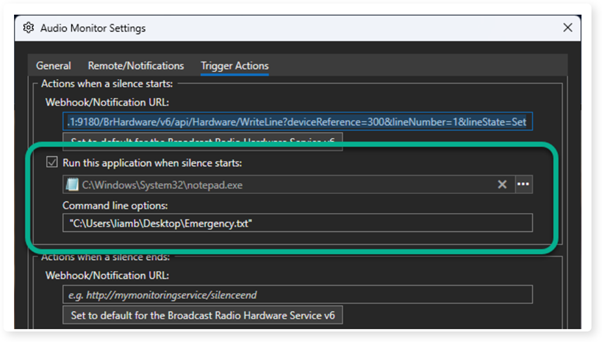
7. You can also run an application with an optional 'command line' switch at a Silence Start event.
For example, you could open a text file using Notepad to show the engineers number when a Silence Start event is triggered.
Tick the 'Run this application when silence starts' option, add the location of the application you want to run (ie Notepad.exe) and the command line option to attached to the application (in this example, the location of the text file we want to display).
When a Silence Start event is triggered, Notepad will open with the Emergency .Txt file displayed.
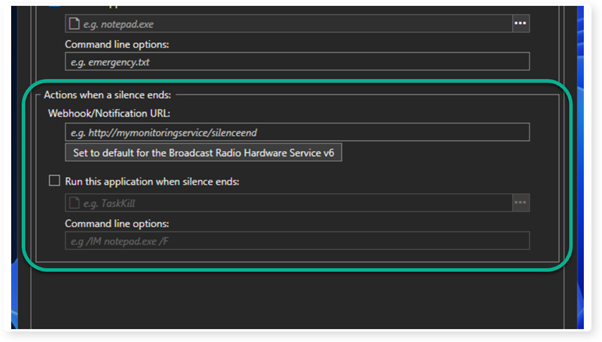
8. You can also set the same Trigger Action options to trigger on a Silence End event.
For example, if you set a Hardware Line at the start of the silence, you will want to clear the Hardware Line at the end of the silence.
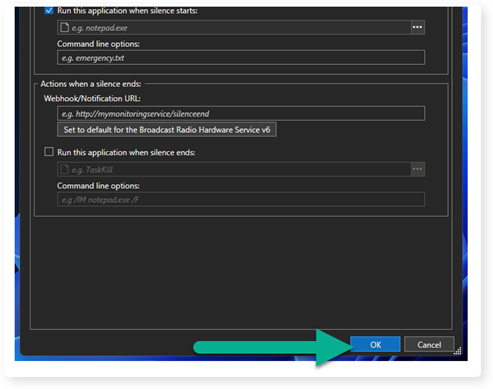
9. When you have finished with the Trigger Action settings, click the OK button to save and close the window.
Was this article helpful?
That’s Great!
Thank you for your feedback
Sorry! We couldn't be helpful
Thank you for your feedback
Feedback sent
We appreciate your effort and will try to fix the article