Once a Silence Alert is triggered, you can configure the Audio Monitor to let you know directly via email, or for customers with one or more Broadcast.Radio services, you can ask Broadcast.Radio to send a notification via email, Pushover or HTTP message.
1. Once a Silence Alert is triggered, you can configure your Audio Monitor software to send an alert directly via email or by a range of additional methods via your Broadcast.Radio portal.
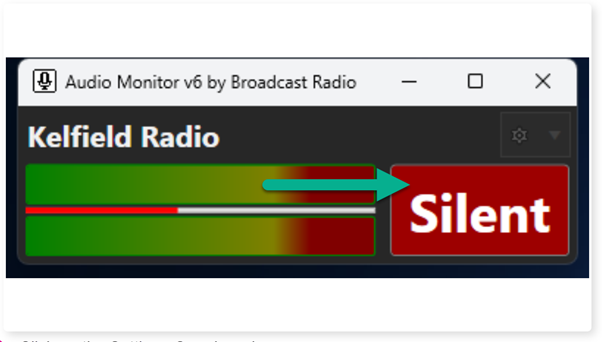
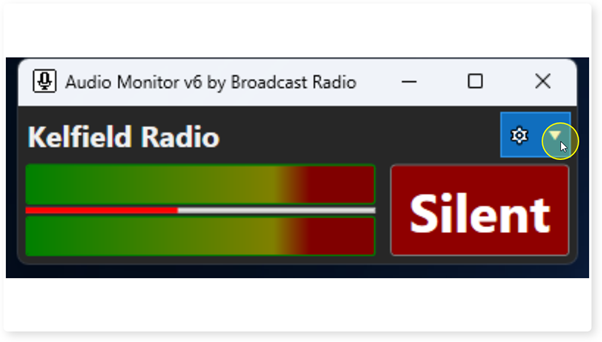
2. Click on the Settings Cog drop down menu.
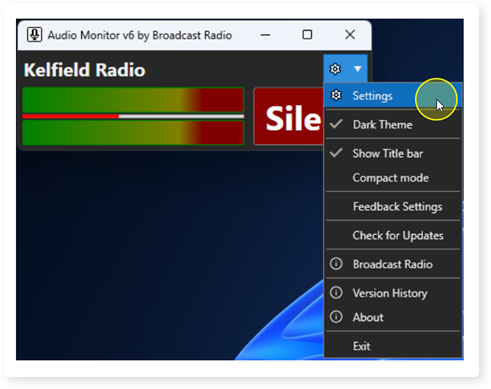
3. Select the Settings Option.
4. Switch the the Remote/Notifications Tab.
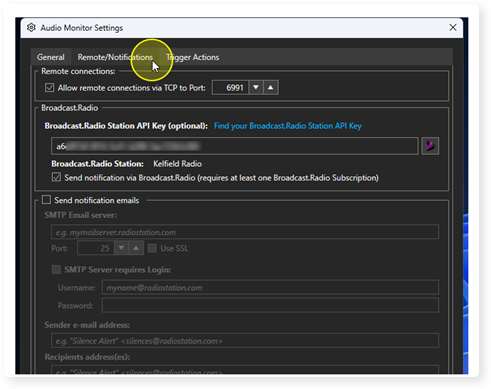
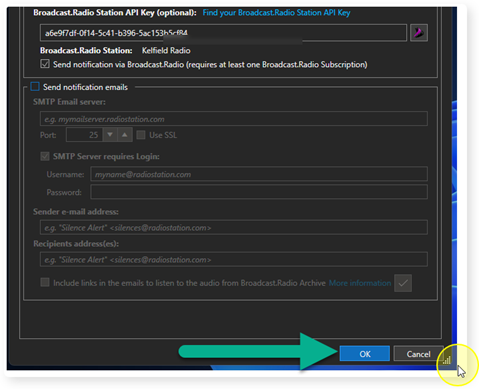
5. If you want the Broadcast.Radio portal to send a notification to your Notifcation Groups, paste in your Broadcast.Radio API key into the Broadcast.Radio Station API Key field and tick the 'Send notification via Broadcast.Radio' option.
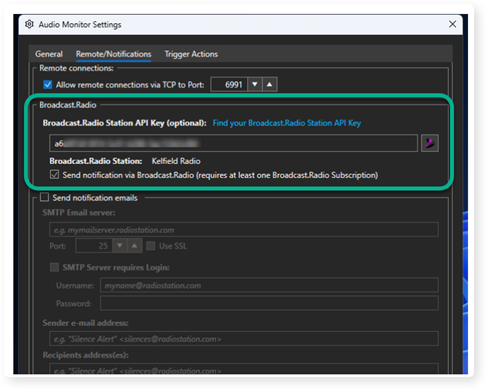
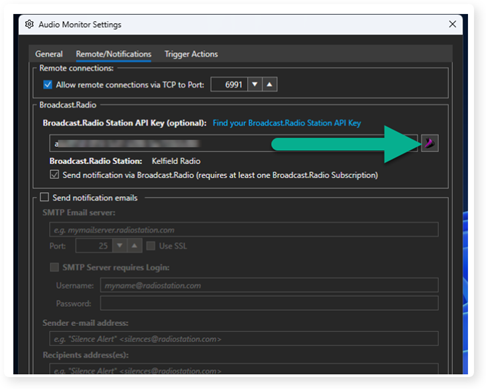
6. You will need to setup the Notification Groups in Broadcast.Radio. You can click on the B.R Portal button to the right of the API key to go directly to the Silence Monitoring page in your B.R portal.
See Myriad Control Panel - Silence Monitoring - Setting Up Silence Alerts (Myriad On Premise / Audio Monitor Users) for more details.
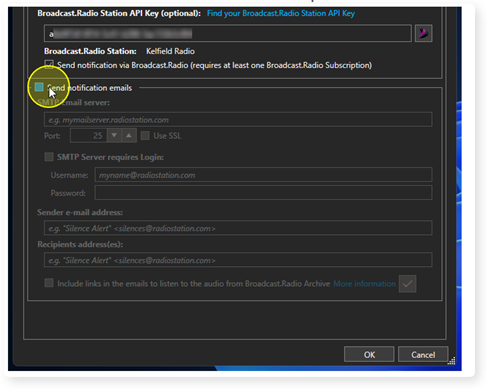
7. Alternatively, you can configure the Audio Monitor to send emails directly by adding Email Server details. Please note that many common services no longer allow this type of connection on their non-premium accounts.
Tick the Send Notification Emails option to enable.
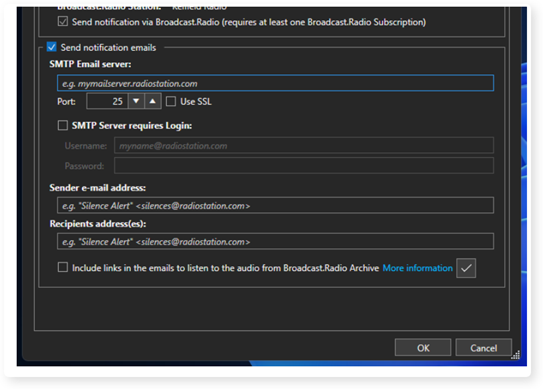
8. Add in the email server details:
SMTP Server - Name / IP Address / URL of mail server.
Port - The specific Port number to use.
Use SSL - Toggles whether to use SSL encryption.
Username / Password - Add your login credentials.
Sender Email - Sets the sender email address for the notification.
Recipients Email - One or more email addresses (separated by ;) to receive the alerts.
Include Links to BR Archive - If you tick this option, the alert email will include a link to BR Archive for the approximate time of the silence. Only available to BR Archive customers.
9. Click on OK to save the Settings and close the Settings Window.
Was this article helpful?
That’s Great!
Thank you for your feedback
Sorry! We couldn't be helpful
Thank you for your feedback
Feedback sent
We appreciate your effort and will try to fix the article