Myriad Cloud customers can setup automated silence monitoring and alerts that can notify you by email, pushover notification or send an HTTP message to a 3rd party platform.
You can configure the audio level you consider 'silent' and the duration of silence to allow before an alert is raised. Once triggered, the notification will be sent to all the configured Notification Groups using the selected communication methods.
Silence Monitoring is built into the core Myriad Cloud audio engine.
1. Login to your Broadcast.Radio portal.
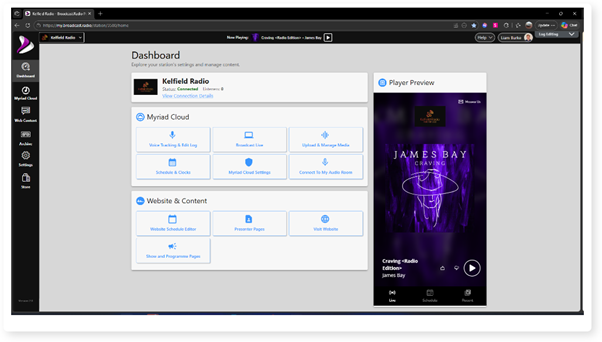
2. Click on the Settings menu option.
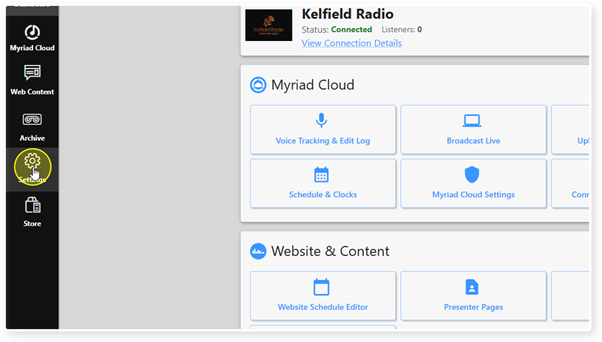
3. Expand the Myriad / Myriad Cloud option and select Control Panel.
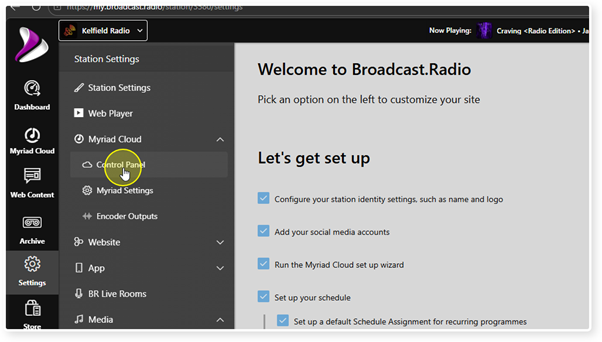
You can also access these settings directly using the Silence Monitor option on the main menu.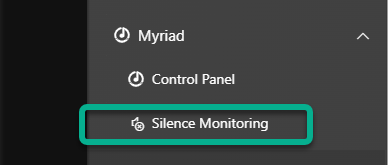
4. Scroll down to the Silence Monitoring section.
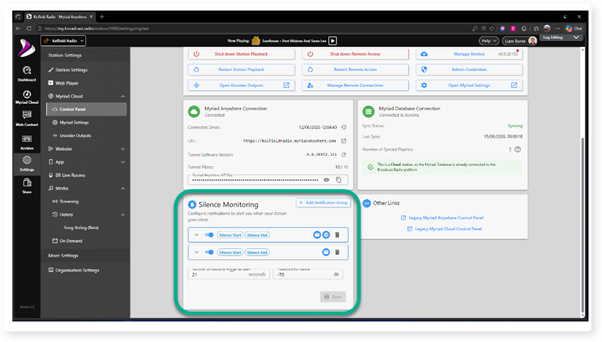
5. Firstly, set the trigger duration in seconds. This is the length of time audio is below the threshold level before an alert is triggered.
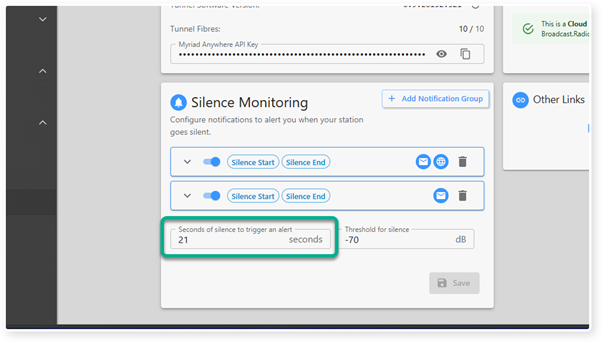
6. Set the audio threshold in dB below which you consider the audio silent.
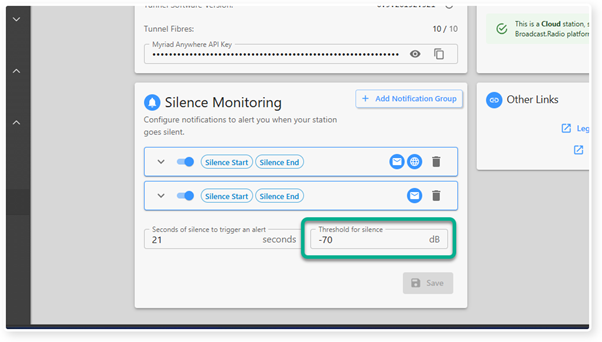
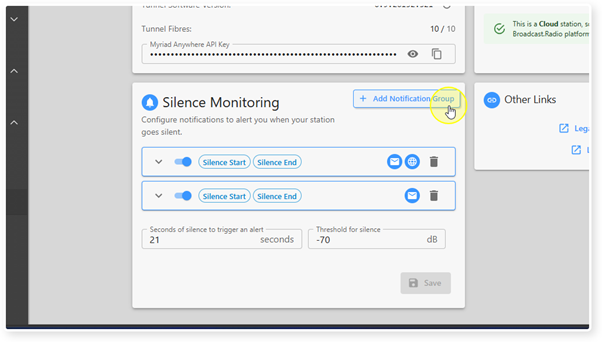
7. You can see a list of existing Notification Groups all of which will be notified whenever their criteria is matched.
You can view and adjust the settings in each Notification group by clicking on the drop down expansion arrow.
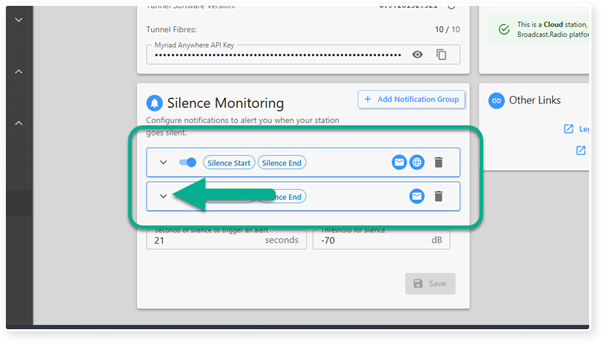
8. To add a new Notification Group, click on the Add Notification Group button.
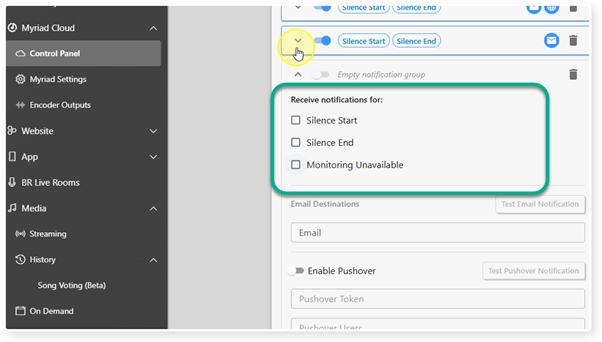
9. Select the types of notifications the group should receive. The options are:
Silence Start - Message sent when audio drops below the threshold level for the trigger duration (below 40dB for 10 seconds for example).
Silence Ends - Message sent when audio level exceeds the threshold following a Silence Start event.
Monitoring Unavailable - Message sent if the Silence Monitoring service is not running.
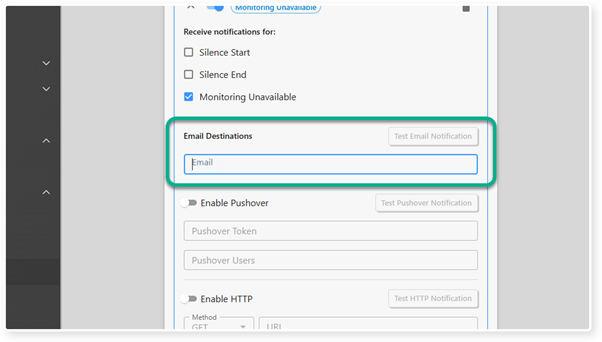
10. To setup an email notification, add in a valid email address.
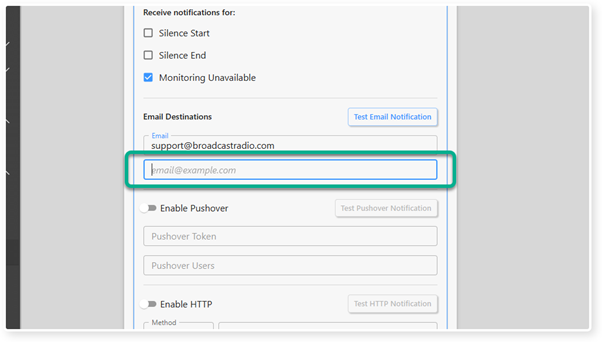
11. You can add a second email address if required.
You cam also test the email notification using the Test Email Notification button.
12. To setup Pushover notifications, toggle the Pushover Notifications option on and in your Pushover Token and Users you wish to be notified.
You can test the setup using the Test Pushover Notification button.
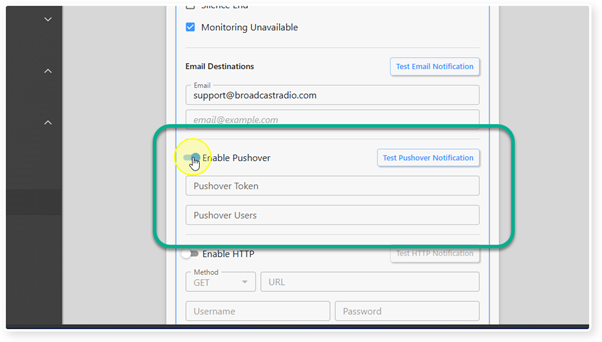
13. You can also using the Notification Group to trigger an HTTP message which is commonly used to interact with 3rd party applications and platforms.
Enable the HTTP Notifications section and select the Method (GET, POST, PUT, PATCH, DELETE) and the URL string to post to.
You can also set a Username and Password for authentication.
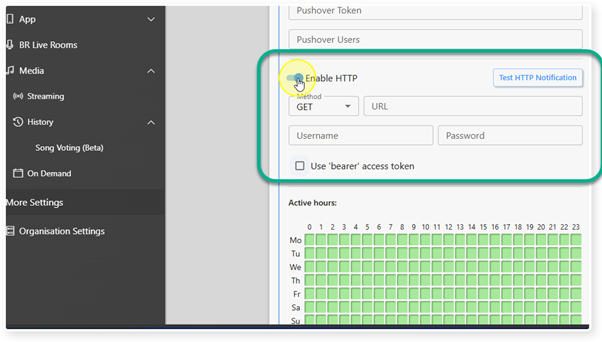
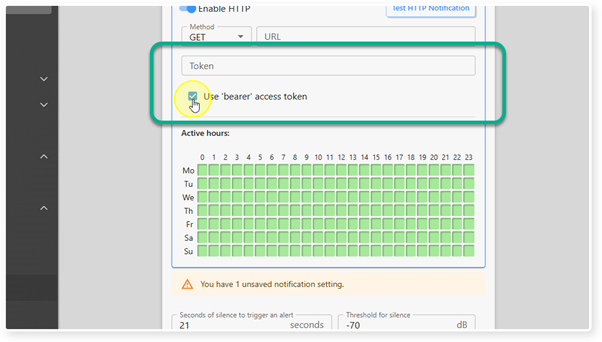
14. Some 3rd party platforms use a 'bearer' Access Token instead of a Username and Password.
In this case, tick the Use Bearer Access Token option and add the token to the Token field.
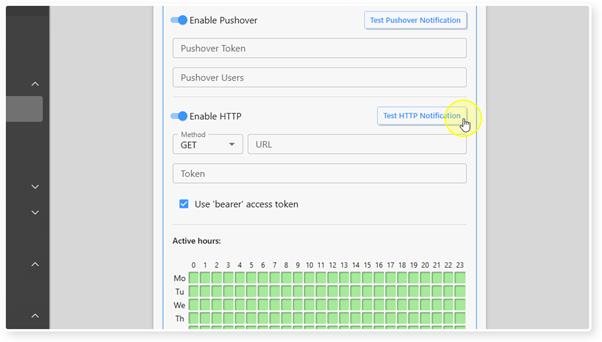
15. You can test the HTTP notification using the Test HTTP Notification button.
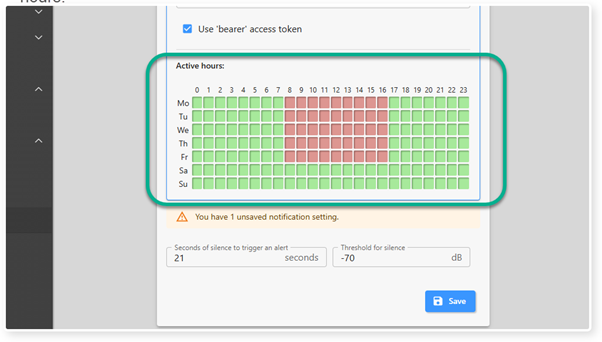
16. Notification Groups also allow you to set the hours of the week that they are active.
You can use the Active Hour grid to select the hours in which alerts will be sent. In the example below, no alerts will be sent from 8am to 5pm. Use your mouse to toggle between green (alert active) and red (alert disabled) for one or more hours.
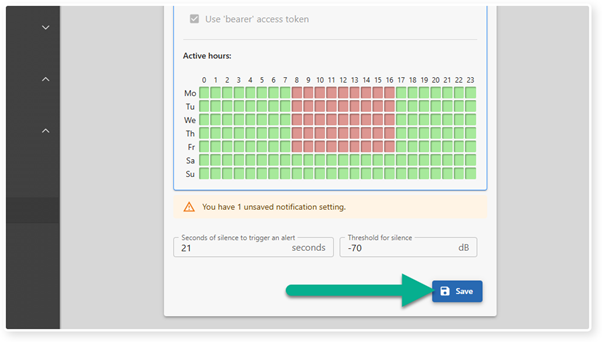
17. When you have configured your Notification Group, click on the Save button.
Was this article helpful?
That’s Great!
Thank you for your feedback
Sorry! We couldn't be helpful
Thank you for your feedback
Feedback sent
We appreciate your effort and will try to fix the article